Install cloud control
- Android, standalone iOS, and iOS USB share the same cloud control system — install steps are identical
Install
Requirements
- Linux (Ubuntu 18.04, CentOS, etc.); Windows also works
- MySQL 5.7
- Redis 4
- Supervisor process manager
- You can one-click install MySQL and Redis with BT Panel — the guide below uses BT Panel
Install MySQL, Nginx, Redis
-
- Open BT Panel; if prompted, choose MySQL 5.7 and install
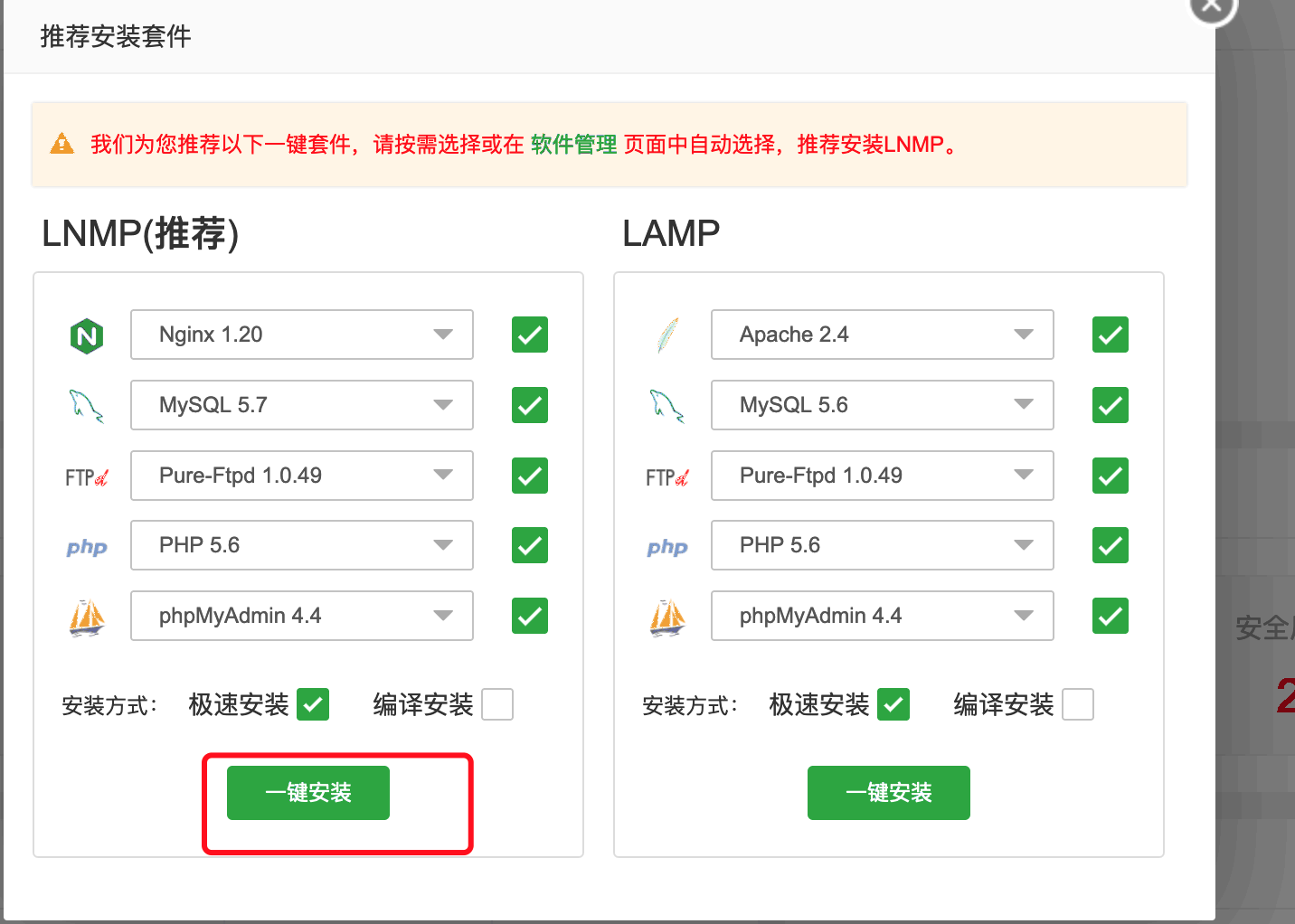
- Open BT Panel; if prompted, choose MySQL 5.7 and install
-
- Or open App Store and search for Nginx, MySQL, phpMyAdmin
-
- Install Redis from App Store
-
- Install Supervisor from App Store
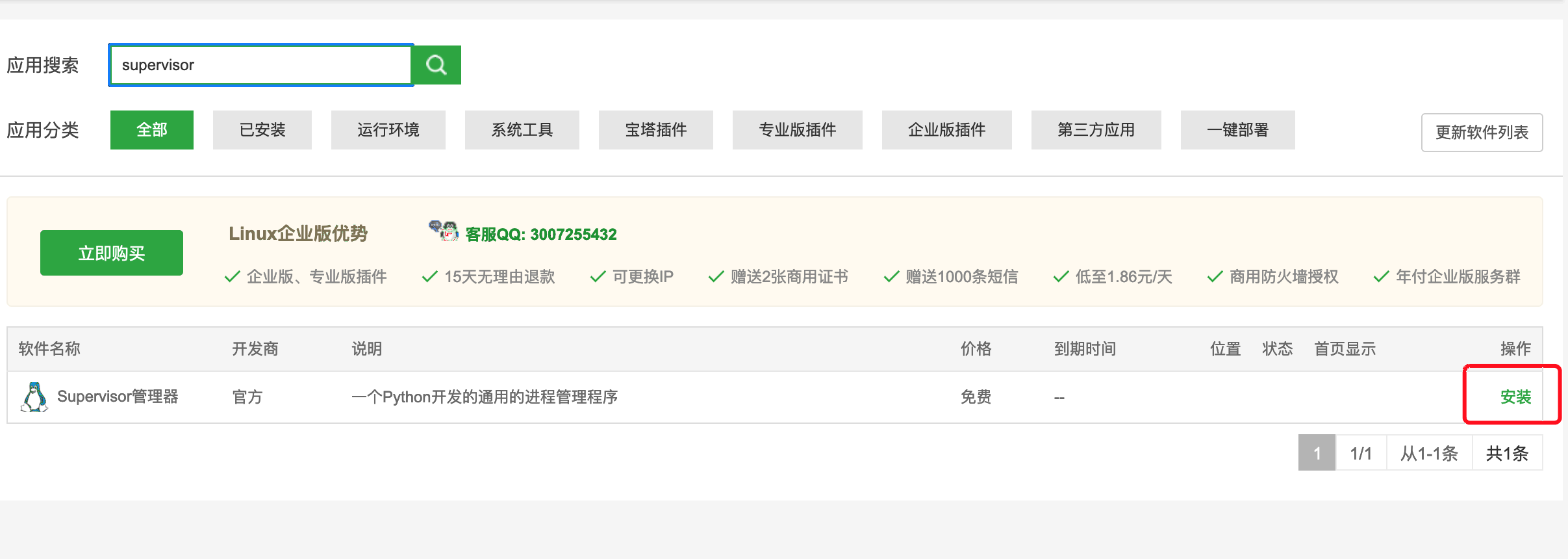
- Install Supervisor from App Store
-
After install, pin them to the home page
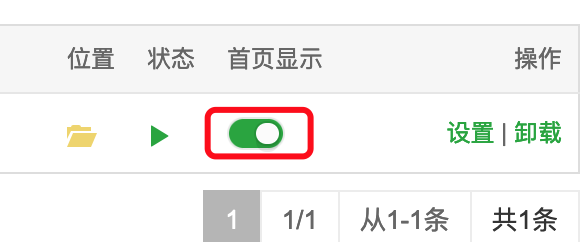
Download cloud control
-
- Download the zip starting with
ecloudfrom the group files or cloud drive
- Download the zip starting with
Upload cloud control
-
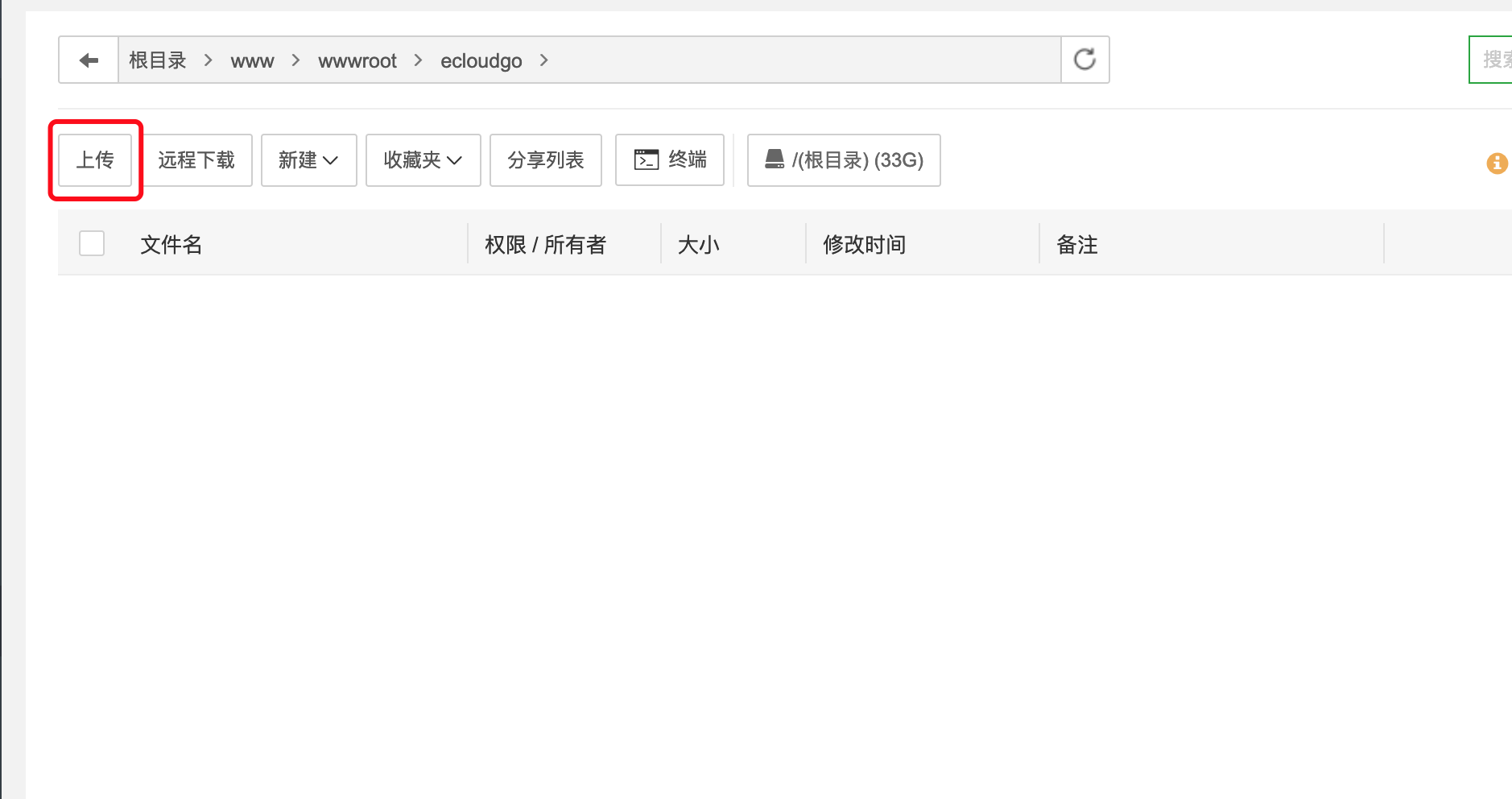
- In BT File Manager, create folder
ecloudgo
- In BT File Manager, create folder
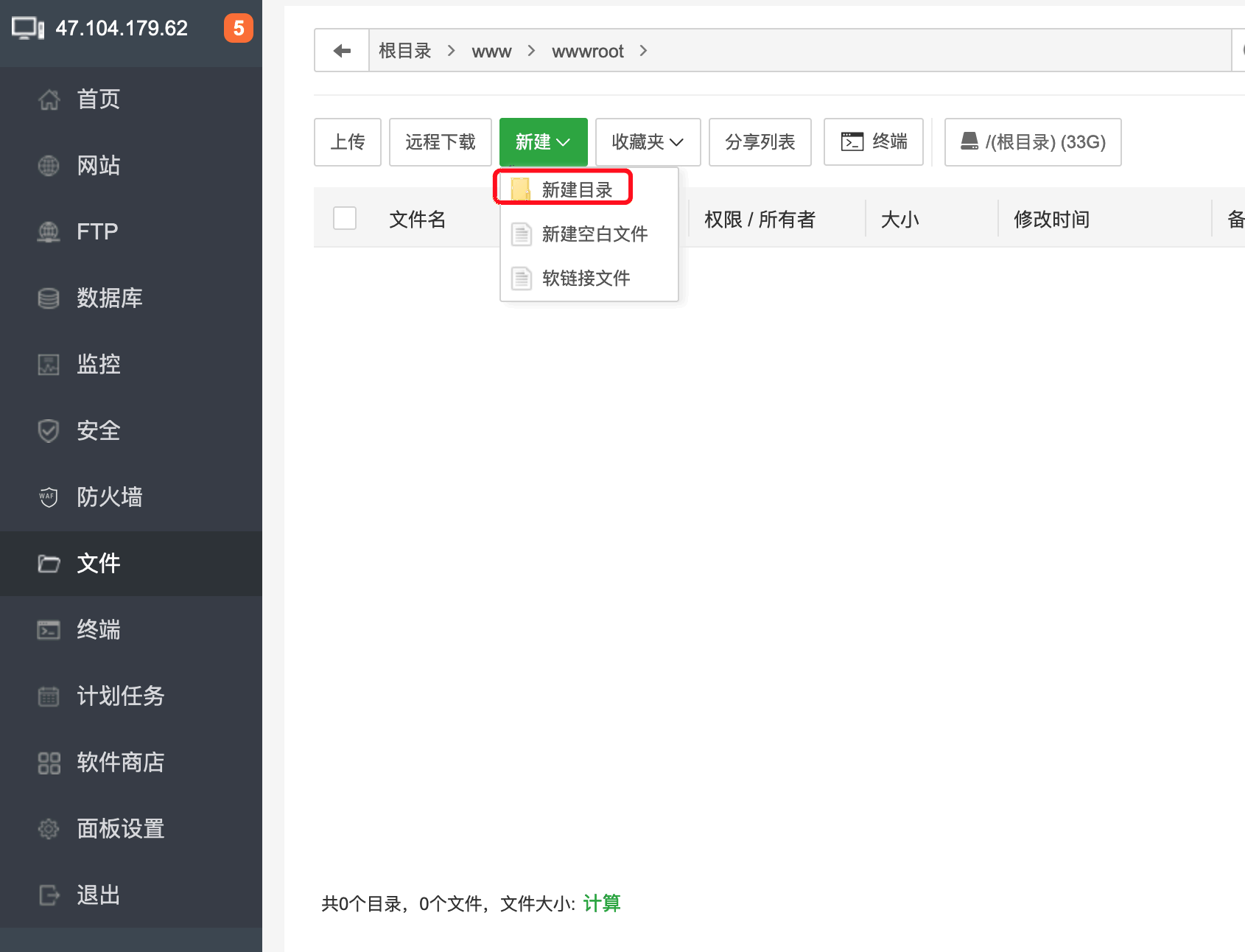
- Upload the zip via BT File Manager
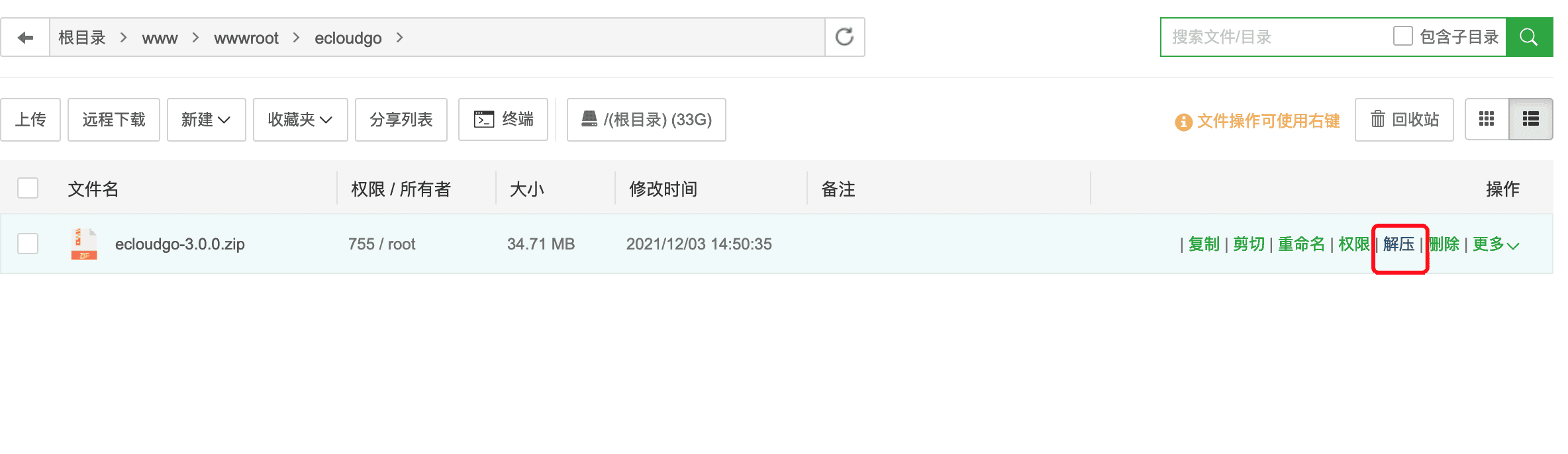
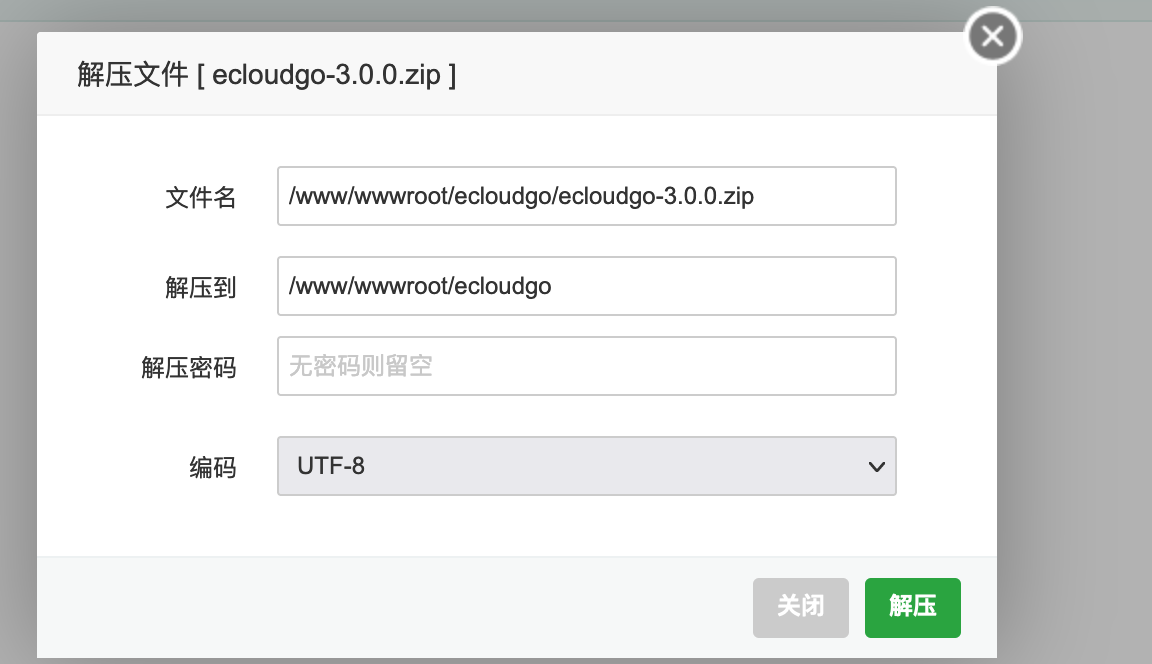
- Extract the binary
Create database
MySQL and Redis must be installed first! Orange zeros in the top-left of BT Panel mean install is done
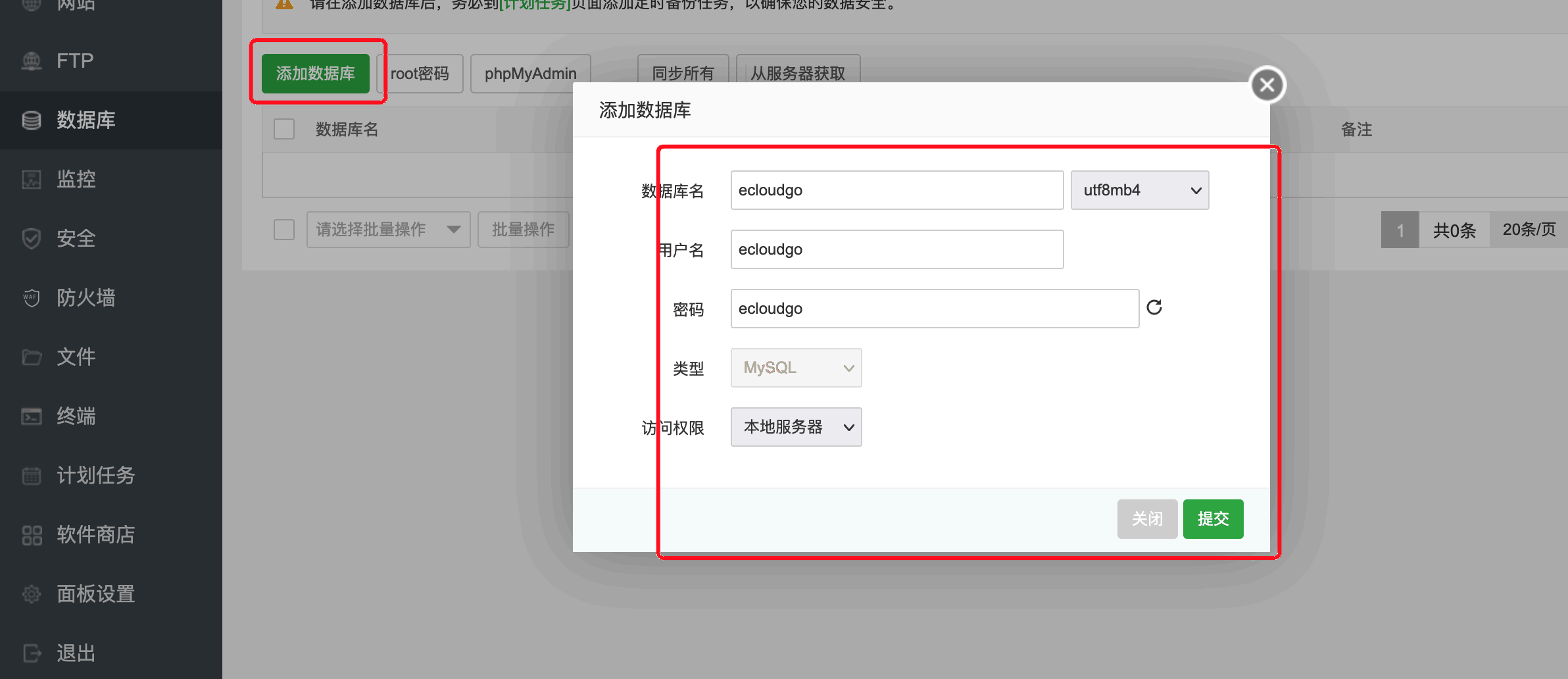
- Create a database instance with username, password, and database name all
ecloudgo
- Grant database privileges
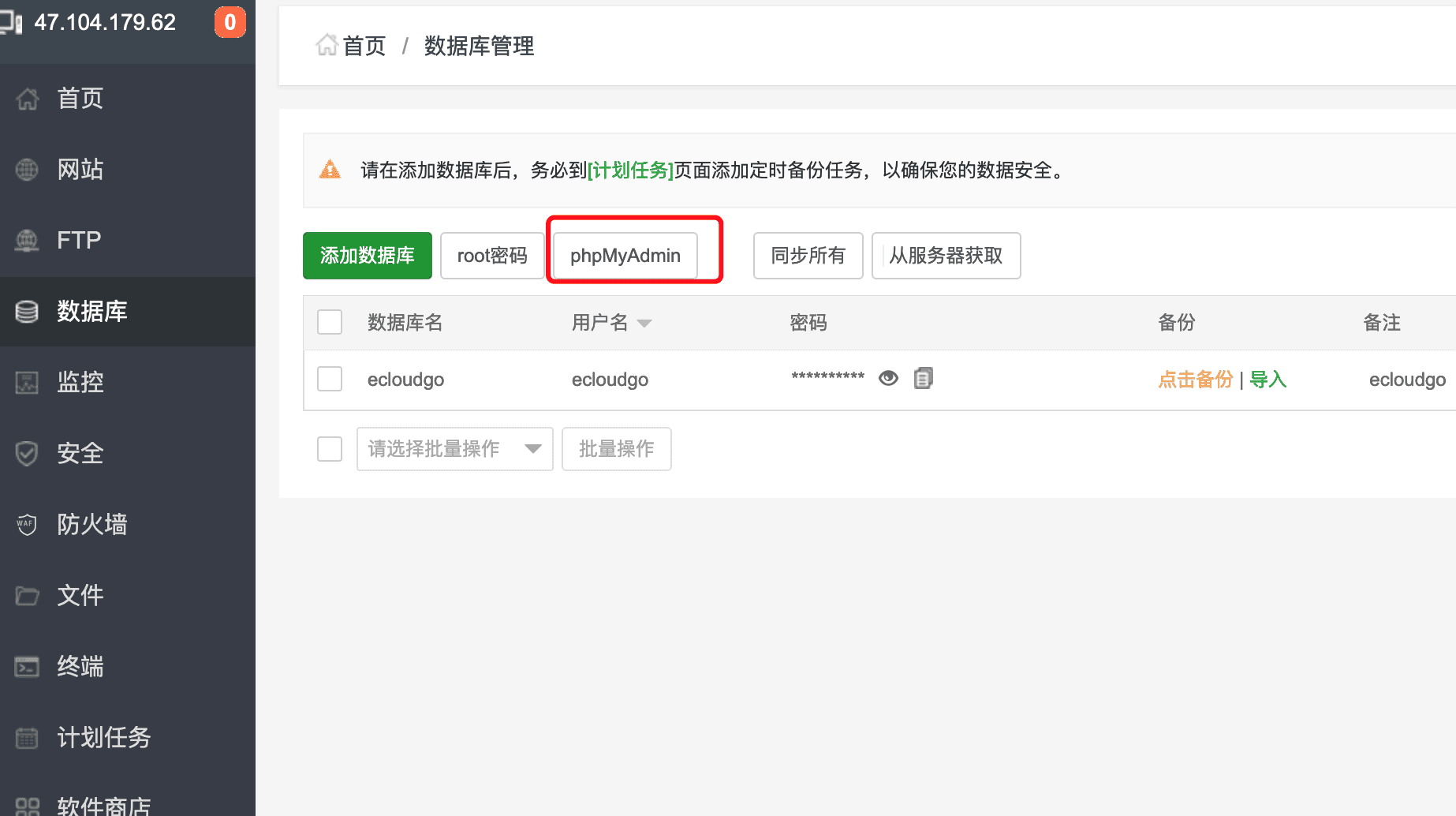
- Sign in to phpMyAdmin as root (phpMyAdmin button)
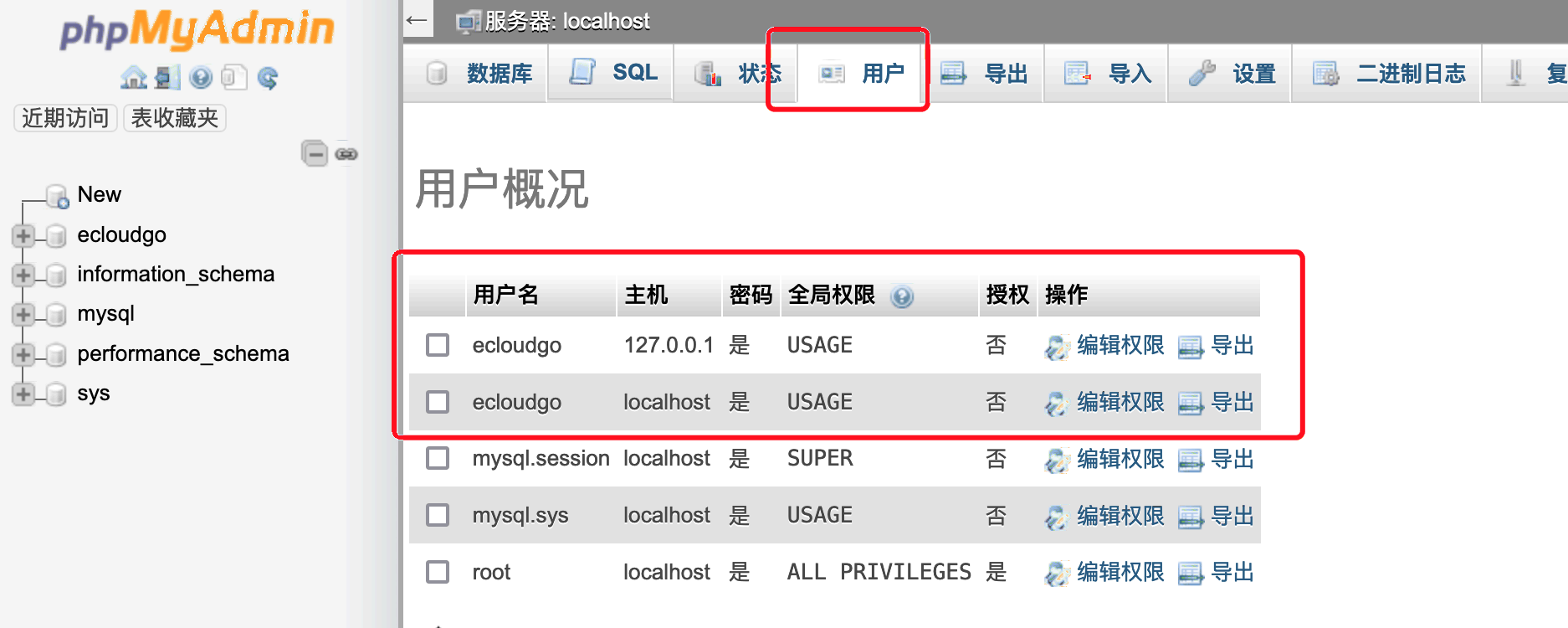
- Open the Users tab in phpMyAdmin
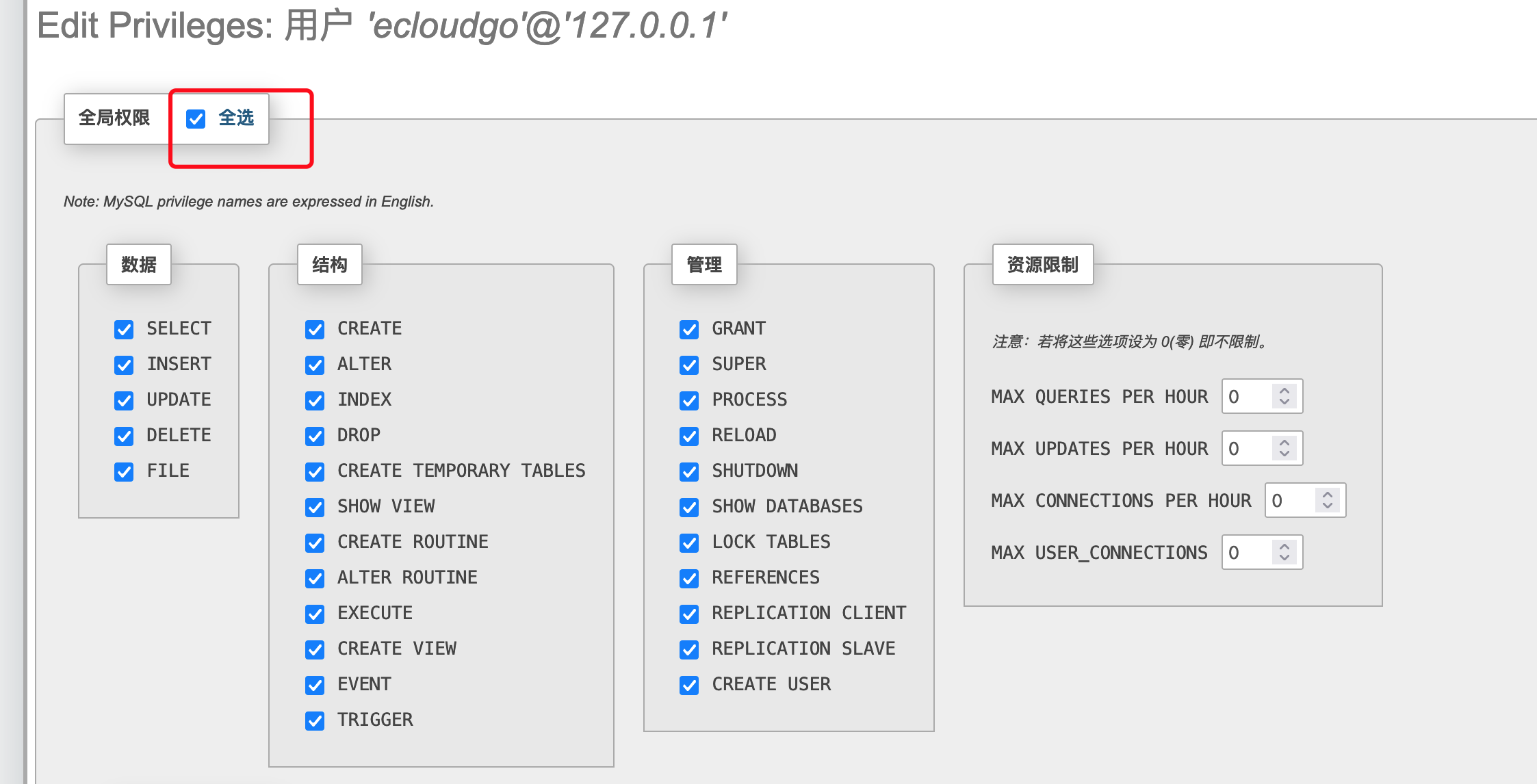
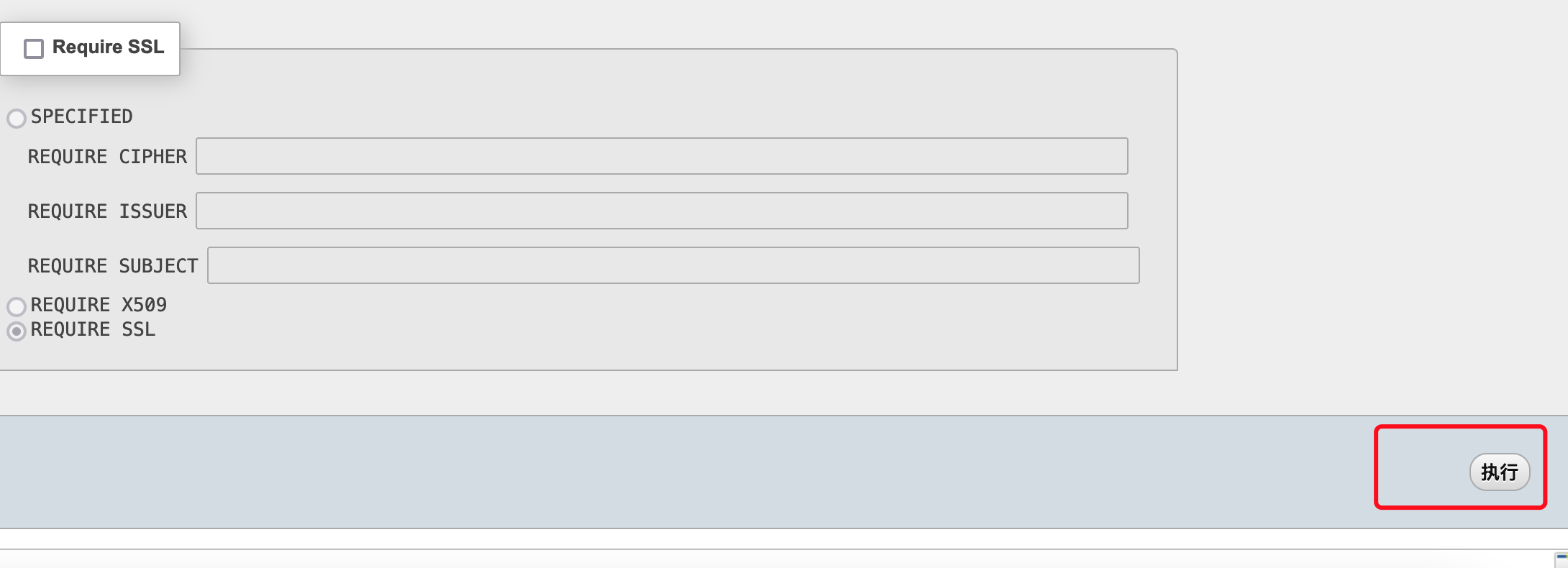
- Click Edit privileges in the red box, then Select all
- Click Go
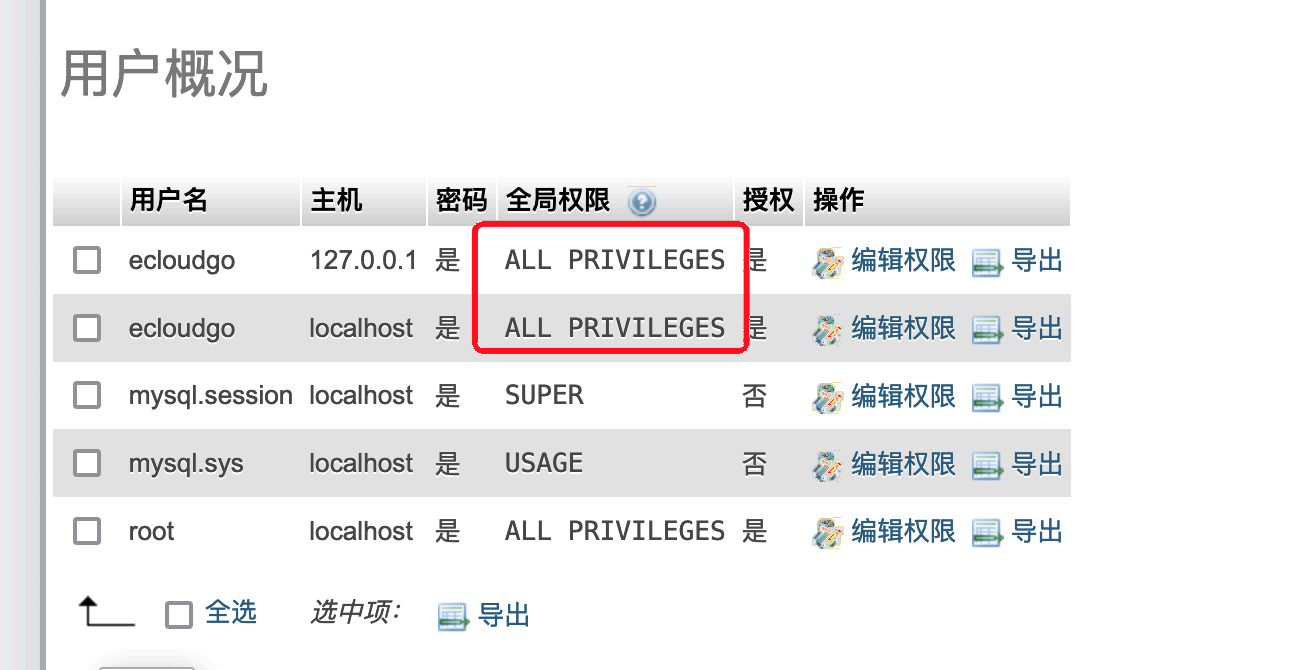
- When it looks like below, privileges are granted
Edit database config
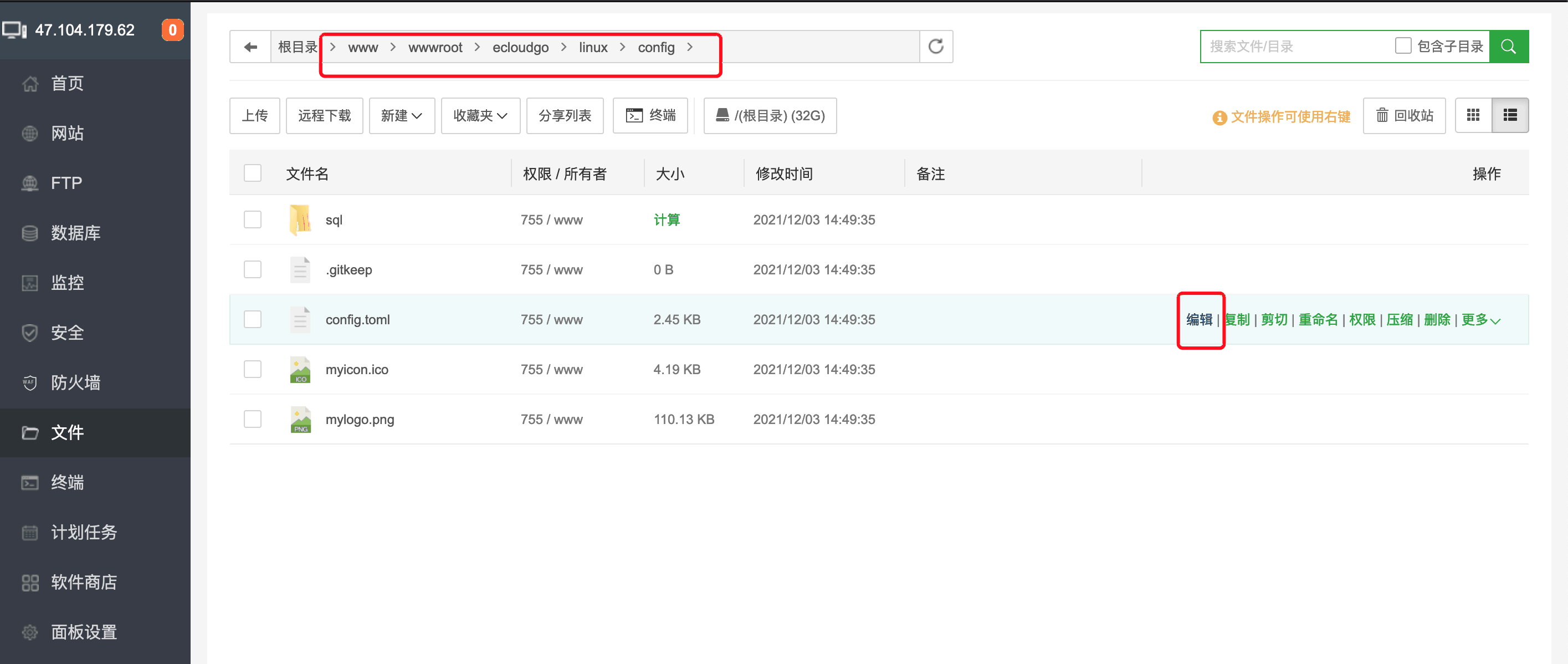
- In File Manager, edit
config.toml
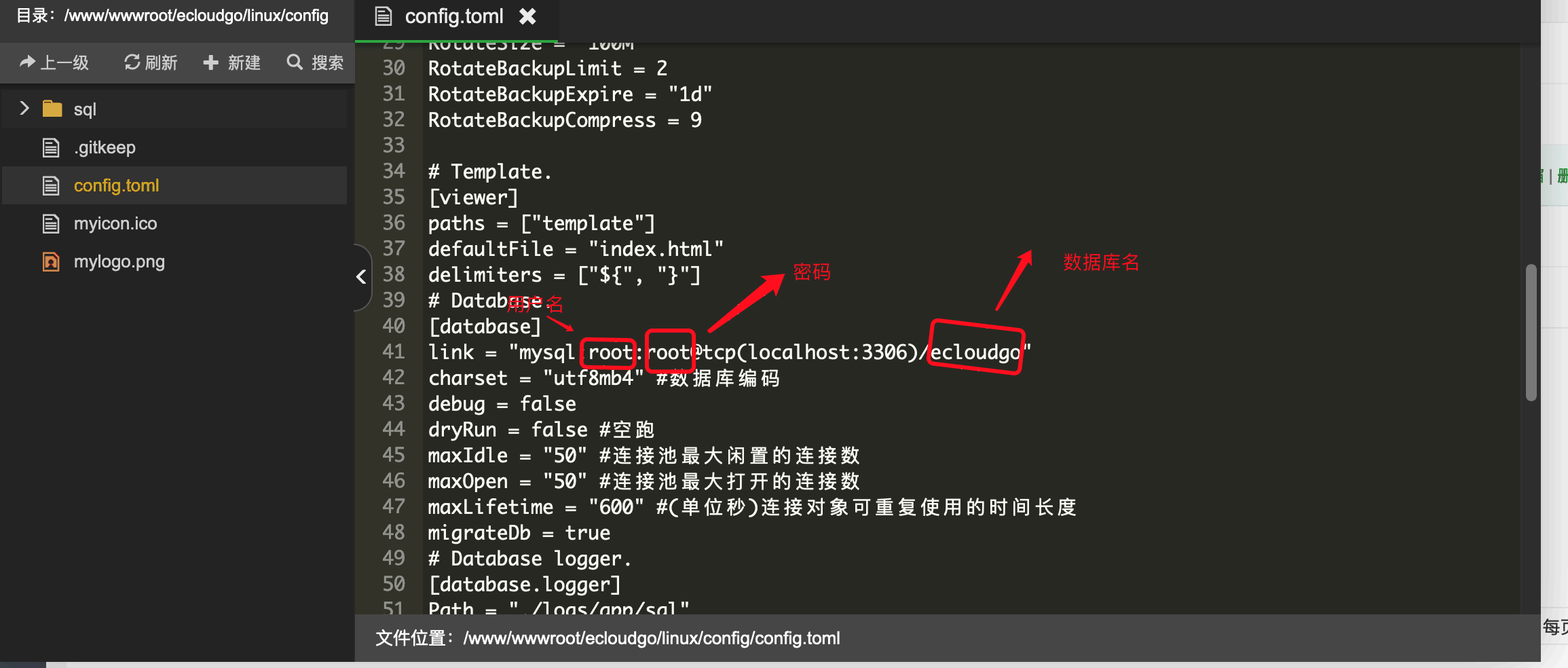
- Set the three options below to
ecloudgo
Configure process startup
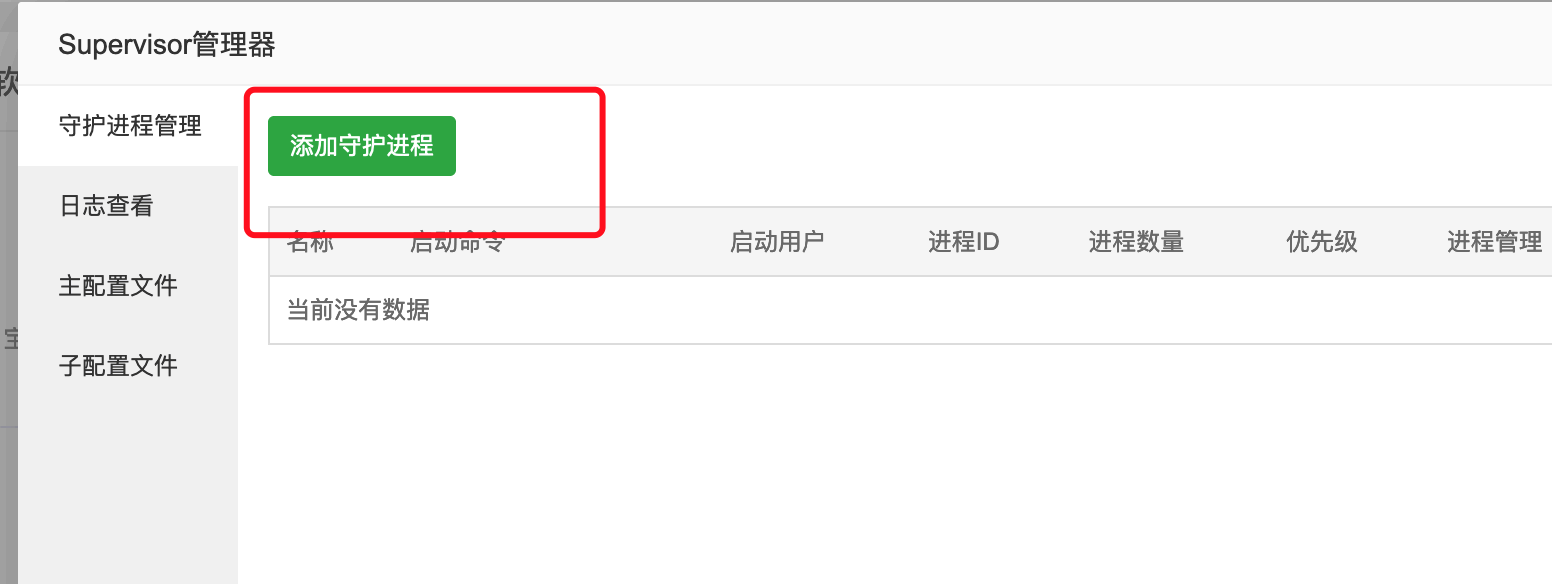
- On the home page, open Supervisor

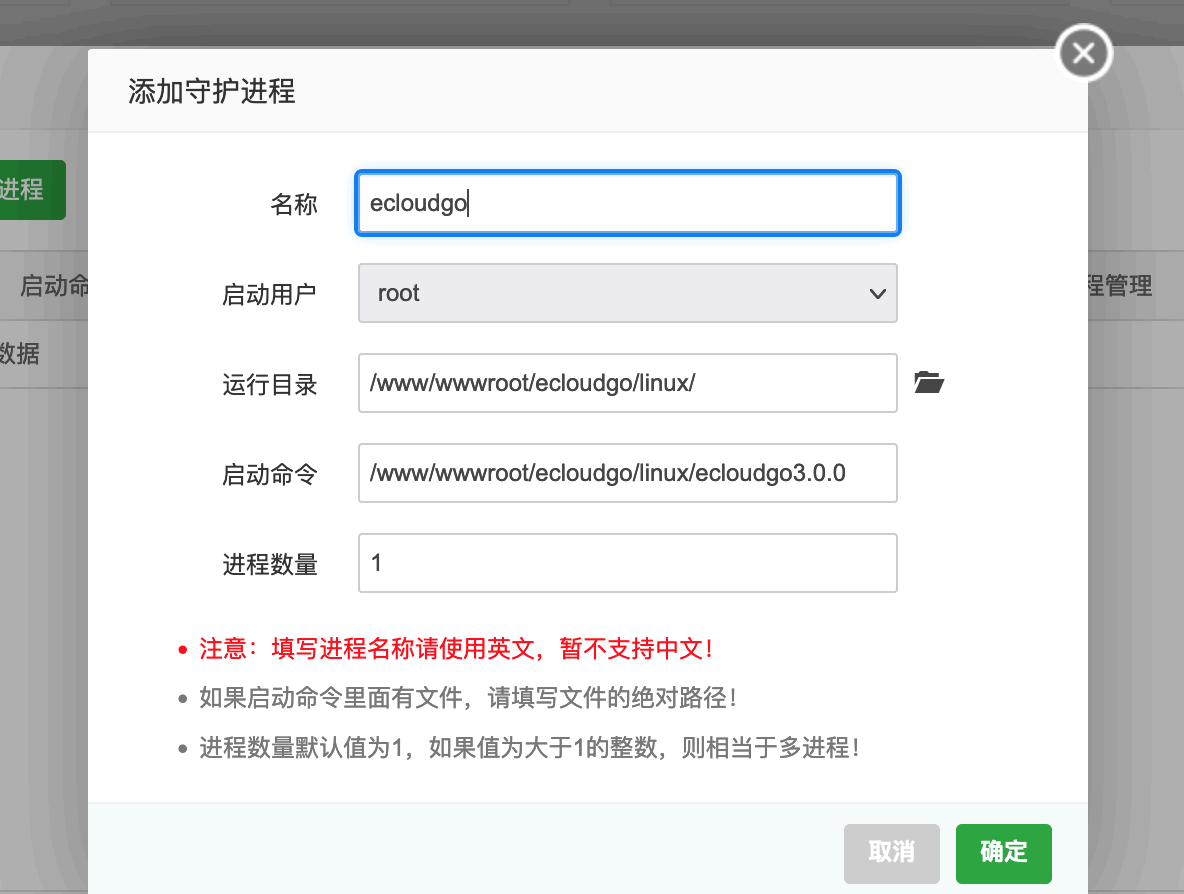
- Add a process daemon
- Choose the directory and executable
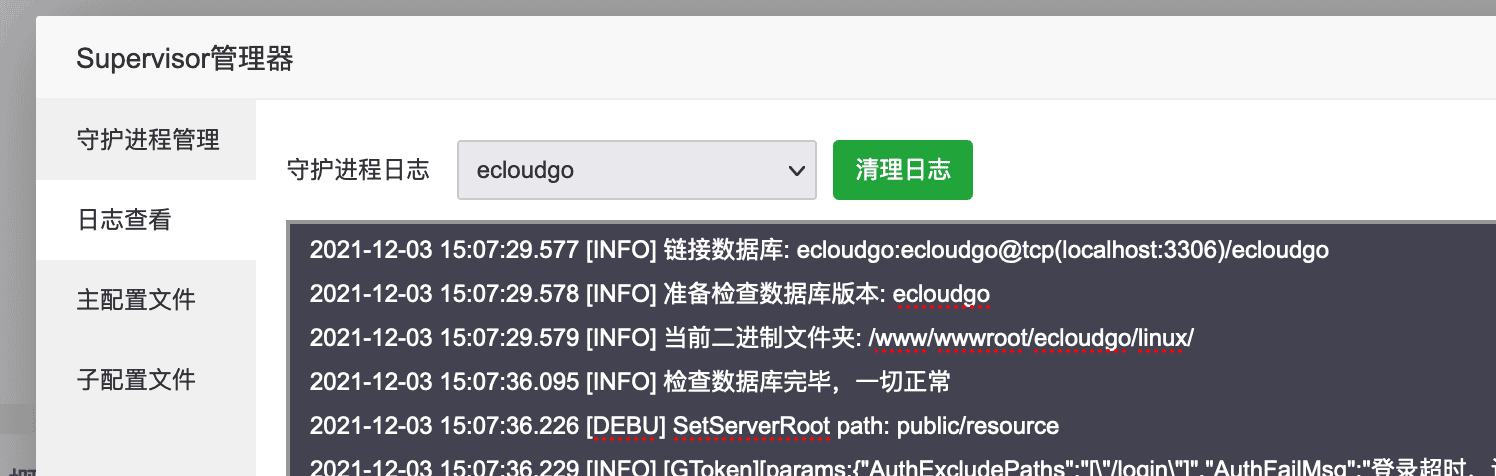
- Started successfully

- Check logs for success

Open firewall ports
-
New cloud control port is 8098
-
In BT Security, allow port 8098
-
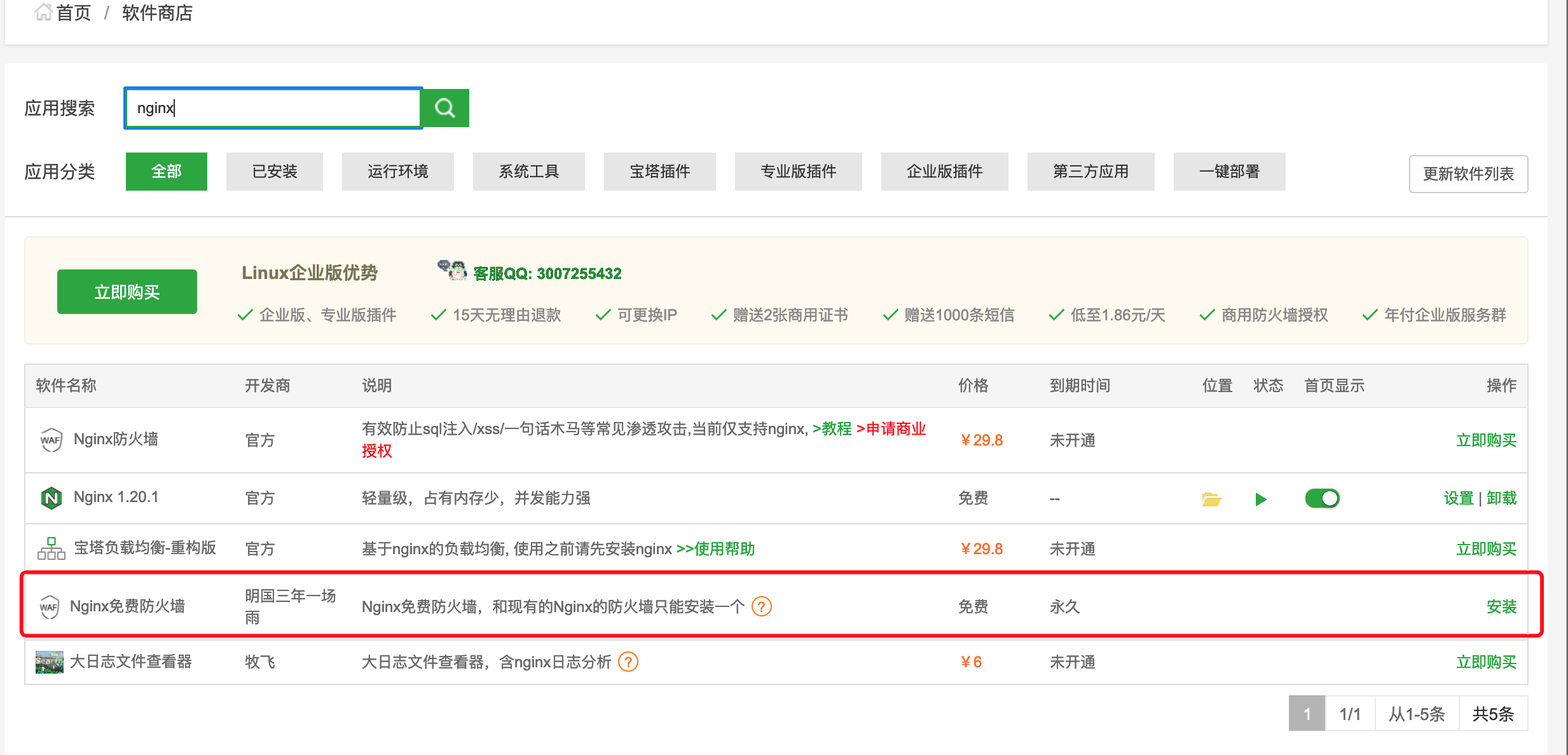
If prompted to upgrade Nginx firewall, install it from App Store

-
Alibaba Cloud security group: https://help.aliyun.com/document_detail/25471.html?spm=a2c6h.13066369.0.0.1eec1ecfVVJqw6&source=5176.11533457&userCode=28kqeewo&type=copy
-
Tencent Cloud: https://cloud.tencent.com/developer/article/1841261?from=15425
Open cloud control
- Browse to
your-ip:8098— default useradmin, passwordadmin123
Licensing
Site license
-
Cloud control is licensed by device count — contact your local reseller or QQ: 2557945562
-
Product serial is under Site config → Site license
APK connect & license
- With the debug APK, open Enterprise cloud settings, enter remote IP or domain, click Test link
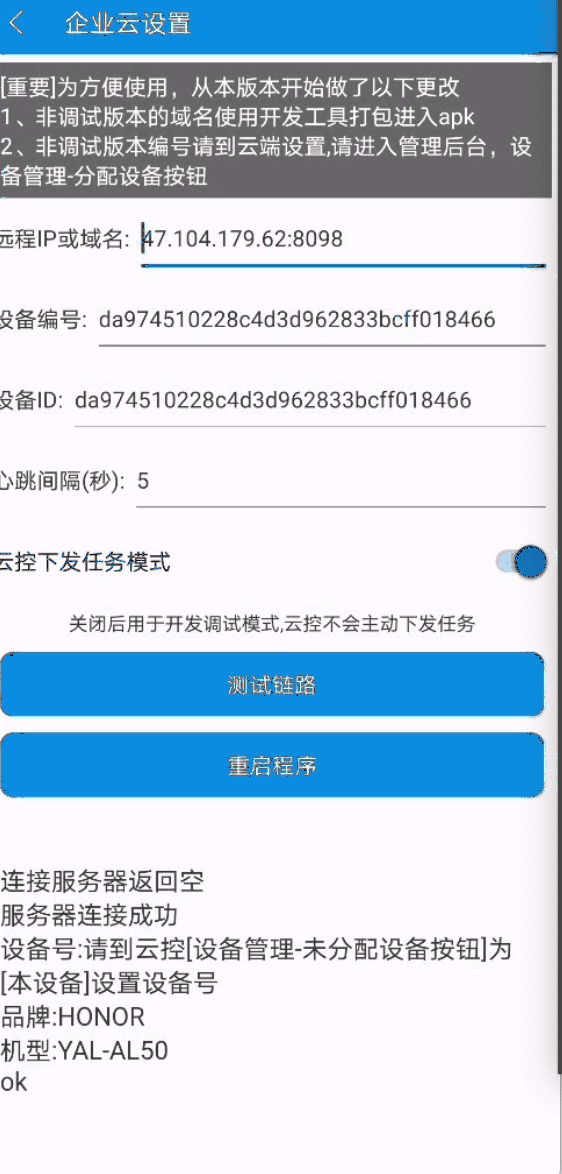
- When packaging with the IDE, you do not fill the domain in the APK UI
- You must enter the domain when packaging an enterprise build — see the cloud control domain chapter
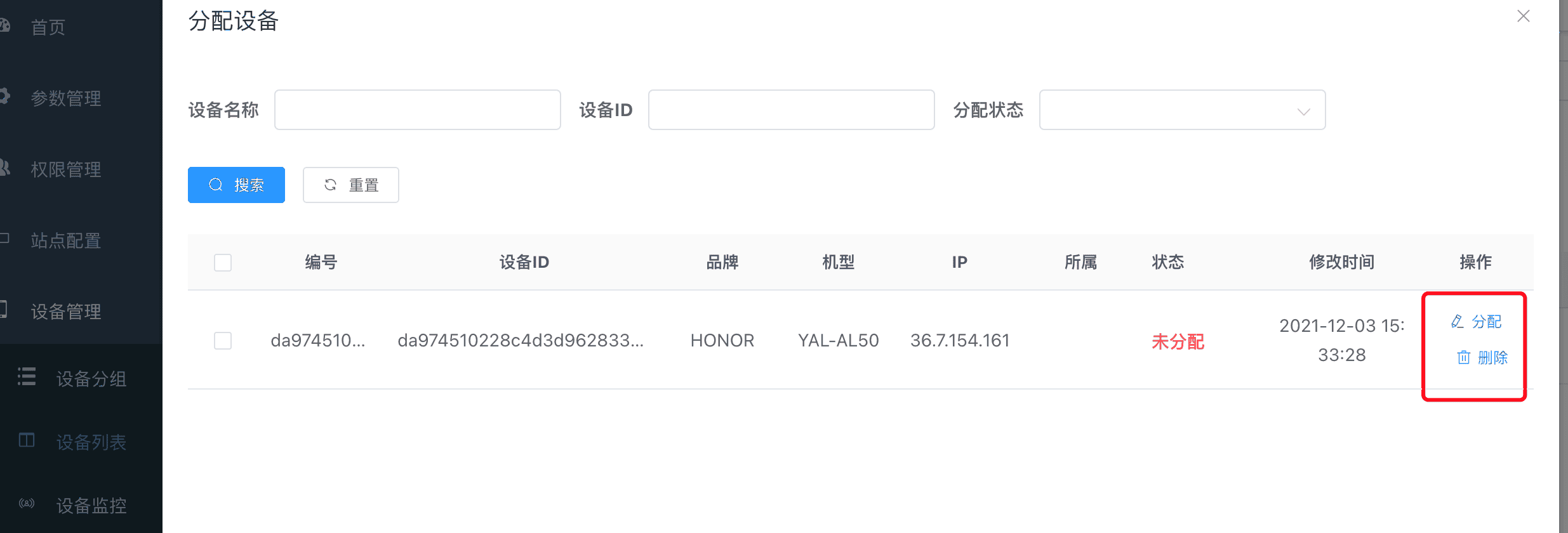
- Device license
- Device management → Device list → Unauthorized devices → Assign
Optimize & upgrade
Upgrade
-
Backup the database and files before upgrading!!!
-
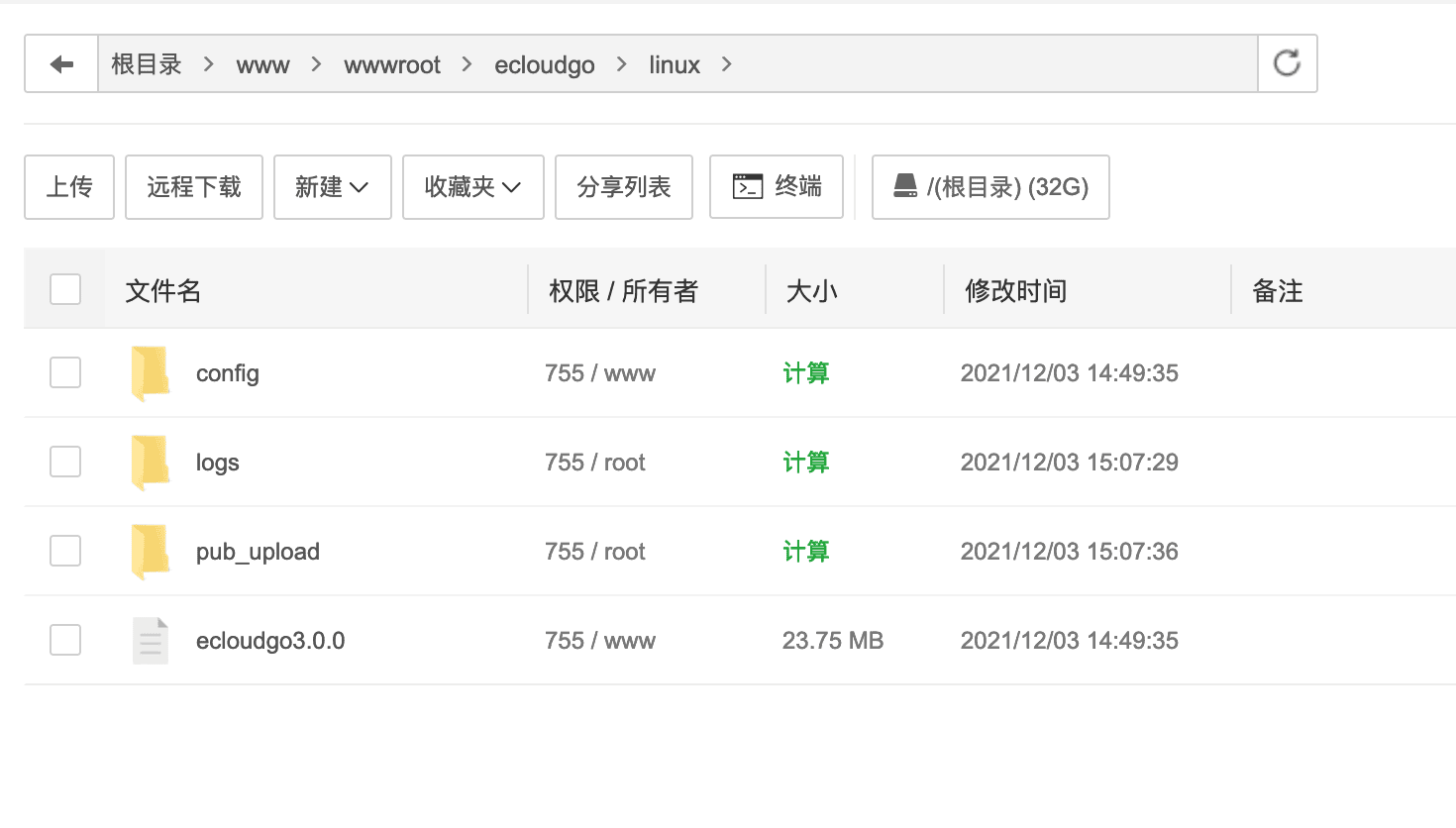
- Upload the standalone
ecloudgobinary to the site root
- Upload the standalone
-
- Upload
configcontents into the siteconfigfolder
- Upload
-
- Edit database settings as in Edit database config above
-
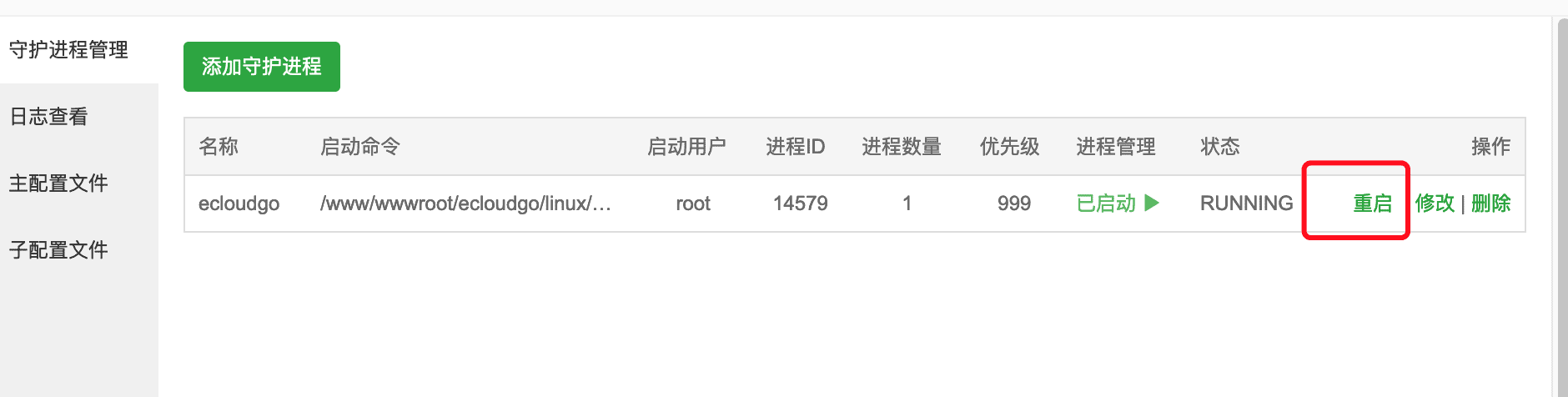
- Update Supervisor to the new binary
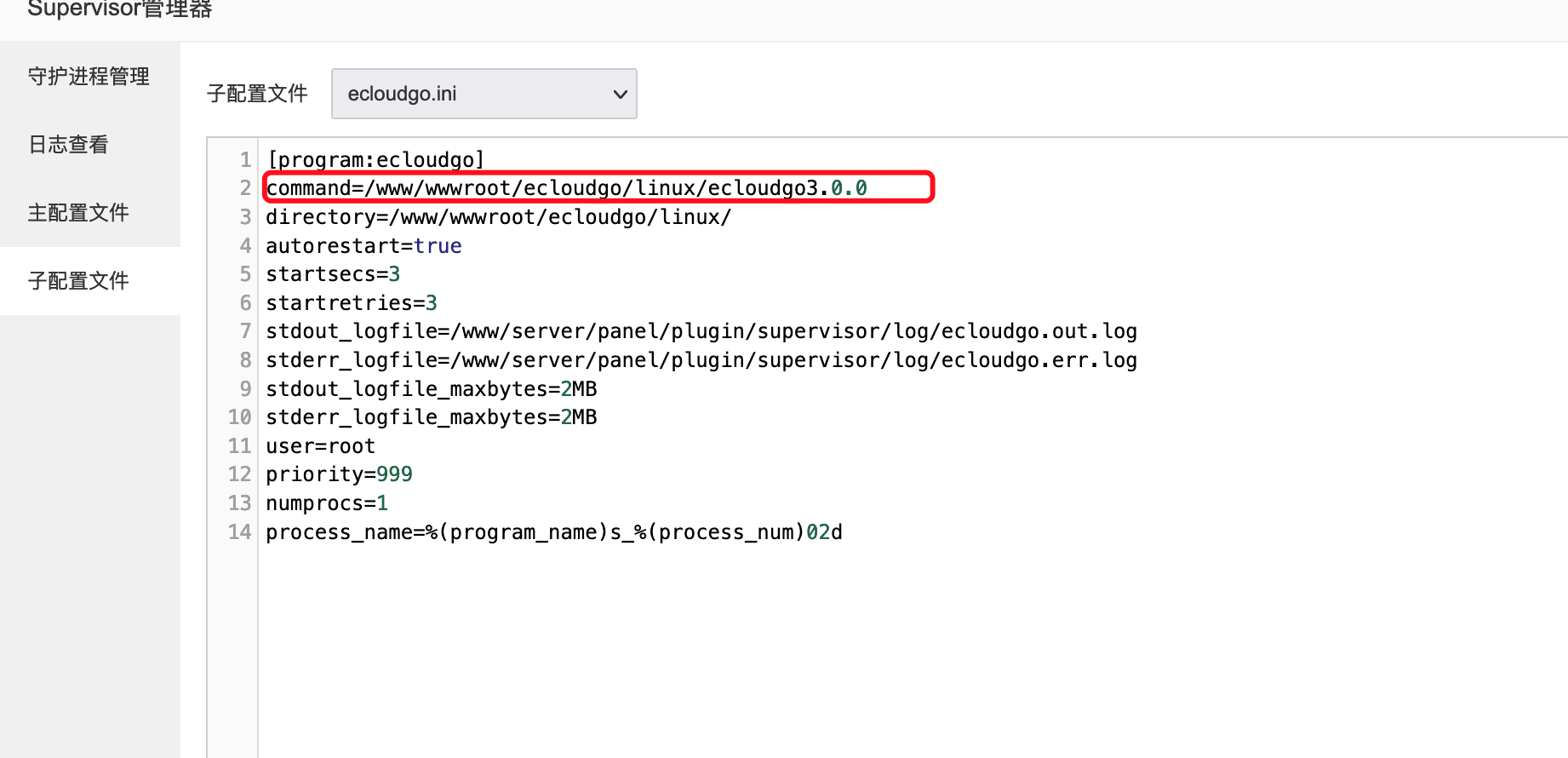
- Click Restart
Server tuning
-
Some servers are not tuned for high traffic
-
- Run
./opt.shin the console
- Run
-
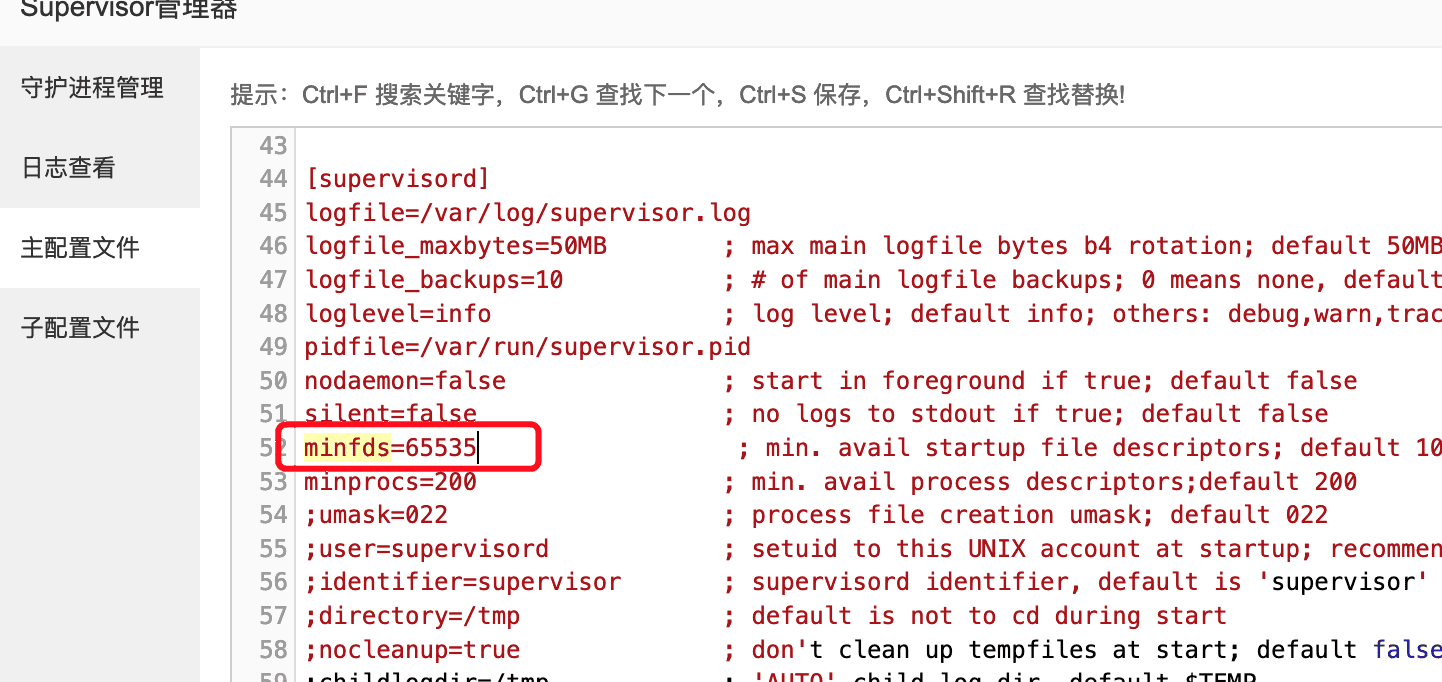
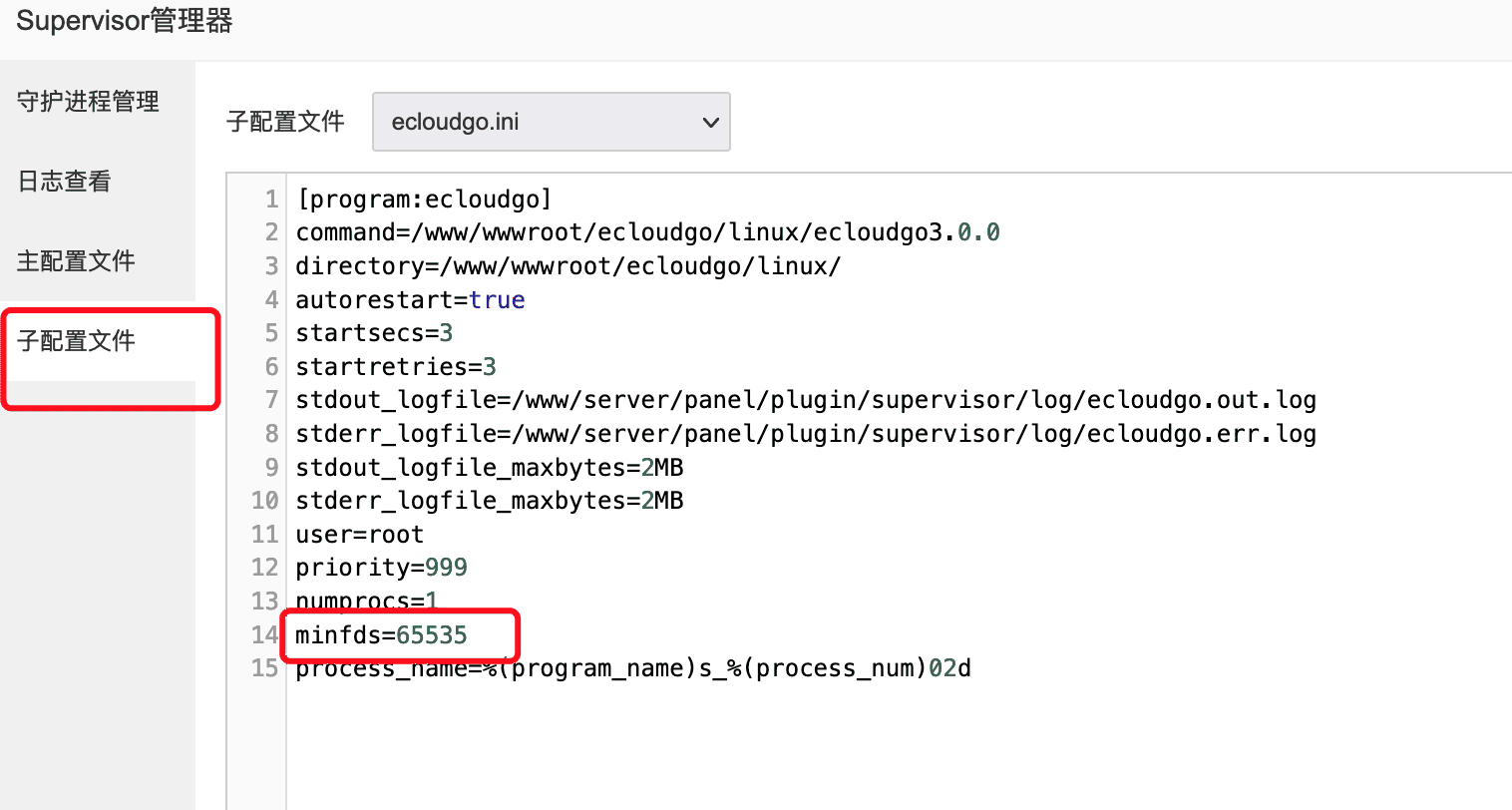
- In Supervisor config, add
minfds=65535(main and child configs), then restart cloud control
- In Supervisor config, add
Device connection
Android
- In debug APK: open EC APP → top-left hamburger → Enterprise cloud config
- Remote IP or domain: your cloud control address
- Device number: your own ID, matching the cloud control device list
- Device ID: ignore
- Tap Test link; on success, kill the app and reopen
Standalone iOS
- Open the EC standalone app → Settings → Cloud control — enter address and device number matching the backend
- Tap Test; on success, restart the app to auto-connect
iOS USB
- Open the EC iOS USB control center → Control center settings
- Set Cloud control address, save, then restart the control center
HarmonyOS Next USB
- Open the EC HarmonyOS Next USB control center → Control center settings
- Set Cloud control address, save, then restart the control center
MySQL 8.0
Monitor page fails to load data
## Erroring SQLdevice_monitor.go:77: SELECT COUNT(1) FROM `t_device` AS a LEFT JOIN `t_device_group` as b on a.group_id=b.id LEFT JOIN `sys_user` as c on c.id = a.tenant_id LEFT JOIN `t_device_online` as ol on a.device_no=ol.device_no WHERE `a`.`status`='0': Error 1267 (HY000): Illegal mix of collations (utf8mb4_0900_ai_ci,IMPLICIT) and (utf8mb4_general_ci,IMPLICIT) for operation '='- Cause:
- After upgrading MySQL 5.7.34 → 8.0.32, some queries fail with:
- ERROR 1267 (HY000): Illegal mix of collations (utf8mb4_general_ci,IMPLICIT) and (utf8mb4_0900_ai_ci,IMPLICIT) for operation ’=’
- Fixes: https://zhuanlan.zhihu.com/p/705783937 https://blog.csdn.net/wangchange/article/details/139231166
Cloud control does not dispatch tasks
Tasks may not dispatch when:
1. Device is offline2. Task is one-shot and already ran3. Task is looping but the run count is exhausted4. Script failed to download5. User list → Cloud settings → single-device expiry is on, but the device number has no correct expiry or is expiredFor 2 and 3, clear execution history (Clean in the action buttons)
- If a tenant is assigned, also set device quota and expiry under User list → Cloud settings — missing this can block tenant task dispatch
Monitor list → click device number → black window shows that device’s task logs