Overview
Download firmware
- Cloud drive: Downloads
- Path: Developer tools → Android resources → Bluetooth HID firmware → ESP32-S3 or ESP32-C3 — download the
.binfor your board - Keyboard and non-keyboard builds — some apps detect keyboard HID; the non-keyboard build cannot use Home and similar input APIs
- Download flash_download_tool.zip for ESP32 to flash firmware
Flash firmware
-
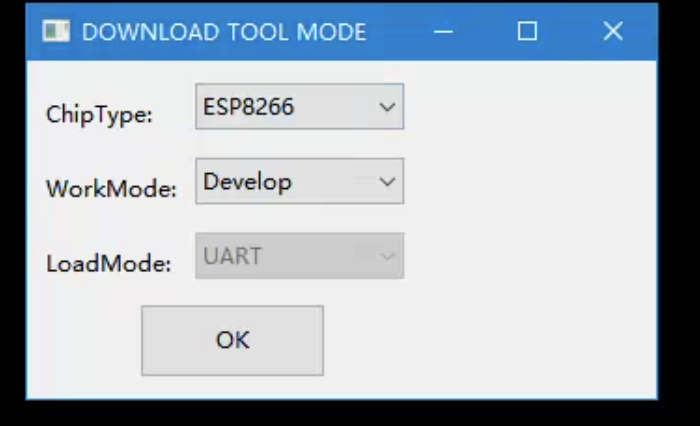
Extract flash_download_tool.zip and open flash_download_tool.exe
-
-
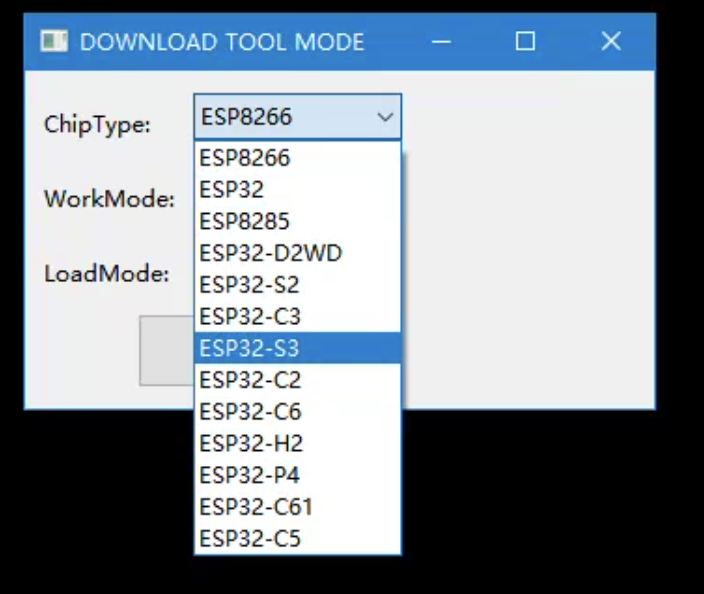
Select chip type — this demo uses ESP32-S3 → ESP32S3 → OK
-
-
Connect the board via USB:
-
Read MAC address
-
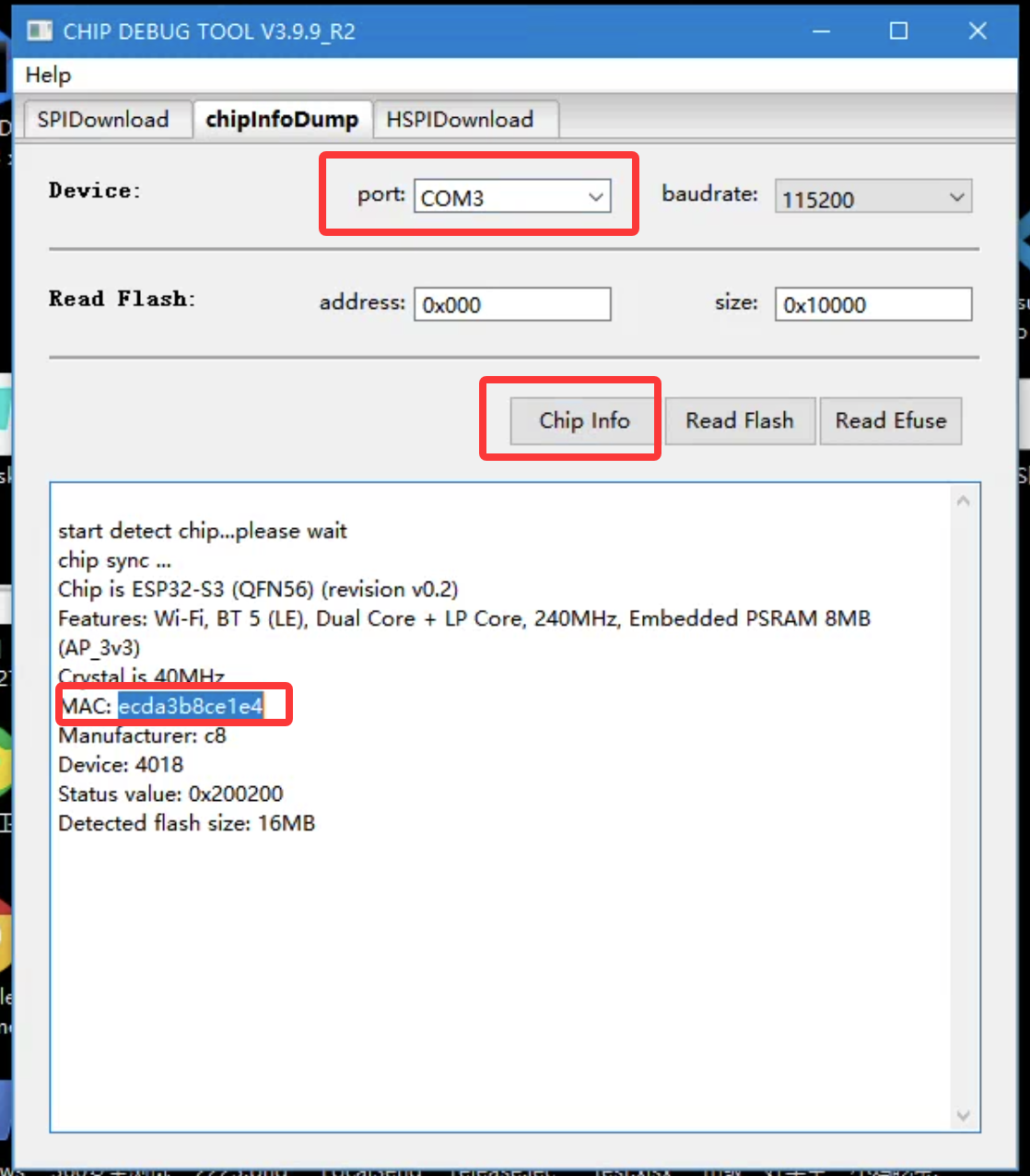
Open clipInfoDump, select the port (e.g. COM3 — yours may differ)
-
Click Clip Info — on success you get MAC; the last 6 digits are the Bluetooth address — note them
-
-
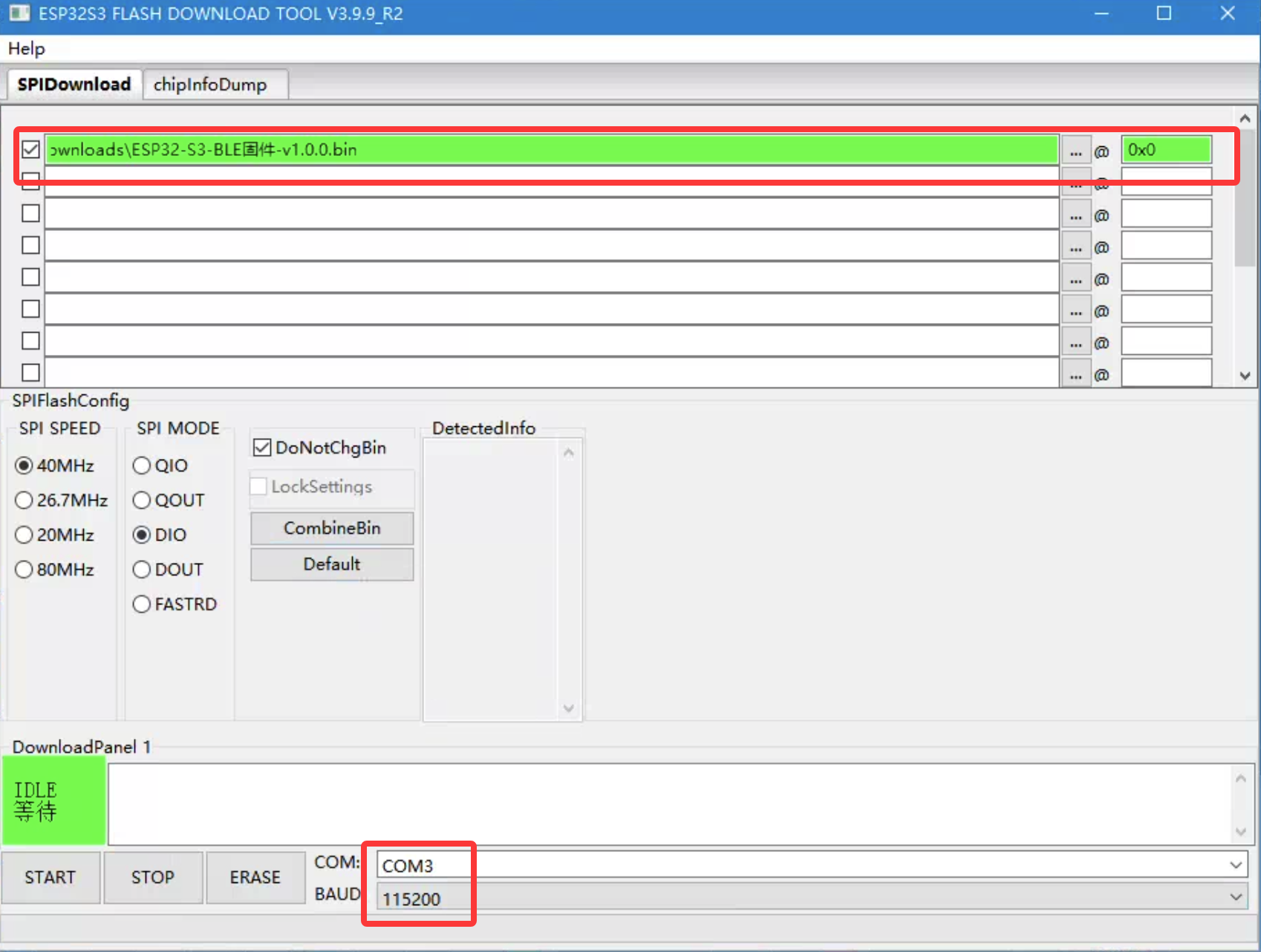
Open SPIDownload, choose the
.bin, check it, set the right column to 0x0 (green = OK) -
Select COM port (e.g. COM3), click START
-
-
Flashing…
-
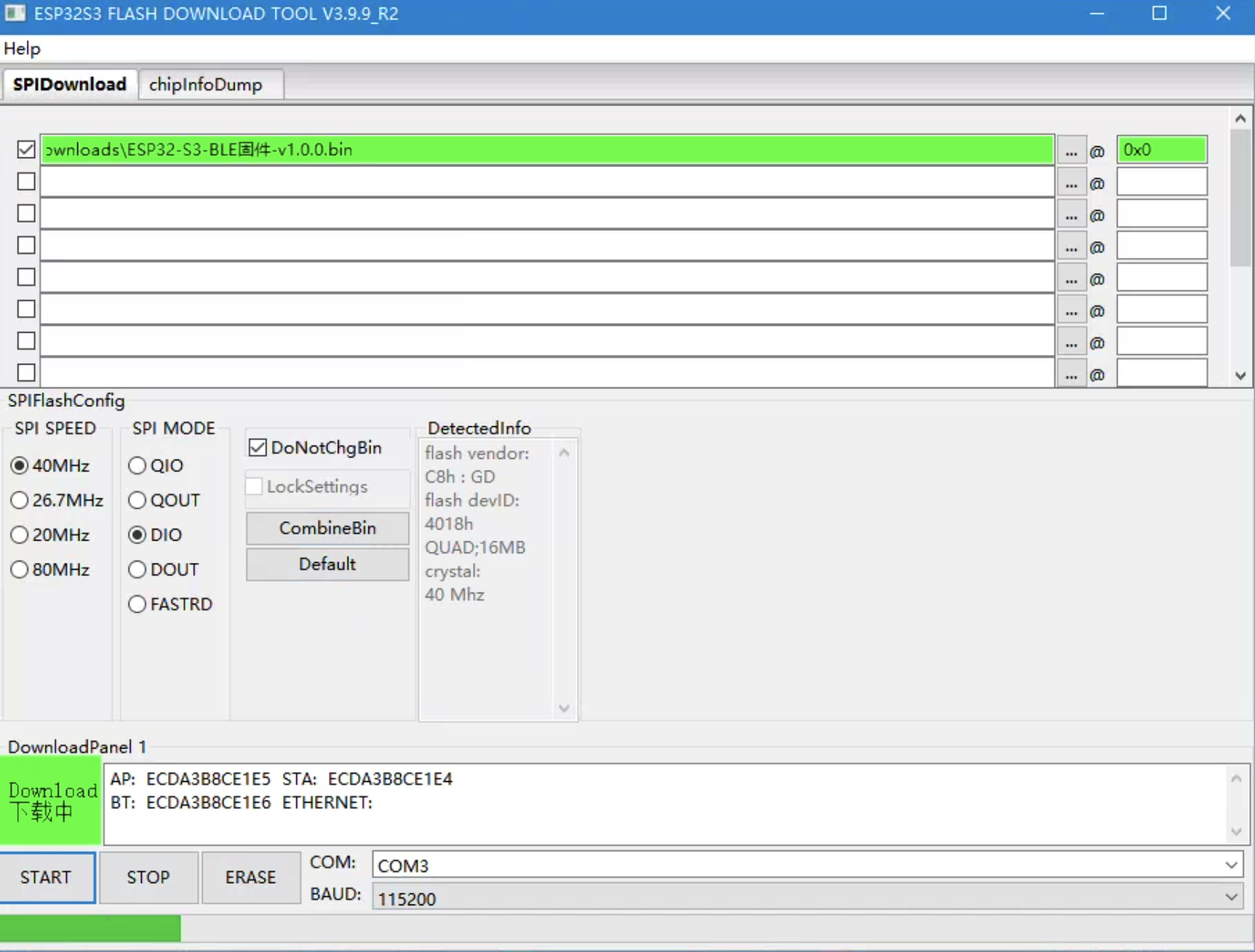
-
Success
-
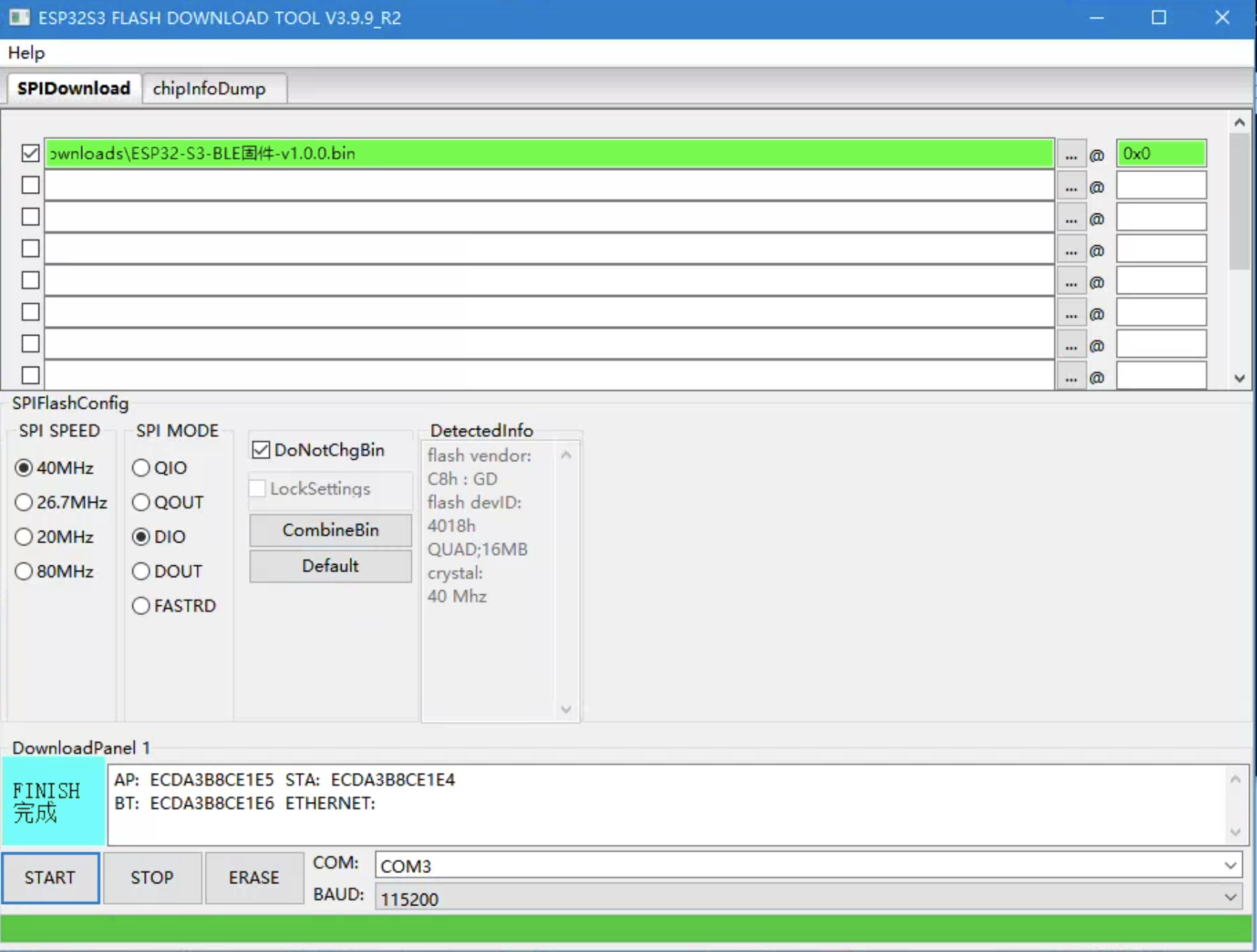
-
On error, restart the flash tool or click ERASE to wipe firmware
-
Power the ESP32 again — the phone should see the BLE name
Pair Bluetooth on the phone
- Settings → Bluetooth, find the BLE name, pair until connected
- Example: pair 8ce1e4 — icon may show keyboard or mouse; newer builds may show a generic Bluetooth mouse; name length is 8 characters
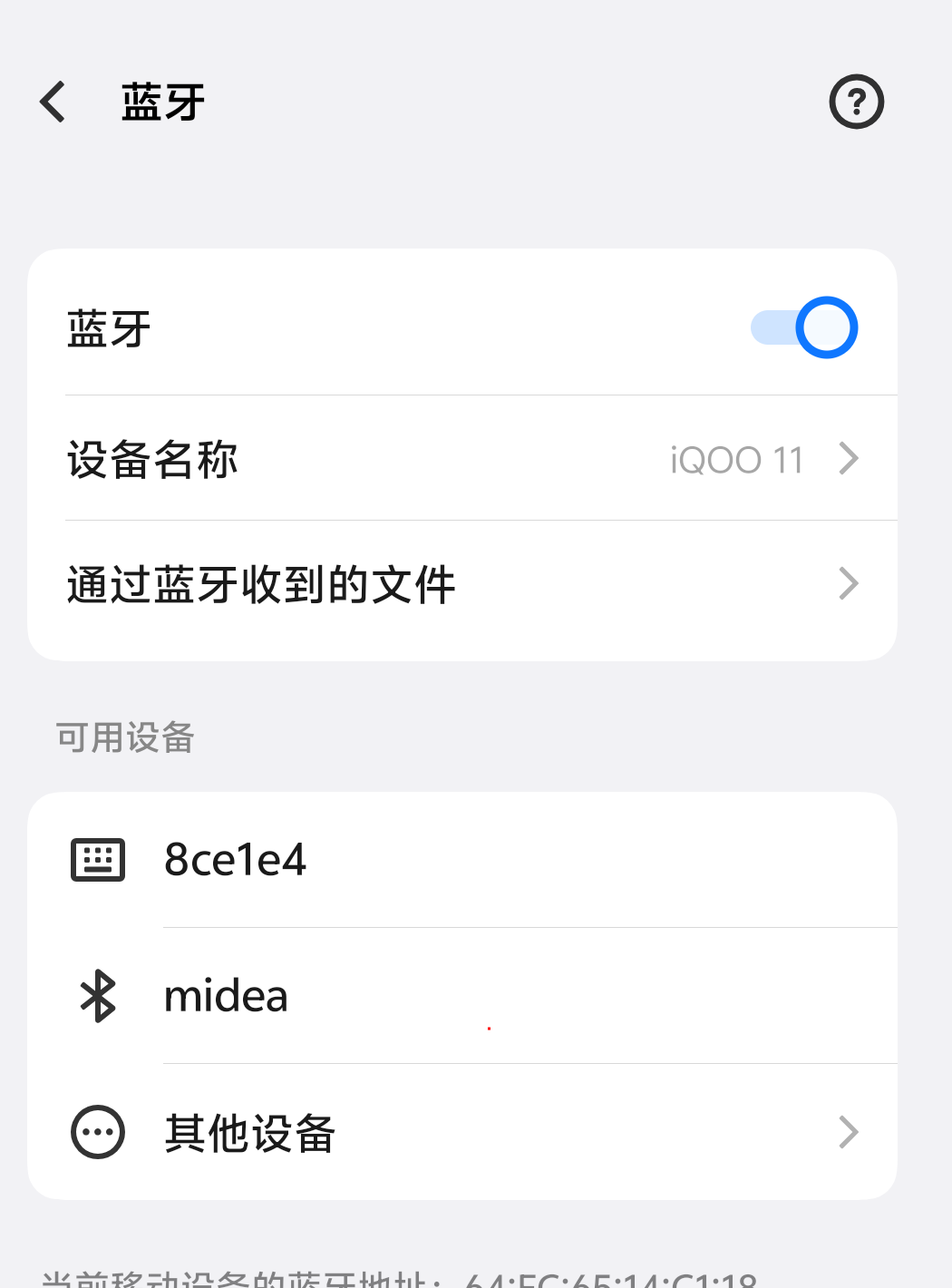
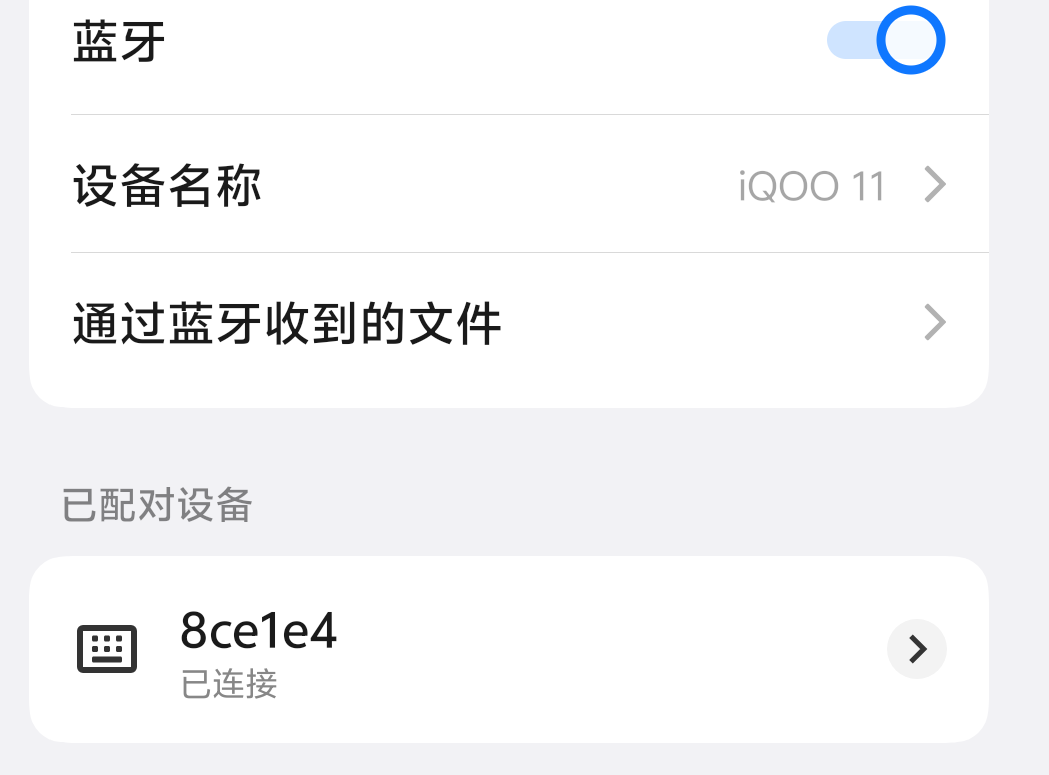 ## Configure the app
- **System settings → Bluetooth HID settings** — scan, pick the BLE name (e.g. **8ce1e4**)
-
## Configure the app
- **System settings → Bluetooth HID settings** — scan, pick the BLE name (e.g. **8ce1e4**)
- 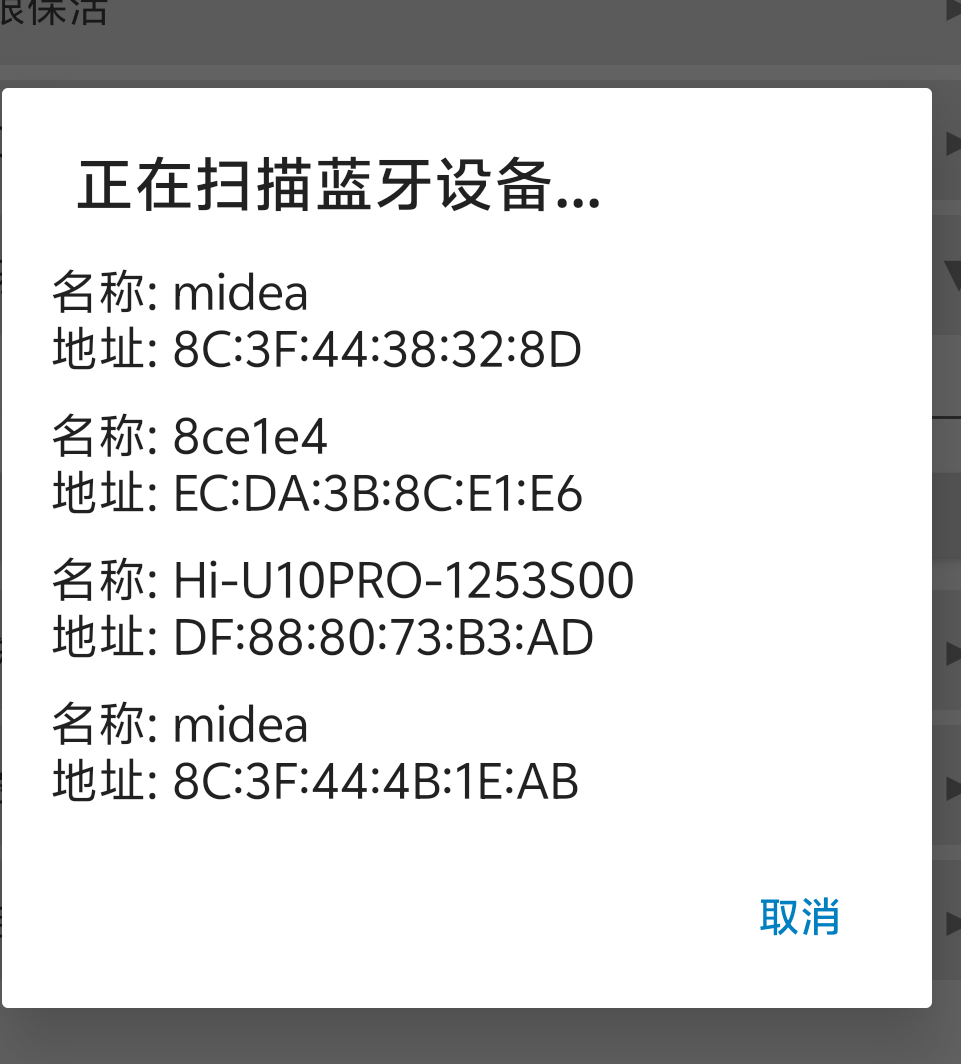 - **Bluetooth device name** fills in automatically; click **Test** — success returns to the home screen
- Click **Save**
- If scan fails, see **FAQ**
## Use in scripts
- After the steps above and a successful test, write scripts and call API functions
- **Bluetooth device name** fills in automatically; click **Test** — success returns to the home screen
- Click **Save**
- If scan fails, see **FAQ**
## Use in scripts
- After the steps above and a successful test, write scripts and call API functions
Open API
- Custom control centers: http://2tsre28hlt.apifox.cn
- To discover BLE IPs on the LAN, loop requests to Get MAC address (Bluetooth name) with each IP — map name to IP
FAQ
- App cannot scan Bluetooth in background
- Enable overlay permission
- Set location to Always allow
- Allow background pop-ups
- On newer phones, allow Scan nearby devices
- Grant permissions and keep the app alive — otherwise the OS may drop BLE in background
- BLE name missing or not found
- Power-cycle the board or press RST; kill the app; Settings → Bluetooth → unpair and pair again
- Safer flow: pair in phone settings first, press board RST, then scan in the app (some phones reserve a slot after a failed first connect)
- Hide Bluetooth from detection
- System settings → Bluetooth BLE → Hide Bluetooth, or call
bleEvent.hideBleName()— retry if needed - Bluetooth shows connected but fails
- Power-cycle board or RST; kill app; unpair and pair again in phone settings
- Bluetooth name
- Usually the last 8 characters of hardware MAC — visible in the flash tool