Remote Debugging
Install APK
- Some phones cannot install the APK directly via ADB; use download instead
- Select
IDEA menu bar - EasyClick Android - Device Connection - Download APK File - Copy the downloaded APK to the phone and install it manually
- Or select
IDEA menu bar - EasyClick Android - Device Connection - Scan QR Code to Install APK
Enable Remote Debugging
Menu bar - EasyClick Android - Device Connection - Enable HTTP Remote Debugging- In the dialog, enter the local port (default 10826), click OK to open the local port, and watch
EasyClick Android Run Log
Expose Port on Router
- The default router address is usually http://192.168.1.1. This doc uses a TP-LINK router as an example; open http://192.168.1.1 in a browser
- Find Virtual Server
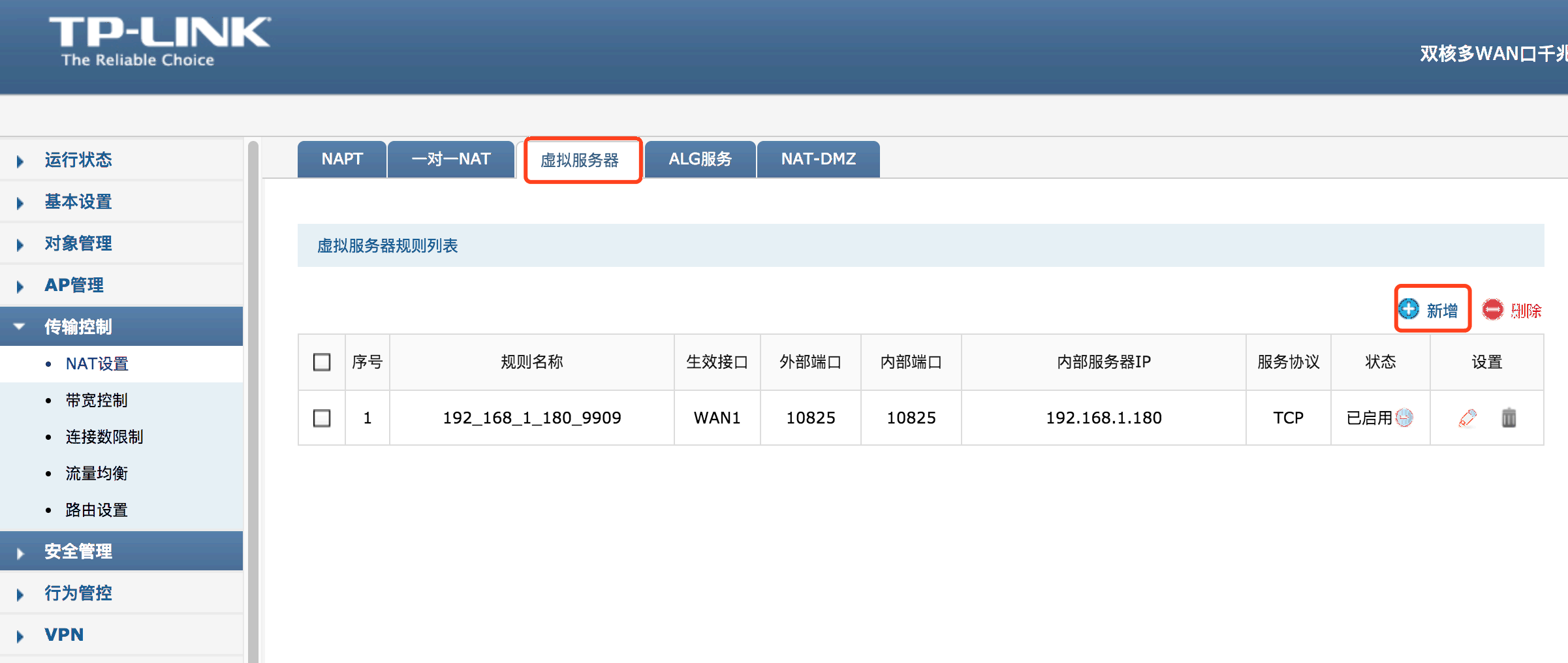
- Find Virtual Server

- Find public IP
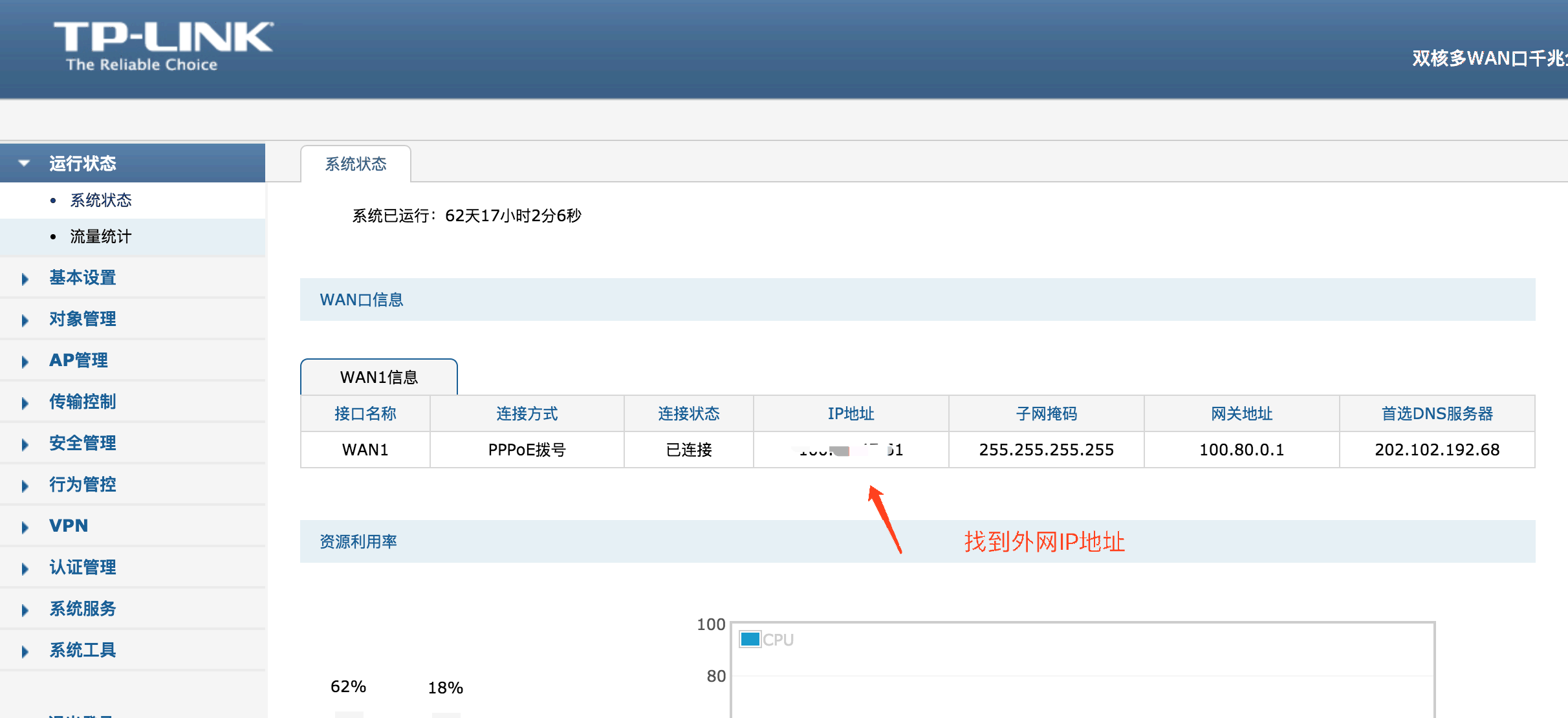
Connect from EC on the Phone
-
Open the EC debug app on the phone
-
Go to the remote connection page
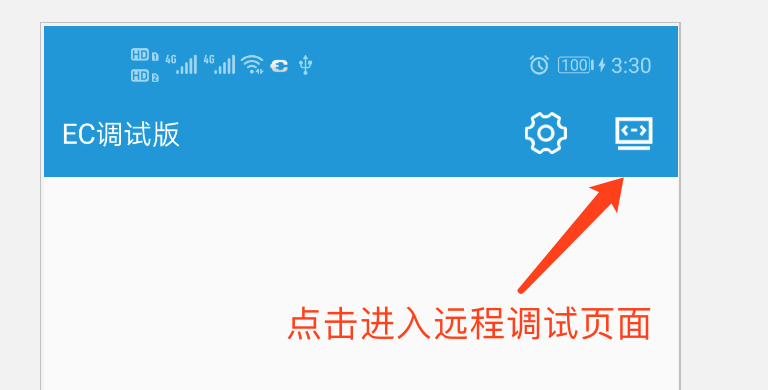
- Enter connection details

FRP Reverse Proxy
- Use FRP to reverse-proxy: map the computer port to a server, then connect the phone to the server IP so you do not need the router’s public IP
TCP Remote
- TCP remote debugging is similar to HTTP remote debugging; only the port differs. Without a public IP, prefer FRP for reverse proxy