Skip to content Tesseract Font Editor Usage
Download & Install
- EC cloud drive → Dev Tools → OCR Resources → download EasyClick-TesseractOCR-字库编辑器.zip
- Extract and run tessocr-editor.exe
- Note: extract path must not contain Chinese, spaces, or special characters — otherwise validation may fail
- Download area: Download Area
Train Font Library
- Open tessocr-editor.exe — interface:
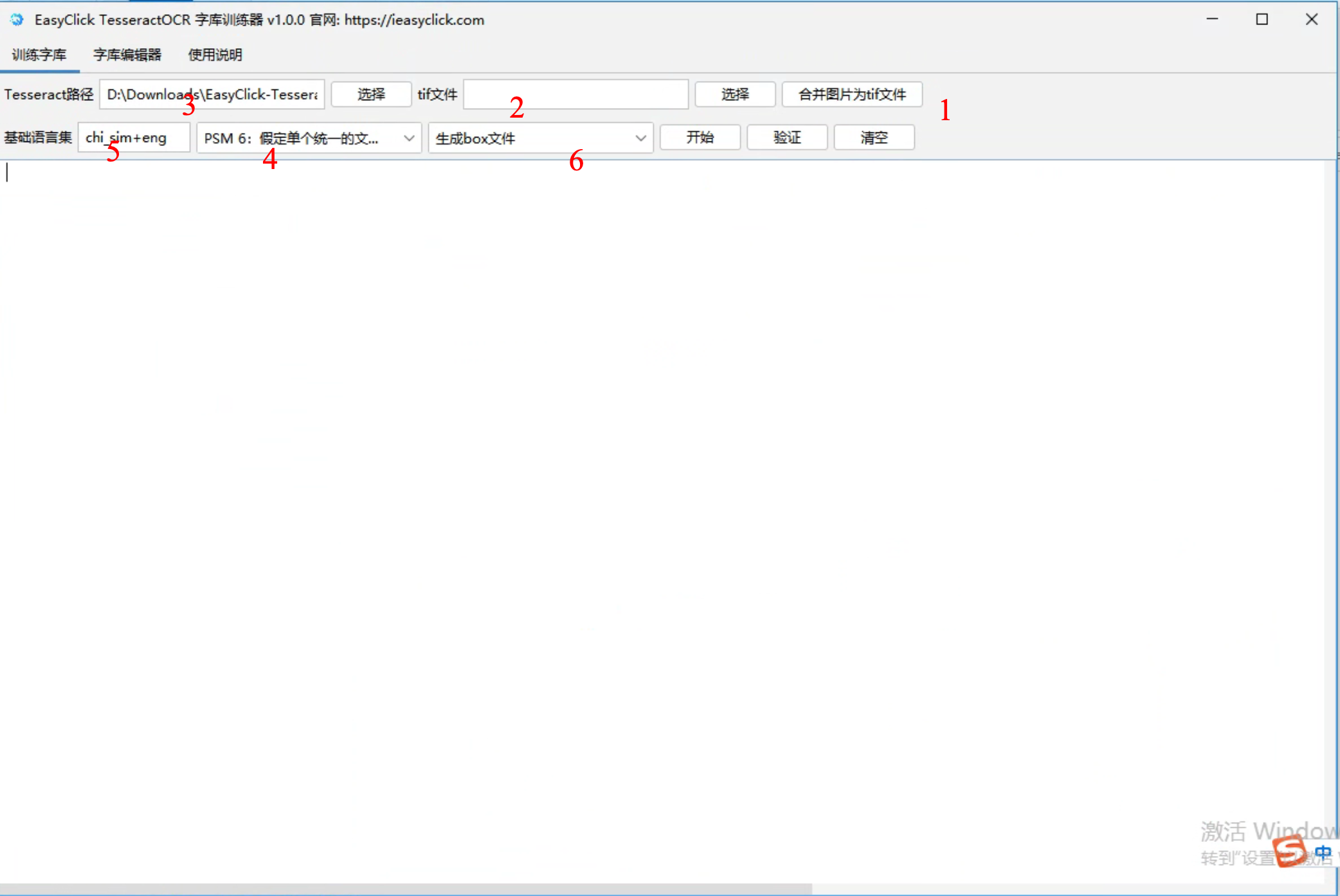
- Tesseract path — leave default (bundled tesseract). If changing, point to tesseract.exe
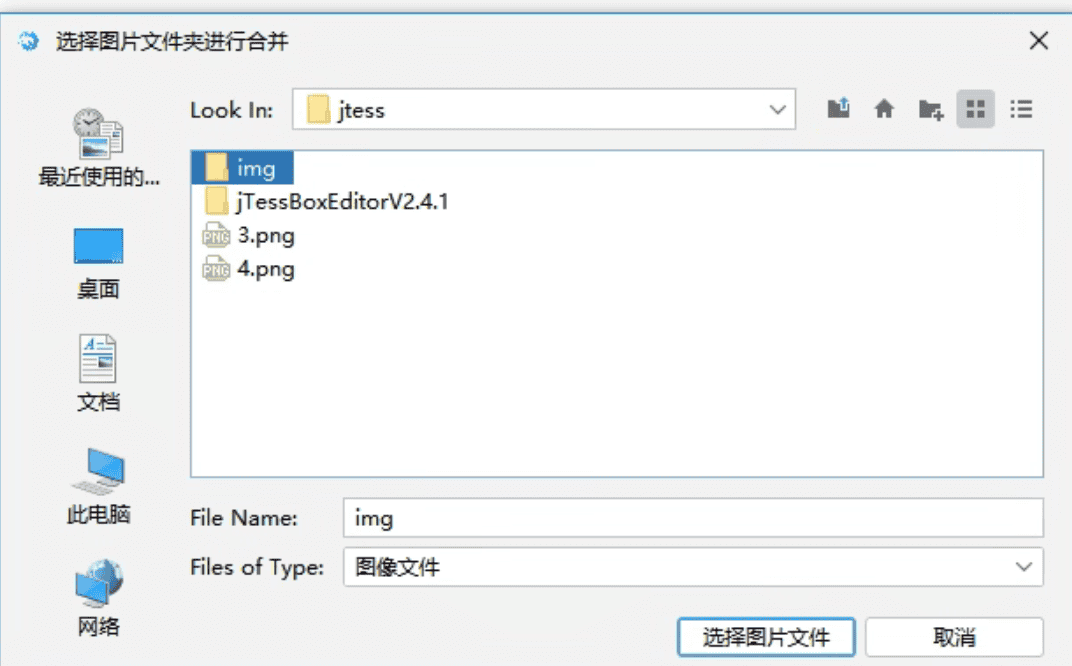
- Merges jpg, png, bmp into a tif file — select folder or single image
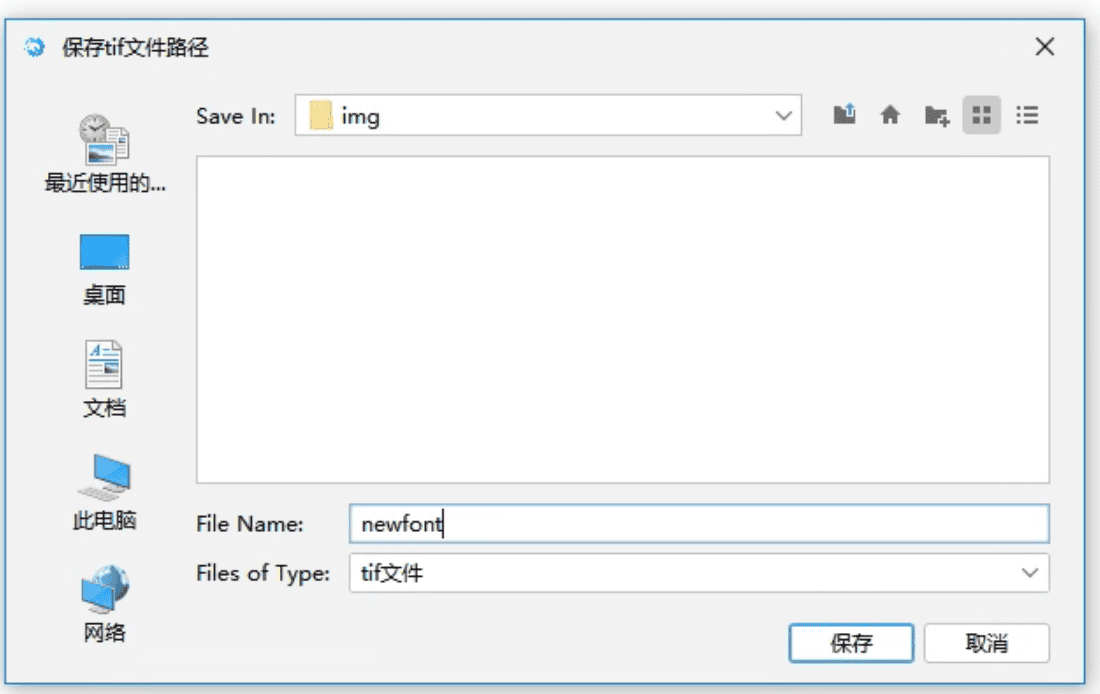
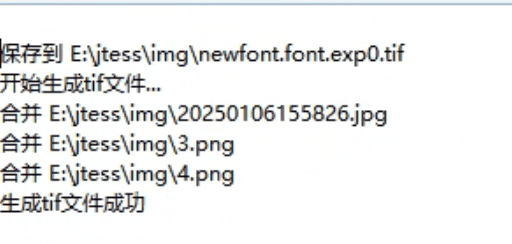
- Example: folder
E:/jtess/img/, new font name newfont — log shows 生成tif文件成功 (TIF generated successfully)
Step 2: Select TIF File
- Click select button to choose tif file
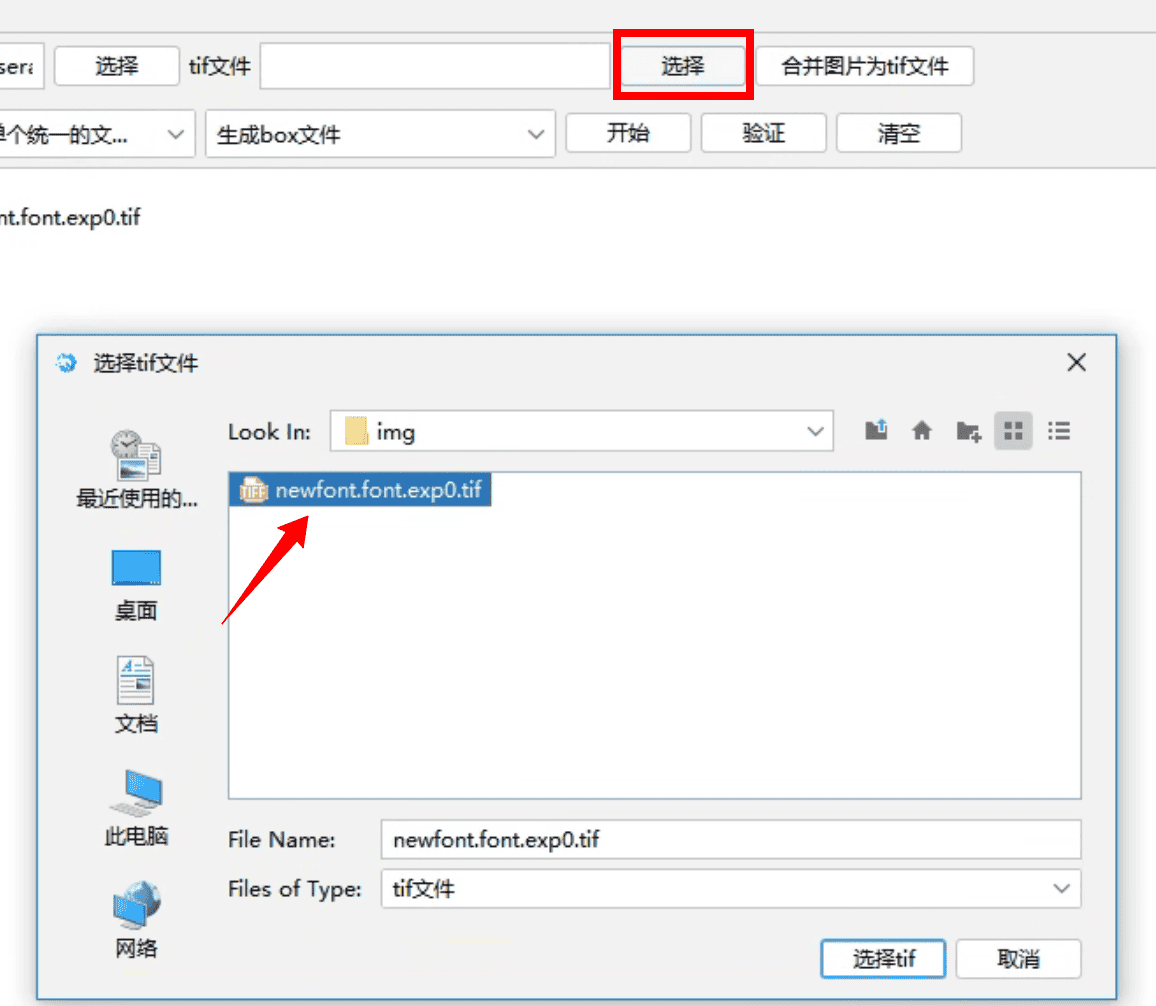
Step 3: Generate box Font File
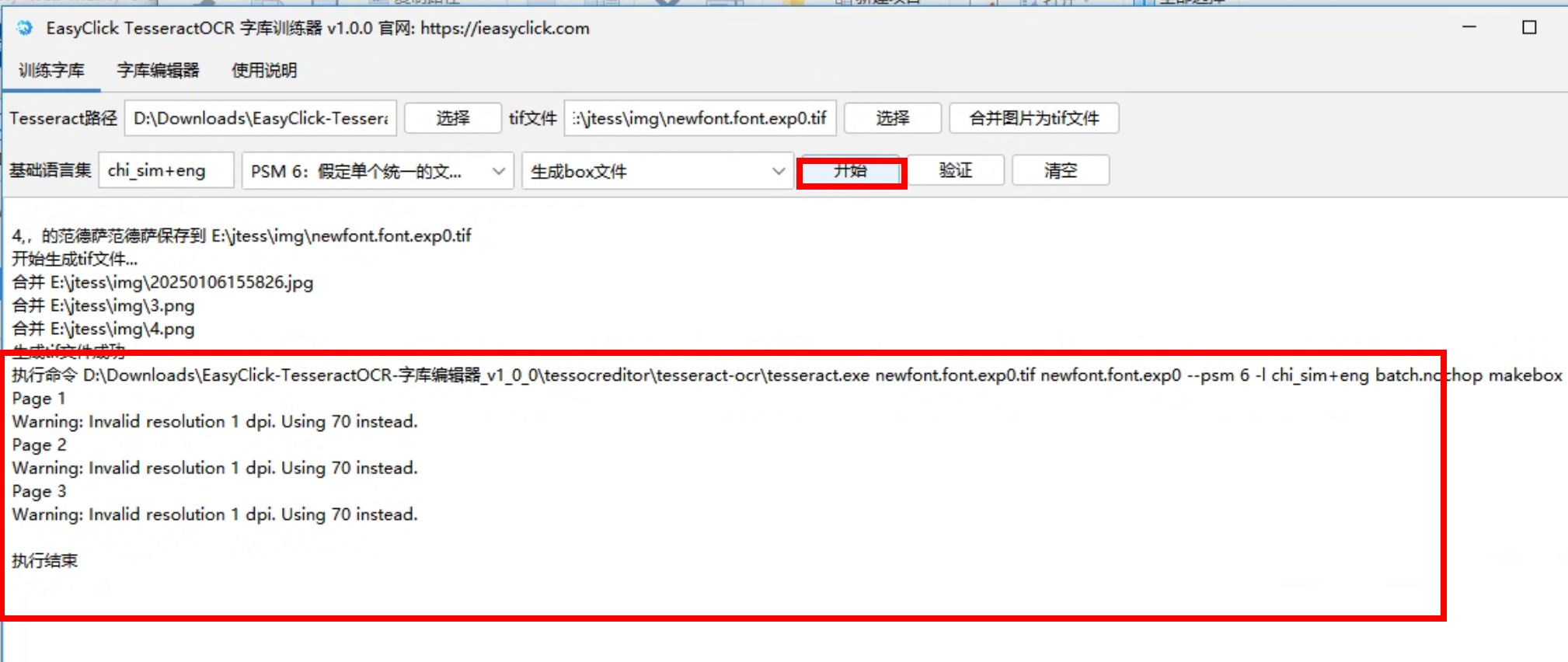
- Select
Generate box file, click Start. Default PSM 6, base language chi_sim+eng (Chinese simplified + English)
- box generation log
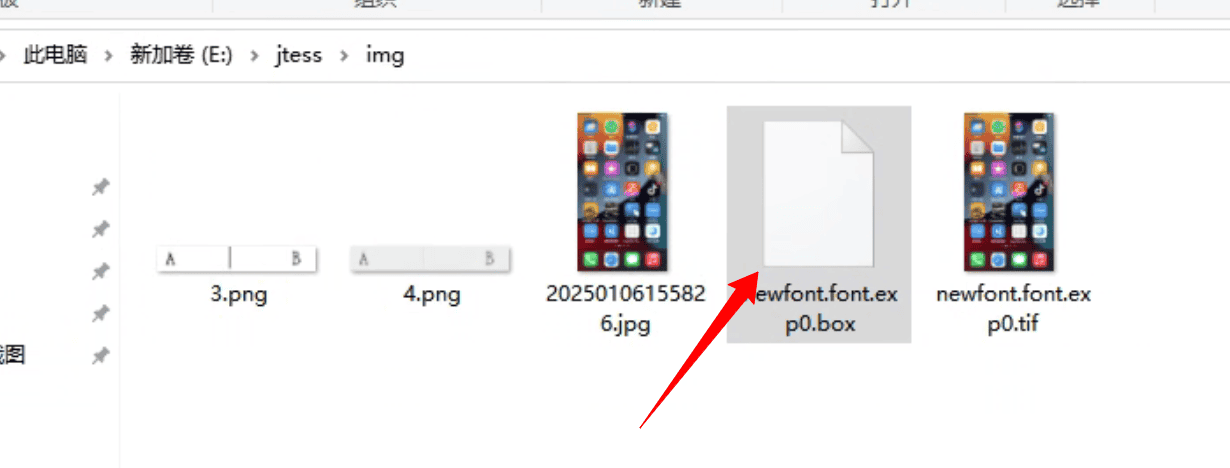
- System creates a box file in the tif folder
Step 4: Train Font Library
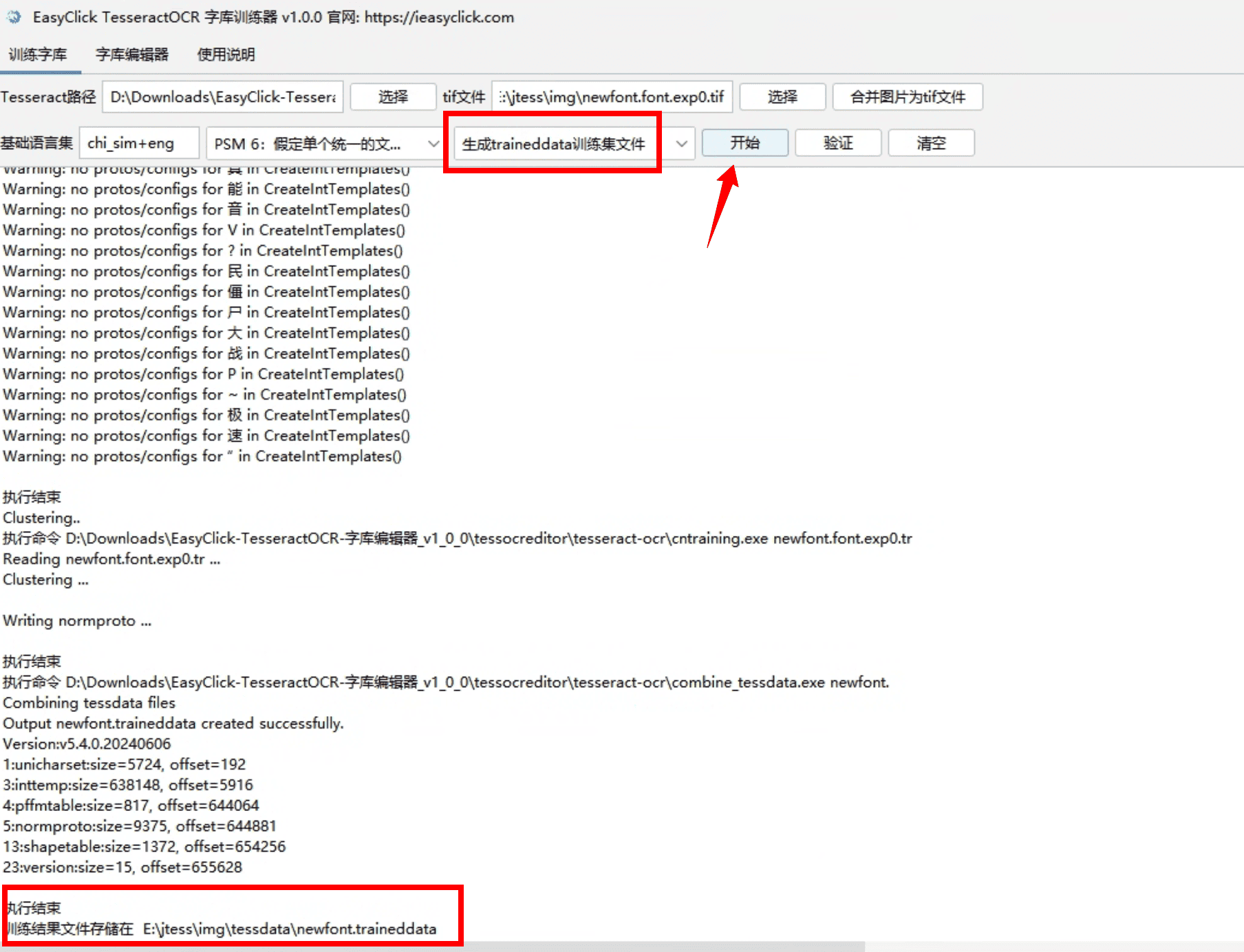
- Generates Tesseract traineddata file
- Select
Generate traineddata training set file, click Start; log shows traineddata output path
Step 5: Validate
- Click
Validate, pick an image to test the trained library
- Can clear
Base language set value for validation
- If results are poor, use
Font Editor tab to edit box and retrain/validate
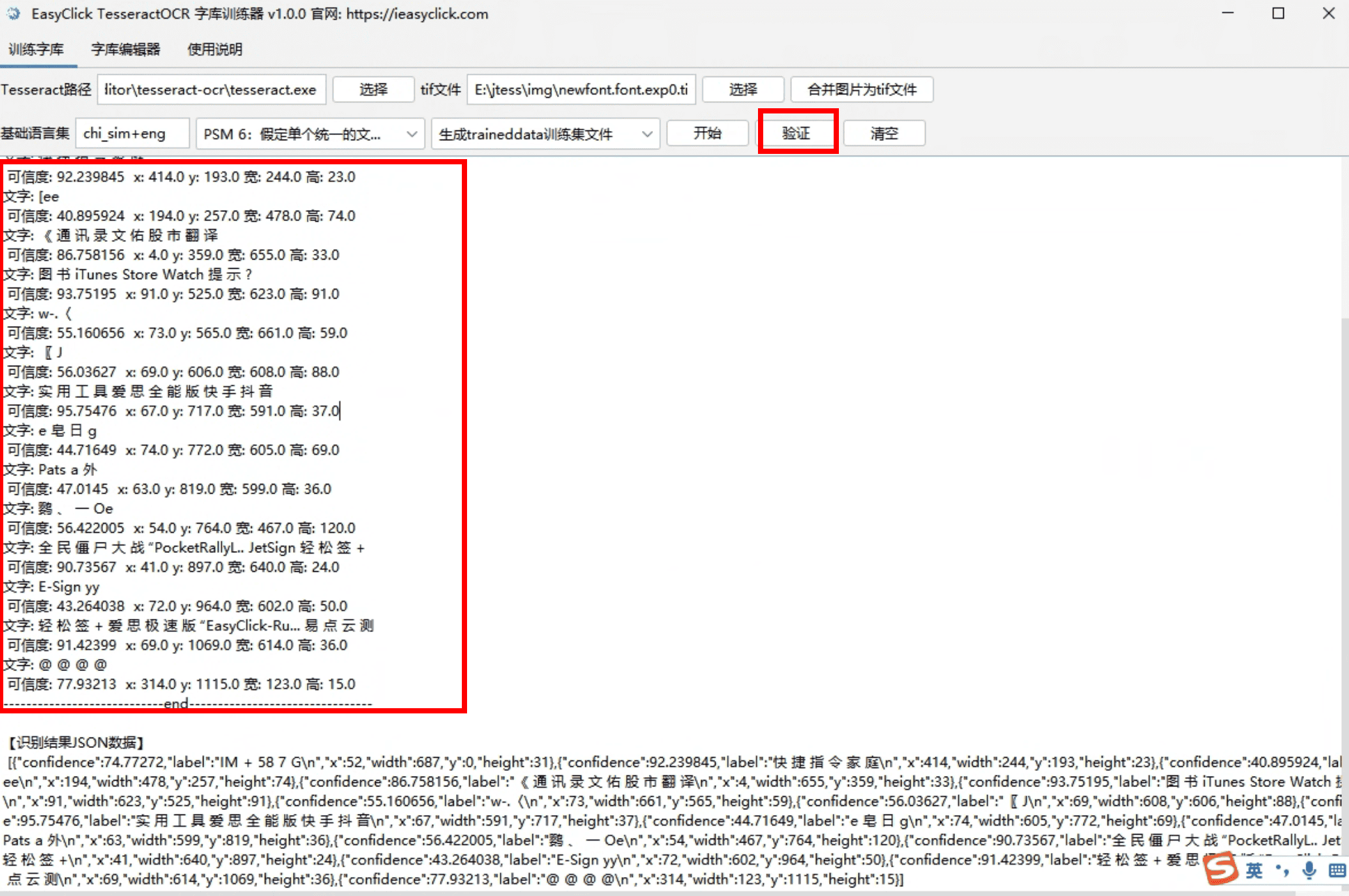
Edit Font Library
- Interface:
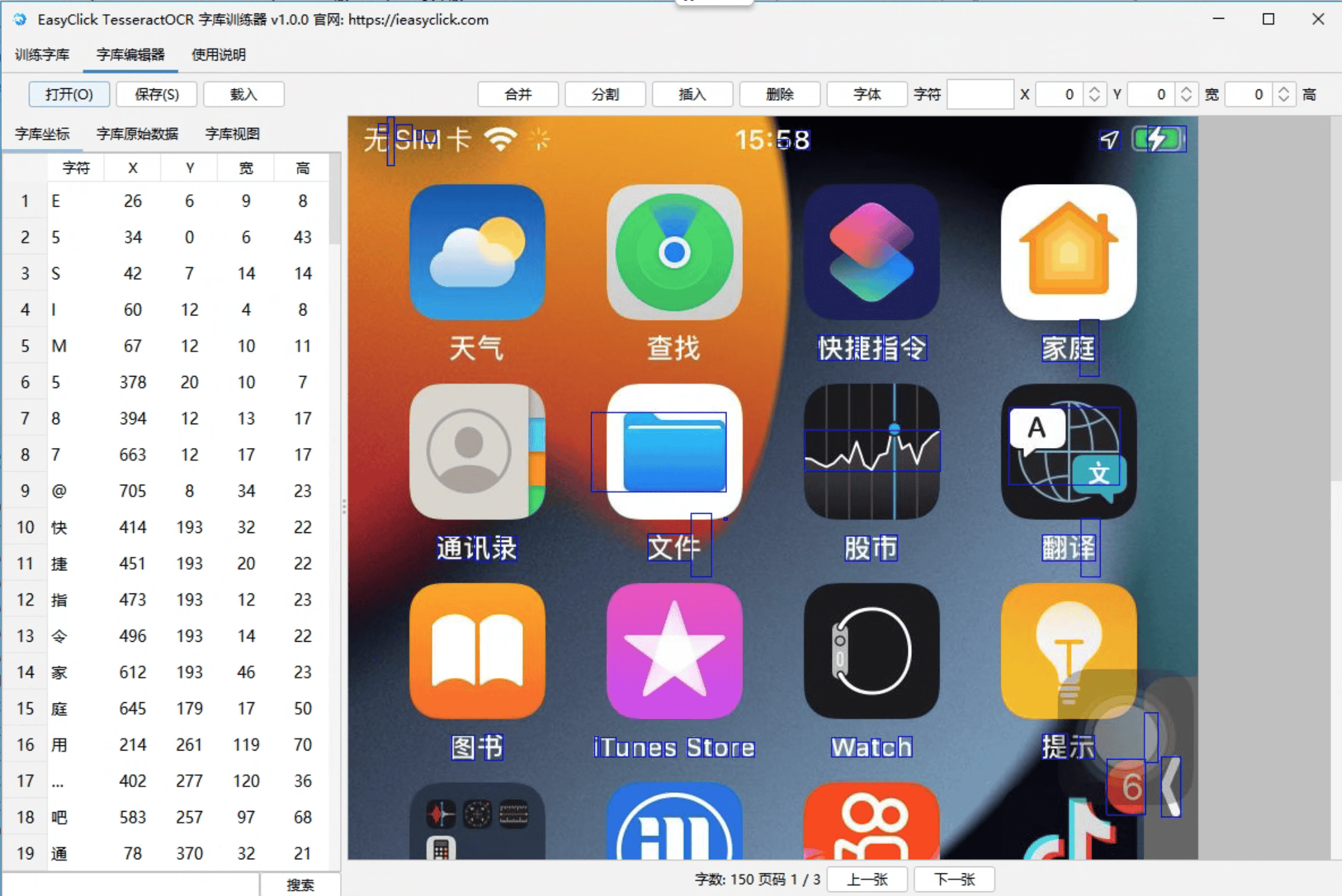
Open box File
- Click
Open (shortcut ctrl+o), select a tif file — box opens automatically
- Left table: characters and coordinates; right: image and character boxes
Edit Text
- Double-click table text and press Enter to edit
- Or edit Character field and coordinates at top
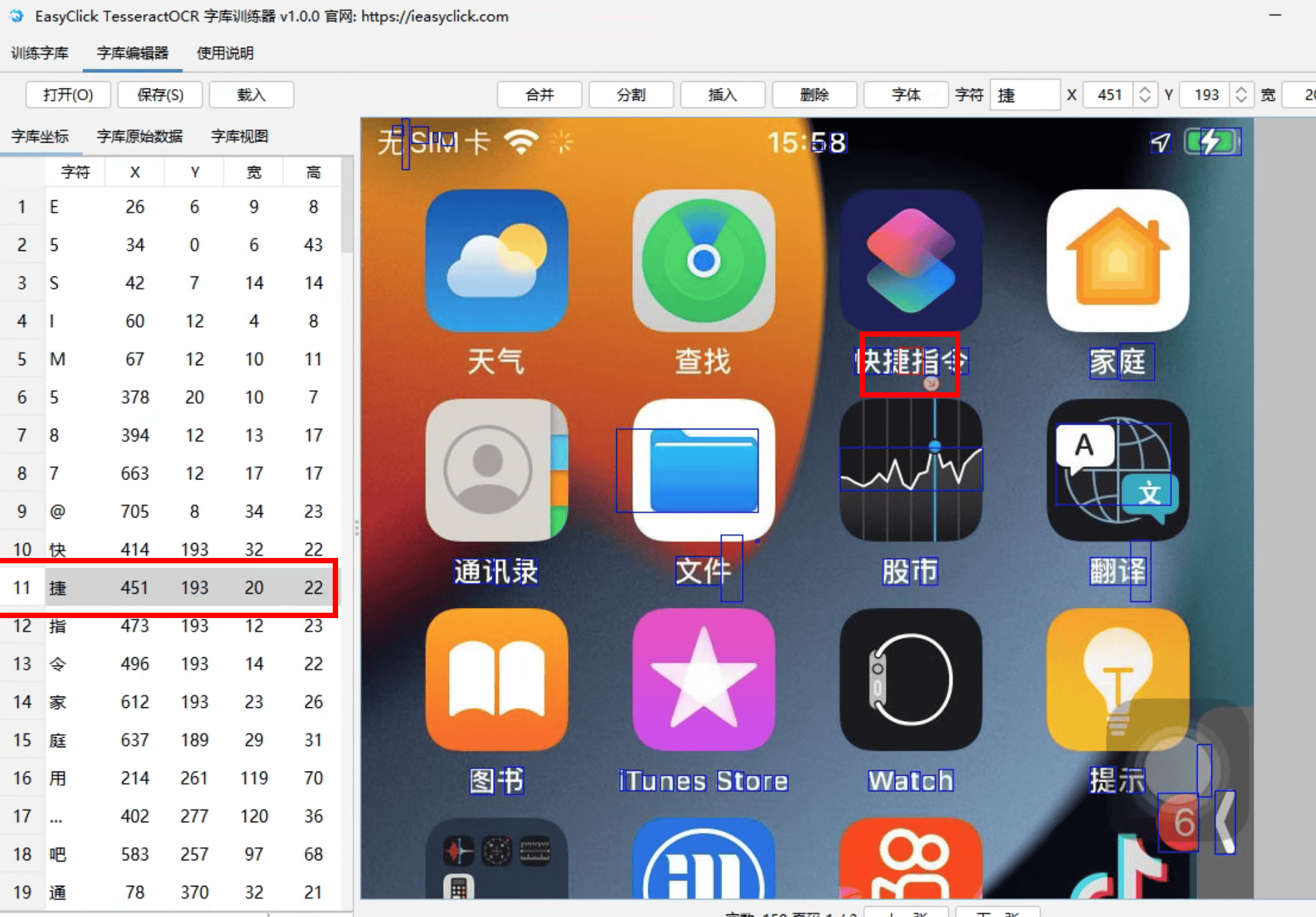
Change Character Box Coordinates
- Select table row — character highlighted with red box on image
- Drag red box corner arrows to resize
- Drag red box to move
- Or use arrow keys to adjust coordinates
Zoomed Character View
- Click Character View tab; arrow keys move red box
ctrl+arrow zoom box in/out until text is fully enclosed
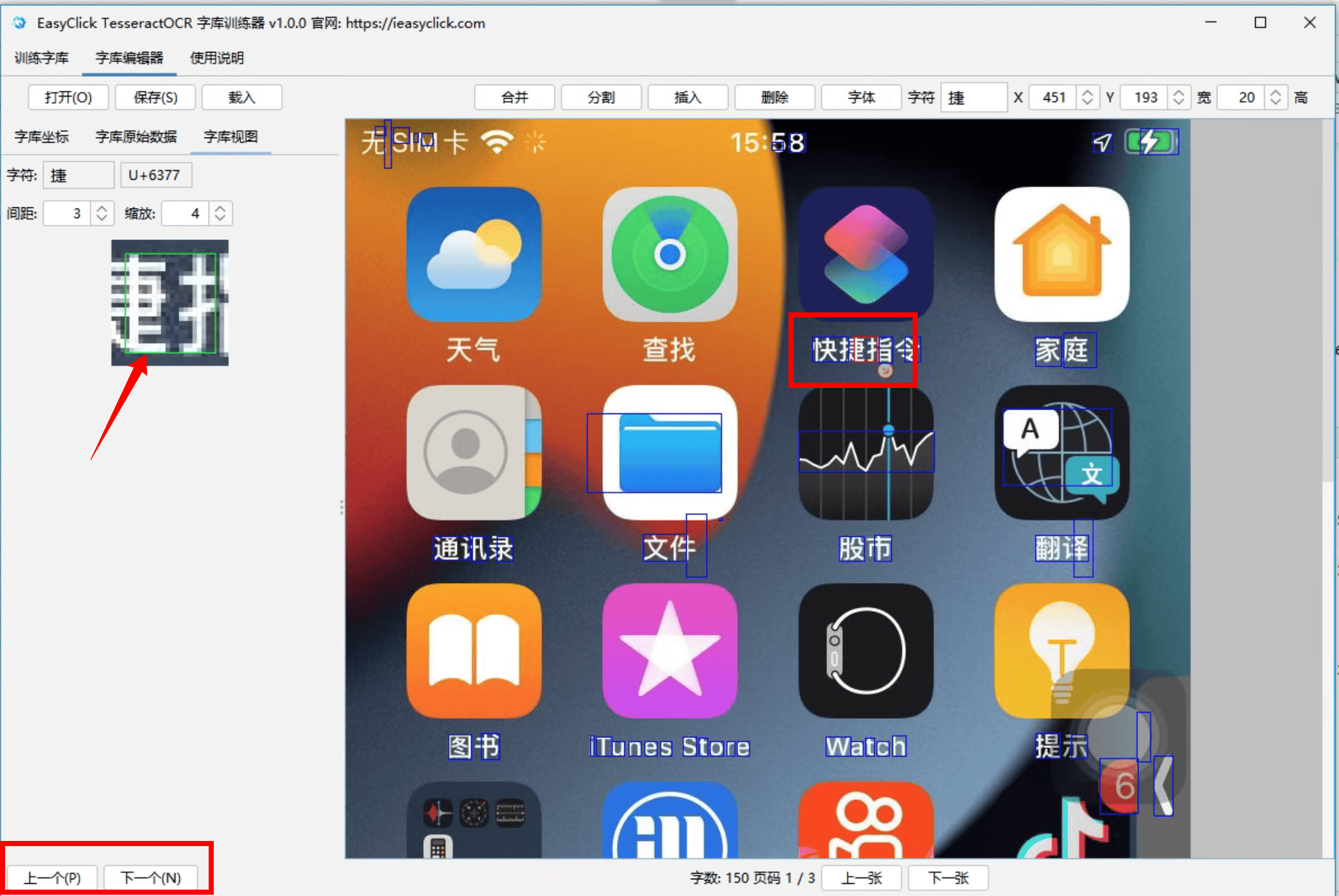
Image Editing
- Uses OpenCV for grayscale and binarization when training/recognition quality is poor
Other Features
- Merge: merge multiple box characters
- Split: split one box into two
- Insert: new box
- Delete: remove box
- Font: table font setting (optional)
- box table right-click menu has additional actions
Shortcuts
ctrl+o — open tif/boxctrl+s — save boxctrl+p or alt+p — previous characterctrl+n or alt+n — next character- Arrow keys — move box
ctrl+arrow or alt+arrow — resize box- Mouse drag — move box
- Mouse drag corner — resize box
ctrl+d or alt+d — previous imagectrl+g or alt+g — next image
Usage
- After editing and retraining to traineddata, use per tessocr tutorials
Save
- Save box edits before closing to avoid data loss
FAQ
- Validation fails
- Extract path may contain Chinese/special chars — use English path
- App crashes on open
- Install VC runtime from cloud drive, restart PC
- Training error FAILURE! couldn’t find a matching blob
- Tesseract cannot match shapes/features in the image. Try:
- Higher image quality — clear, good contrast
- Preprocessing — binarization, denoise, deskew
- Tune Tesseract params —
psm, oem
- Adjust box ranges