If no device appears, the driver may be missing — go to Install driver
Install driver
Download zadig-2.8.exe from the cloud drive
Right-click the file → Run as administrator
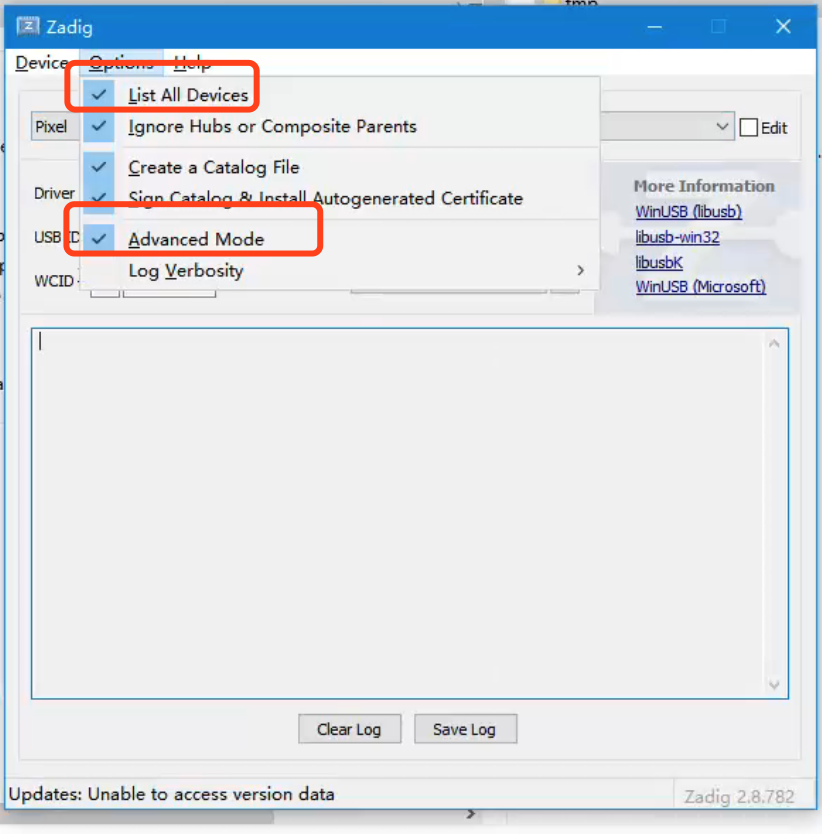
In Zadig: Options → List All Devices
In Zadig: Options → Advanced Mode for verbose logging
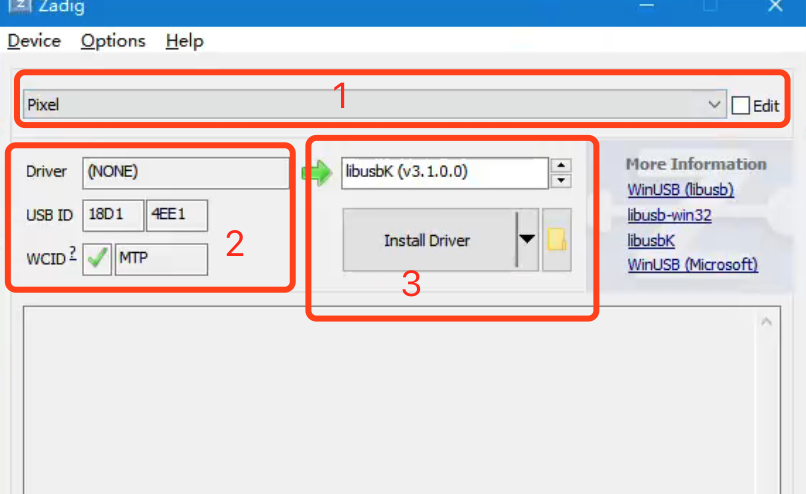
Example with a Pixel phone:
Box 1 is your phone; check Edit on the right to rename it
Box 2 shows the initial state — Driver may be NONE or WinUSB
Select libusbK on the right of the green arrow (box 3)
The button under box 3 may say Install Driver or Replace Driver — click it
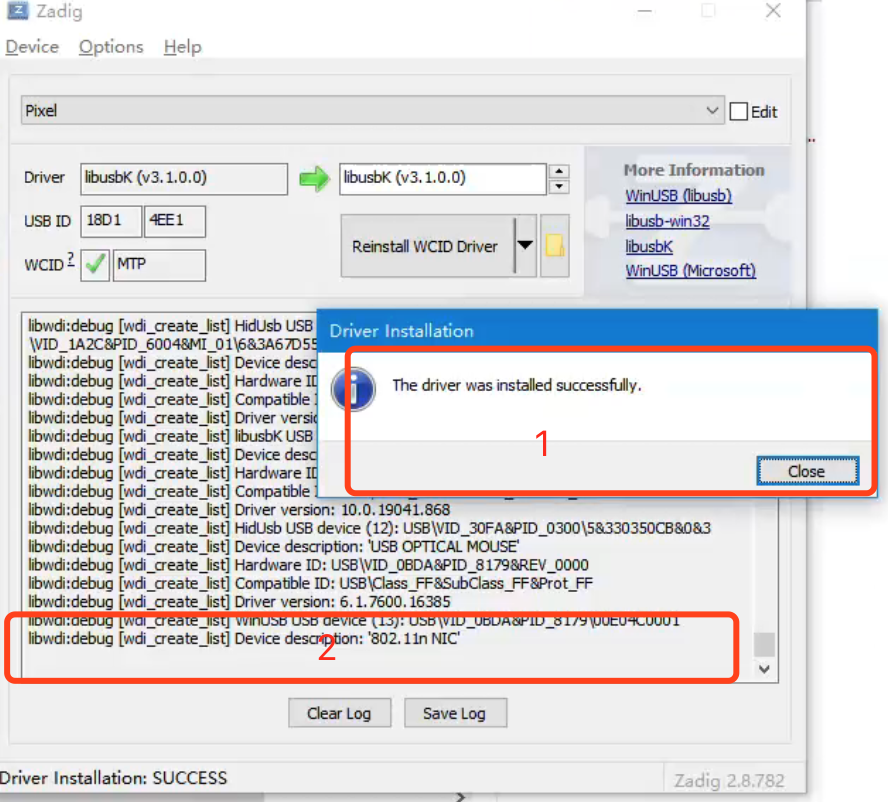
- After install:
- Red box 1 means success
- If box 1 never appears and install hangs, check logs in box 2 — a **reboot** message means restart the PC
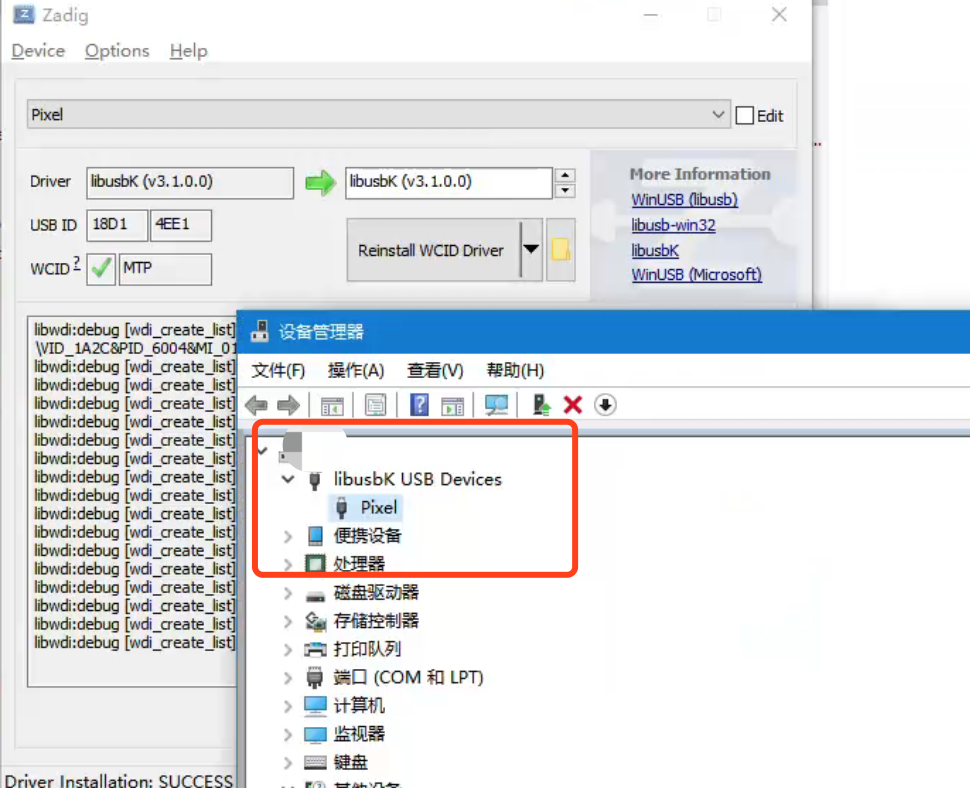
- When done, find your phone under **libusbK** in Control Panel → Device Manager, then go to **Activate HID**
Activate HID
After driver install, the phone should be recognized
- Click **Activate HID**
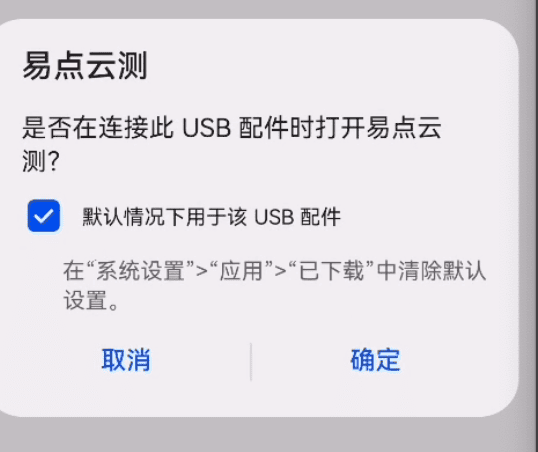
The phone shows a USB accessory prompt — check the box and confirm
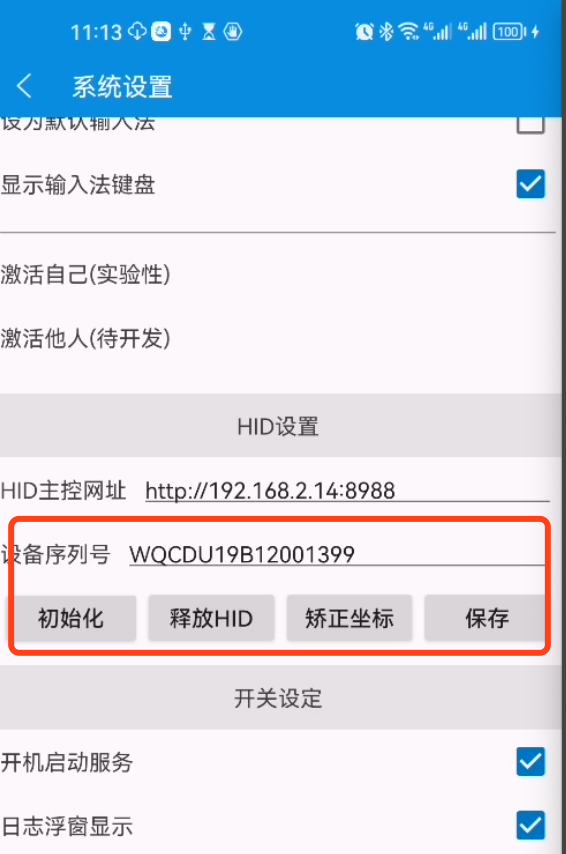
When finished, System settings → HID settings in EC should show the device serial number — that means success
Initialize coordinates (deprecated in 2.0)
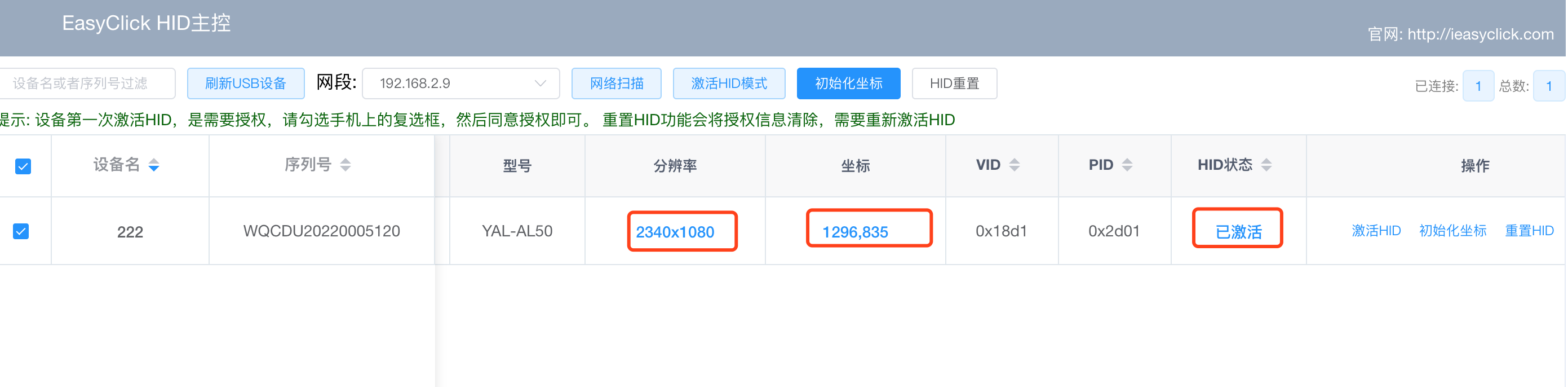
Click Initialize coordinates at the top — the system scans devices and calibrates
The phone may show a USB accessory dialog — tap OK
When done, the coordinates column shows current points
### Network scan
- On the same subnet, click **Network scan** to request a link to the host
- The phone may show a USB accessory dialog — tap OK
- Resolution is submitted automatically when done
Activate HID device
Click Activate HID in the HID host — it shows activating device
On first activation the phone may show:
- Check **Use by default for this USB accessory**
- Tap OK
- When finished, **System settings → HID settings** in EC should show the device serial number — success
## Reset HID device
- **Reset HID device** clears the phone's default USB accessory setting — activate again afterward
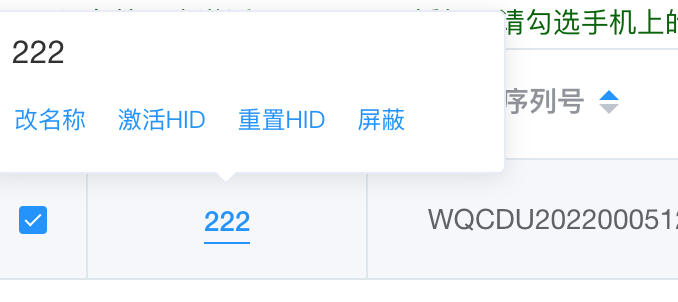
Rename device
Hover over the Device serial number column
Click rename and enter a label
Block device
If an entry is not a phone, click Block
Blocked devices are stored in blockHid.txt next to the program
To unblock, remove the line from blockHid.txt and restart the host
Advanced networking (v2.2.0+)
Connect multiple HID host instances so one host controls the others
Useful when several HID hosts work together — run the main host on Windows and slaves on Ubuntu industrial PCs to save cost
Scan HID slaves
Open Advanced networking, choose I want to be the host, click scan — slaves on the same LAN submit data automatically
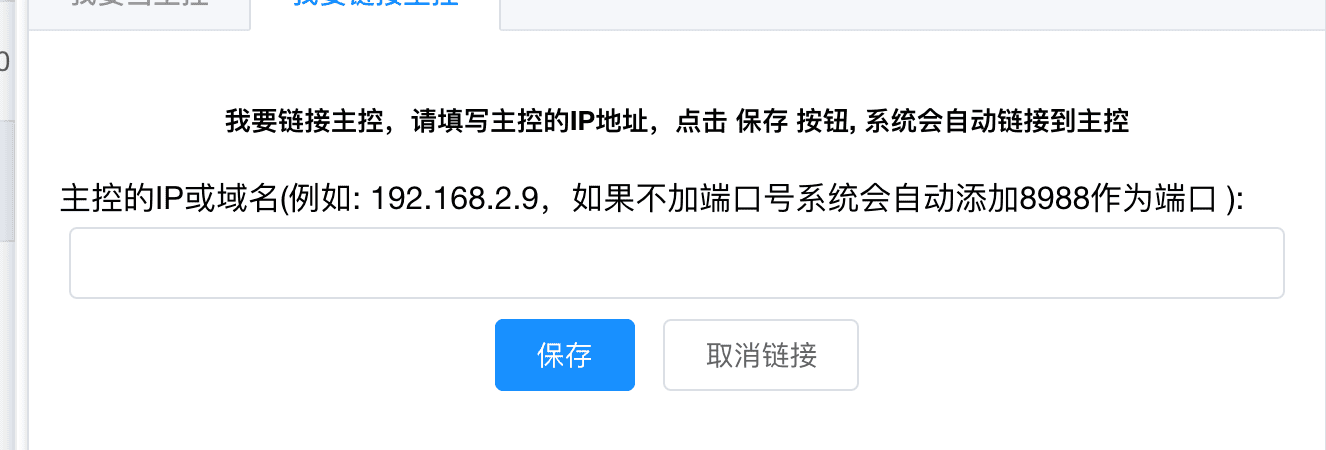
Connect slave to host
Open the slave HID machine’s admin page (not the host’s), Advanced networking → I want to connect to a host, enter the host IP, save
USB communication mode (v2.2.0+)
USB communication when the device network and HID host are on different networks (e.g. phone on mobile data, HID on Wi‑Fi)
Click Activate HID — confirm the dialog on the phone or communication will fail
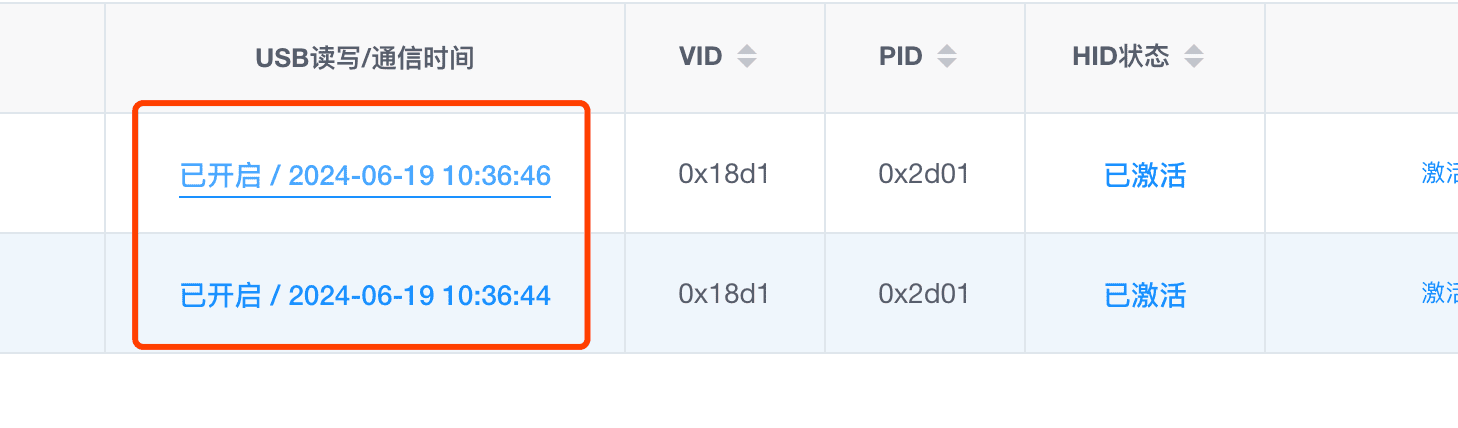
After activation, USB read/write / communication time shows Enabled and updates every ~3 seconds — communication is OK and scripts can run
- If the time column does not update, click **Reset HID**, then **Activate HID** again
## FAQ
### Host does not detect device
- See **Install driver** and replace the driver
### Device not recognized after activating HID
- See the green tips under **Activate HID** — reinstall the driver
### Network scan has no effect
- Device may be offline or on another subnet — pick the matching subnet at the top and scan again
### Coordinates are inaccurate
- Click **Initialize coordinates** to recalibrate
### Same-brand devices
- Same brand shares PID/VID — do not reinstall the driver repeatedly
### adb and HID together
- HID works regardless of adb; both can run at once
### libusbK driver cannot find device
- Try **libusb-win32** in Zadig (select it on the right)
### Yellow exclamation mark
- Driver may be wrong — reboot; if it persists, try **libusb-win32** in Zadig
### Multiple identical devices
- One phone may appear as several entries — set one device's driver to **winusb**
4.0.0 error reference
device_info claim interface Error { kind: Unsupported, code: None, message: \"incompatible driver is installed for this device\" }
Wrong driver on Windows — use winusb; other drivers can cause this
 - After install:
- Red box 1 means success
- If box 1 never appears and install hangs, check logs in box 2 — a **reboot** message means restart the PC
- After install:
- Red box 1 means success
- If box 1 never appears and install hangs, check logs in box 2 — a **reboot** message means restart the PC
 - When done, find your phone under **libusbK** in Control Panel → Device Manager, then go to **Activate HID**
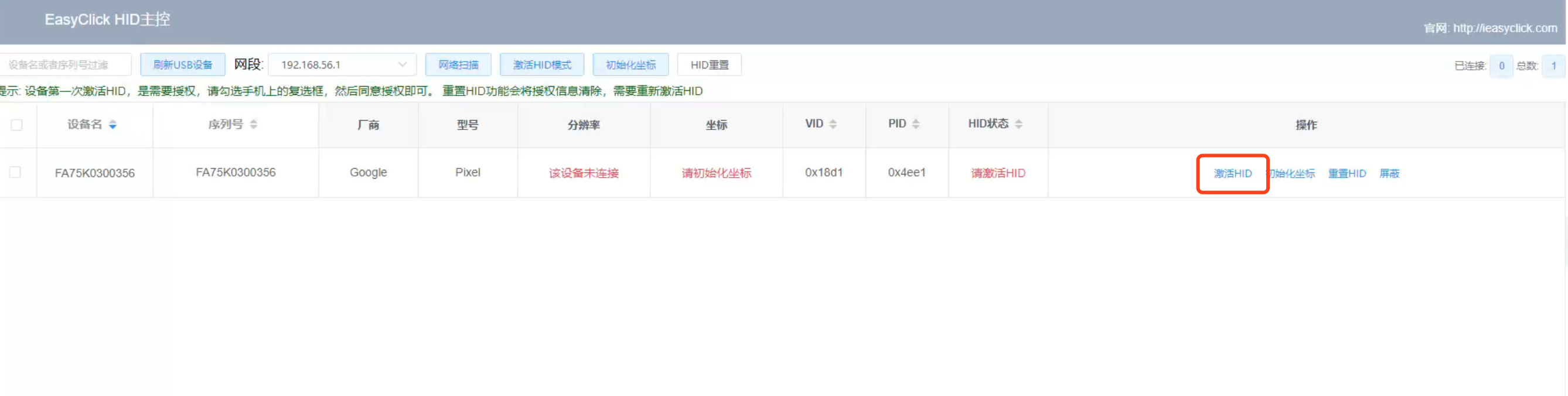 - Click **Activate HID**
 ### Network scan
- On the same subnet, click **Network scan** to request a link to the host
- The phone may show a USB accessory dialog — tap OK
- Resolution is submitted automatically when done
### Network scan
- On the same subnet, click **Network scan** to request a link to the host
- The phone may show a USB accessory dialog — tap OK
- Resolution is submitted automatically when done

 - If the time column does not update, click **Reset HID**, then **Activate HID** again
## FAQ
### Host does not detect device
- See **Install driver** and replace the driver
### Device not recognized after activating HID
- See the green tips under **Activate HID** — reinstall the driver
### Network scan has no effect
- Device may be offline or on another subnet — pick the matching subnet at the top and scan again
### Coordinates are inaccurate
- Click **Initialize coordinates** to recalibrate
### Same-brand devices
- Same brand shares PID/VID — do not reinstall the driver repeatedly
### adb and HID together
- HID works regardless of adb; both can run at once
### libusbK driver cannot find device
- Try **libusb-win32** in Zadig (select it on the right)
### Yellow exclamation mark
- Driver may be wrong — reboot; if it persists, try **libusb-win32** in Zadig
### Multiple identical devices
- One phone may appear as several entries — set one device's driver to **winusb**
- If the time column does not update, click **Reset HID**, then **Activate HID** again
## FAQ
### Host does not detect device
- See **Install driver** and replace the driver
### Device not recognized after activating HID
- See the green tips under **Activate HID** — reinstall the driver
### Network scan has no effect
- Device may be offline or on another subnet — pick the matching subnet at the top and scan again
### Coordinates are inaccurate
- Click **Initialize coordinates** to recalibrate
### Same-brand devices
- Same brand shares PID/VID — do not reinstall the driver repeatedly
### adb and HID together
- HID works regardless of adb; both can run at once
### libusbK driver cannot find device
- Try **libusb-win32** in Zadig (select it on the right)
### Yellow exclamation mark
- Driver may be wrong — reboot; if it persists, try **libusb-win32** in Zadig
### Multiple identical devices
- One phone may appear as several entries — set one device's driver to **winusb**