Cloud control MCP
What is MCP
Supported platforms
How to use cloud MCP
- Install cloud control. MCP listens on port
8187— open it in BT Panel security and your cloud provider security group - Go to Permission → User management → Cloud settings
- If there is no MCP key, generate one, copy it, then confirm to save
MCP server config
- After you have the key, edit the config below:
- Replace the server IP with your cloud control IP
- Replace the MCP key with the key you copied
{ "mcpServers": { "EcloudMCP_zuhu": { "type": "streamable-http", "url": "http://SERVER_IP:8187/mcp", "headers": { "UserToken": "MCP_KEY" } } }}Example:
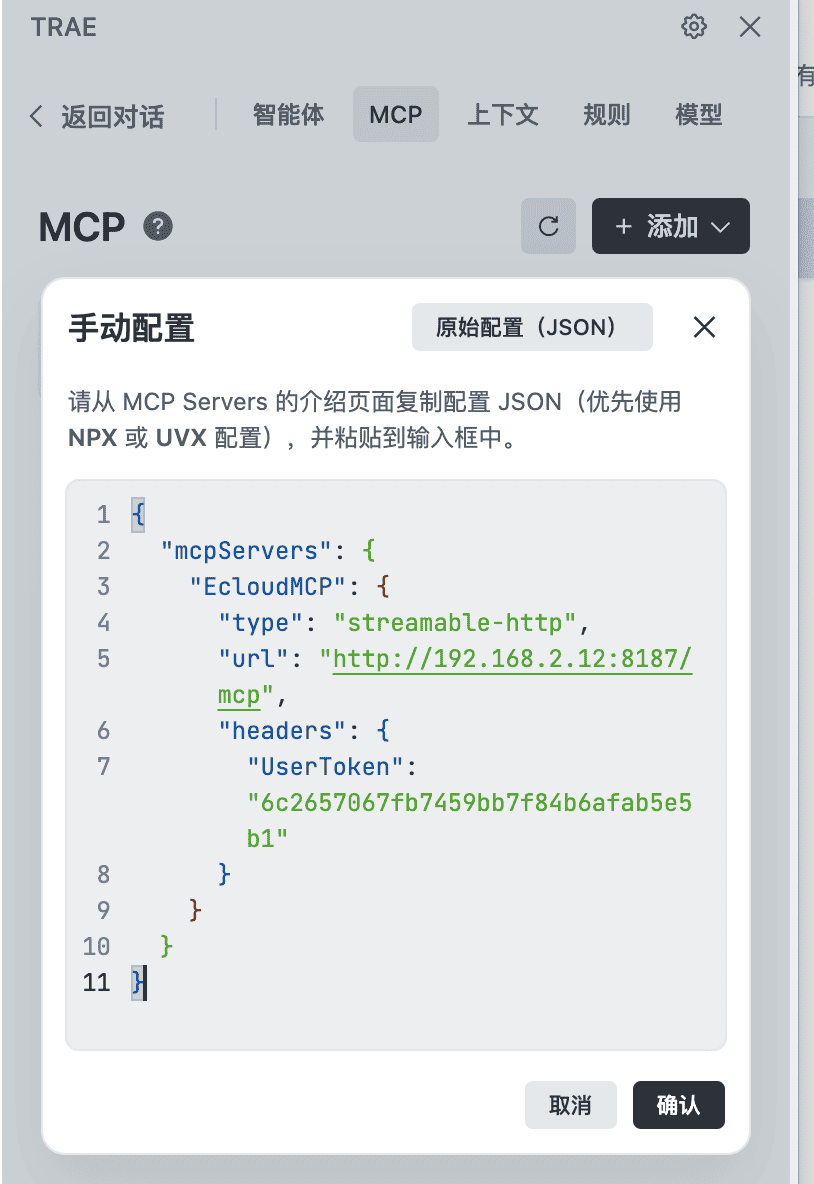
{ "mcpServers": { "EcloudMCP_zuhu": { "type": "streamable-http", "url": "http://192.168.2.12:8187/mcp", "headers": { "UserToken": "6c2657067fb7459bb7f84b6afab5e5b1" } } }}Configure in an LLM platform
- Example uses Trae; other platforms are similar
- Download and open Trae
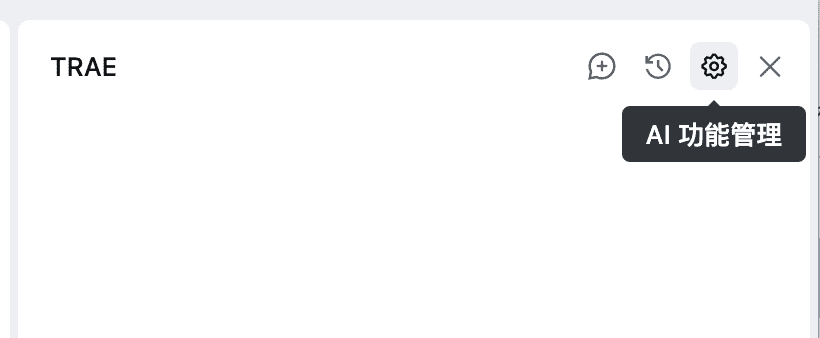
- Open AI feature management on the right
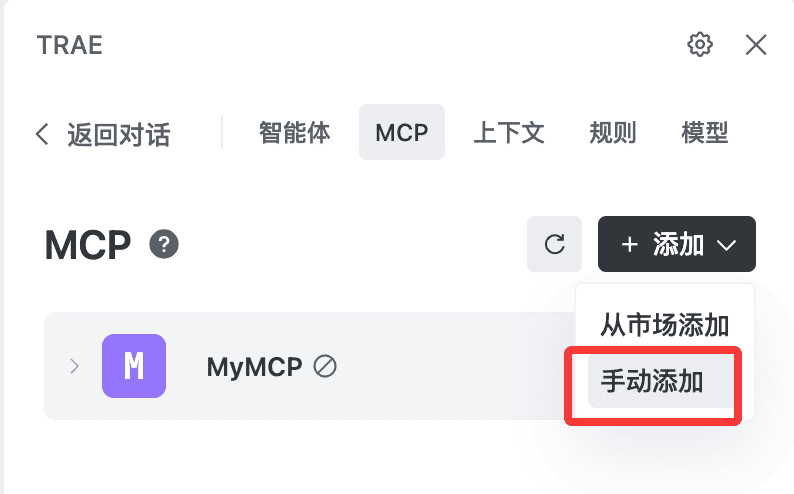
- Open MCP → Add → Manual
- Paste the MCP config above and confirm
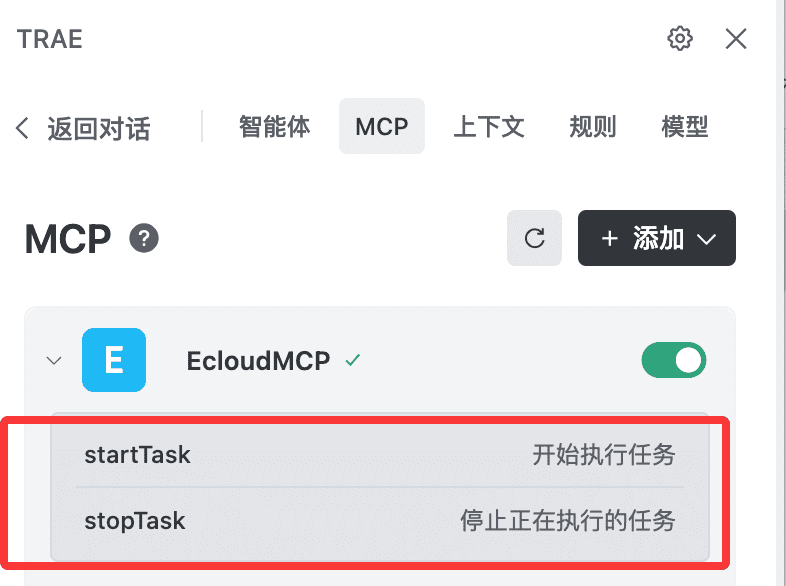
- Trae connects and lists supported tools
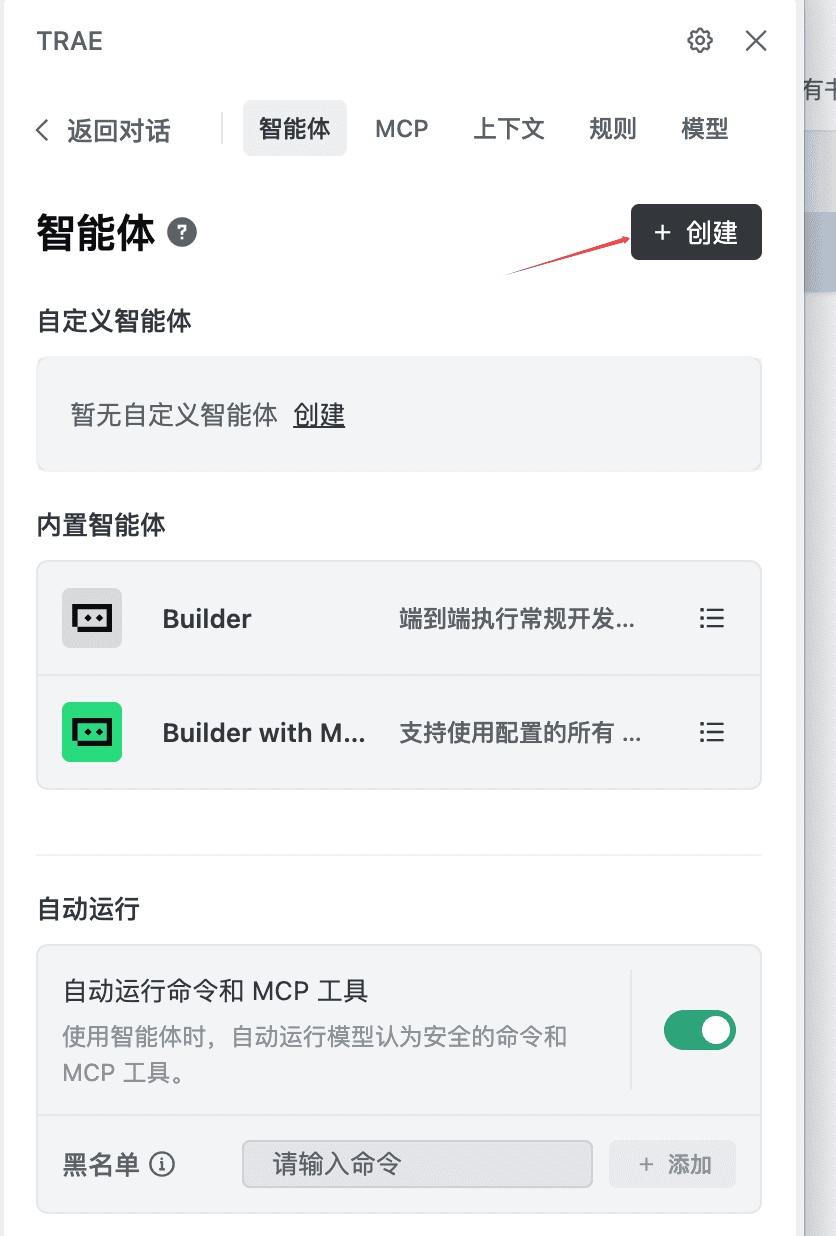
- Click Agent → create
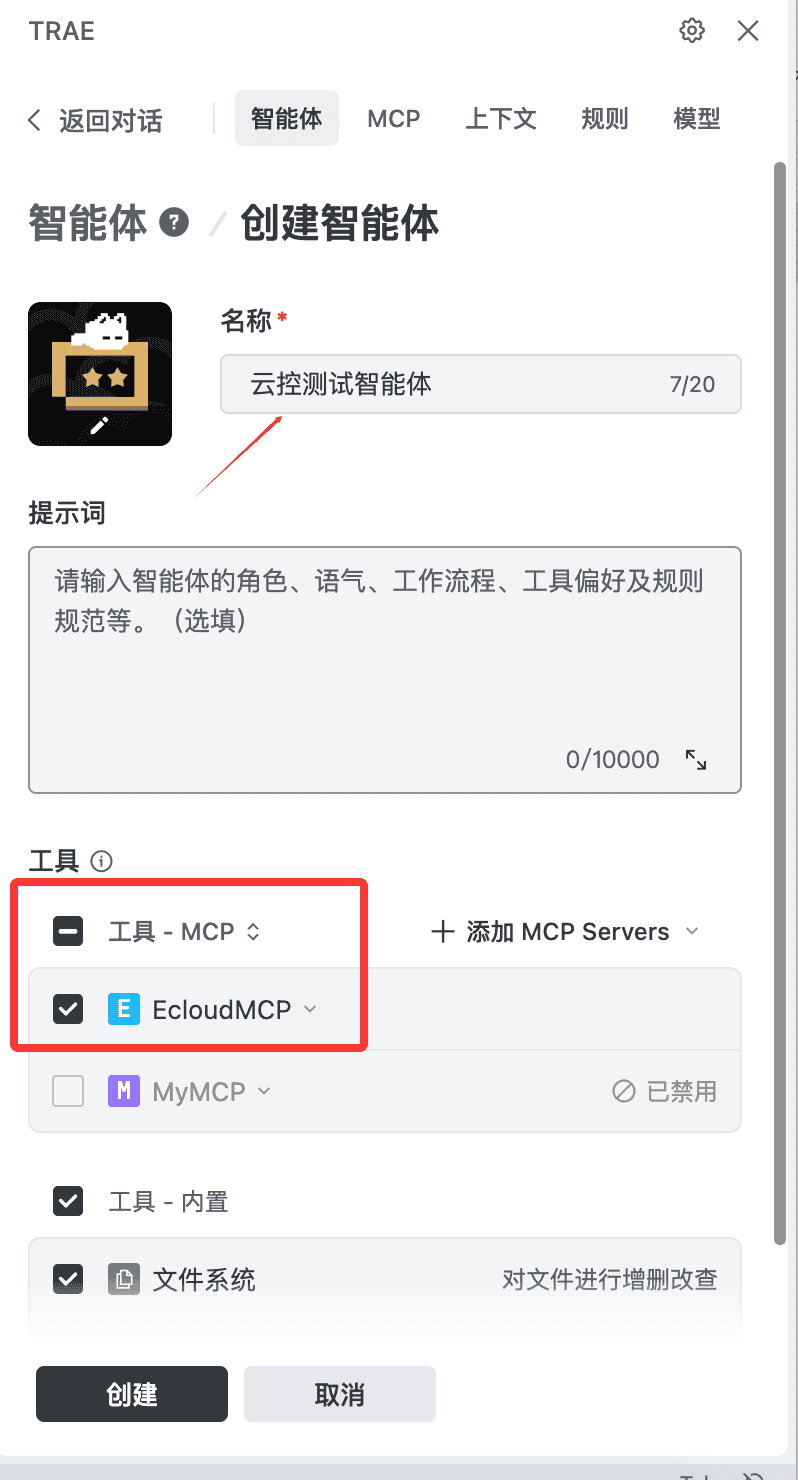
- Name the agent, check the MCP server you configured, then create
- Chat with the agent, e.g.
Run cloud task named 323orStop cloud task named 323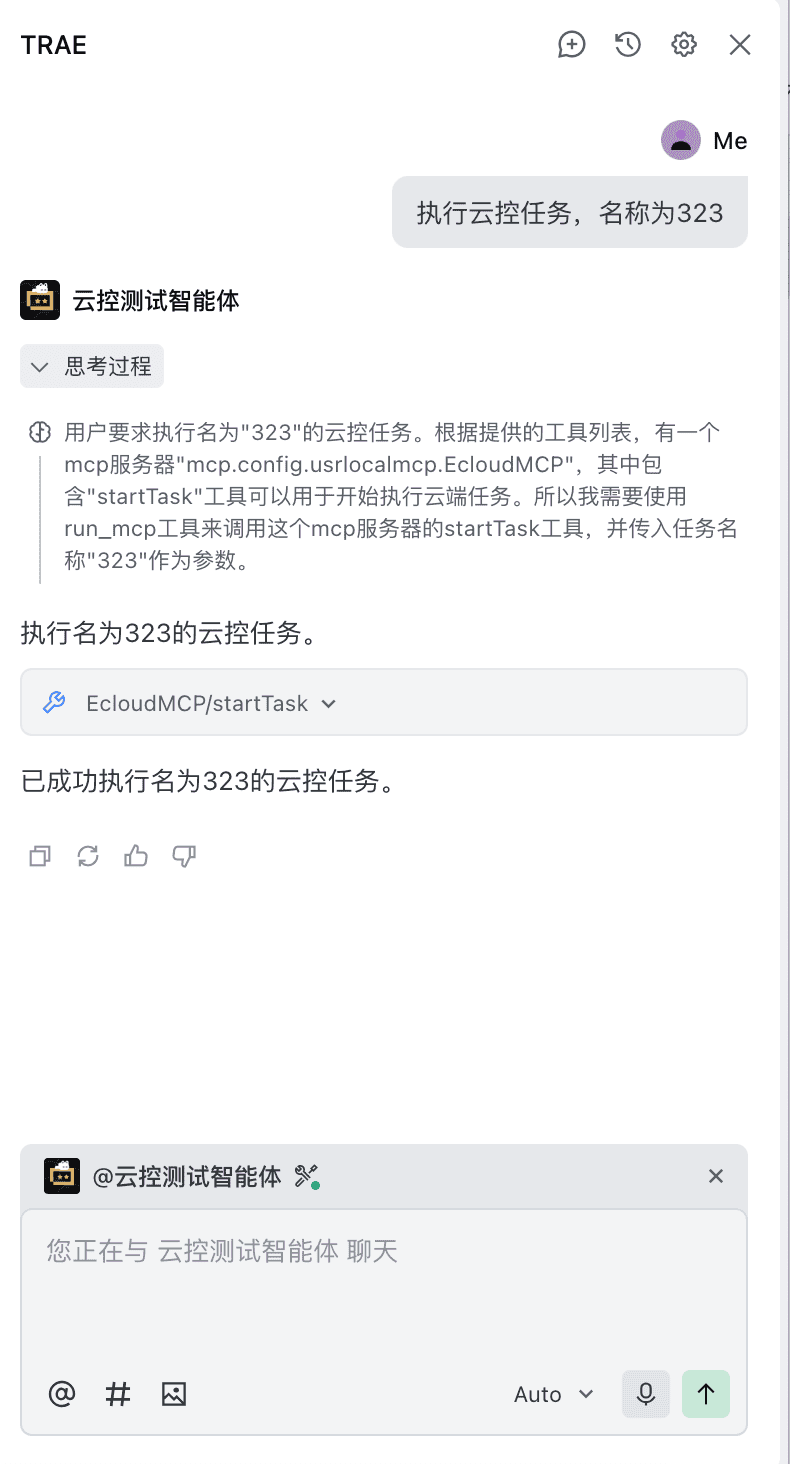
Why MCP helps
- Often used in workflows as a tool/data provider for the LLM
- Example: Coze generates a video, then starts a cloud task for the next step — one of many scenarios
- For simple automation, skip coding and let the model interpret intent
Feature requests
- For more MCP ideas or needs, contact Secretary Sha (QQ 2557945562)