Scripts & other features
Scripts
Connect APK to control center
- Install the APK: click Scan — scan the QR code with the phone, or download and install
 - Left toolbar → **Scan** → **Network scan** → **Broadcast scan** (phone and PC must be on the same LAN)
 - After the APK receives the scan, it saves the control center address and connects automatically
- If scanning fails, set the correct NIC (left toolbar → Set NIC) and scan again
- If still failing, enter the control center address manually, or enter the phone’s subnet and use **Subnet scan**
- After the APK receives the scan, it saves the control center address and connects automatically
- If scanning fails, set the correct NIC (left toolbar → Set NIC) and scan again
- If still failing, enter the control center address manually, or enter the phone’s subnet and use **Subnet scan**
- Manual connect
- Open the APK → top-left hamburger → System settings
- Find control center / mirroring settings — enter the PC IP, or
IP:8178 - Open the log floating window and tap Test connection
- If there is no device serial, enable ADB debugging and USB-connect once to the control center / mirroring app. You may also enter any unique serial
 - **Note: if your PC has a public IP, control center and mirroring support WAN access**
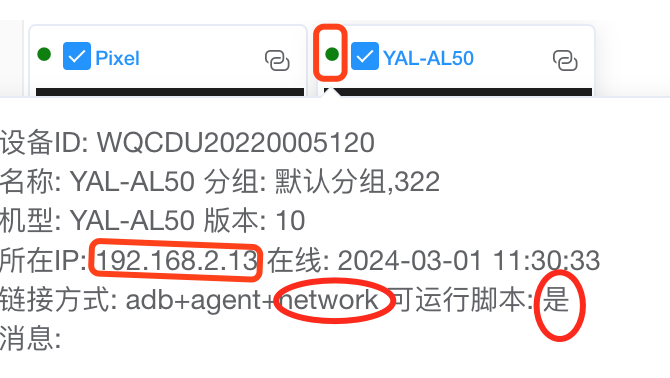
- Connected
- On success, mirroring or control center shows the phone IP and that scripts can run
- **Note: if your PC has a public IP, control center and mirroring support WAN access**
- Connected
- On success, mirroring or control center shows the phone IP and that scripts can run
Run scripts
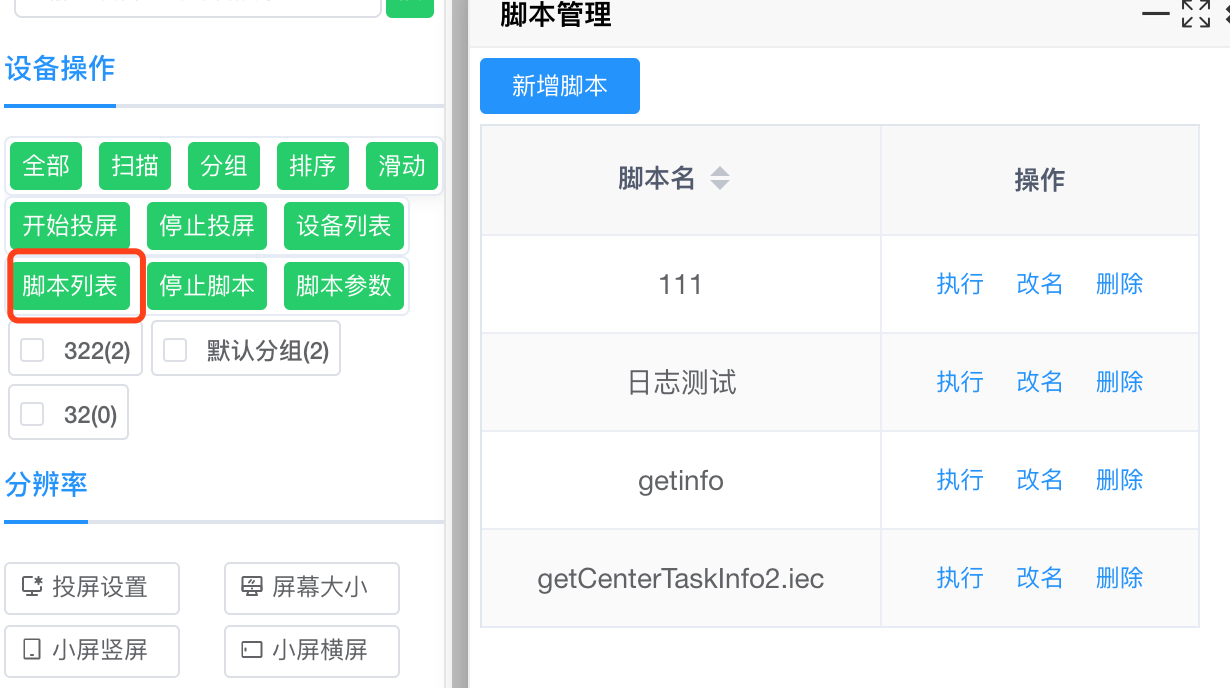
- Select device → left toolbar → Stop script
 ### Script parameters
- Left toolbar → Script parameters → add or edit
### Script parameters
- Left toolbar → Script parameters → add or edit
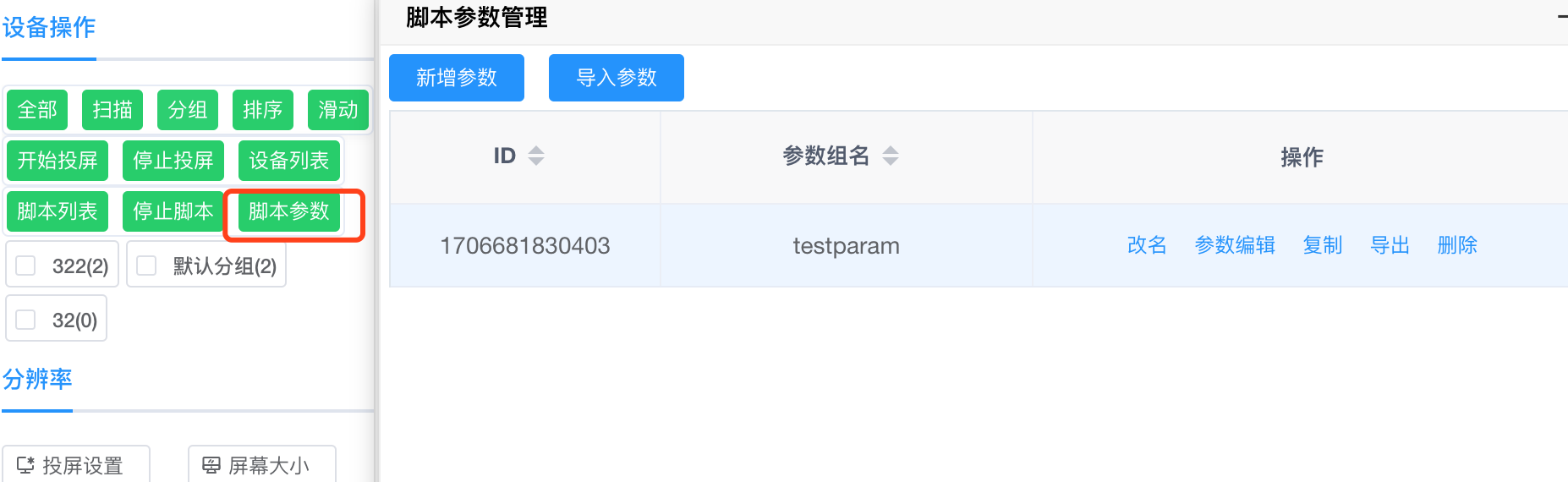 - When running a script, pick the parameter name; use `getCenterTaskInfo` in the script to read them
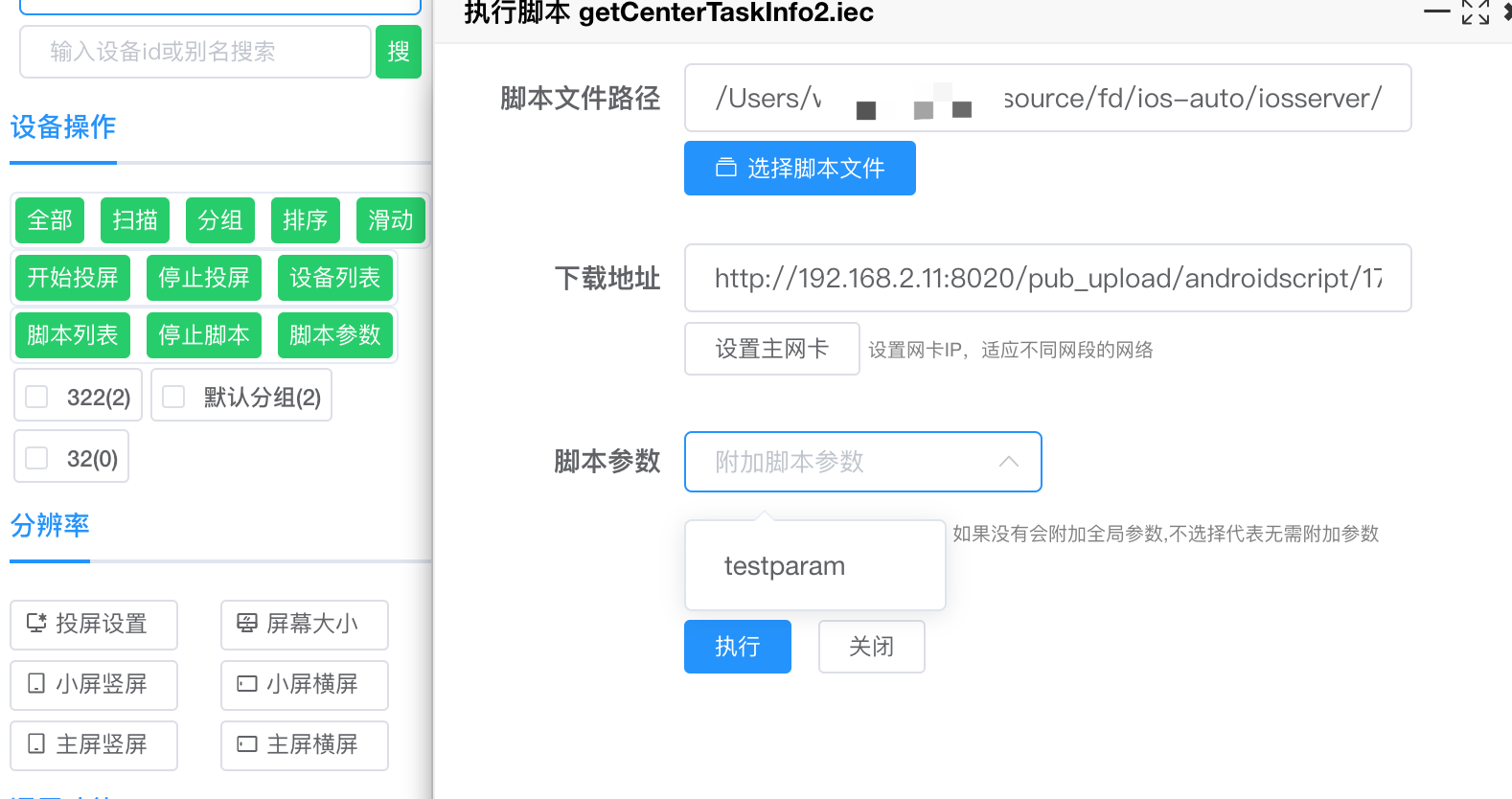
Data management
Create / edit data
- Control center / mirroring → left toolbar → Data → add or edit
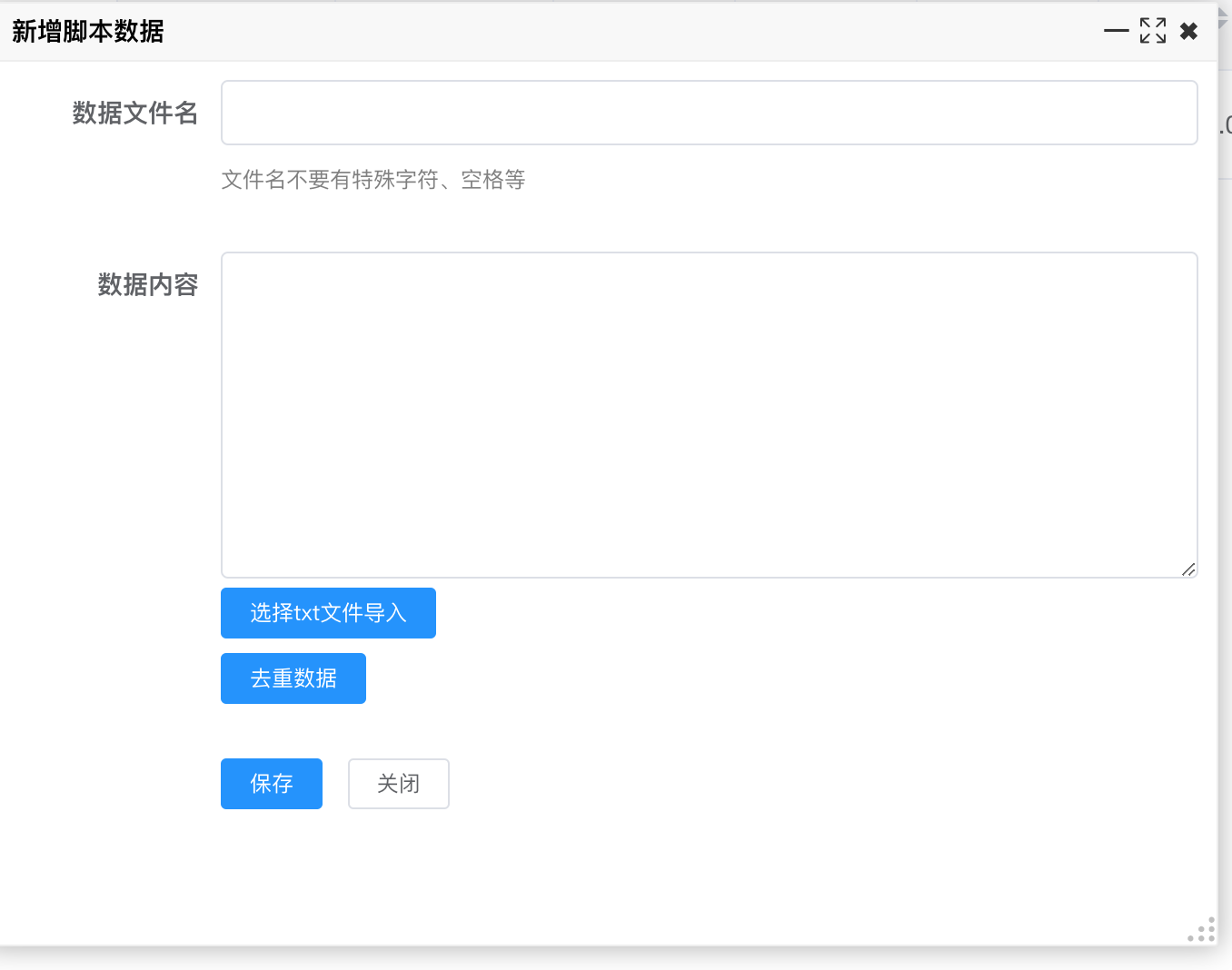
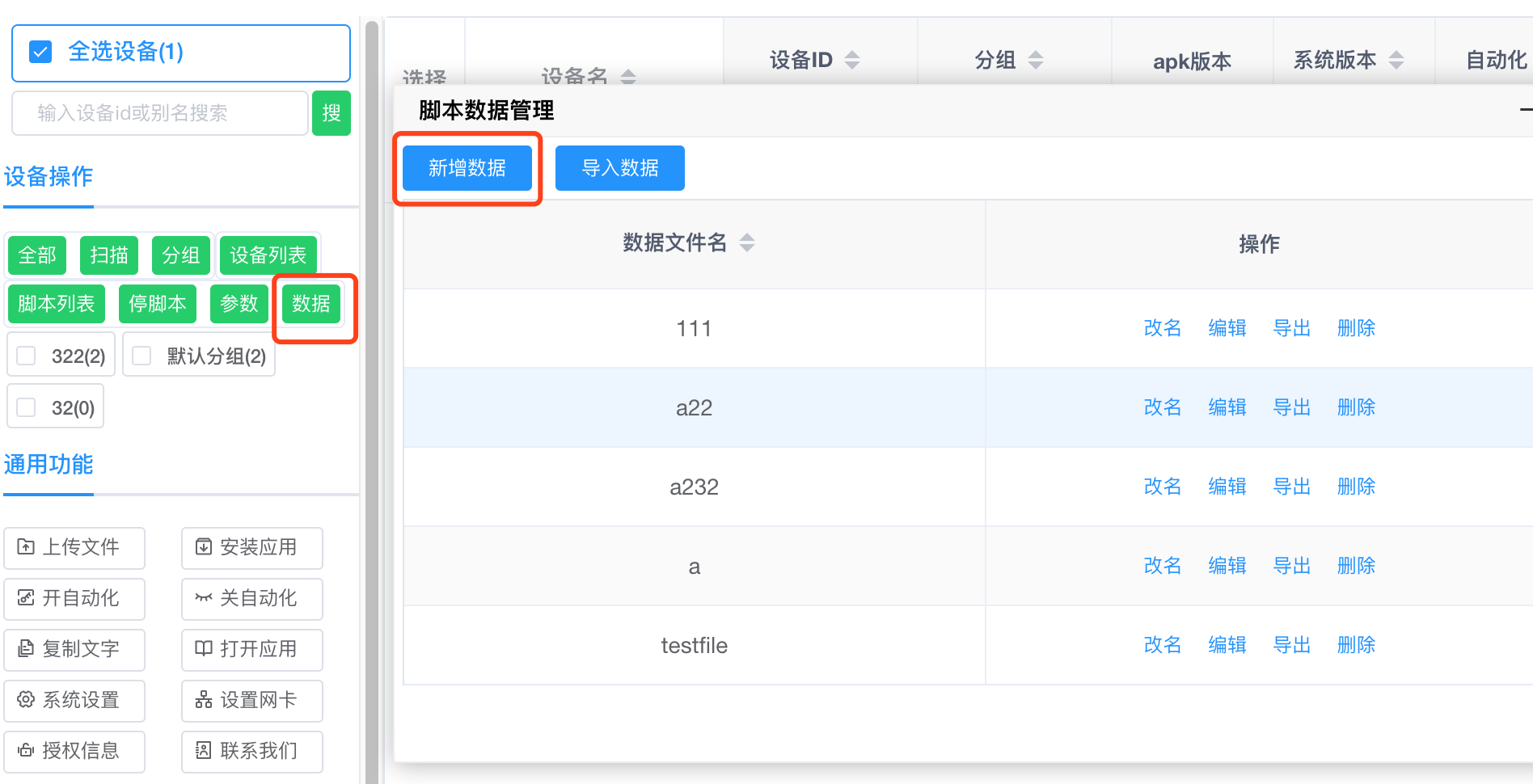 - Enter one record per line, or upload a file and deduplicate
 ### Export data
- Left toolbar → Data → select a dataset → export (others can import it)
### Deduplicate
- When creating or editing, click Deduplicate to remove duplicates in the current content
### Import TXT
- When creating or editing, choose a TXT file to import
### Export data
- Left toolbar → Data → select a dataset → export (others can import it)
### Deduplicate
- When creating or editing, click Deduplicate to remove duplicates in the current content
### Import TXT
- When creating or editing, choose a TXT file to import
Other features
Activate proxy mode
- Activates proxy mode on the device for running scripts (replaces the older EC activator)
- Left menu → Device list — Proxy environment shows Activated when done; otherwise click Activate proxy environment
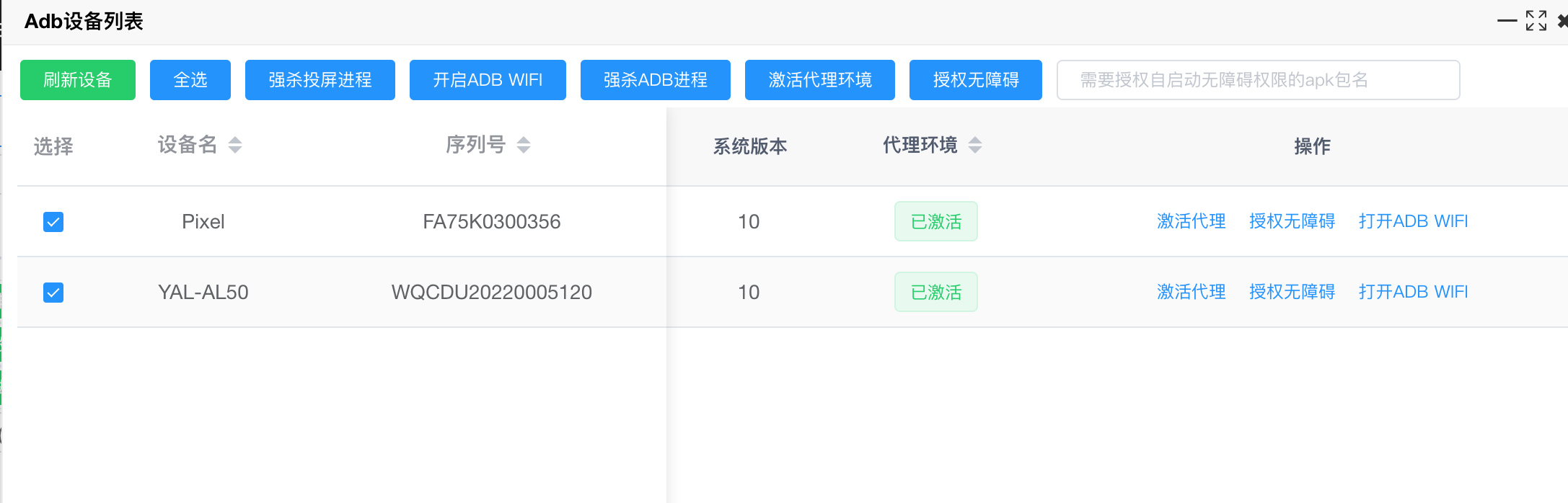
Grant accessibility
- Grants accessibility auto-start for scripts (not available on every device)
- Left menu → Device list — enter the EC app package name (from EC system settings), click Grant accessibility, then check Accessibility auto-start in EC system settings
## Grant screenshot auto-allow
- Grants **auto-allow screenshot** for scripts (not available on every phone)
- Left menu → Device list — enter the EC app package name, click **Grant screenshot auto-allow**, then check **Screenshot auto-allow** in EC system settings

Software license
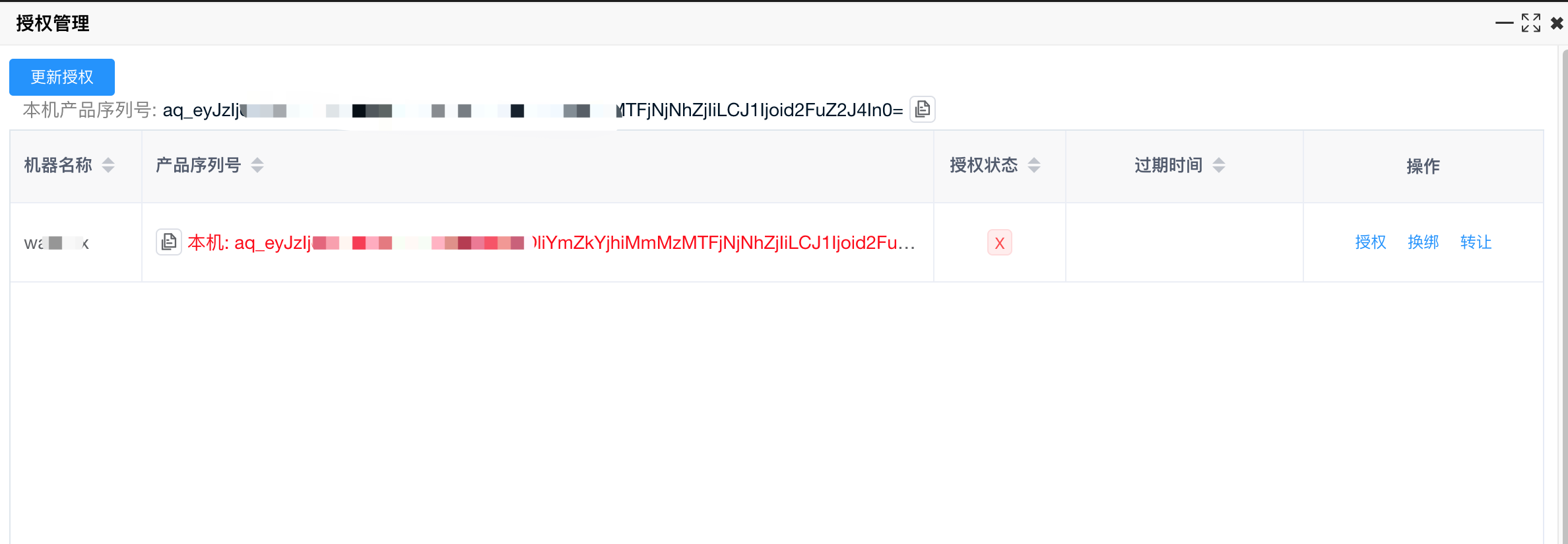
- Licenses are bound to the PC; each machine has a different product serial
- In control center or mirroring → Common → License info
Add license
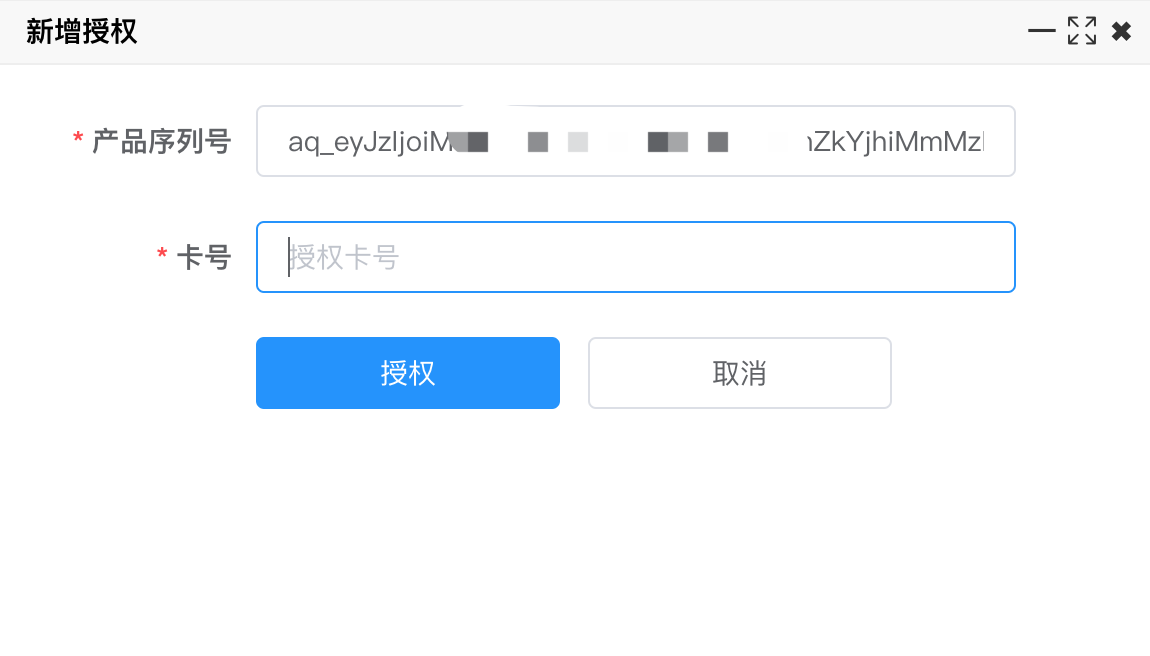
- Find the red row for this machine → Authorize on the right
[Enter the card number from official channels or resellers, then Authorize]
 ### Rebind license
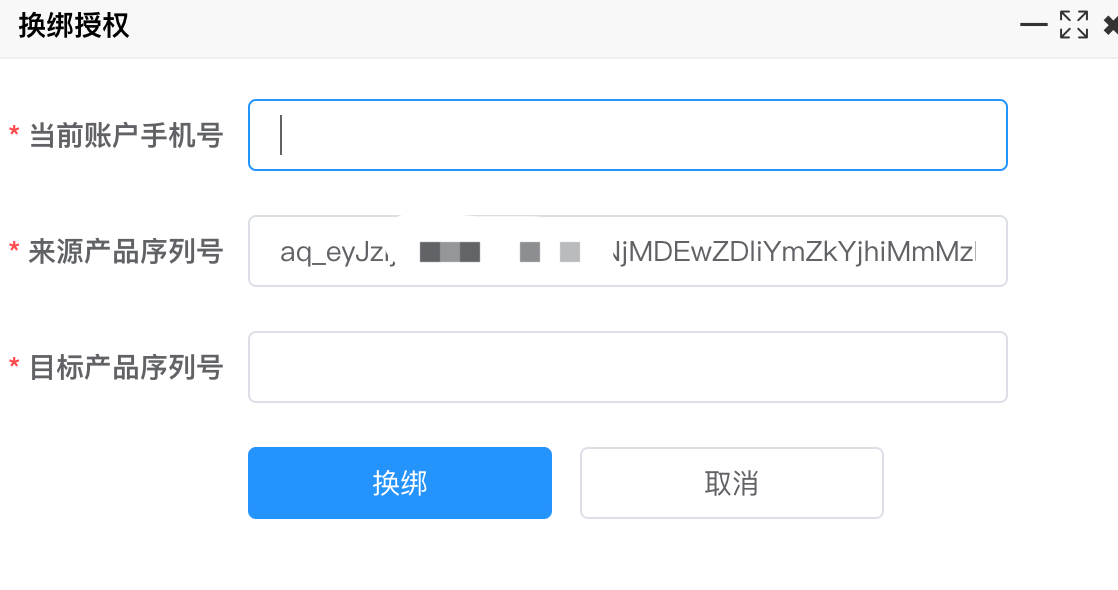
- Find the red row → Rebind — enter the phone number used at registration and the target product serial
### Rebind license
- Find the red row → Rebind — enter the phone number used at registration and the target product serial
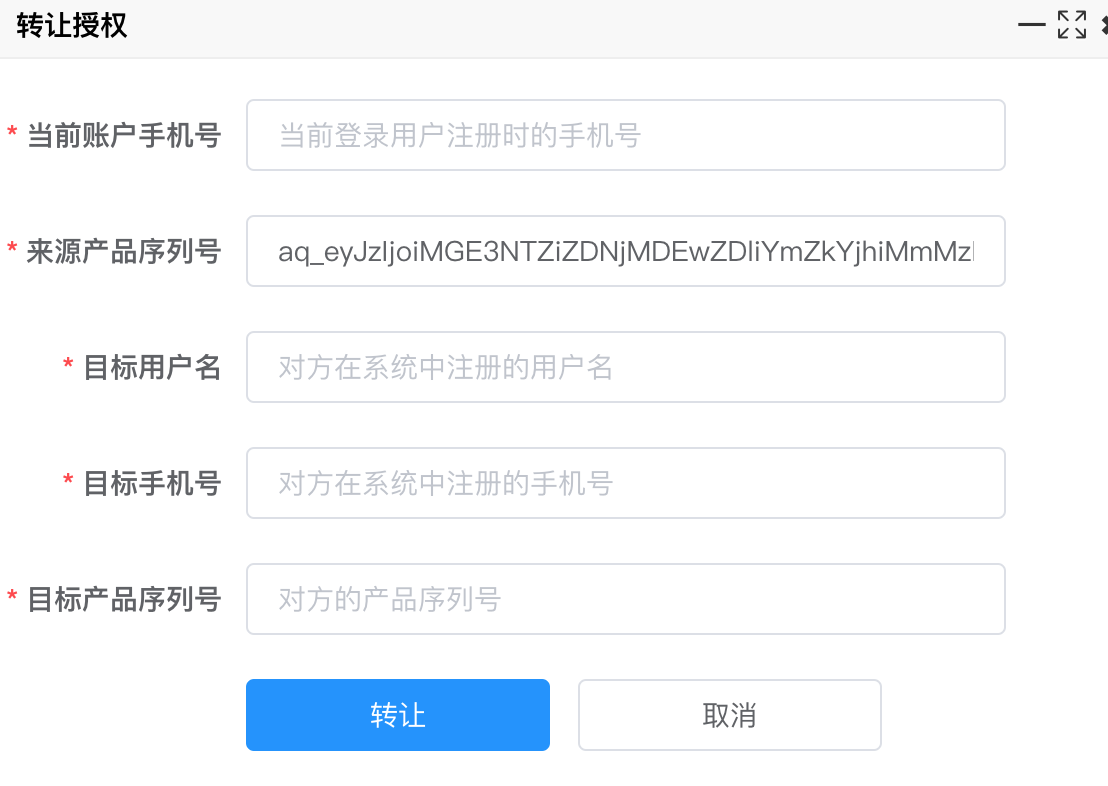
Transfer license
- Find the red row → Transfer — enter your registration phone number, the recipient’s EC username/phone, and their product serial