Network platform guide
Sign up and log in
- URL: http://uc.ieasyclick.com
- Register and sign in
Software list
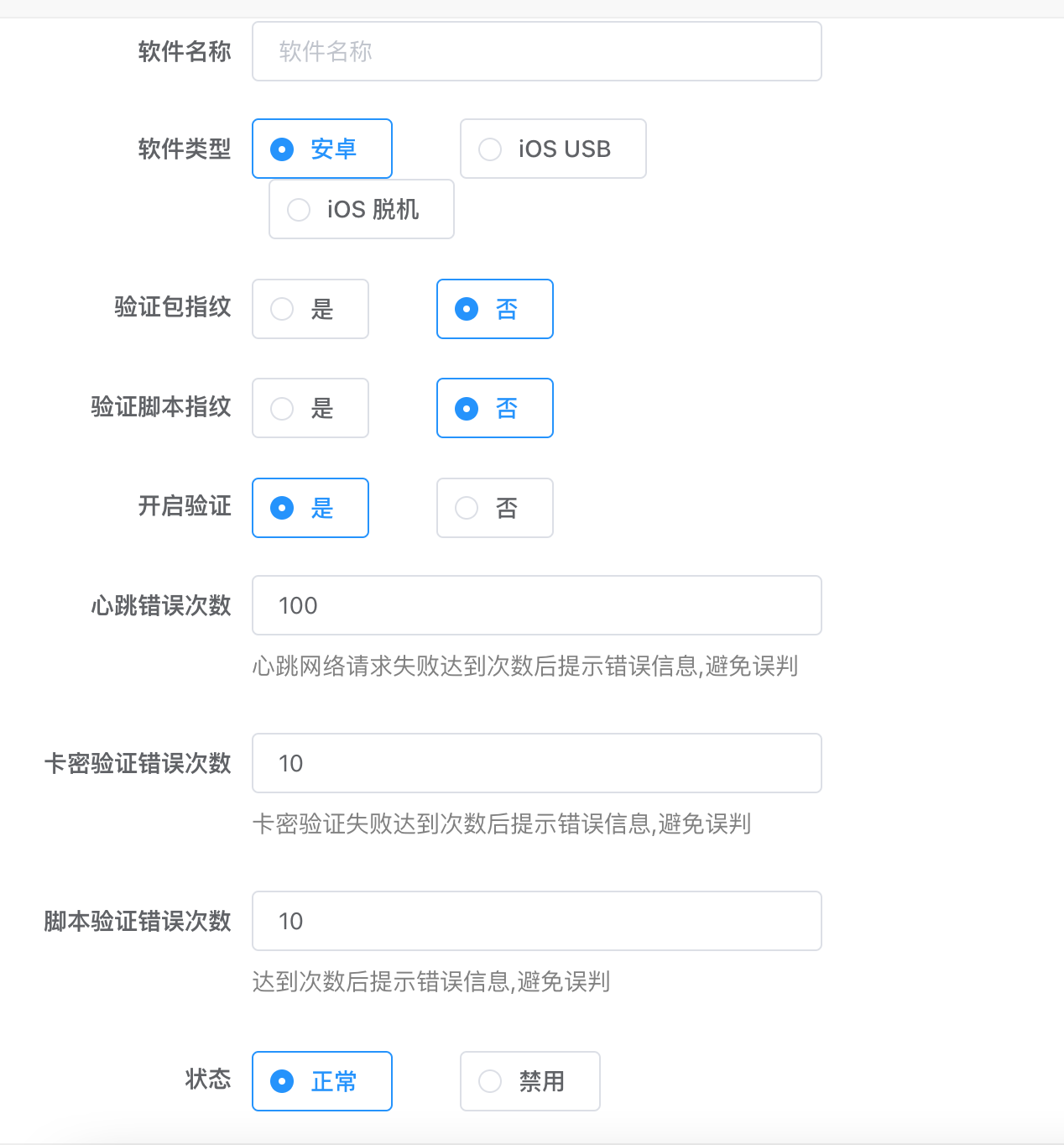
- Create a software entry to get
appidand secret key — required forecNetCard.netCardInit - Fields:
- Software type: choose Android or iOS correctly — wrong choice may break parameter matching
- Verify APK fingerprint: validates the APK — upload the APK under Script list
- Verify script fingerprint: validates the IEC — upload the IEC under Script list
- Heartbeat error count: tolerance for heartbeat failures (e.g. network issues) before the script reports an error
- License verification error count: tolerance for license check failures before reporting an error
- Script verification error count: tolerance for script file verification failures
- Enable verification: turn off during development
- Status: when disabled, all licenses are invalid and scripts receive errors
Script list
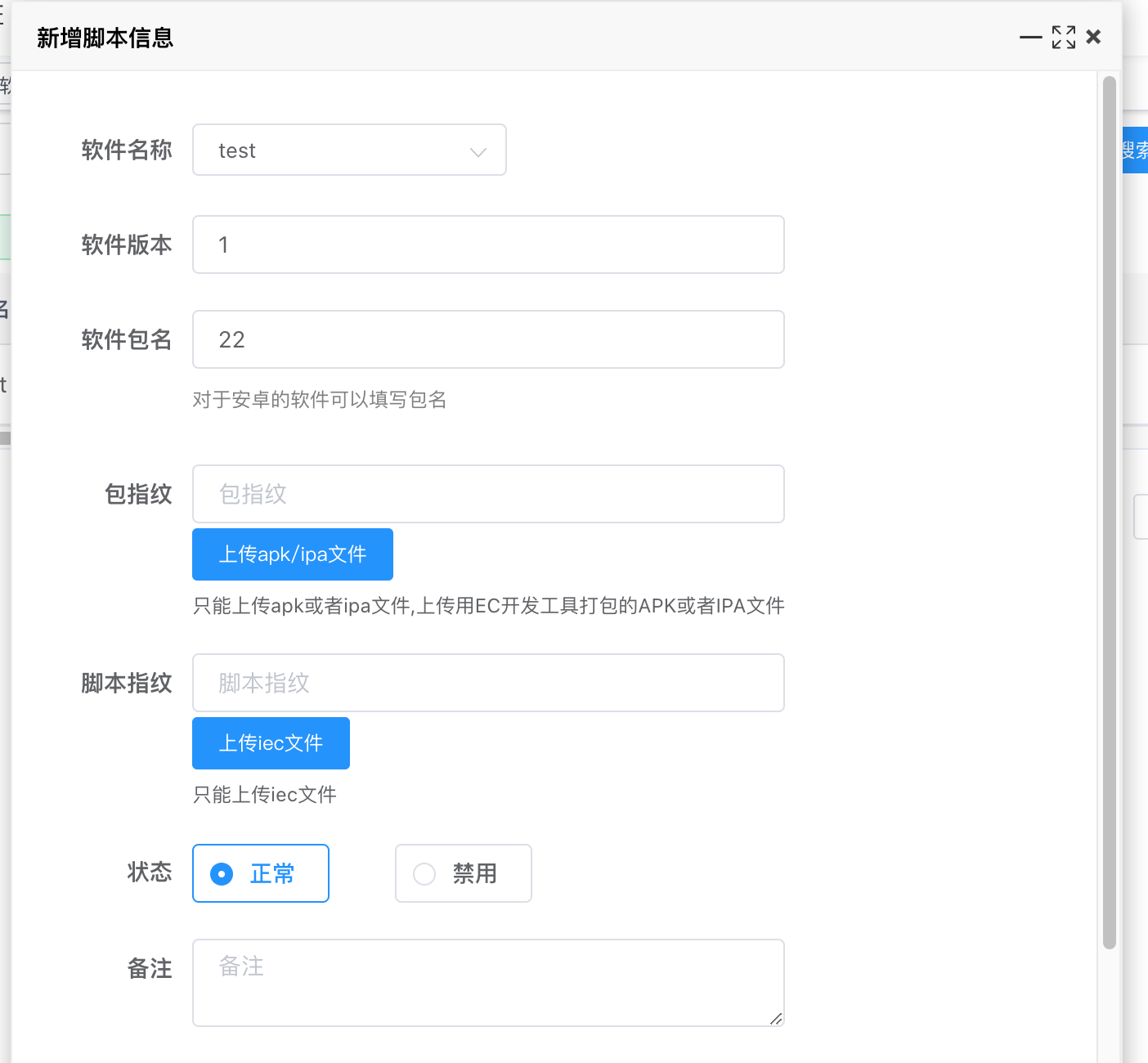
- Each entry represents a script compiled to IEC
- Fields:
- Software version: script version, e.g. 1.0
- Package name: Android APK package name only — when set, mismatch blocks script execution
- APK fingerprint: when set, the APK file is verified
- Script fingerprint: when set, the IEC file is verified
License management
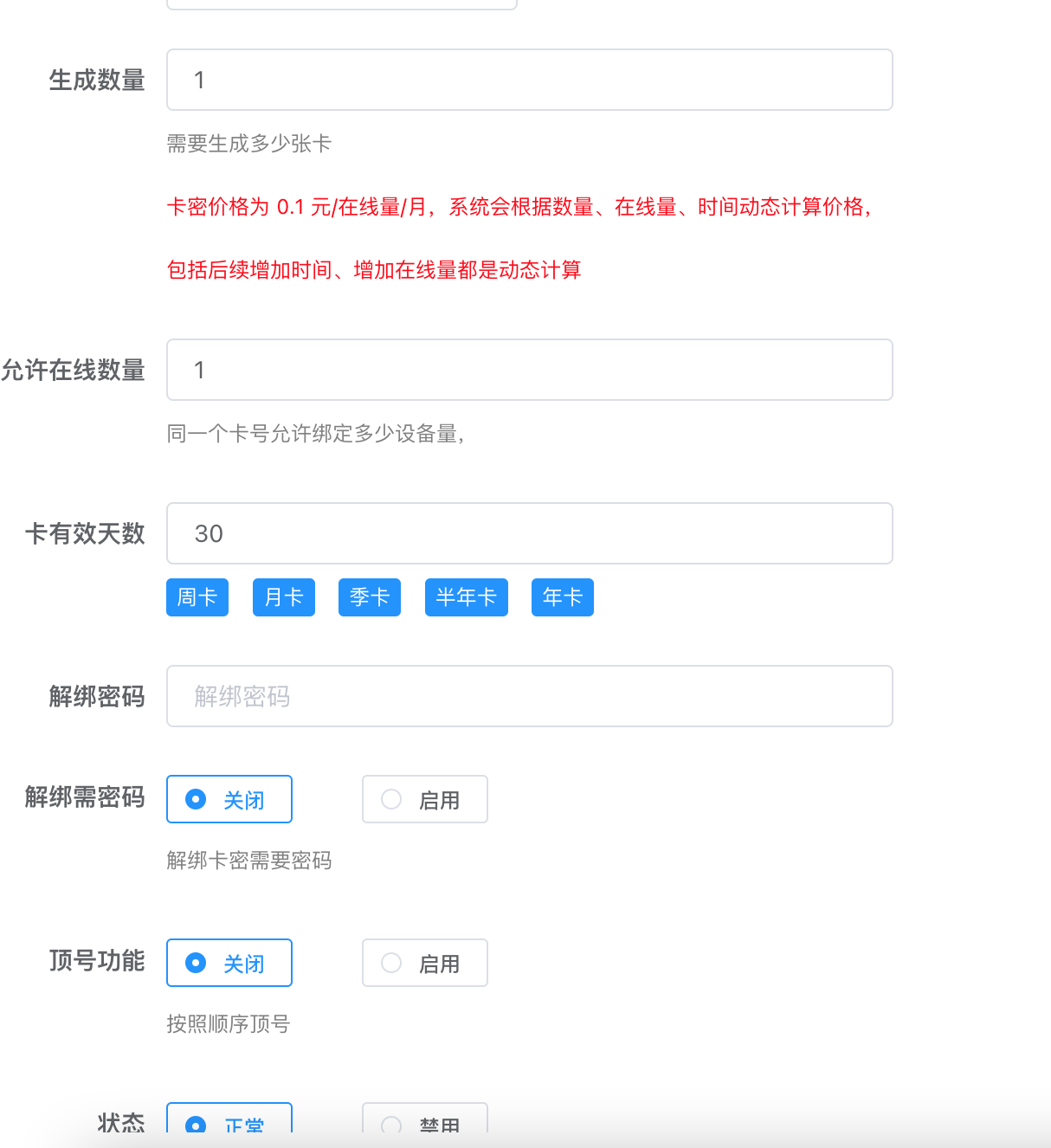
- Generate network verification licenses — one device per license or multiple devices per license
- New license fields:
- Quantity: how many licenses to generate
- Valid days: expiry — timer starts on first device bind; unused licenses do not count down
- Unbind password: required to unbind from a device; leave empty for password-free unbind
- Device kick: for multi-device licenses — when enabled, newer devices kick the oldest bound device
- Status: disabled licenses cannot be used; scripts report errors
- Batch actions:
- Batch extend time: add time to selected licenses without rebinding
- Batch add online slots: increase allowed device count without rebinding

Cloud variables
- Set variables in the cloud and read them in scripts with
ecNetCard.netCardGetCloudVar - Values can be plain strings or JS code executed with
evalin the script - Fields:
- Variable name: passed to
ecNetCard.netCardGetCloudVar(Chinese or English OK) - Variable content: the value
- Remote edit: allow scripts to update via
ecNetCard.netCardUpdateCloudVar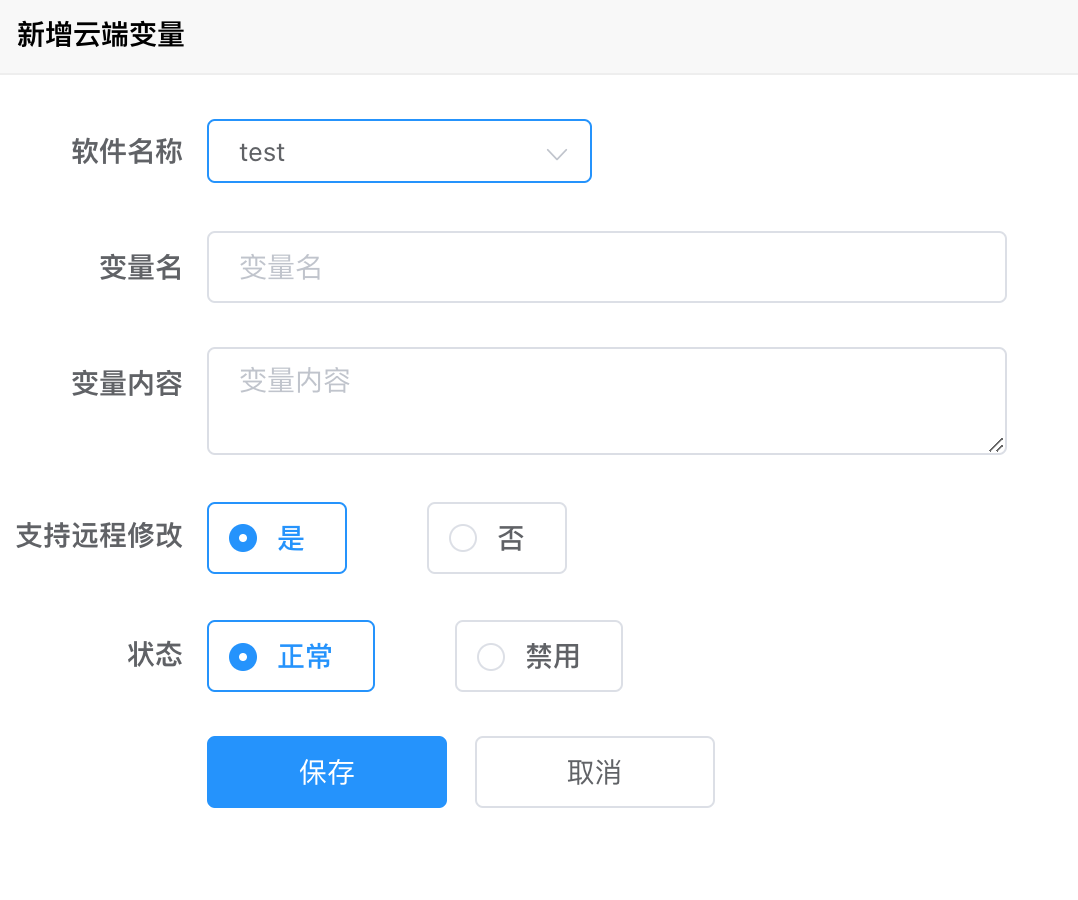
Hot update management
- Built-in hot update backed by Alibaba Cloud OSS — upload IEC files directly
Create Alibaba Cloud OSS credentials
-
Obtain Alibaba Cloud
AccessKeyIdandAccessKeySecret -
Go to: https://ram.console.aliyun.com/users/create and create a user

-
Choose any username; enable console access and OpenAPI access, then confirm

-
After creation, copy
AccessKeyIdandAccessKeySecret -
Copy AccessKeyId and AccessKeySecret promptly


-
Grant permissions
-
Select the user → Add permissions → check
AliyunOSSFullAccess→ confirm

Configure OSS
- Use credentials from Create Alibaba Cloud OSS credentials
- OSS configuration → Add OSS storage — fill in Alibaba Cloud OSS details
- AccessKeyId and AccessKeySecret — How to get OSS AccessKeyId and AccessKeySecret?
- You have no right to access this object because of bucket acl. fixes:
- https://blog.csdn.net/weixin_38106322/article/details/106873104
- https://blog.csdn.net/qq_53763141/article/details/136428817
- If permissions still fail, create the bucket manually in Alibaba Cloud OSS and enable public read
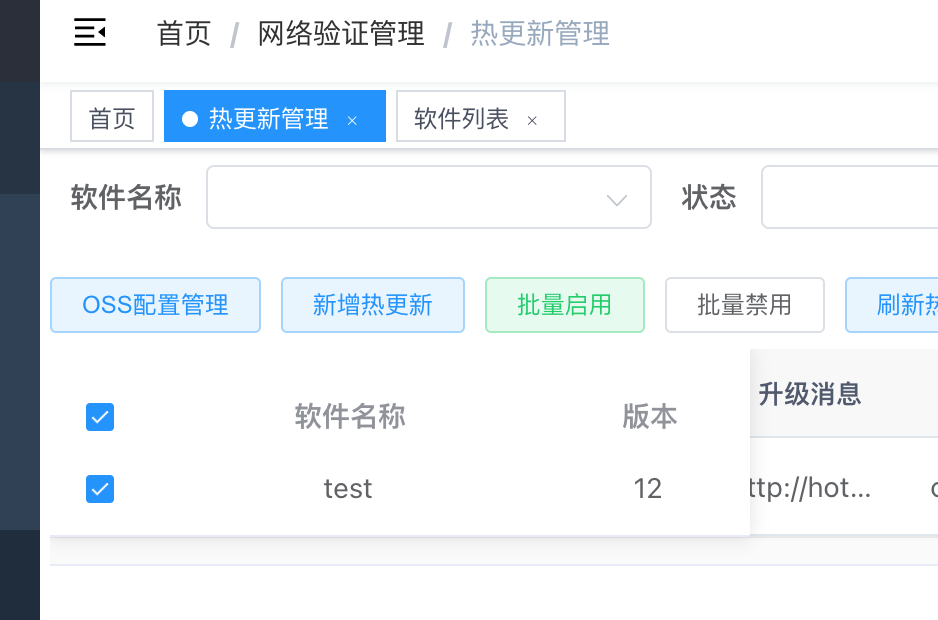
- Add OSS storage example

Upload hot-update script
- Add script — fill in details and upload IEC; version must be an integer. Create a software entry in Software list first
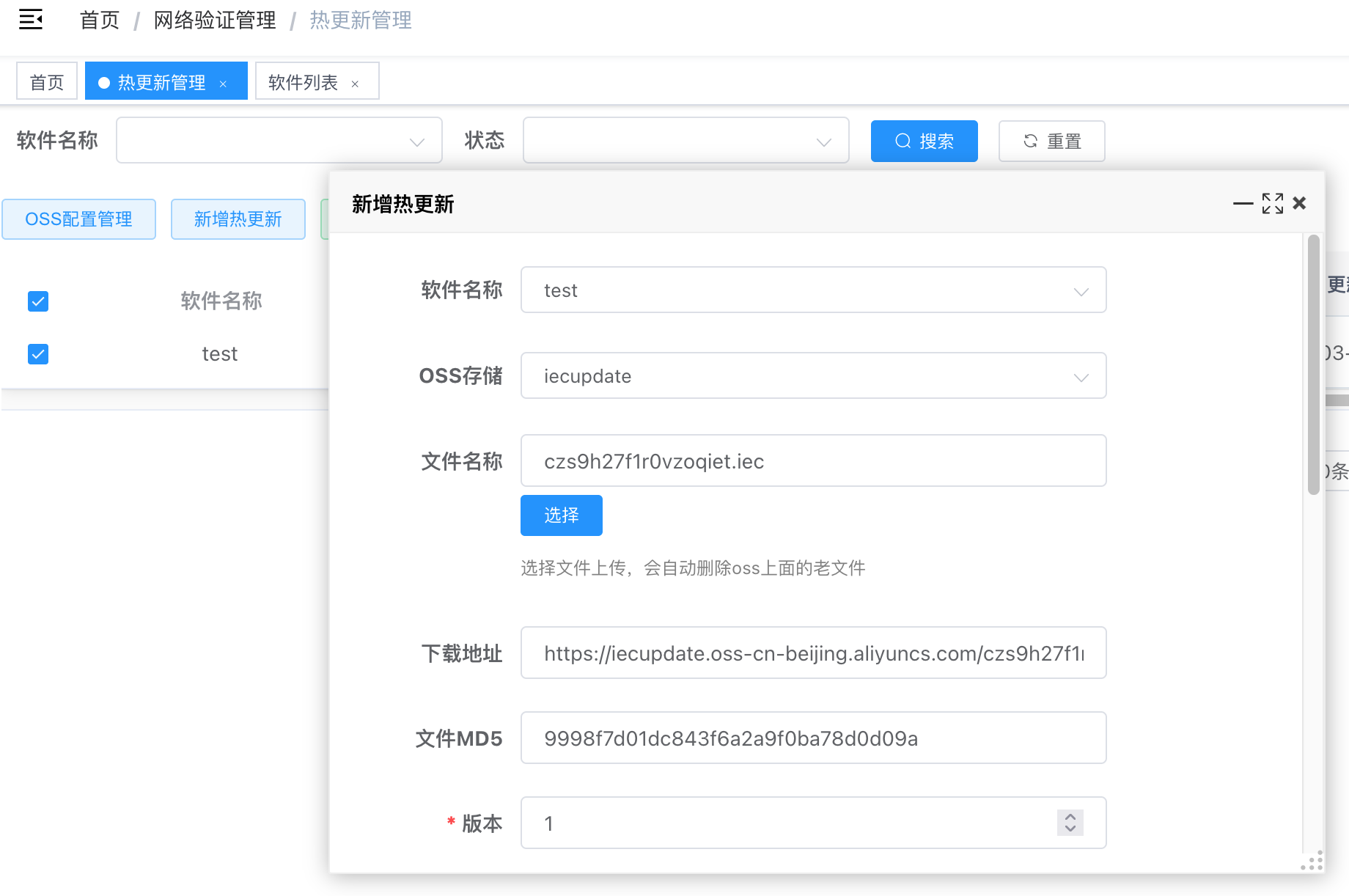
- After upload, the file is stored on OSS with download URL and MD5 generated
- Save — edit, enable, dialog options work like the standalone hot-update config
Configure hot-update URL in script
- Software list → hover the software name or use Copy hot-update URL on the right

- Paste the URL into the project’s
update.json - Note: new hot-update URLs require EC Android 9.31.0+ or iOS standalone 3.17.0+ — communication is encrypted
- Legacy URLs are unencrypted for compatibility
- To disable legacy URLs, edit the software entry and set hot-update compatibility to new version only