Skip to content Overview
- iOS currently supports ESP32C3 boards — pinned and unpinned firmware variants; pick the matching build
- Bluetooth simulated actions do not conflict with proxy IPA features — use together or separately
- Bluetooth path can skip proxy IPA and use
image.captureFullScreenNoAuto for screenshots — unlike mirror-based hardware, this avoids screen mirroring and reduces detection risk
- Firmware is free; buy boards on Taobao, Pinduoduo, 1688, etc.
-

Download firmware
- Cloud drive: iOS resources → USB edition → Bluetooth firmware — download for your board
- Note: relative and absolute coordinate firmware builds are available
- Relative mouse: broad compatibility; you may need compensation ratios and
resetZero if drift occurs
- Absolute mouse: works well on iOS 17+; no compensation; more accurate taps
Flash firmware
Bind device to Bluetooth
- Label the board and phone with the Bluetooth MAC for easy mapping
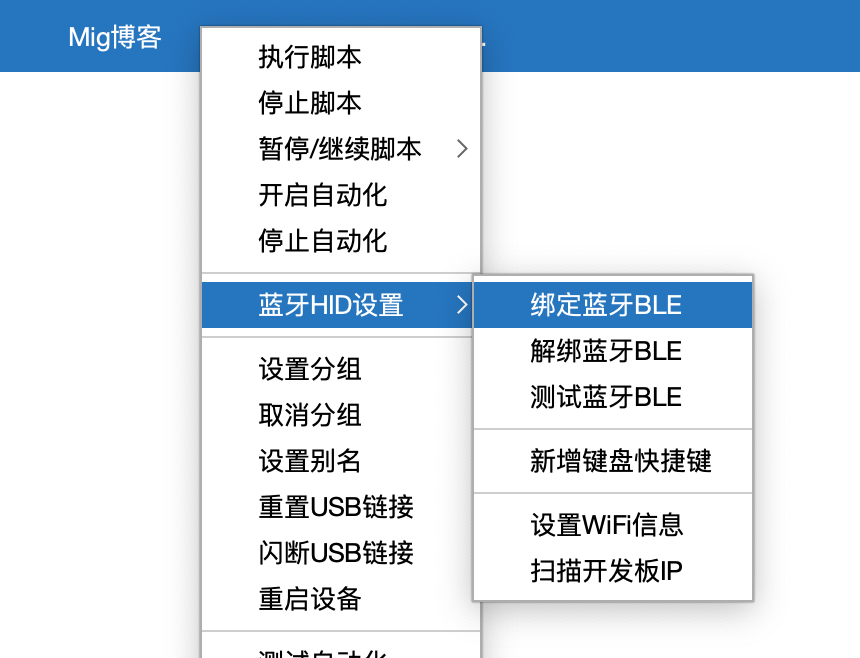
- In iOS USB control center, right-click a device → Bluetooth HID settings → Bind Bluetooth BLE
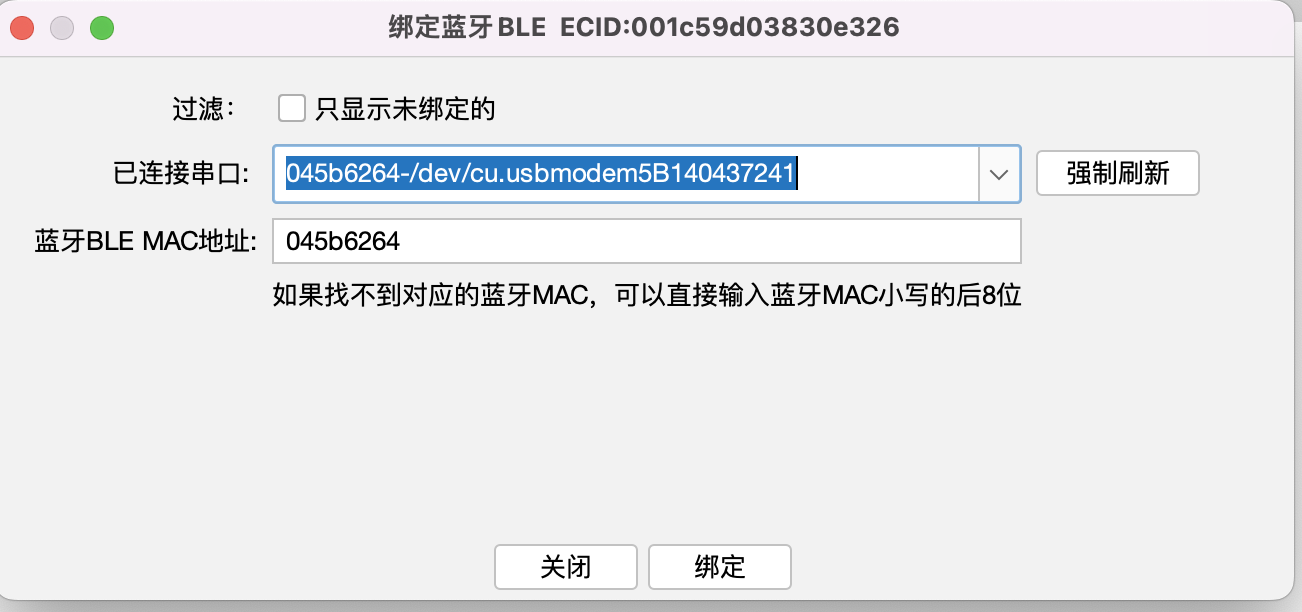
- Pick a connected serial port. If none: clear Show bound only, Force refresh, or enter the last 8 characters of the MAC
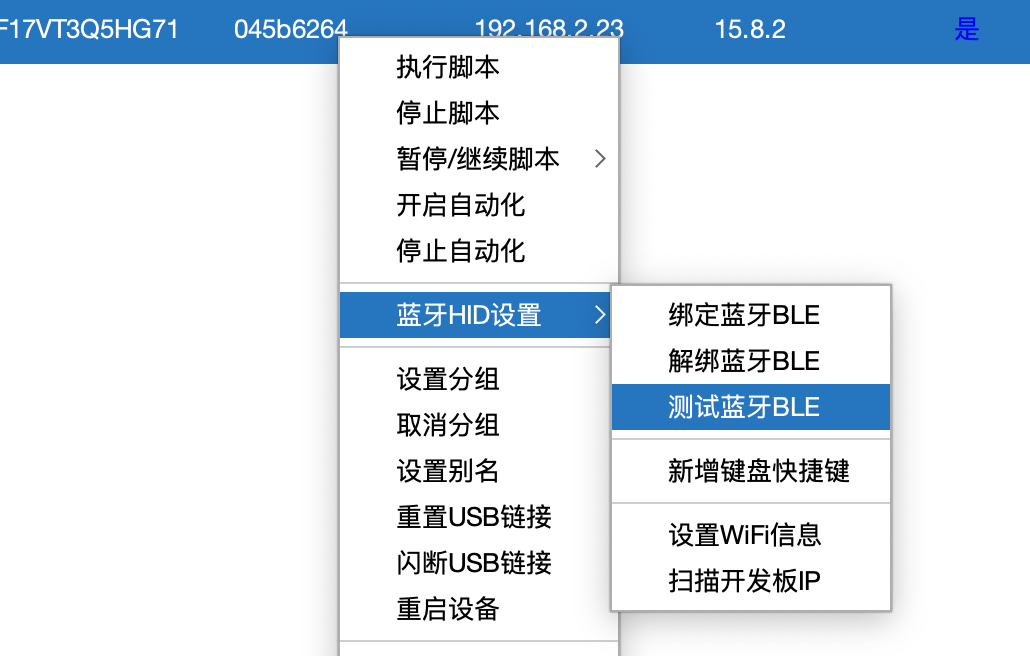
- After binding, the Bluetooth MAC column shows the hardware
Test Bluetooth
- On the phone: Settings → Bluetooth — connect the device
- Configure all options in Which settings to enable on iPhone for BLE under FAQ
- Right-click device → Bluetooth HID settings → Test Bluetooth BLE
- Choose communication mode, click Mouse move or HOME — phone should react
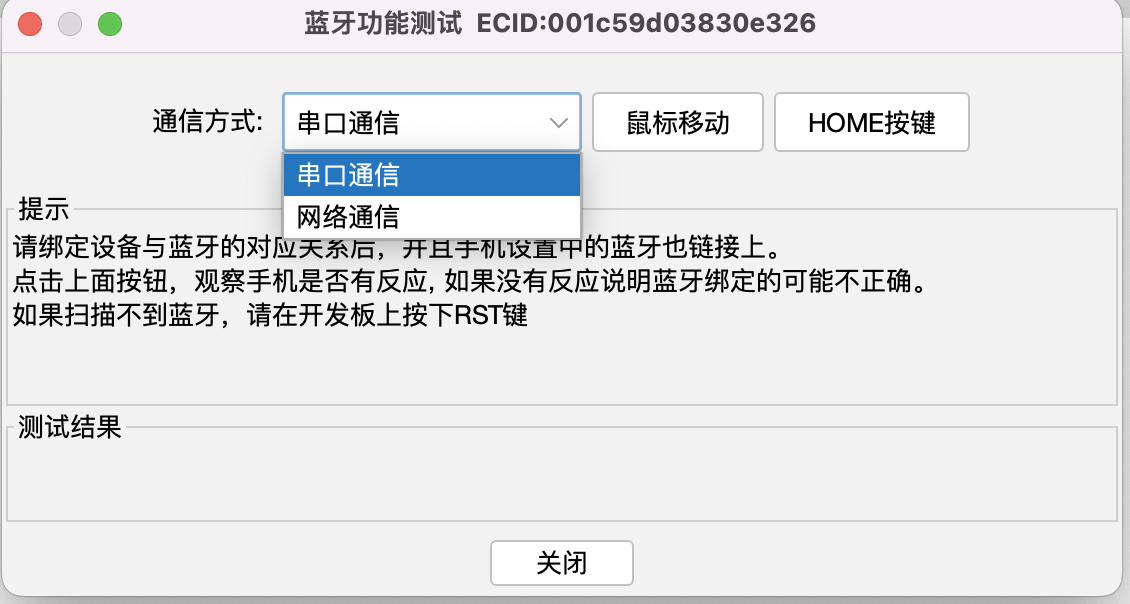
- If not, reconnect Bluetooth and recheck phone settings
Communication
- Serial (USB) or Wi‑Fi. Serial needs no extra setup
- Wi‑Fi: set board SSID/password first
- Control center right-click → Bluetooth BLE settings → Set WiFi
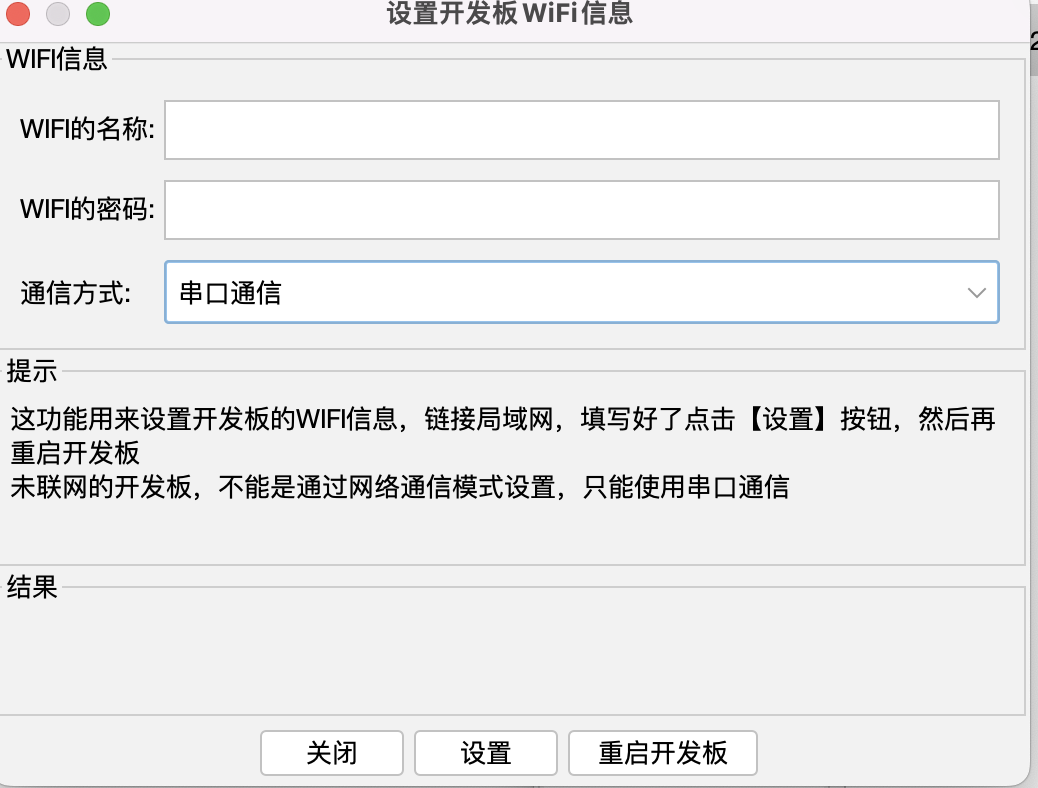
- After setup, restart the board; the control center scans for board IP and shows Hardware IP
- Scan runs automatically after control center start once Bluetooth ↔ phone mapping is done
Keyboard shortcuts
- Works with Settings → Accessibility → Keyboard → Full Keyboard Access → Commands; after setup, scripts can use the same shortcuts
- Right-click → Bluetooth BLE settings → Add keyboard shortcut
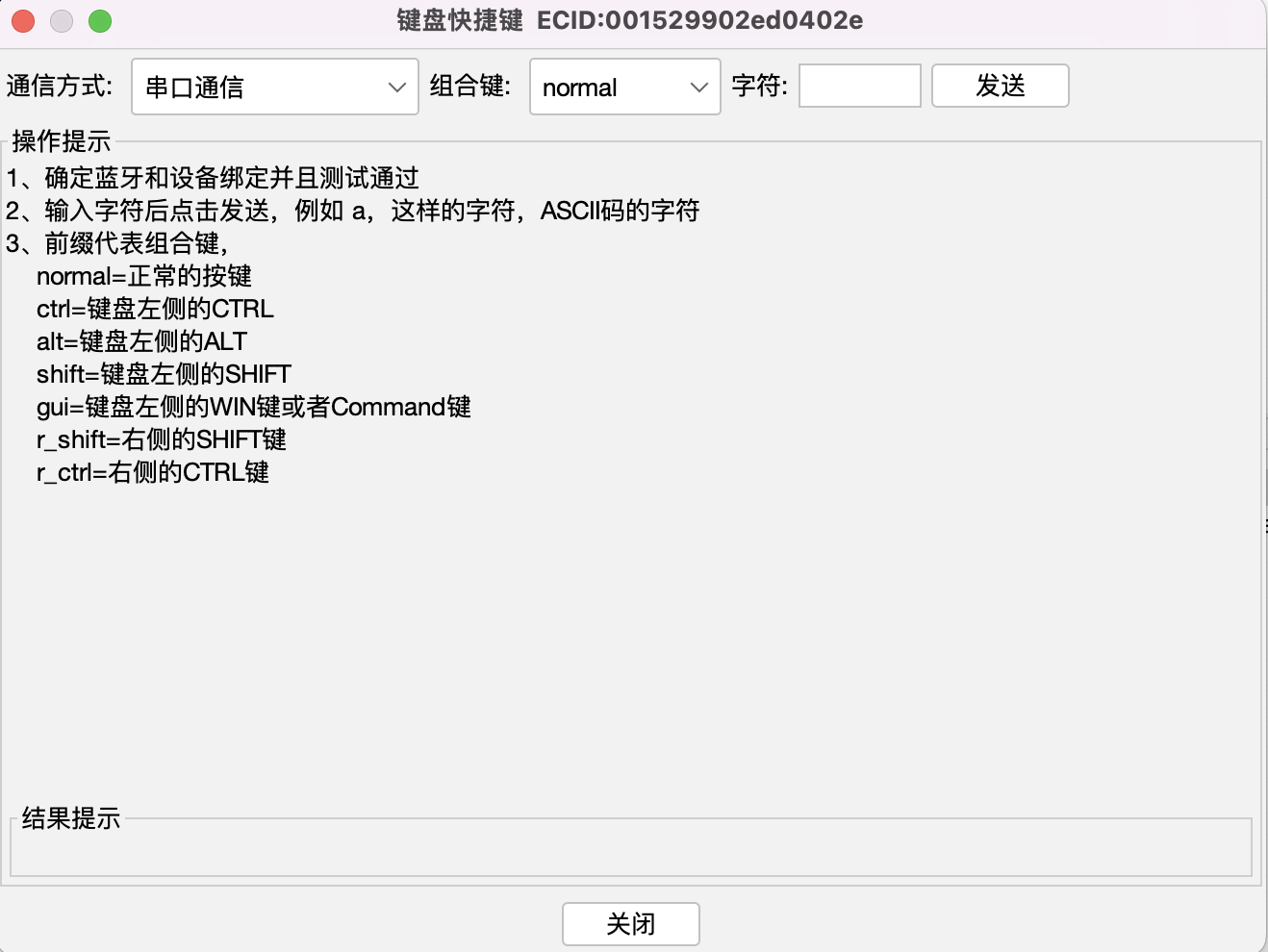
- Example:
- On the phone, open Commands, find Notification Center, tap — keyboard shortcut dialog appears
- In the control center dialog: modifier gui, character b, Send — shortcut updates on the phone; tap Done
- Send gui+b again — Notification Center opens
- Other shortcuts and Shortcuts bindings work the same; scripts call
bleEvent.keyPressChar
With proxy IPA
- If proxy IPA can start automation, use proxy mode, e.g. inputText
Custom IME
- Without proxy IPA but with EC standalone main app as IME: use imeApi — enable
imeApi.forwardImeServer before other imeApi calls
Without proxy IPA or IME
- Cloud drive: iOS resources → iOS Shortcuts helper.zip — download, extract, run
- Use Shortcuts to fetch URL content and copy to clipboard, then paste
- Example:
- Create a shortcut on the phone:
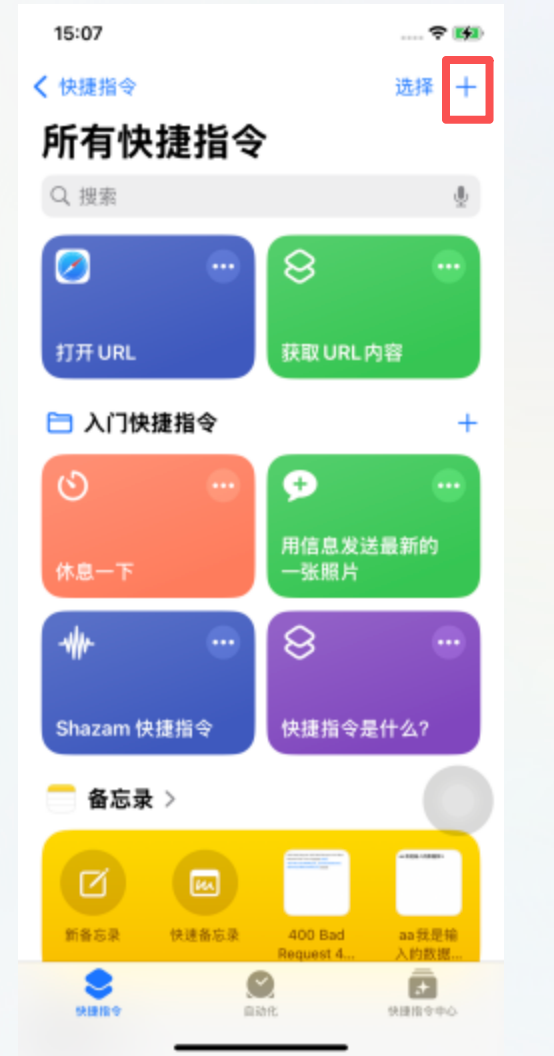
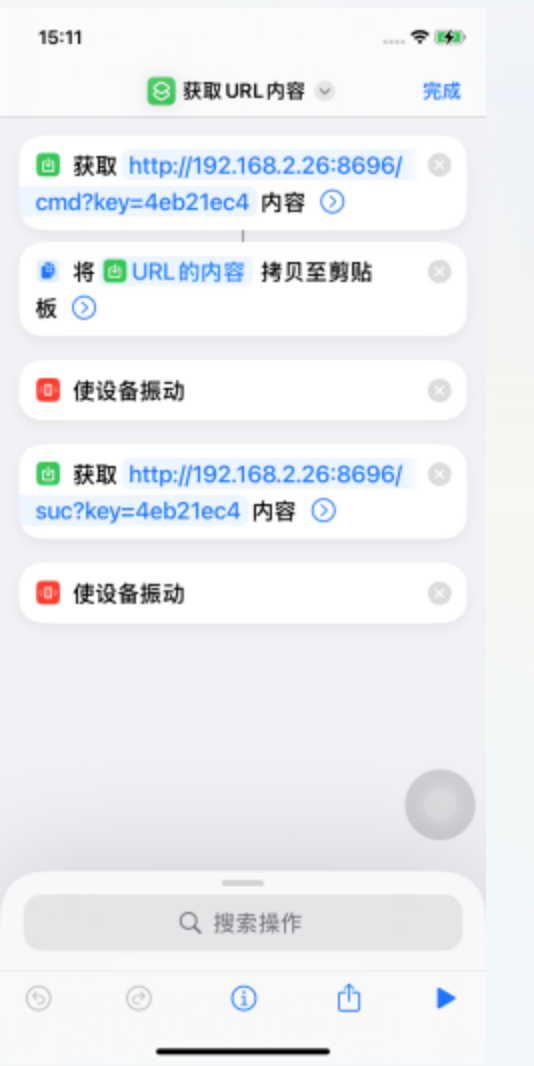
- Notes (based on iOS Shortcuts helper):
http://192.168.2.26:8696 = PC running the helperkey=4eb2e1c1 = device id (here Bluetooth MAC; any unique id works)- Vibrate helps fetch data in background into clipboard
- Callback to
suc confirms success
- Settings → Accessibility → Keyboard → Full Keyboard Access → Commands → your shortcut (example name Get URL contents)
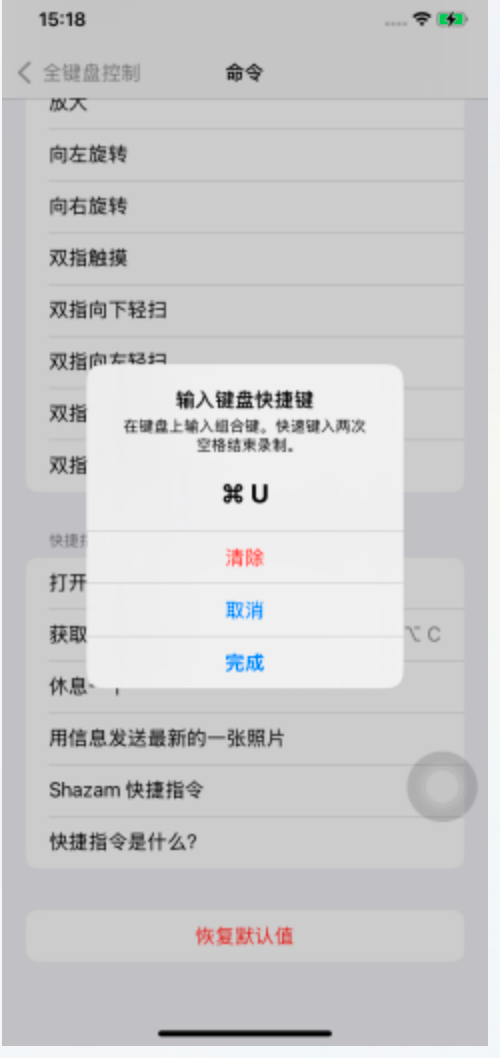
- Bind hotkey: Bluetooth BLE settings → Add keyboard shortcut, e.g. gui+u, Send, Done on phone; send again to run
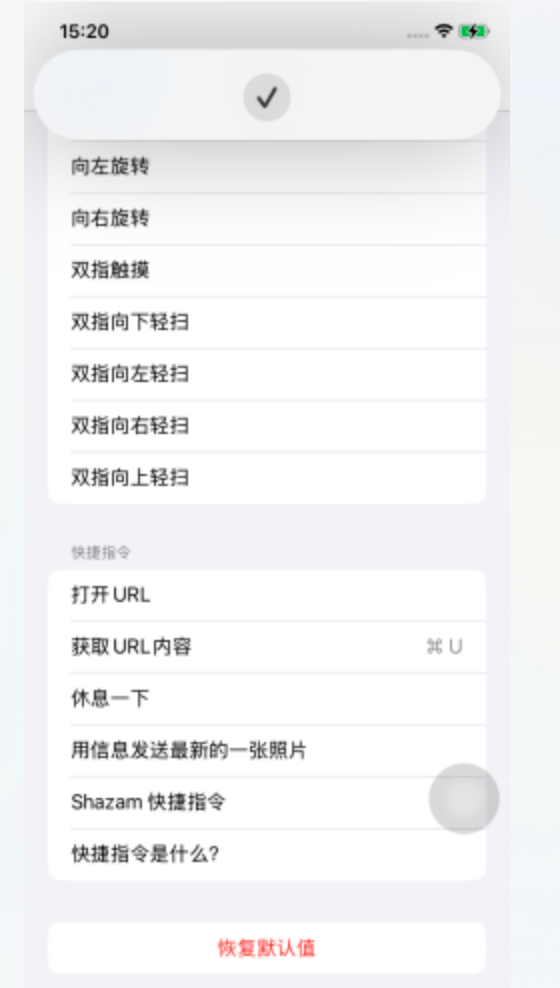
- Setup is involved but shortcuts can be shared to other phones
- Script usage: Type text via Shortcuts in scripts
Video and images
With proxy IPA
- Use proxy IPA to insert video/images into Photos
Without proxy IPA
- Cloud drive: iOS resources → iOS Shortcuts helper.zip — download, extract, run
- Shortcuts download to Photos
- Example:
- Same binding flow as Without proxy IPA or IME; shortcut screenshot:
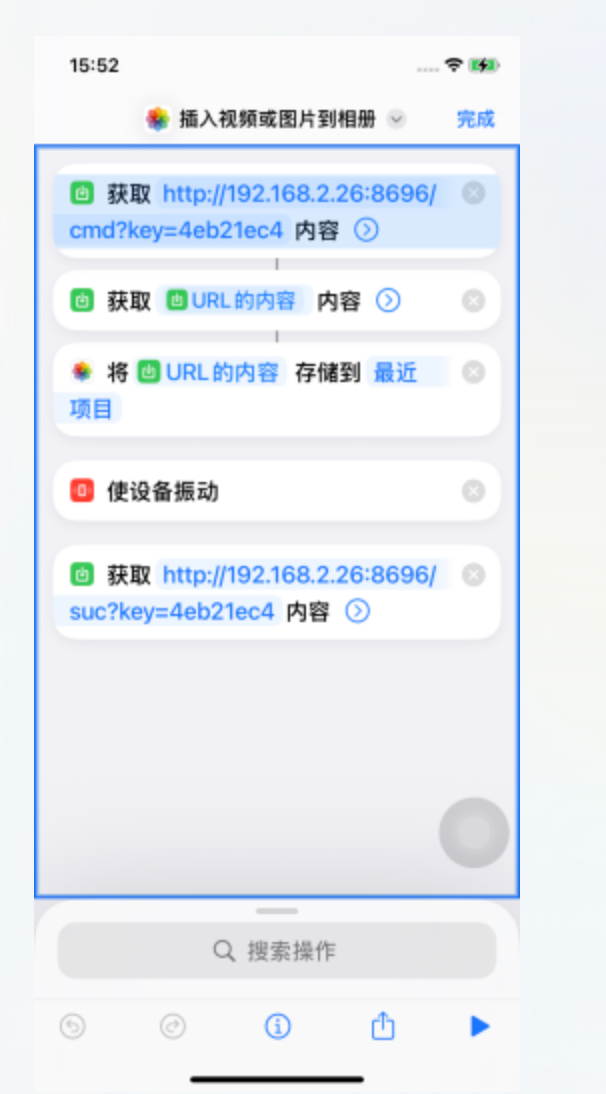
- Test hotkey: gui+i
- Get URL contents runs twice: first returns resource URL, second fetches content
- Script usage: Insert to Photos via Shortcuts in scripts
FAQ
Can’t connect Bluetooth
- Hold RST ~5s, release, reconnect; or Forget device in Bluetooth settings and pair again
- One board pairs to one phone; name hides after pairing. To rebind: forget on phone, press RST
- After flash, restart board; toggle phone Bluetooth if device doesn’t appear
Which settings to enable on iPhone for BLE
- Settings → Accessibility → Touch → AssistiveTouch — on
- AssistiveTouch → Tracking sensitivity — all the way left (slowest)
- AssistiveTouch — enable Perform Touch Gestures, Show Onscreen Keyboard; optional Tap sounds
- AssistiveTouch → Mouse Keys — init delay and max speed left; optional Mouse Keys, Option key toggle, Primary keyboard
- General → Trackpad & Mouse → Tracking acceleration — left
- Settings → Accessibility → Keyboard — enable Full Keyboard Access
- Keyboard → Commands — custom keyboard shortcuts and Shortcuts
Board LED patterns
- Paired: solid 3s, off
- Disconnected: slow blink 10×, off
- Discoverable: fast blink 15×, off
Mouse drift or inaccuracy
- Phone settings missing — see Which settings to enable on iPhone for BLE
- Not calibrated —
bleEvent.resetZero to (0,0)
- Wrong scale —
bleEvent.getIPhoneScale; if your model is missing, measure scale with fixed-point move tests
- Wrong screen width/height, especially after rotation
Using with scripts
- In IDEA color panel: Non-automation capture; for live test use Live test (non-automation)
- In scripts:
image.captureFullScreenNoAuto or image.startPreCapScreen for speed
- Node APIs unavailable; OCR, YOLO, color, template match work
Absolute coordinates
- Start should be (0,0); if not, restart the phone
Control center shows wireless serial name
- Restart control center
- Close flash tool before opening control center to avoid conflicts