iOS USB screen mirroring tutorial
Overview
- This chapter is based on iOS USB edition 10.2.0
- It covers proxy-mode screen mirroring (requires a signed IPA on the phone) and Bluetooth HID screen mirroring (requires hardware; suited to iOS 18+)
- If you do not need proxy-mode mirroring, skip directly to the Bluetooth HID section below
Special note
- On iOS 15+, you can download the standalone main app v7.2.0+ and use it as the automation service IPA
- Benefits:
- Standalone main app signing is less restricted — during testing you can use iTools/爱思助手 free Apple ID signing, TrollStore, etc.
- You also get more features, such as IME input
- The main app is in the cloud drive under iOS resources → Standalone edition → v7.2.0 — pick a build, download the main app, sign it, and you can skip installing the proxy IPA
USB screen mirroring video tutorial
- URL: https://space.bilibili.com/477518868/lists/8622038?type=season
- Covers EasyClick iOS USB screen features: synchronized mirroring, text input, taps, video/image upload, clipboard, script recording, and more
Download software
- Cloud download link: Resources
- In the cloud drive iOS resources → USB edition, download the latest folder in full, e.g. v10.2.0
- In iOS resources, download DeveloperImage12.4-26.x.zip
Purchase license
- Buy a license from official channels or resellers
- With the phone connected, open License Center → Batch license (device ID on the left, card number on the right)
- USB device license is for running scripts; USB screen license is for mirroring and controlling the phone — do not mix them up
- You can also bind licenses at https://uc.ieasyclick.com under My iOS devices → Batch bind license, then License Center → Refresh license in the control center
- Licensing can be done last, after all other setup
Proxy mode screen mirroring (preparation)
Unpack and configure disk image
- Unpack the control center
- After download, files are under control center. ioscenter_windows-x64-10.2.0.zip is the Windows control center + mirroring app (other versions are similar). Right-click to extract.
-
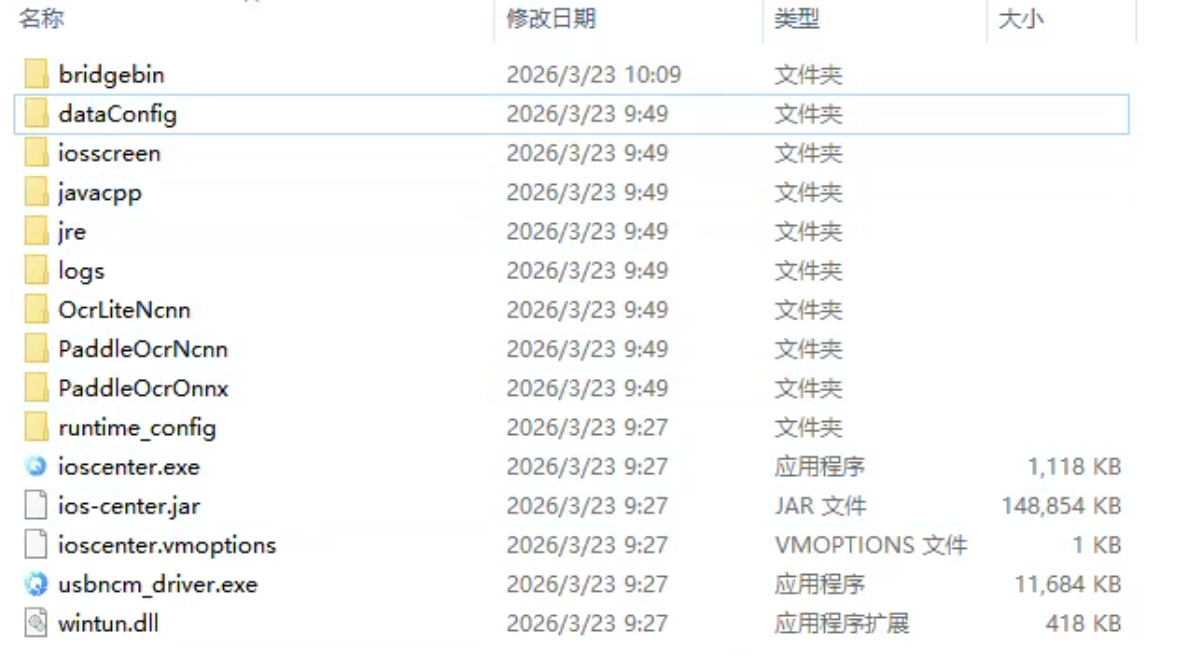
- After extraction, open ioscenter/bridgebin/config/DeveloperDiskImage — a few images are included
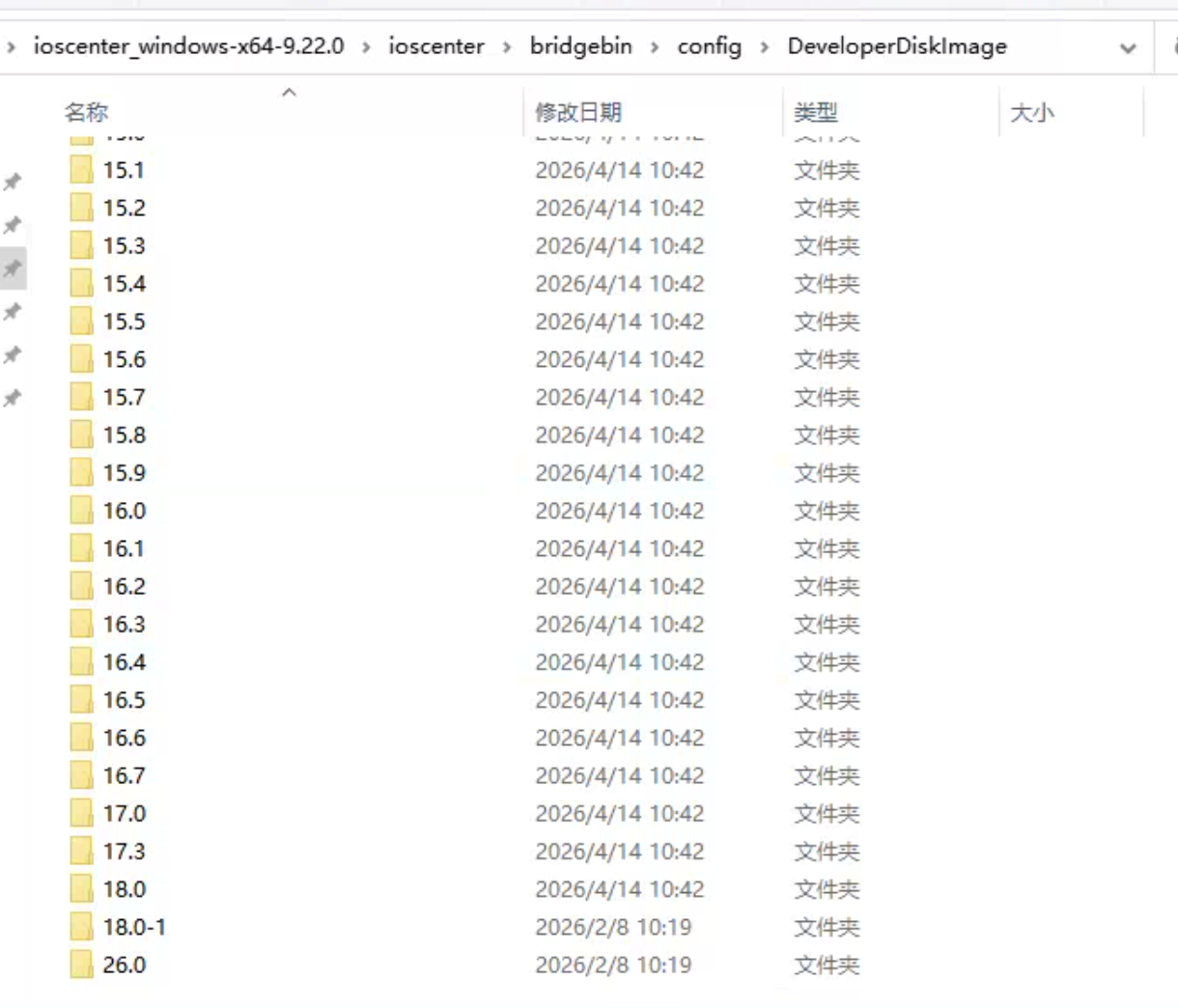
- Unpack the developer disk image
- Extract DeveloperImage12.4-26.x.zip into ioscenter/bridgebin/config/DeveloperDiskImage. Layout should look like:
-
Sign IPA
- On iOS 15+, see the special note at the top of this chapter — use the standalone main app v7.2.0+ as the automation service IPA for more features
- The IPA must be installed on the phone and signed by you
- IPA files are in the folder you downloaded, e.g. easyclick-USB proxy app for iOS 15+ — xxx.ipa
- If missing, download again from the cloud drive
- You can use Taobao or other signing services; signing tools are on the cloud drive
- Free signing (e.g. 轻松签, TrollStore on certain iOS versions) — search tutorials at http://bbs.ieasyclick.com
- Below iOS 15, if you need photo/video transfer, also sign and install File Transfer Helper.ipa
- After signing, install with iTools / 爱思助手
tip
-
- iOS 15+ → IPA starting with easyclick-USB proxy app for iOS 15+
-
- Below iOS 15 → IPA starting with easyclick-USB proxy app for iOS 13–14
-
- Below iOS 15, if automation tests return XCTestMain errors → IPA starting with XCTestMain — easyclick-USB proxy app for iOS 13–14
-
- iOS 12 → IPA starting with XCTestMain — easyclick-USB proxy app for iOS 13–14
Enter the mirroring UI
Version 10.2.0 offers two mirroring UIs:
| UI | Entry | Notes | Link |
|---|---|---|---|
New UI recommended | Control center → Group screen control → New UI | Native client, clearer layout | New UI guide |
| Classic UI | Control center → Group screen control → Classic UI | Same habits as older builds | Classic UI guide |
Both UIs have the same features (typing, script recording, image/video upload, clipboard, open URL, etc.) — only layout and button placement differ. Pick one and follow its guide.
Bluetooth HID screen mirroring
tip
- Bluetooth mirroring + non-automation screenshot mode needs only Bluetooth hardware, no signed IPA — iOS 18+ only
- Frame rate is lower and setup is more involved, but there is less platform risk
- Prefer the same phone model and matching OS versions
Bluetooth firmware
- Supported dev boards and how to flash firmware
- See Bluetooth BLE tutorial
- Steps below assume firmware is flashed and Bluetooth is connected on the phone
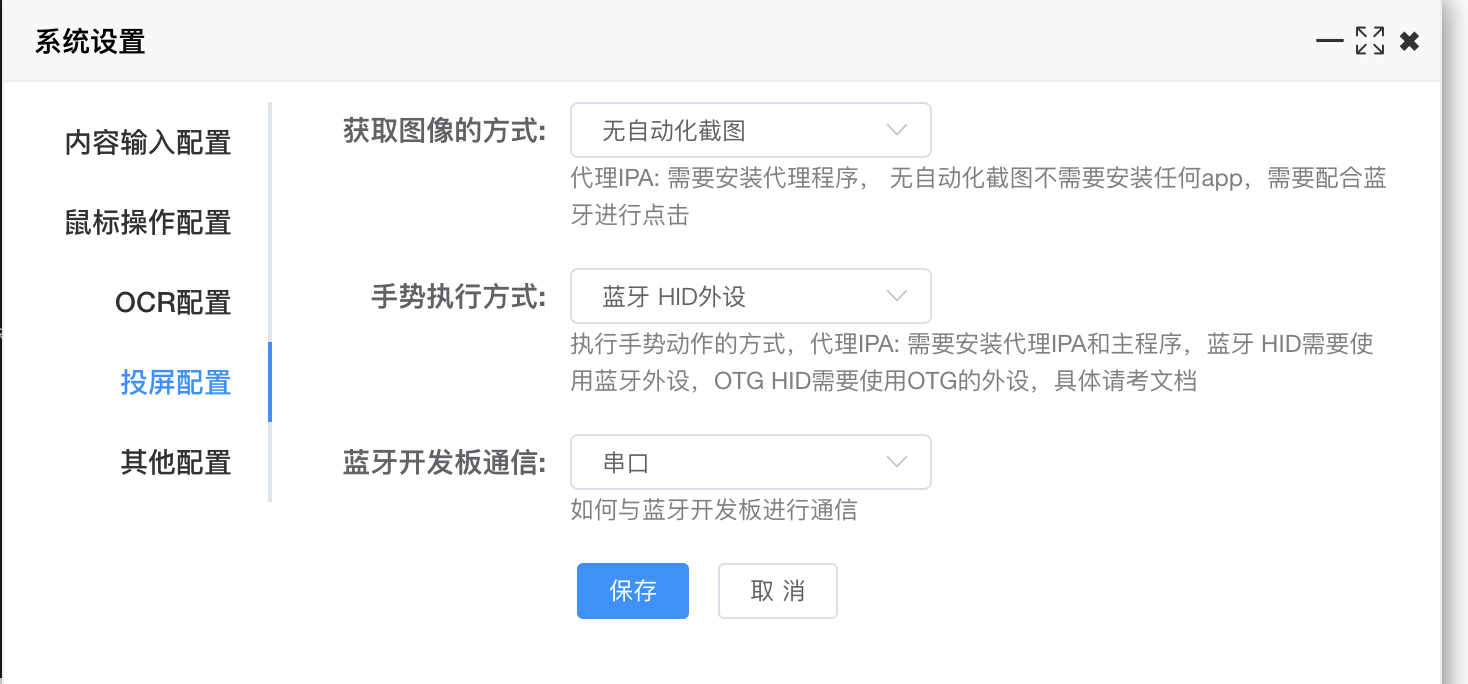
Set Bluetooth mode
- Open System settings → Mirroring config and set as shown
-
Bluetooth setup
- On a connected device thumbnail, right-click → HID → Bind/unbind HID Bluetooth
-
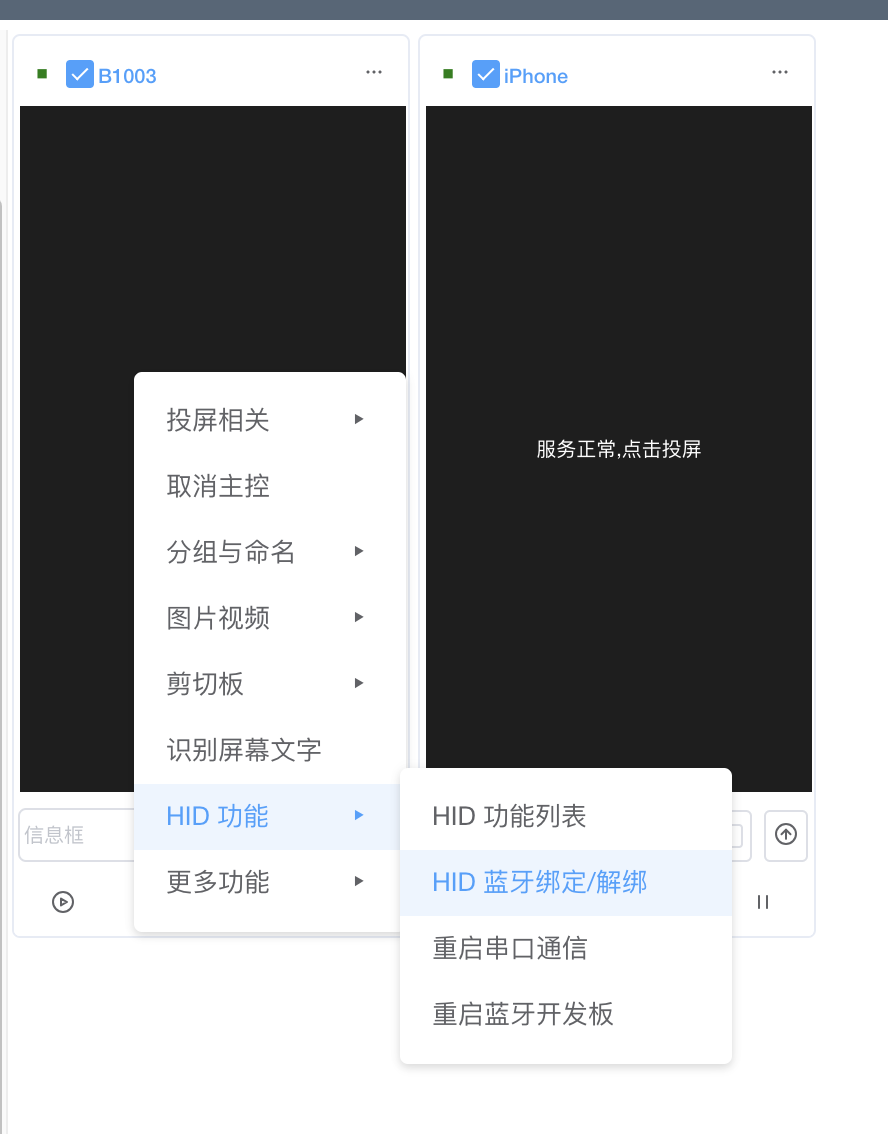
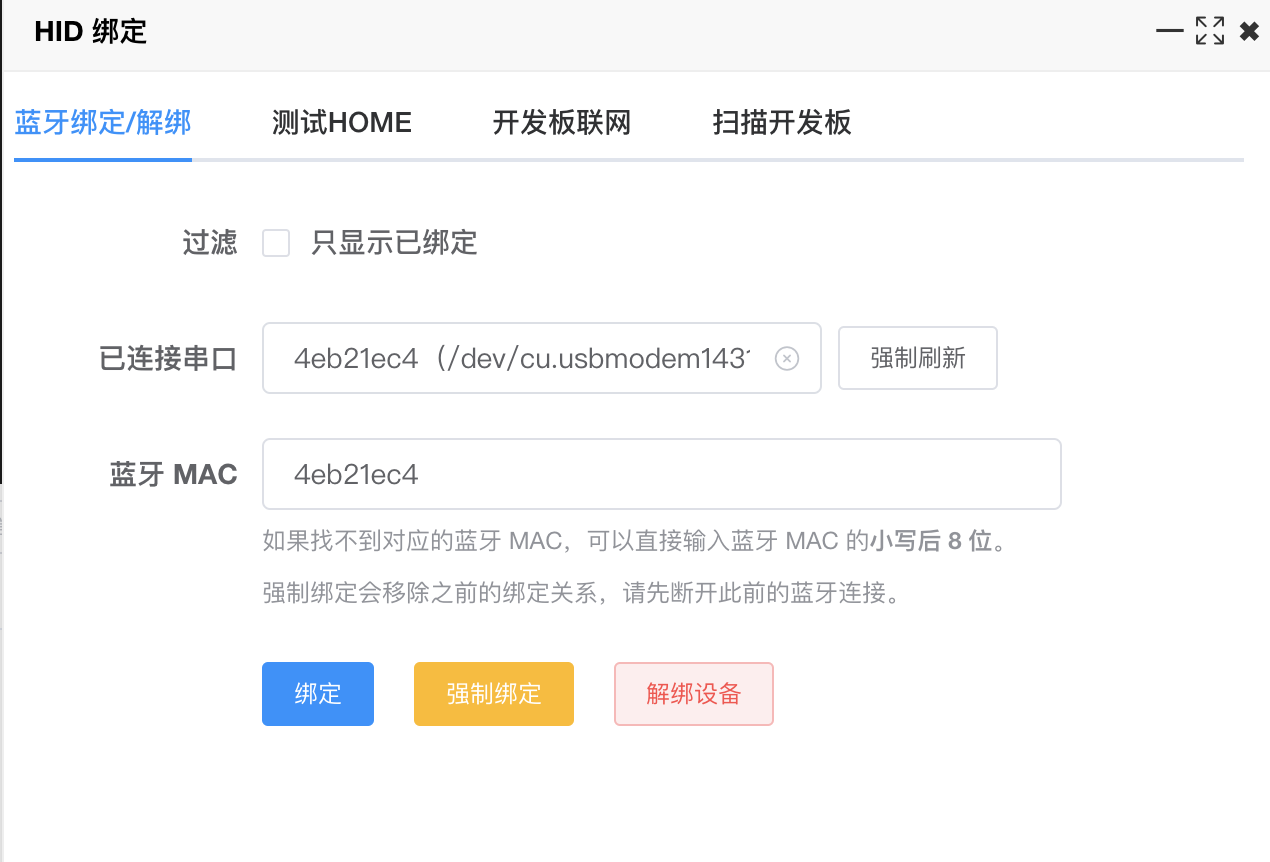
- Bind Bluetooth to this device for communication
- If serial port is missing, restart the control center and Bluetooth, or press RST on the board
- After binding, use Test HOME → Test HOME — if the phone reacts, communication works
- You can also use Board Wi‑Fi to set SSID/password, scan the board, get its IP, and use network communication
- After setup, hover the dot at the top-left of the thumbnail for details
-
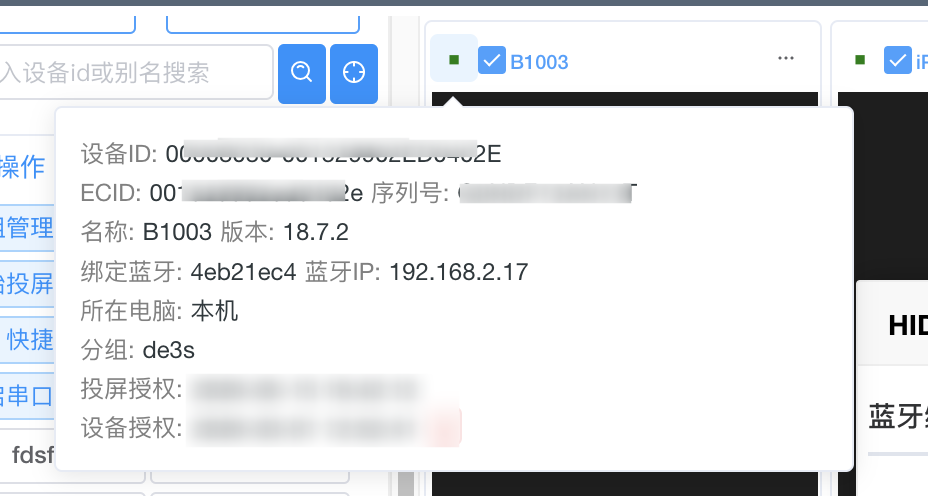
- Remember each Bluetooth MAC ↔ device mapping — Shortcuts will need it
Mirroring operations
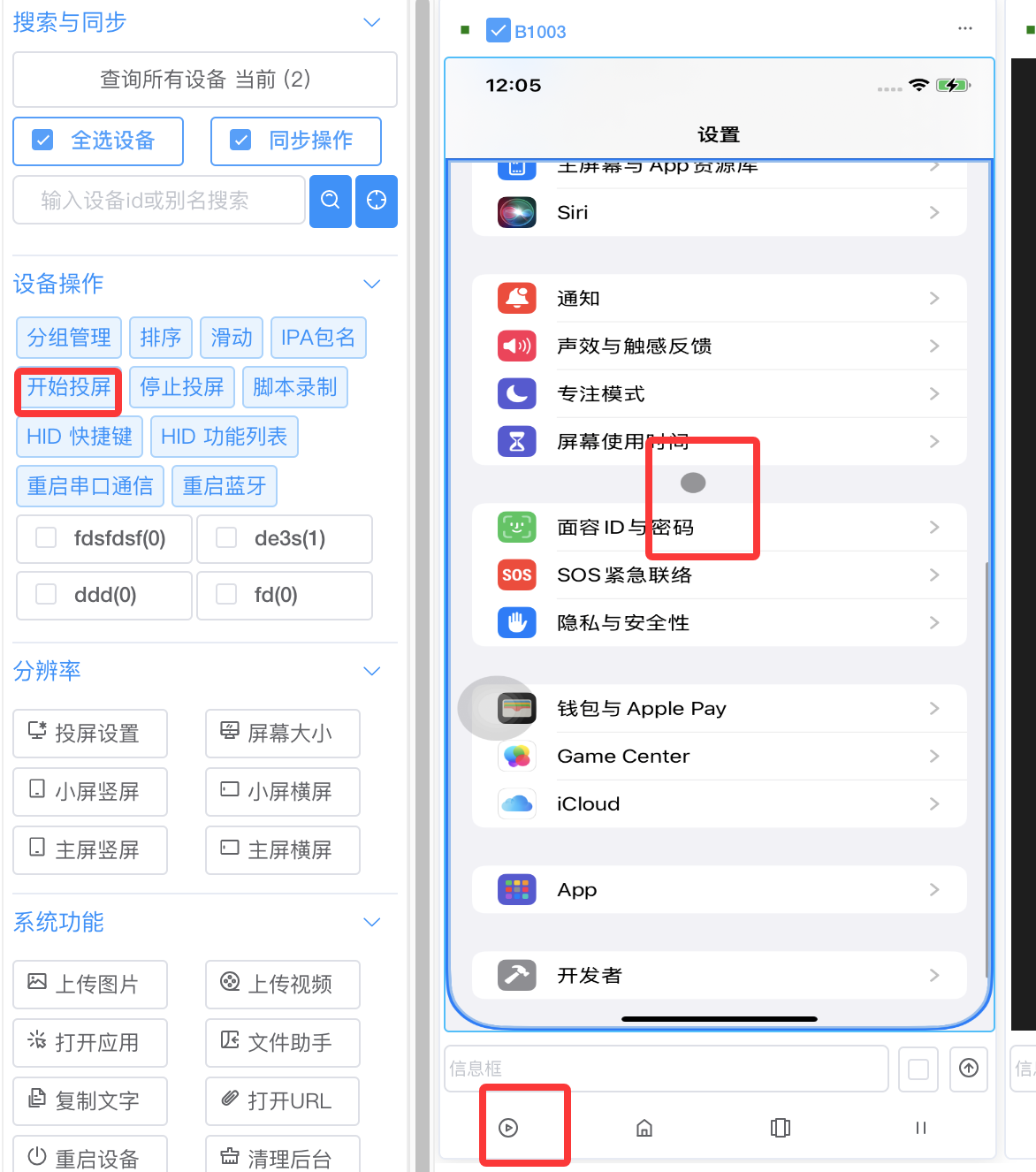
- Click Start mirroring on the toolbar or the mirroring button on the thumbnail
- First connection can be slow while iOS opens the tunnel — wait patiently
- When tapping or swiping, you should see the Bluetooth mouse dot
-
Bluetooth hotkeys
Note
- Hotkeys work with Shortcuts for text input, video upload, etc.
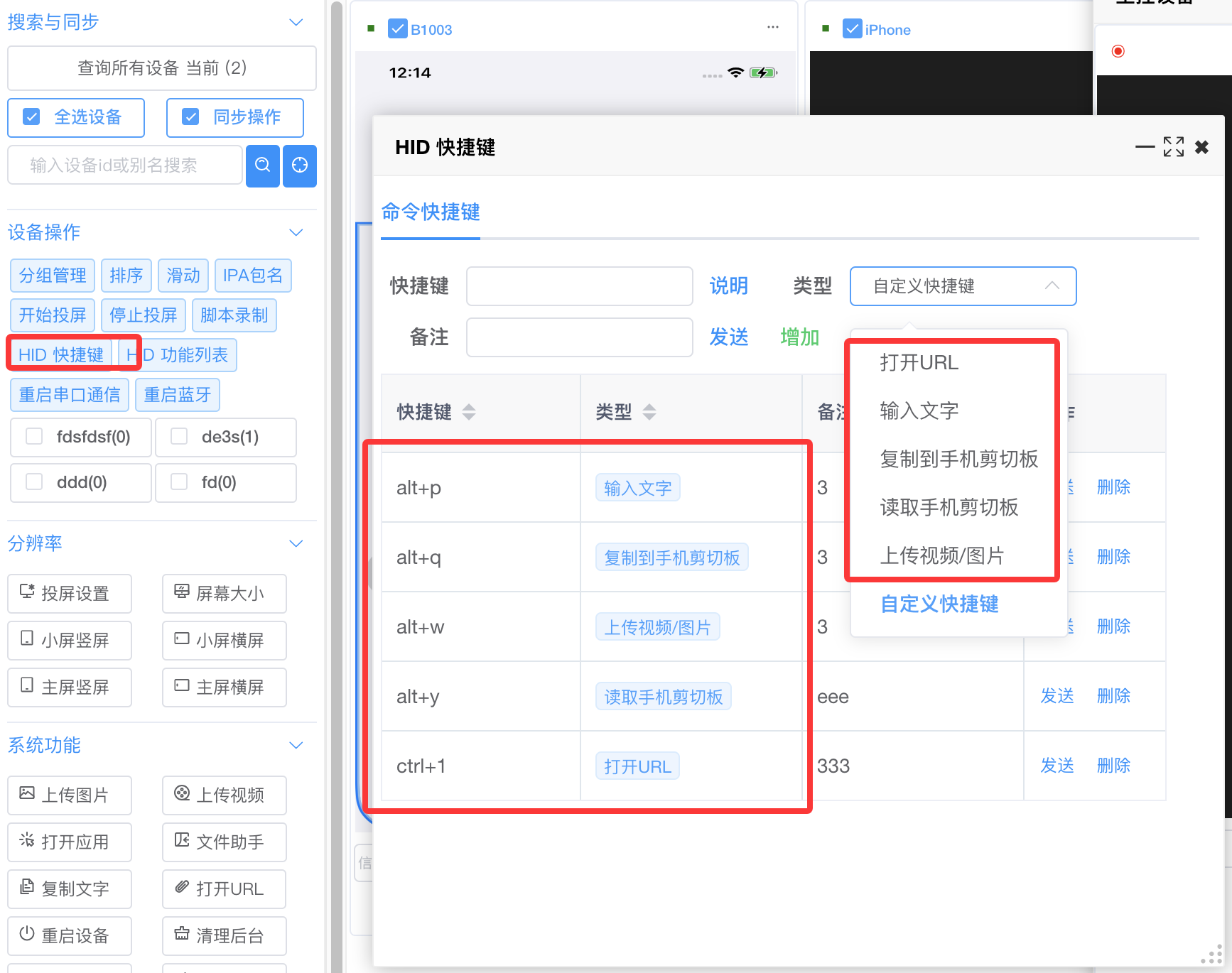
- In the mirroring UI: left toolbar → HID hotkeys
- Type a combo in the hotkey field (e.g. hold Alt+P), pick a type, save
- Set up Open URL, Type text, Read/copy clipboard, Upload video/image
- Then map hotkeys to actions (see below)
-
Text input
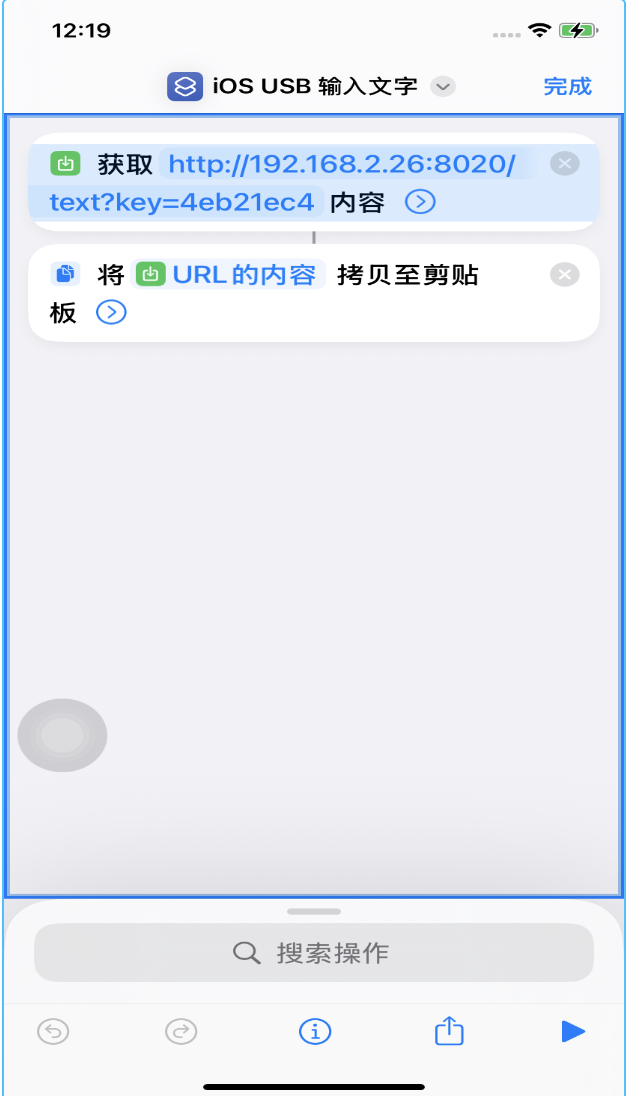
- Use Shortcuts: create one named e.g. iOS USB Type text
- First action: Get contents of URL; second: Copy to clipboard
- Example URL
http://192.168.2.26:8020?key=4eb21ec4: 192.168.2.26= control center PC IP (use yours)4eb21ec4= bound Bluetooth MAC for this device-
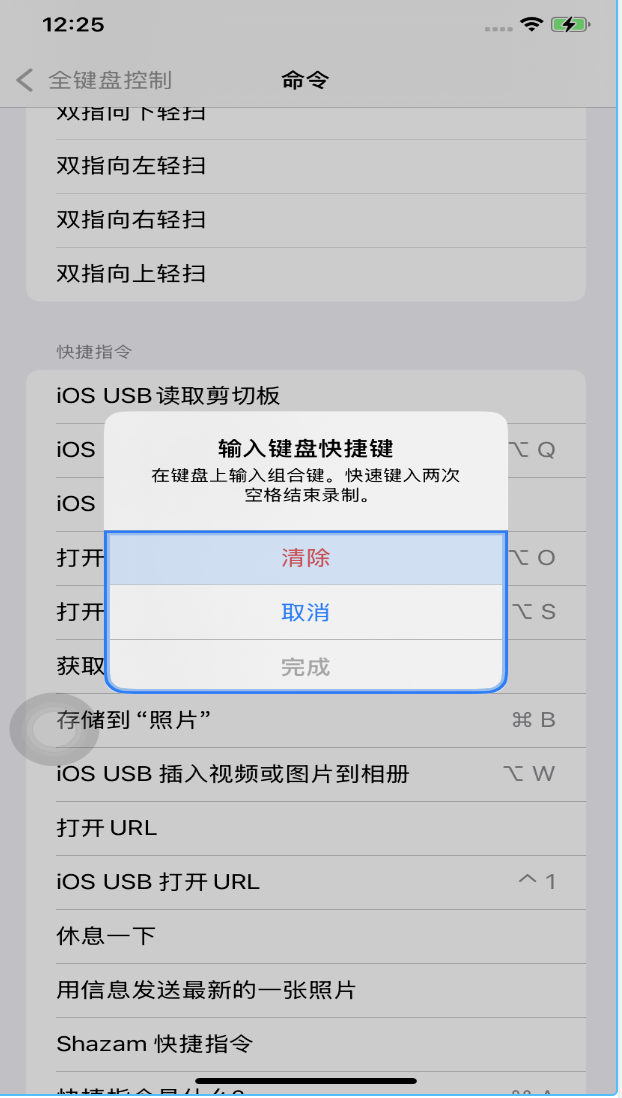
- On the phone: Settings → Accessibility → Keyboard → Full Keyboard Access → Commands → your shortcut (e.g. iOS USB Type text)
- Tap the shortcut, assign a hotkey; in HID hotkeys send the Type text hotkey; when the phone prompts, tap Done
-
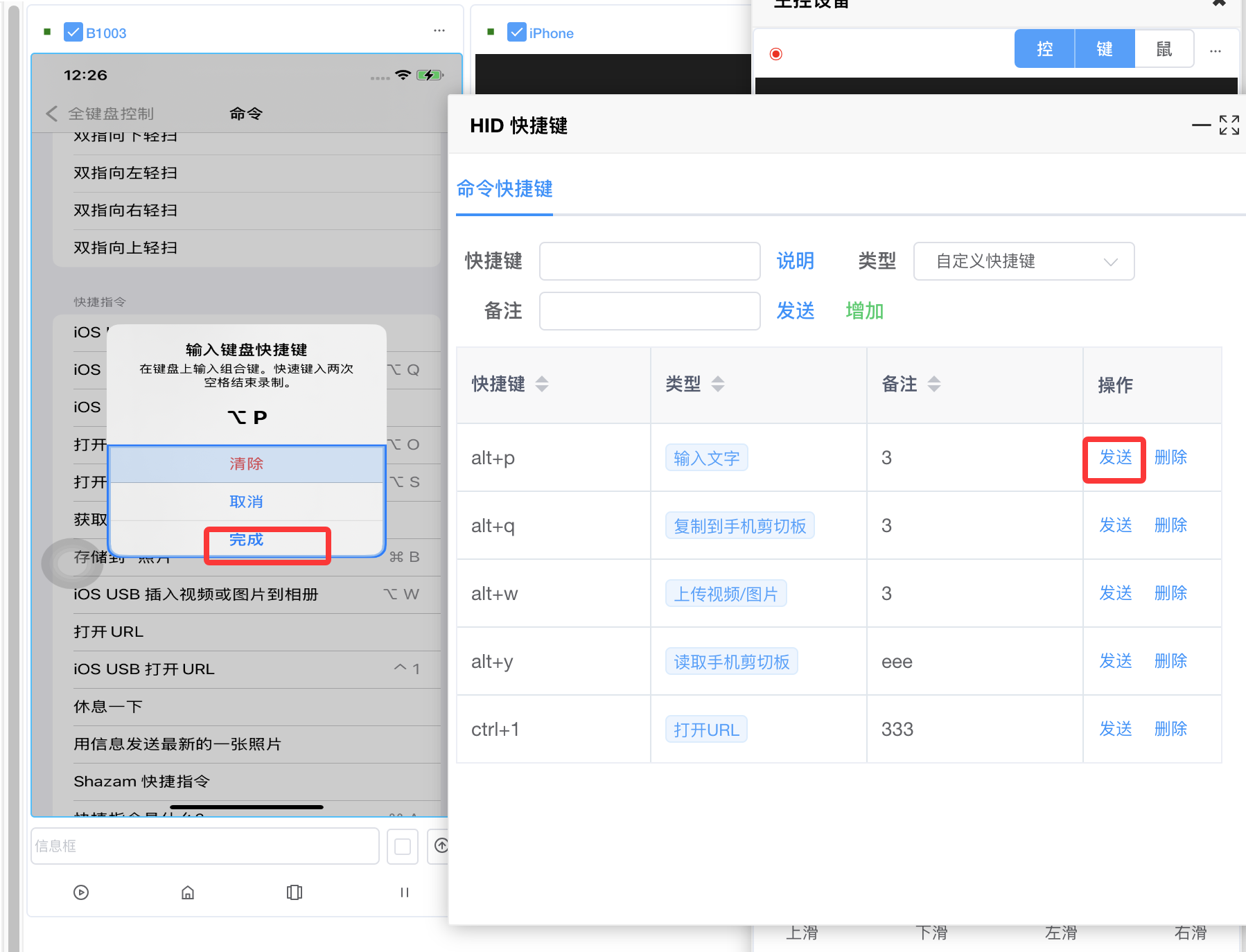
- Test: open Notes, type Chinese in the input below the thumbnail, send — text should appear
- English typed on the thumbnail uses Bluetooth keyboard; Chinese uses the Shortcut path
Upload image/video
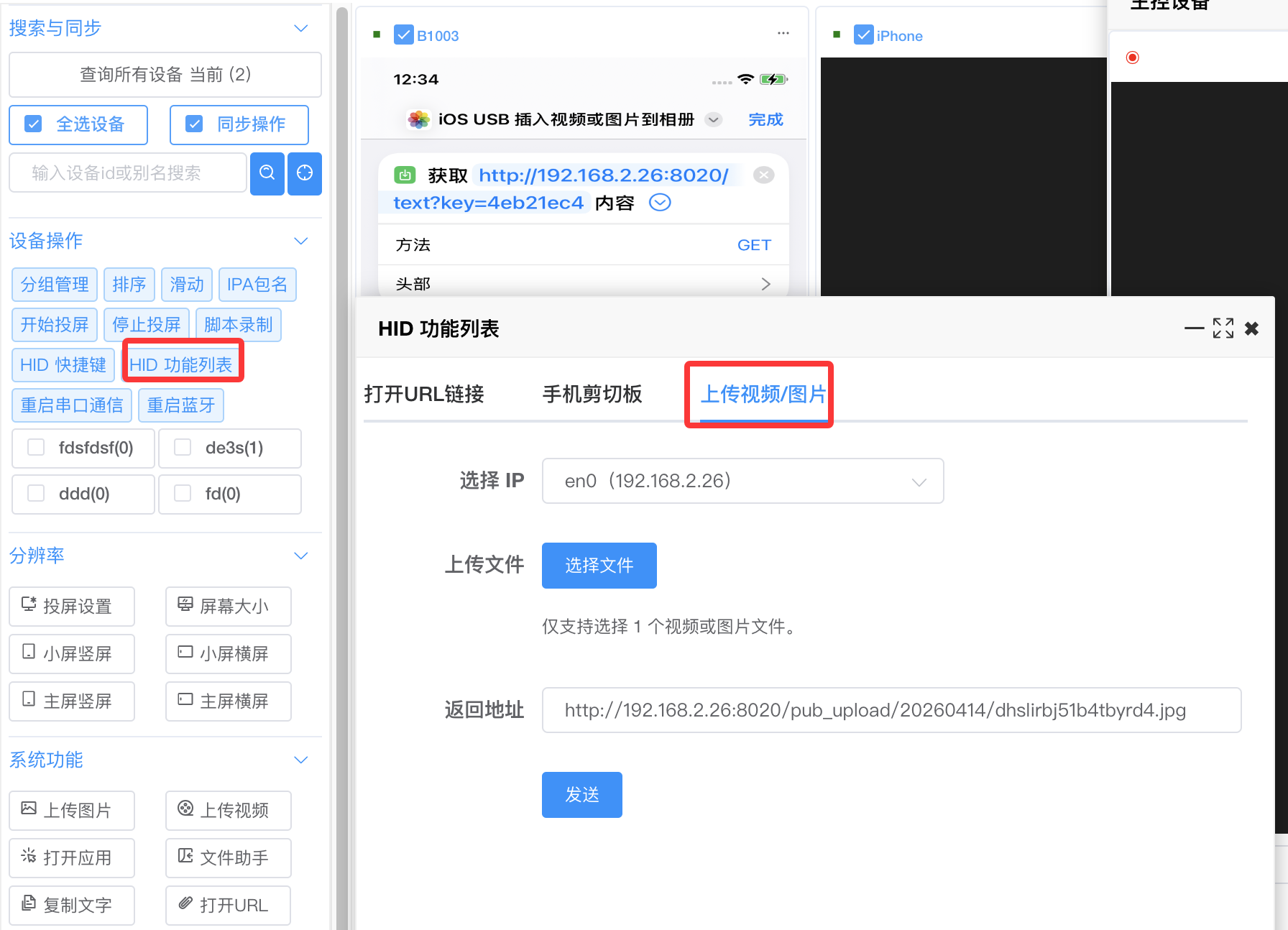
- Create shortcut iOS USB Insert video or image to Photos (see Text input for URL params)
-
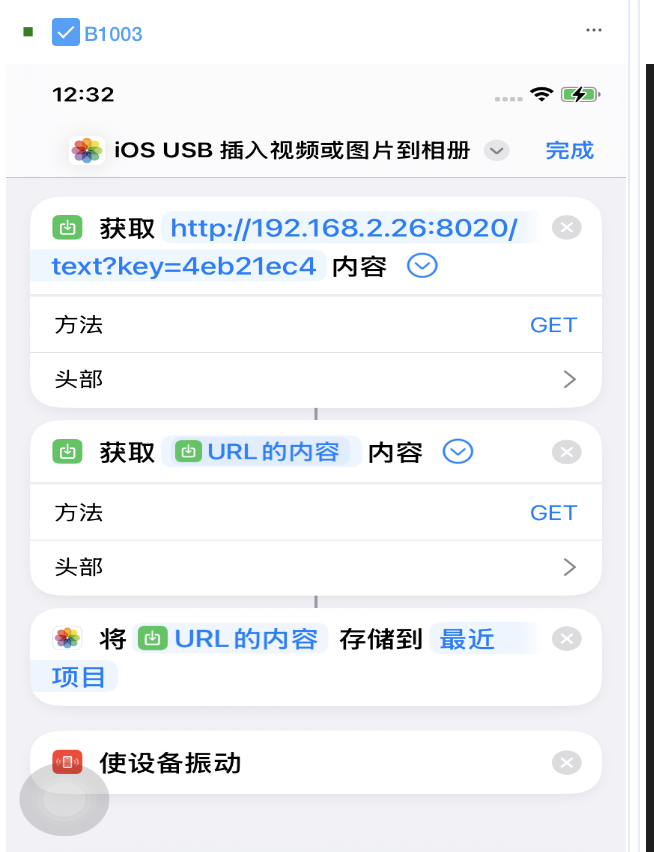
- Bind in Settings → Accessibility → Keyboard → Full Keyboard Access → Commands
- Send the Upload video/image HID hotkey
- Test via Toolbar → HID list or thumbnail right-click → HID list → Upload video/image
- Pick an IP if you have multiple NICs
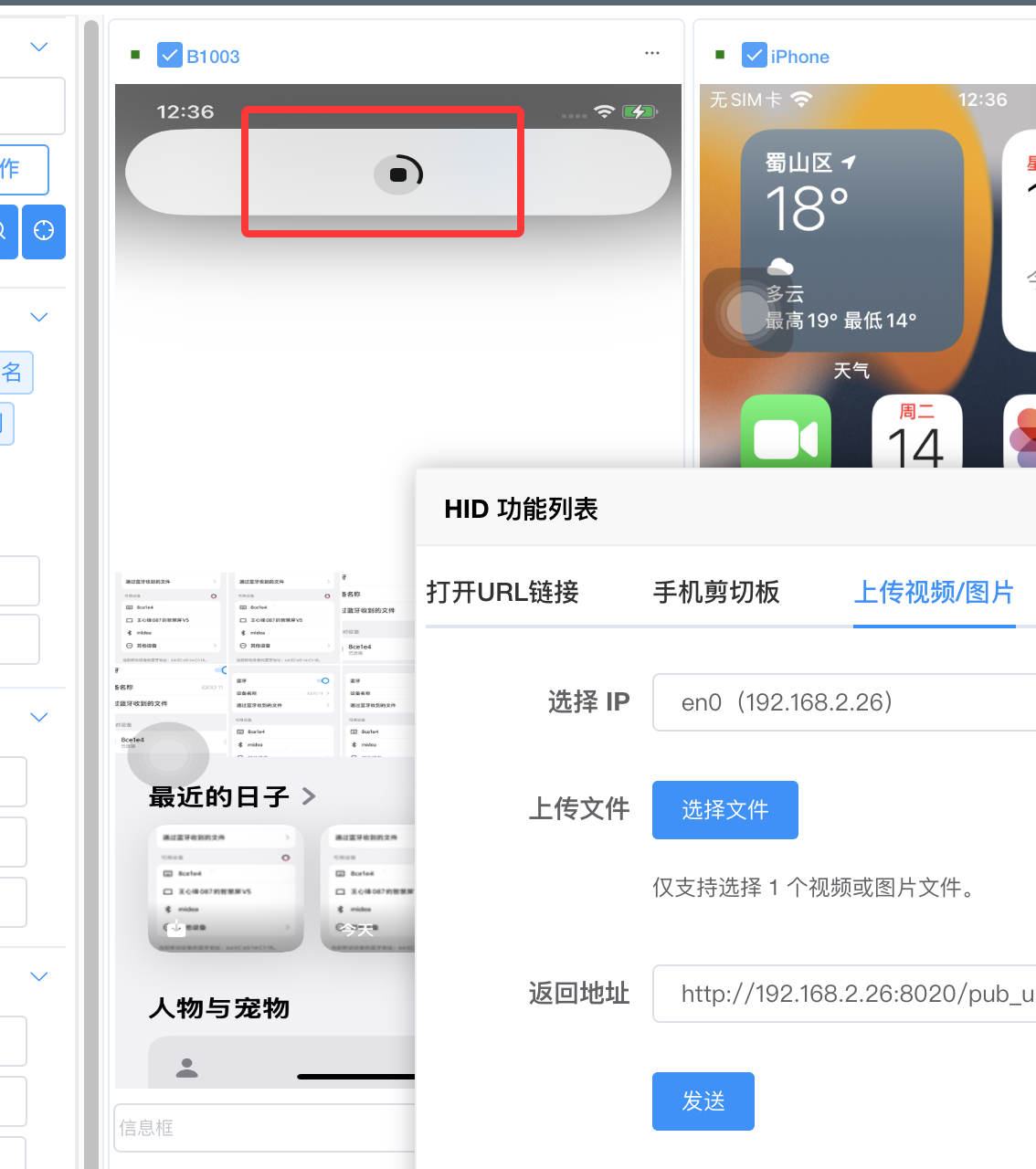
- Choose file, send — shortcut runs and media appears in Photos
-
-
Read phone clipboard
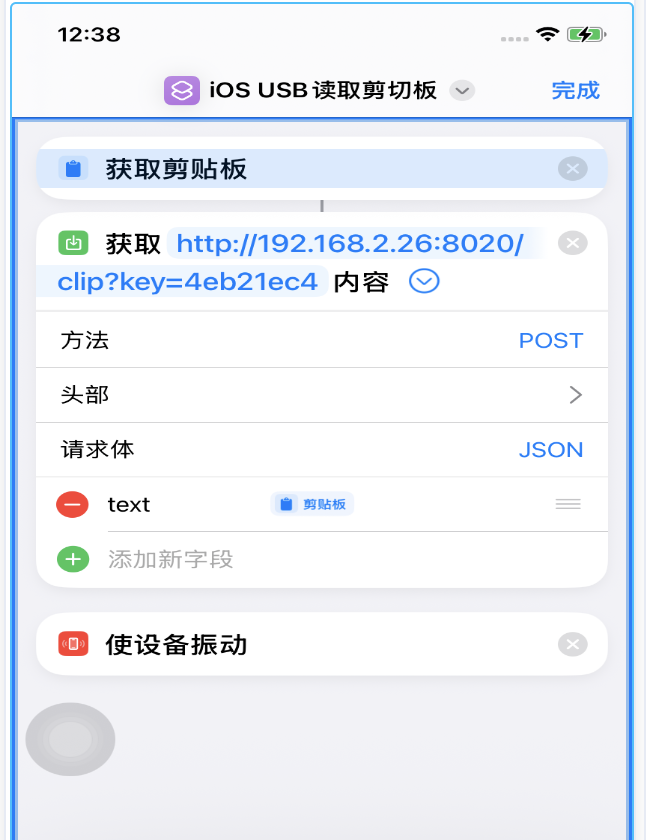
- Shortcut iOS USB Read clipboard (URL params as in Text input)
-
- Bind hotkey same as above
- Test: HID list → Clipboard → Read phone clipboard
Copy to phone clipboard
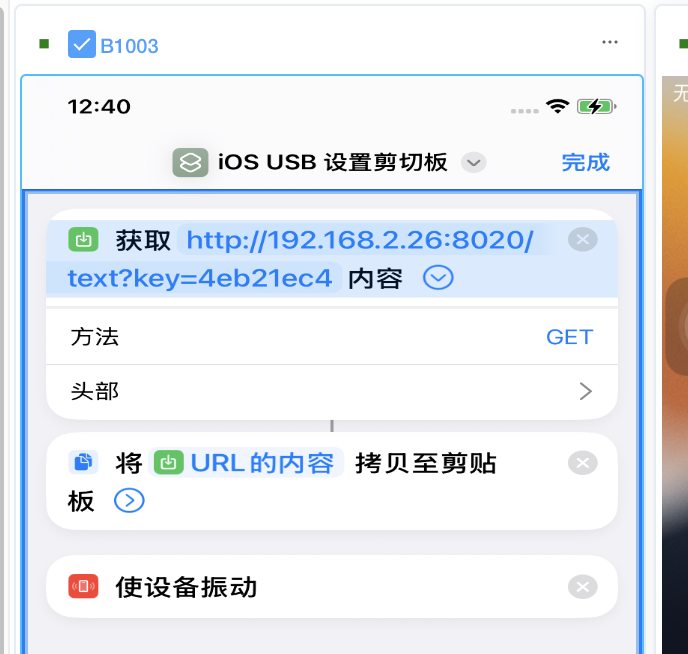
- Shortcut iOS USB Set clipboard (URL params as in Text input)
-
- Bind hotkey same as above
- Test: HID list → Clipboard → Copy to phone clipboard
Open URL
- Shortcut iOS USB Open URL (URL params as in Text input)
-
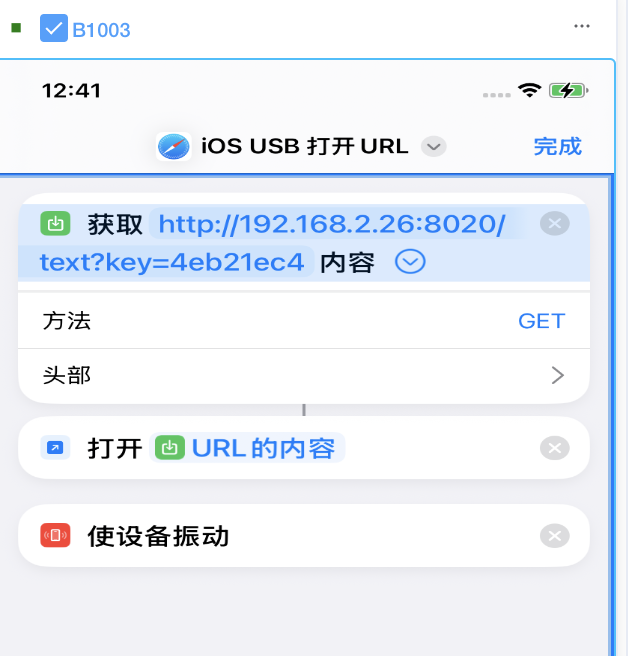
- Bind hotkey same as above
- Test: HID list → Open URL
OCR
- System settings → OCR config — pick an engine
- Right-click thumbnail or main window → Recognize screen text — result goes to the PC clipboard
Other operations
- Zoom: Ctrl + scroll wheel on thumbnail or main window
- Switch main control: thumbnail right-click → Set as main control
- Sync: toolbar Sync or main window 控 button to mirror actions on main + thumbnails
FAQ
Control center crashes
- Install VC runtimes from the cloud drive if system libraries are incomplete
Proxy IPA won't start automation or crashes
-
- Developer disk image — place images correctly, or mirror once with iTools live screen
-
- Signing — iTools signing may not work; use cloud signing tools
-
- Below iOS 15, proxy IPA may crash on launch — start automation from the control center instead
-
- On iOS 15, automating running after tapping the icon means success
-
- Still crashing on iOS 15 with images in place → signing issue
White screen
- Clear cache:
C:\Users\<user>\AppData\Roaming\iosqkcenter\
Paste permission dialog
- Copying text from phone to PC may prompt for permission
- On the phone: Settings (scroll down) → proxy IPA → Paste from other apps → Allow
Device count
- Example: 94 devices on one PC — https://bbs.ieasyclick.com/thread-619-1-1.html
- Search the forum or ask EasyClick official AI for other hardware
Bluetooth tap not working
- Pair in Settings → Bluetooth on the phone
- Right-click → HID → Restart serial, restart the board (RST), restart both
Bluetooth coordinate offset
- Restart phone and Bluetooth board
Bluetooth drag/tap stuck
- Symptom: mouse moves only occasionally
- Too many events — Bluetooth can't keep up
- Tap Home/Recents on the thumbnail several times
- Or restart the board (RST)