UI open error: UI execution error: java.lang.RuntimeException: [40009]Unable to match APK and script file release option attributes
EC’s default APK and packaged debug builds can only run IEC linked from IDEA; they cannot run release IEC scripts compiled by IDEA.
Packaged standard and enterprise builds can run release IEC compiled by IDEA.
Run error on click: Execution error: failed to open script file: [40009] IEC debug=2 requires ProductInfo apk type 2 or 3, got 4
If you packaged a standard or enterprise APK and connected IDEA, the APK becomes a debug build and can only run debug IEC sent from IDEA — not IEC compiled by IDEA.
To revert to standard or enterprise mode, restart the phone or force-stop the app process and relaunch without connecting IDEA.
In Developer options on the phone, find Wireless debugging or USB debugging (Security settings) combined with charging-only ADB wording, enable it, then choose charging mode when activating over USB.
Keep EC Running in the Background
Based on dontkillmyapp.com — follow the links below to keep EC running for extended periods. The site is currently in English.
Android may kill long-running tasks. You can enable auto-run script on restart in EC system settings to mitigate this.
The following may help:
Disable battery optimization for the app.
Ensure Android Settings → Apps → EC → Battery → Background activity is enabled (location varies by OEM; this setting is important and may be disabled by default on some devices).
If you need features while the screen is off, enable the relevant options under Preferences → Monitor → Display-off monitor.
Disable battery-saving apps such as Greenify.
On Samsung: Android Settings → Device care → Battery → Unmonitored apps → add EC and all automation apps.
On Xiaomi: enable Auto-start and Display on lock screen under Other permissions.
On Xiaomi: disable automatic backup for the app — that process kills all running apps including EC.
On Xiaomi: enable all available options under Additional permissions in system settings.
On Huawei: lock EC in the Recents menu.
On Huawei: manually manage battery optimization for EC.
On Huawei: disable PowerGenie, which blocks background apps. Try Settings → Battery → gear icon → disable Close apps with excessive power usage. Or use ADB:
On Lenovo (and possibly others): disable EC’s “Disable auto-start” option.
If you use plugins, disabling power-saving mode may help resolve some issues.
Script Stops Automatically After ~20 Minutes and Floating Window Disappears
After about 20 minutes of script runtime, the script stops and the floating window disappears.
This is caused by hidden-app mode and power-saving mode. For example, vivo’s i Manager has power management; Xiaomi’s hidden-app mode automatically closes or denies permissions to the client, which makes the floating window disappear.
Fix: In Settings, find power management or hidden-app mode and grant the client permission or add it to the whitelist.
Xiaomi — disable hidden-app mode:
Open Settings → Battery & performance
Tap Hidden apps mode
Turn it off; or, if you keep it on, open app configuration, find EC, and set it to No restrictions.
vivo power management:
Open i Manager on the phone → Power management → Background high power consumption → find EC and turn the switch on so the app can keep running during high background power use.
New Commands in 5.8.0
Start script
Run IEC from sdcard: adb shell am startservice -a TESTCASE.EXEC.START.ACTION -n com.gibb.easyclick/com.gibb.abtest.testcase.service.MainService --es path /sdcard/a.iec
Stop script: adb shell am startservice -a TESTCASE.EXEC.STOP.ACTION -n com.gibb.easyclick/com.gibb.abtest.testcase.service.MainService
ADB script start in 9.32.0+
Start script
Run IEC from sdcard: adb shell am startservice -a 包名.TESTCASE.EXEC.START.ACTION -n 包名/com.gibb.abtest.testcase.service.MainService --es path /sdcard/a.iec
Stop script: adb shell am startservice -a 包名.TESTCASE.EXEC.STOP.ACTION -n 包名/com.gibb.abtest.testcase.service.MainService
UI Parameters Not Updated or Mixed Up
This often happens when tags are changed frequently. Clear the EC debug app cache on the phone. Packaged release builds do not have this issue.
IDEA New Project Issues
Error Adding Module to Project
Error: Argument for @NotNull parameter ‘file’ of com/intellij/openapi/roots/impl/ContentEntryImpl.addSourceFolder must not be null
Fix: close IDEA and adb.exe, then reopen; or use IDEA 2019.3.
Or run IDEA as administrator — it may be a permissions issue.
Functions Not Working
If proxy module functions do not work, check whether the run mode is agent mode.
Development Tool Cannot Connect to Phone?
This is usually caused by ADB connection failure. ADB requires:
USB debugging enabled on the phone
Phone connected to the PC via USB cable
No other program occupying ADB
Device Connection Issues
After PC sleep, connection may fail — restart and try again. If an emulator or certain models won’t connect, install ec.apk first, then reconnect.
If IDEA has been open a long time or multiple emulators are running, restart the IDE.
Phone Not Recognized After Unplug and Replug?
Kill the adb process in Task Manager and reconnect.
Connect once with 360 Mobile Assistant or similar. If the assistant connects, try the IDE again. If the assistant also fails, it may be a driver issue.
WiFi Direct Device Connection
Install the EC debug app on the phone. If it is not installed, proceed to step 2 — a QR code will prompt installation.
EasyClick IDE → Device connection → WiFi direct — enter the phone’s IP address. Detailed logs appear in the EasyClick log console.
Capturing Nodes
After connecting to an emulator, node service keeps reporting not enabled
Node service depends on run mode. During development, activate the device first — the EC debug app starts node service automatically. You can also enable accessibility manually and use accessibility run mode in the EC debug app.
In agent mode, starting the agent service takes time — usually within 10 s. Watch the EasyClick console for Initializing environment.
Screenshot issues
The EC IDE supports multiple screenshot modes. Over WiFi direct, node capture may request screen capture permission — approve the prompt on the device.
ADB Occupied — Fixes
Enable USB debugging on the phone.
Close other software that uses ADB.
End all ADB processes in Task Manager and ensure no command is holding ADB on the phone.
Antivirus, phone assistants, and flashing tools on the PC can also occupy ADB — close them.
utils Module openApp Fails on Some Phones
On Xiaomi, permission issues may block openAppByName and similar functions. In permission management, allow launching third-party apps or grant all permissions.
Android 10 cannot preview or open apps in the background — grant the EC debug build overlay permission, or call requestFloatViewPermission(10) in the script.
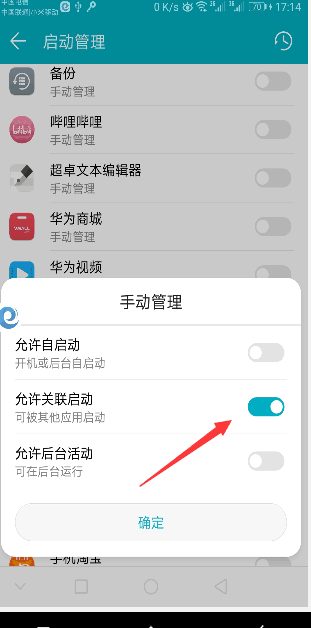
Honor series: enable Allow associated startup
openApp Functions Not Working
On Xiaomi, allow Display pop-up windows while running in the background. Other brands may have similar restrictions — search for OEM-specific fixes.
Due to device compatibility, screen mapping may fail. This does not affect node capture — the two features are independent. You can use third-party tools such as qtscrcpy or scrcpy.
If both the EC debug build and the packaged app are installed, their run modes may conflict. Uninstall the EC debug build.
Migrating from 3.x to 4.x
In 3.x, the automation service is required for scripts to run. In 4.x it is optional. In 4.x, check or start the service environment in your script yourself: Start environment and Check environment
Image/Color Capture or findColor/findImage Not Working
Due to Android’s native mechanism, when requesting screen capture permission, if the screen does not refresh, the image queue stays empty and capture fails.
Recommended fix: after requesting screen capture permission, refresh the screen — tap, swipe, etc. — to populate the image queue.
In code, use a for loop and try capture multiple times.
Screenshot Color Difference
System APIs may introduce color shift. In agent mode, use captureFullScreenEx to reduce color difference.
IDEA Cannot Capture Screenshots
When capturing, if an authorization dialog appears on the phone, approve it and check Don’t show again so future captures are automatic.
If you see the following error, check whether the object being converted contains Java strings. Convert the original string to a JS string. For example: s = s + ""
STACK_TRACE=java.lang.StackOverflowError: stack size 1039KB at java.lang.reflect.Method.invoke(Native Method)
at org.mozilla.javascript.MemberBox.invoke(Unknown Source:4)
at org.mozilla.javascript.JavaMembers.get(Unknown Source:58)
at org.mozilla.javascript.NativeJavaObject.get(Unknown Source:16)
at org.mozilla.javascript.ScriptableObject.getProperty(Unknown Source:1)
at org.mozilla.javascript.NativeJSON.str(Unknown Source:7)
at org.mozilla.javascript.NativeJSON.jo(Unknown Source:63)
at org.mozilla.javascript.NativeJSON.str(Unknown Source:237)
at org.mozilla.javascript.NativeJSON.jo(Unknown Source:63)
Java-JS Plugin or Hybrid Project Crashes
Confirm JDK is version 1.8.
Confirm the project does not contain Chinese or other special characters.
Confirm the project name and path are consistent.
Cannot Read Clipboard on Android 10+
On Android 10+, unless the app is the default IME or the currently focused app, it cannot access clipboard data on Android 10 or higher.
Fix: set the EC debug app as the default IME. For packaged release builds, set the packaged app as the default IME.
Accessibility Shows Not Enabled
This is often caused by the phone OS. Try restarting the phone.
OCR APK Won’t Start
On the phone, allow auto-start, associated startup, and background activity.