First script project
Download the tools
- Downloads: Tutorials & resources
- Install the latest EasyClick IDEA plugin — walkthrough: https://blog.csdn.net/qq_35246620/article/details/78289074
- Also see Downloads
- IDEA: JetBrains IDEA download
- Prefer IDEA 2026.2+ — no IDEA activation required after installing the plugin. Avoid older IDEA versions — they often require cracking and will no longer be supported
- If you prefer the classic look: open IDEA Settings → Plugins, search for Classic UI, install it, then restart IDEA to restore the classic UI
- On Windows, launch
bin/idea64.exe
Create a workspace and project
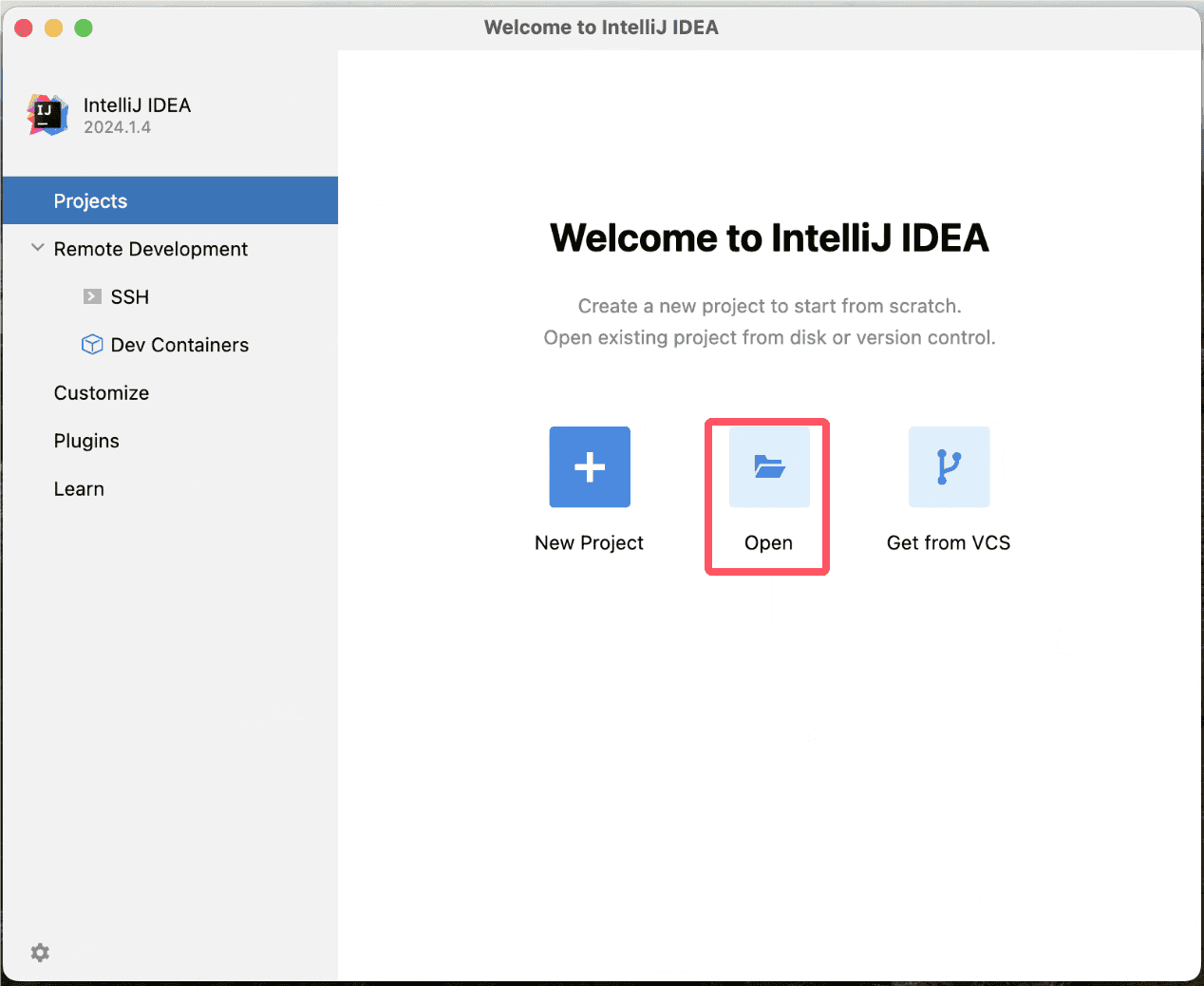
- Open an empty folder (Open)
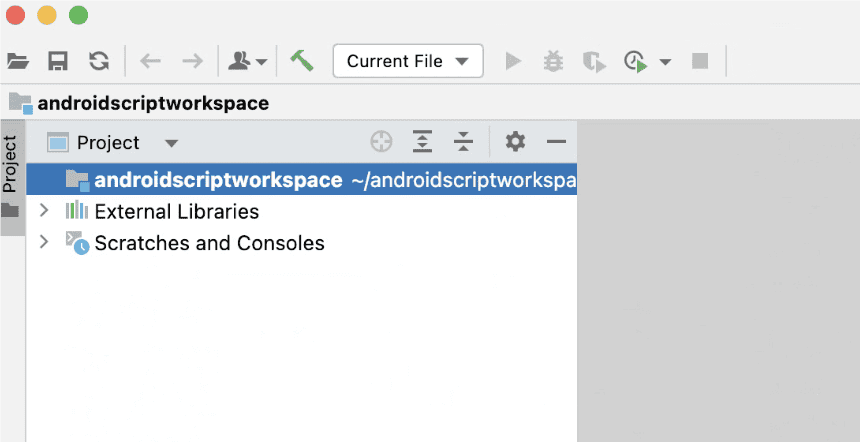
- Workspace looks like this
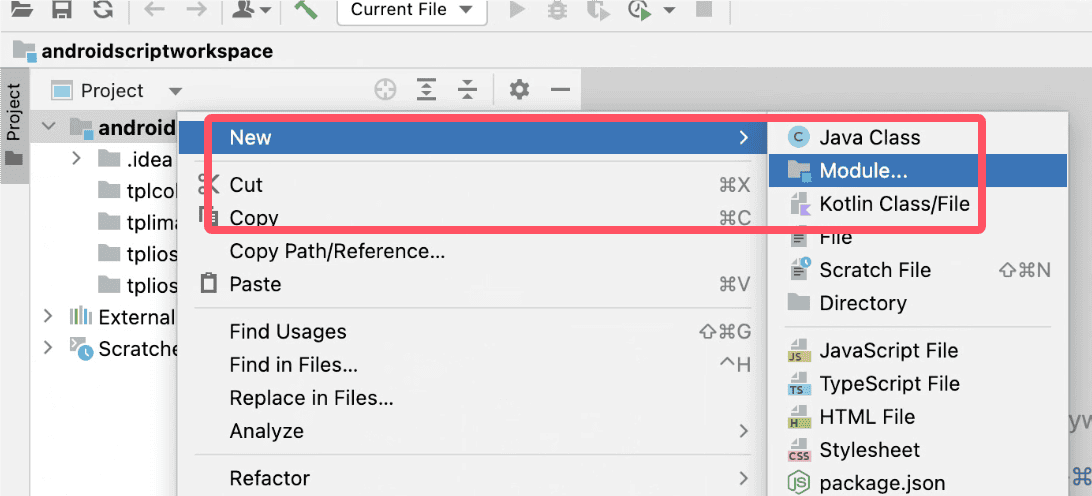
- Right-click → New → Module
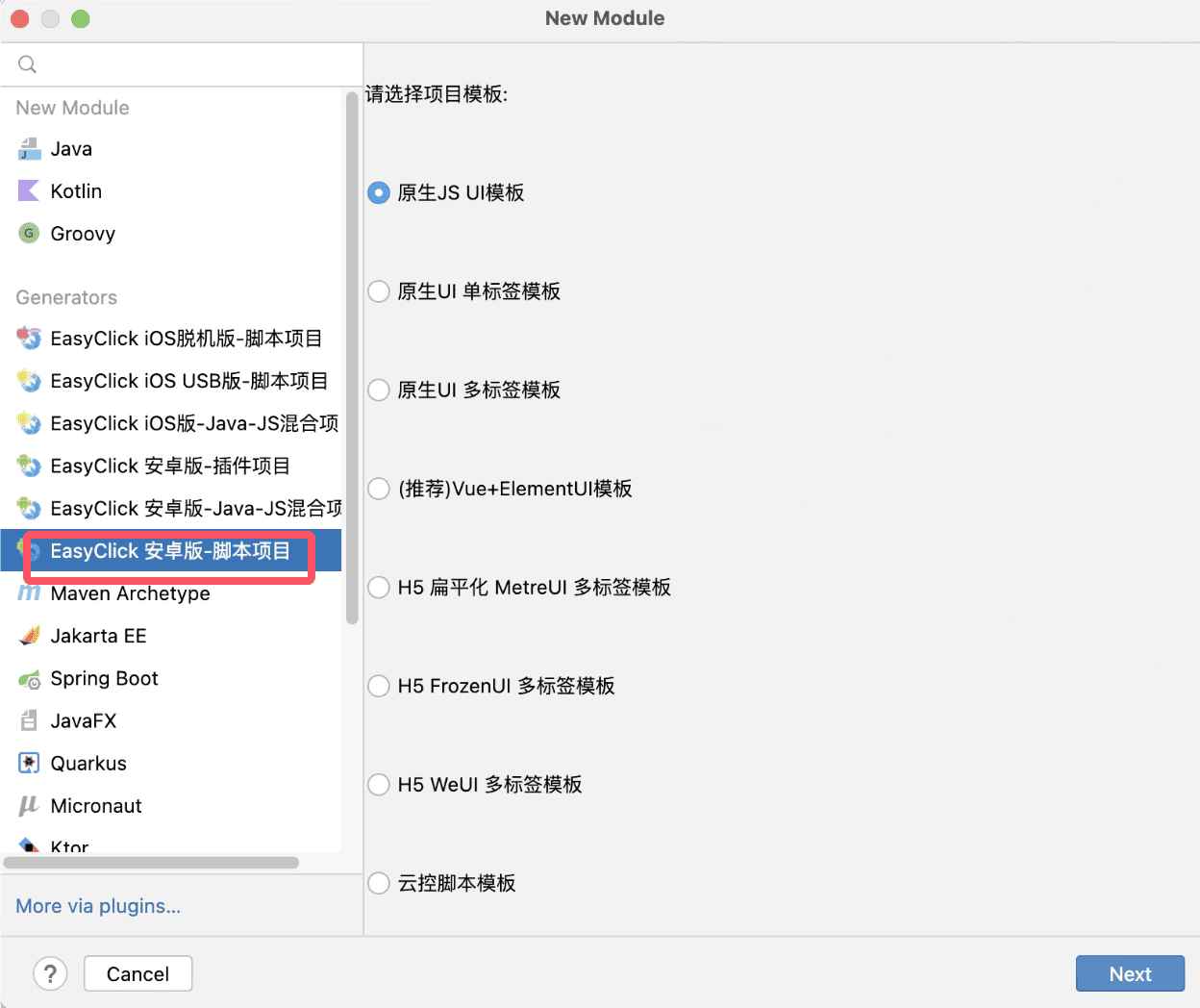
 - Choose **EasyClick Android — script project**, then Next
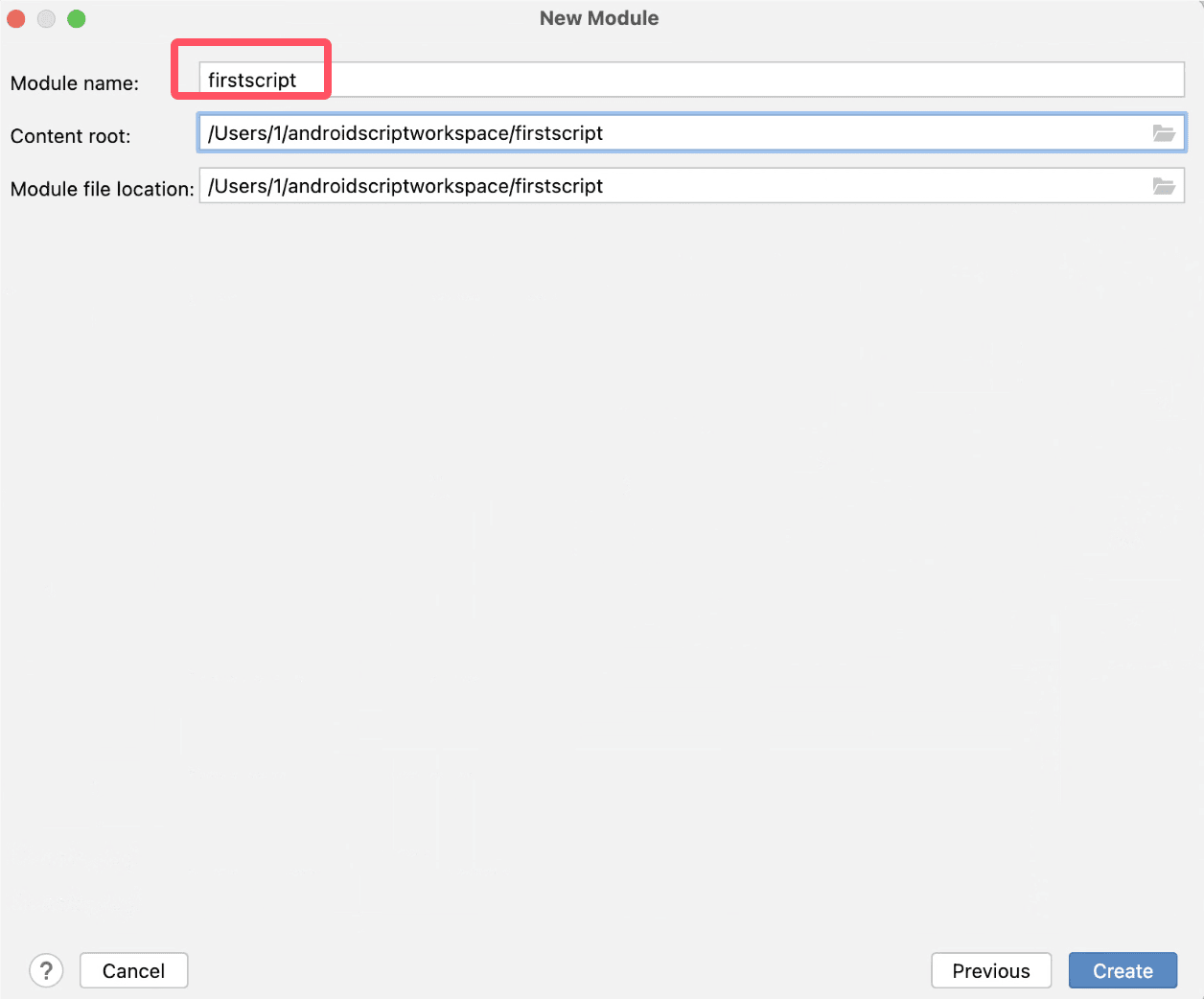
- Enter a module name (Chinese or English OK; avoid spaces/special characters)
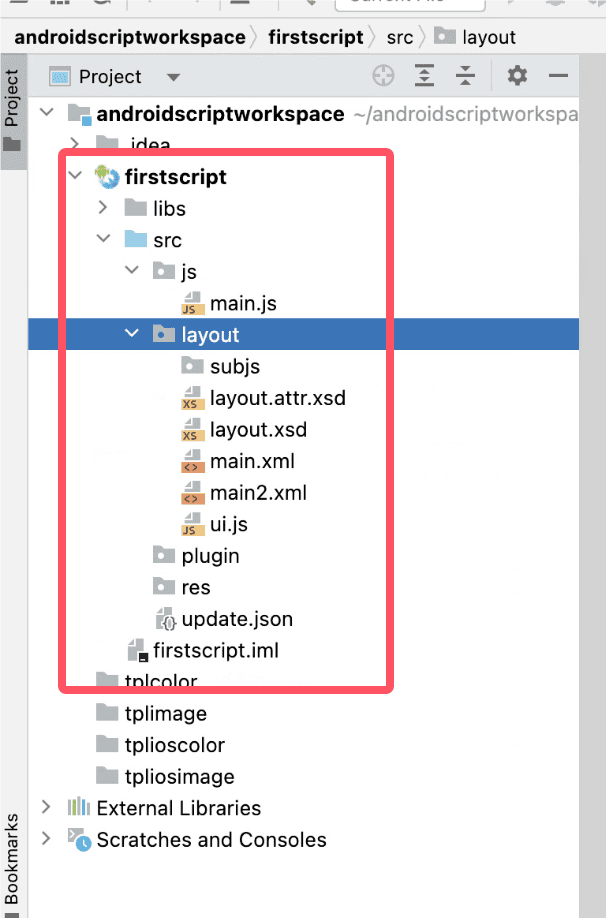
 - Created structure (see the IDE tools chapter for details)
Connect a device
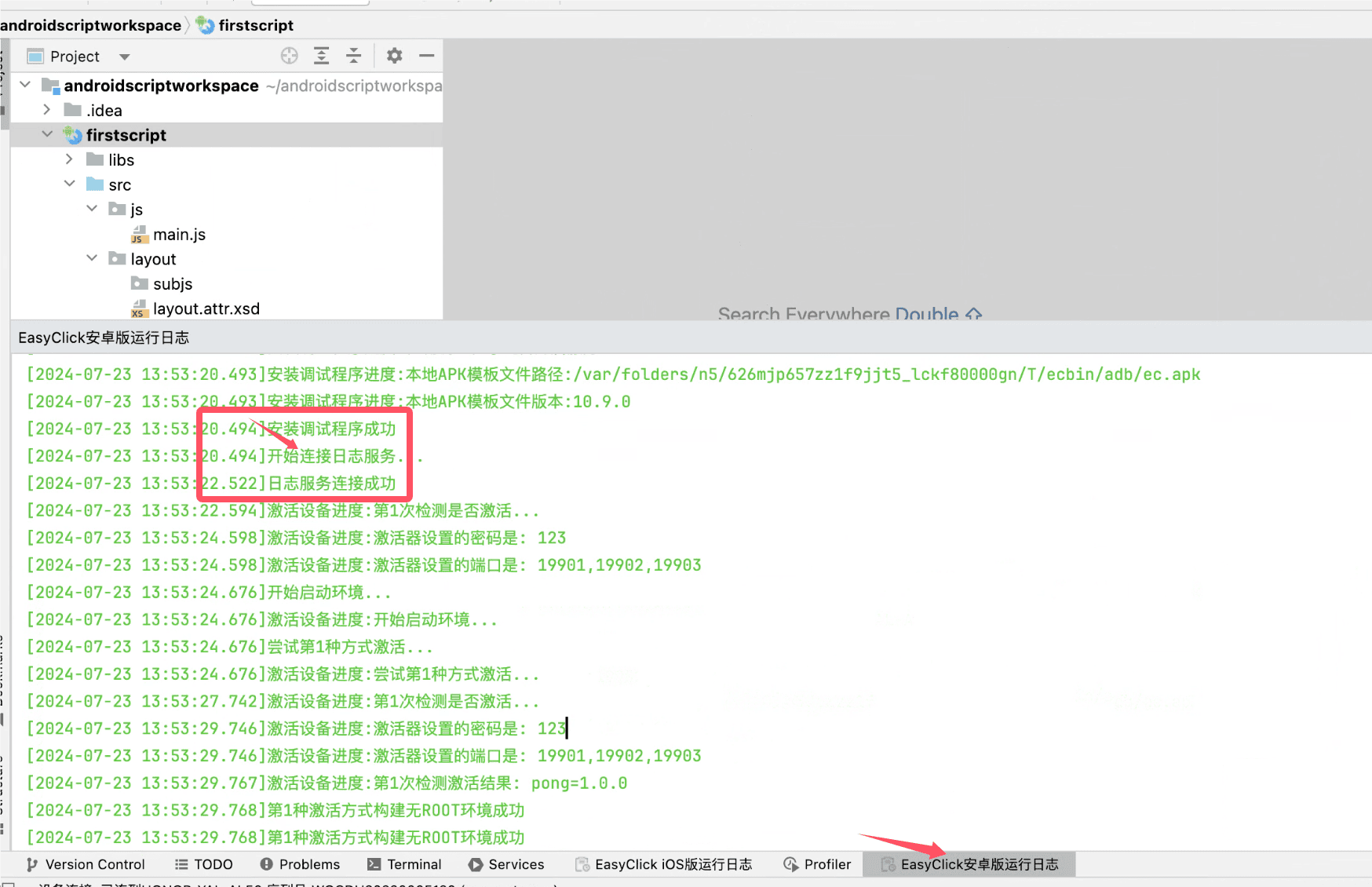
- Open the bottom panel EasyClick Android run log for detailed output
- Menu:
EasyClick Android → Device connect → USB connect(USB debugging must be on)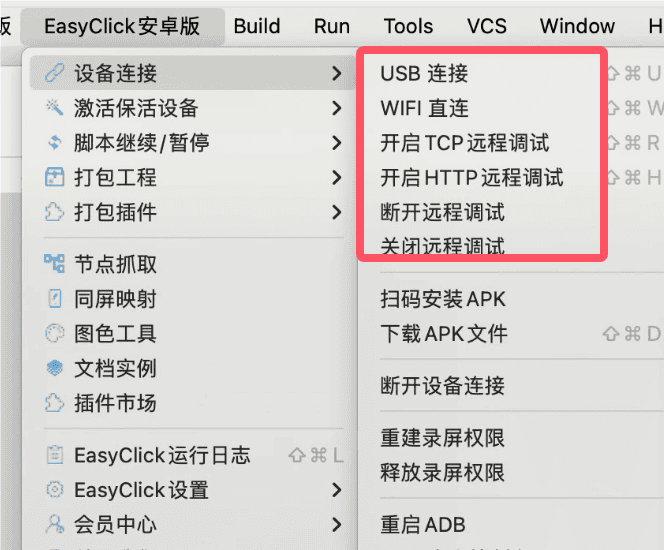
- Connecting installs and launches the APK automatically
- If install fails, download the APK from
EasyClick Android → Device connect → Download APKand install manually - Success looks like this
Preview and run
- Right-click the project → Android → Preview / Run
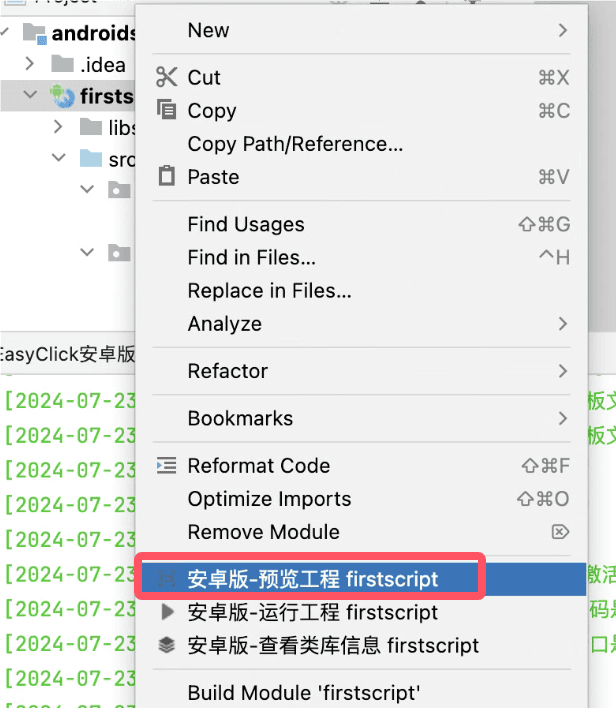
- Or right-click inside a JS file for the same actions
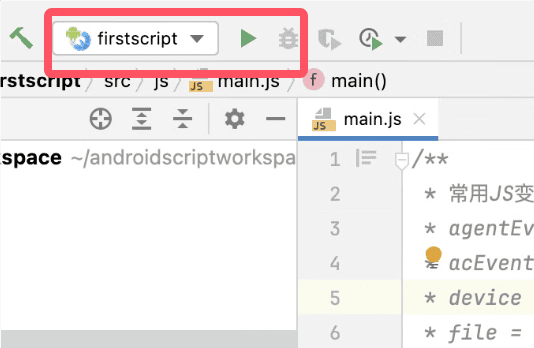
- After the first successful run, use the top toolbar shortcut