Standalone Activator Tutorial
Online Network Initialization & Licensing
Compatibility
- Requires EC standalone main app 5.4.0+
- For UDID licensing only; use USB initialization for ECID licensing
Activate License Code
- If you purchased a standalone license from a reseller or official channel, log in to the Admin Console, go to iOS Card Management → My iOS Devices → Batch Bind License
- You can also rebind or transfer licenses in the admin console
- Get UDID via i4Tools (copy device identifier) or long-press copy from EC standalone main app
License Initialization — Get UDID
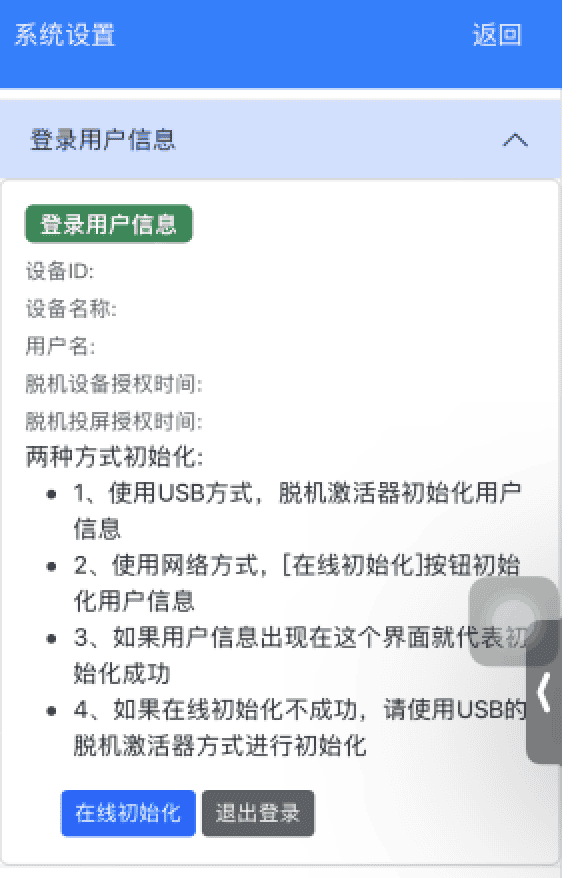
- Install the latest EC standalone main app, open it, tap Settings (top right)
- Expand Logged-in User Info, tap Online Initialize
-
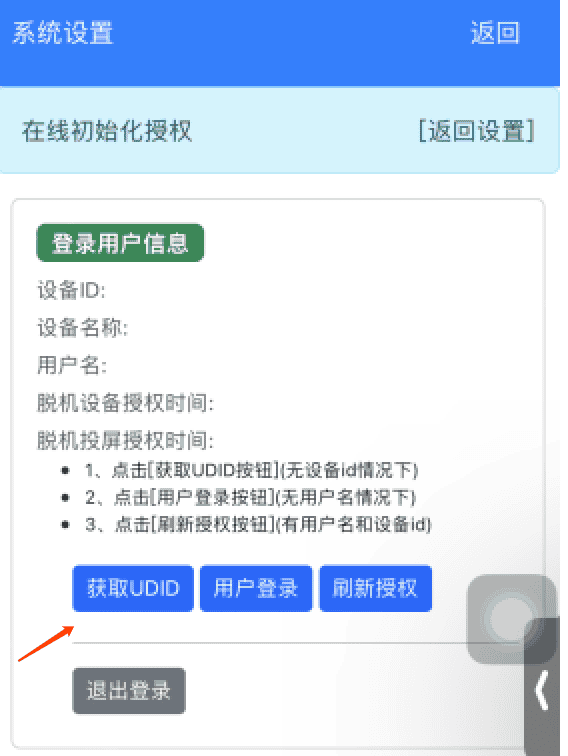
- Tap Get UDID — browser opens; tap Get UDID again on the browser page
-
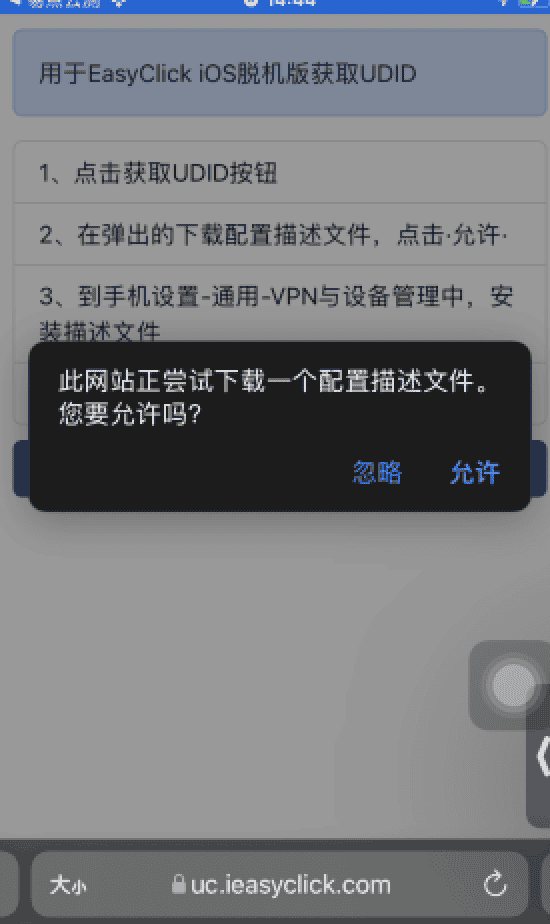
- Tap Get UDID — download profile prompt; tap Allow
-
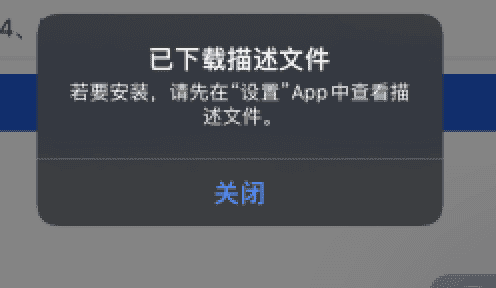
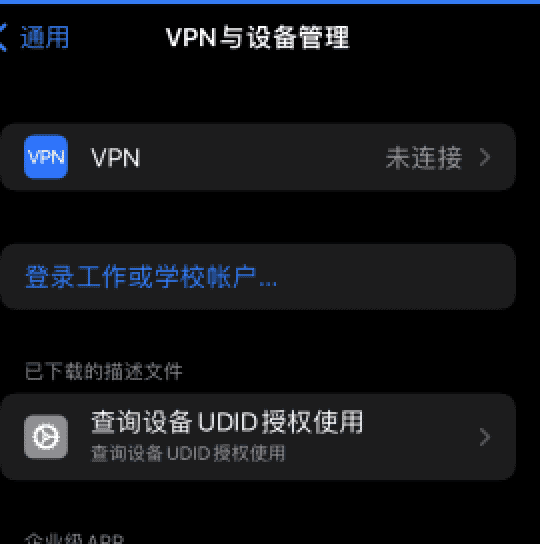
- After download, go to Settings → General → VPN & Device Management, find Query Device UDID for Authorization
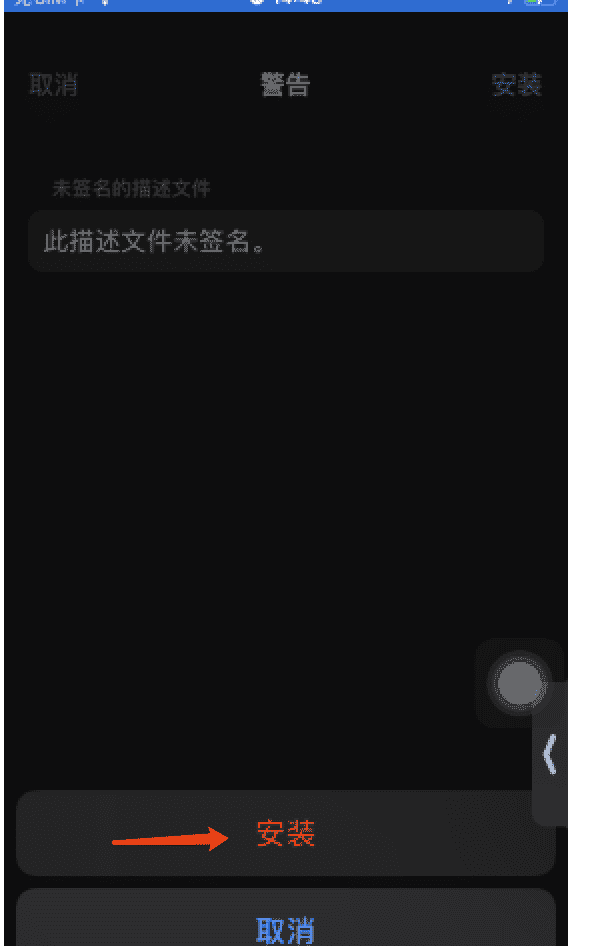
- Tap it, tap Install (top right) through completion; browser opens automatically
-

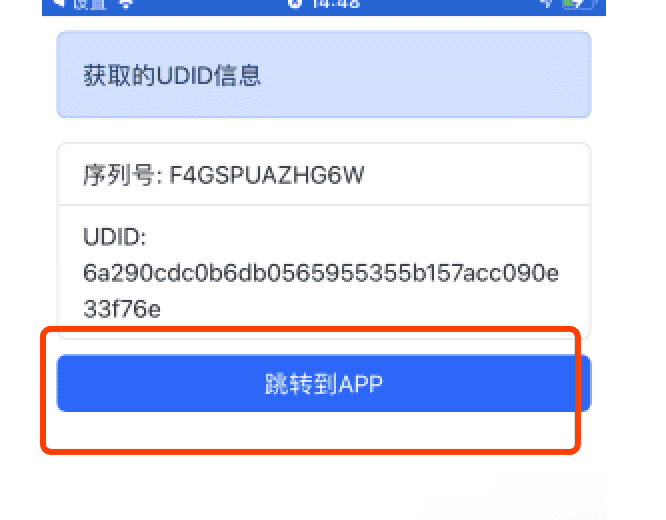
- After UDID appears in browser, tap Jump to App, then Read UDID in the app
-
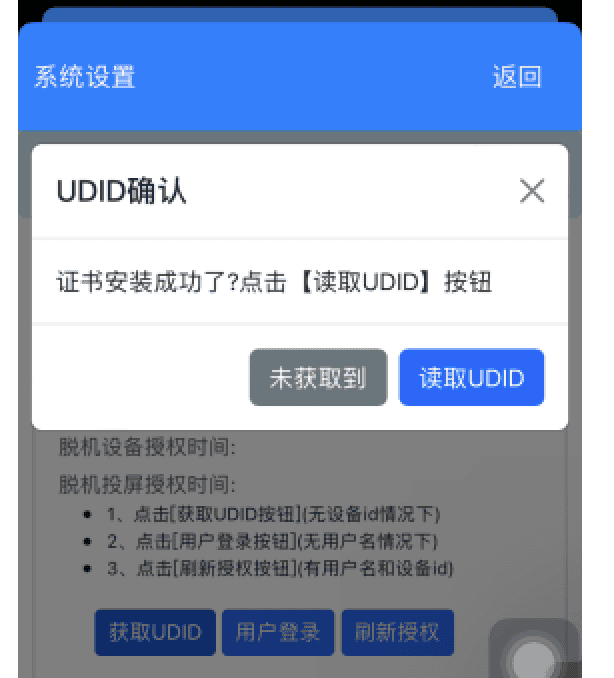
- After UDID success, you can log in
License Initialization — Login
- After UDID success, tap User Login and enter username and password
License Initialization — Refresh License
- If license not updated, tap Refresh License
USB Initialization & Licensing
USB activation video tutorial
tip
Activator features
- Set phone license (license must be purchased)
- Initialize phone information
- WiFi connection mode — flash developer image without USB cable
- Provides tjCenter module API functions
New version (10.2.0+)
The new standalone activator client is available. Connect device via USB, then in control center click Standalone Activator → New Interface — no bridge URL or browser needed. See → Standalone Activator Tutorial
Download Activator
- Bundled with USB control center
- Cloud drive → iOS Resources → USB v6.16.0 → Control Center folder
- Standalone download
- Cloud drive → iOS Resources → USB v6.16.0 → Bridge folder — download bridge for your OS
- Standalone control center screen mirroring system
- Standalone control center can initialize standalone info, manage licenses, scripts, and parameters
- Recommended: Standalone Control Center Screen Mirroring System
- Cloud drive: Tutorial Resources
Open Activator
- Via USB control center
- USB control center includes activator:
- Smart Control → Standalone Activator

- Via bridge program
- Activator is integrated in bridge
- Run
ios-bridge.exe(Linux/Mac: terminalios-bridge) - Browser: http://127.0.0.1:8020/active
- Note: On Windows, tray message Program started, running in tray — click EasyClick tray icon → Open Standalone Activator
Log In
- Open activator page; log in with iOS USB control center account. Register if needed
- Login button is top right
Initialize Device
tip
You must kill the main app process — do not open it when clicking Initialize
You must kill the main app process — do not open it when clicking Initialize
You must kill the main app process — do not open it when clicking Initialize
If still failing, restart activator and repeat initialization
- Refresh devices on activator page to reload connected devices
- Set main app bundleId (standalone main app bundle ID)
- Set agent app bundleId (for starting automation service)
- Select device(s), click Initialize
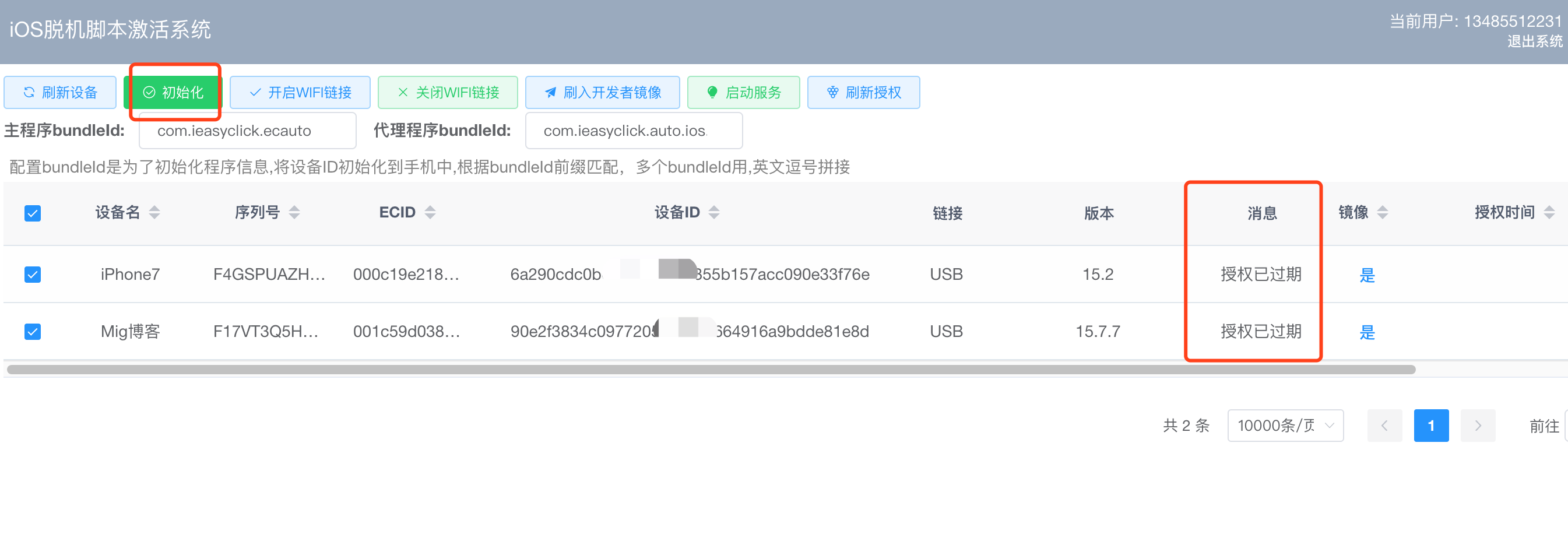
- License expired — purchase standalone license from reseller or official
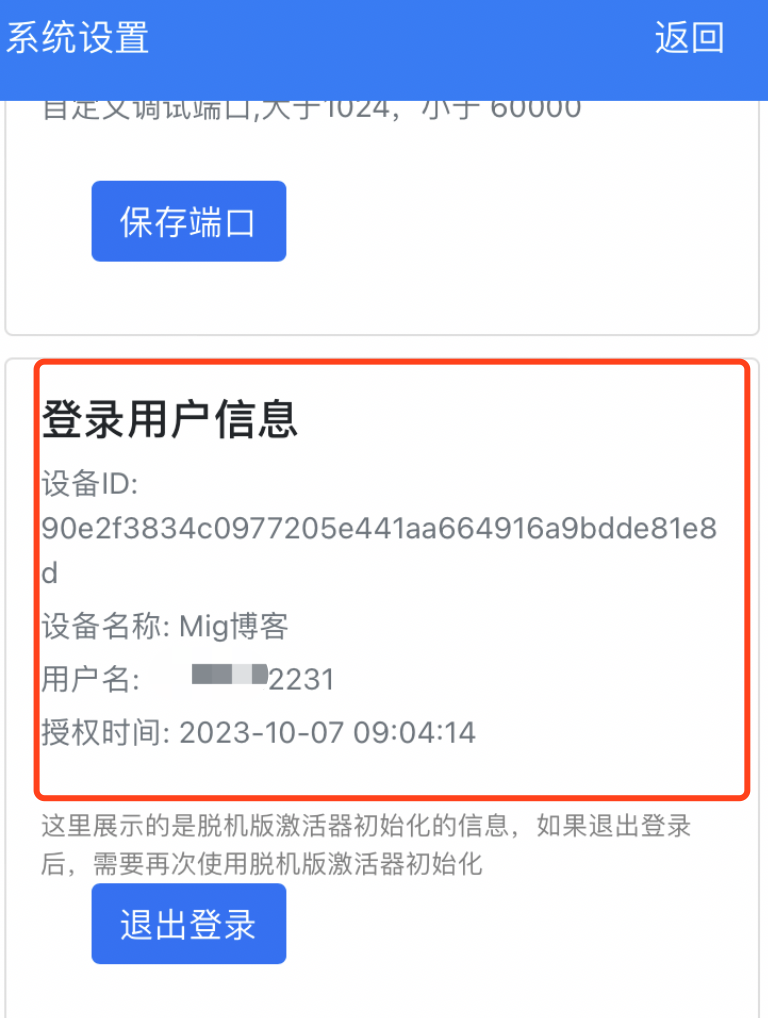
- Success — check standalone main app → Settings → User Info for device and user data
Licensing
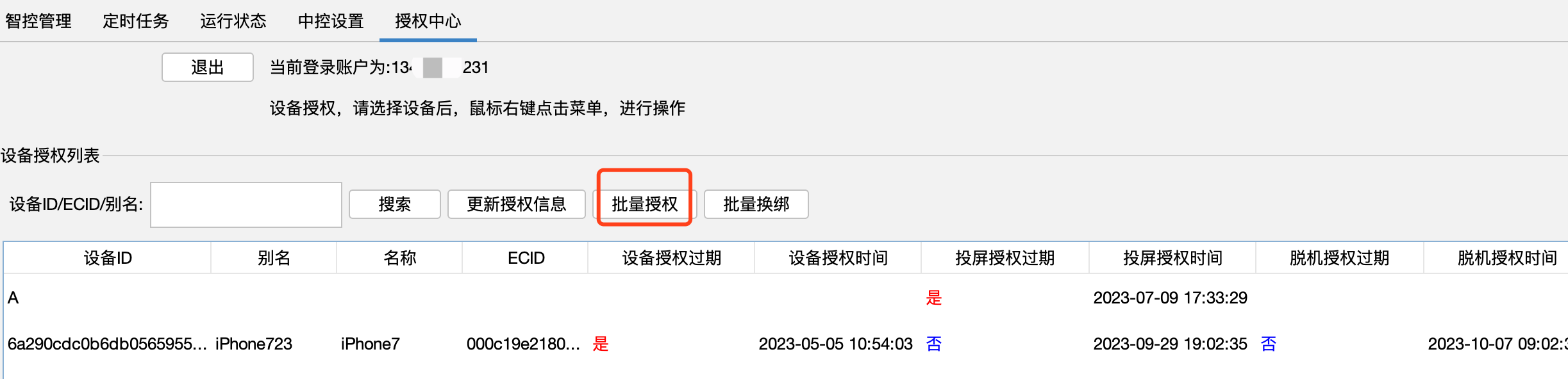
- Activator page licensing
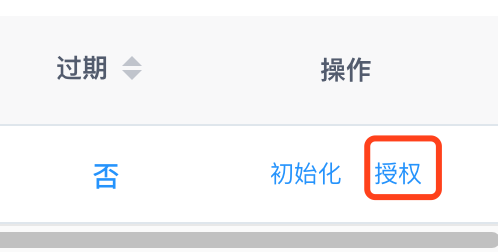
- Rightmost column License button opens dialog
- Enter card number from official/reseller to bind
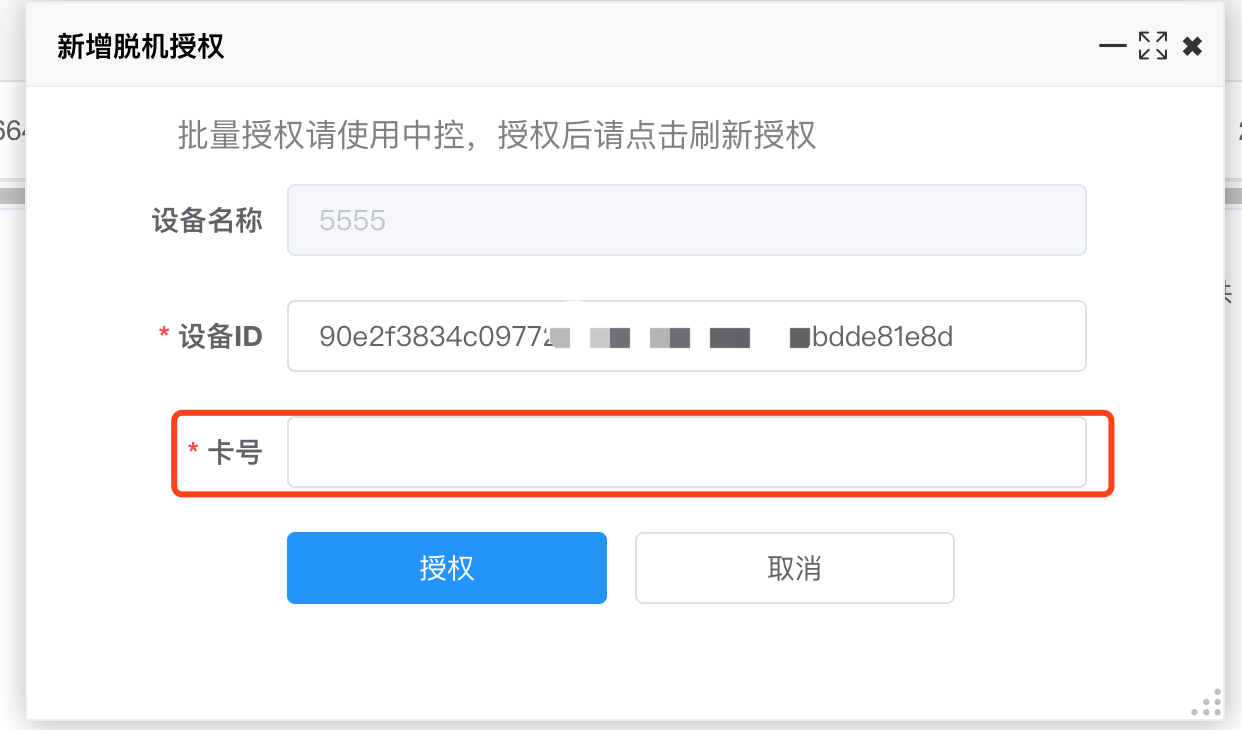
- After binding, click Refresh License
- USB control center licensing
- Batch standalone licensing supported
- License Center → Batch License
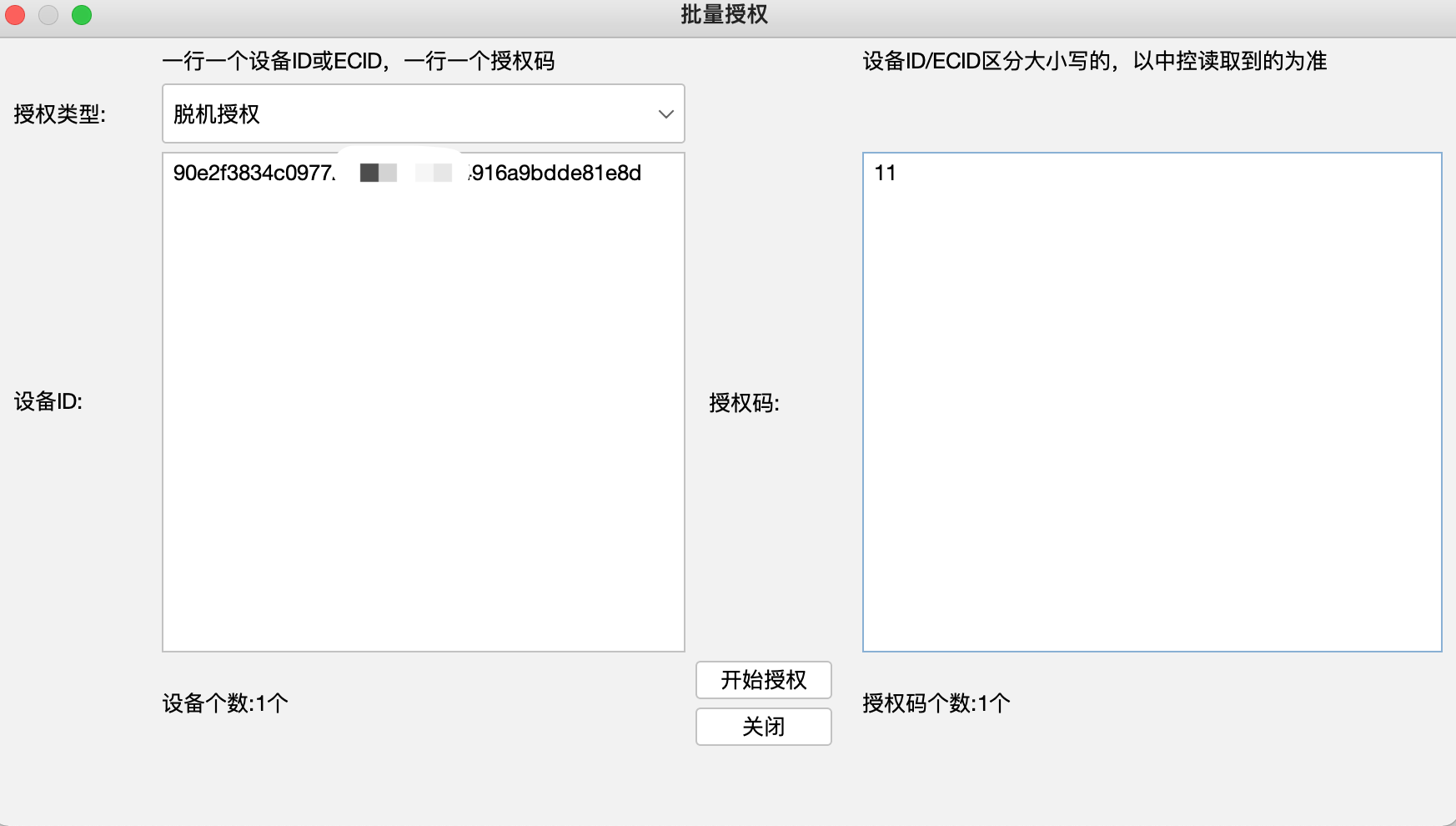
- License type: standalone; left = device ID, right = license code; click License, then Update License
WiFi Connection
- After WiFi mode, phone reconnects after reboot; flash developer image without cable
- Select device, click Enable WiFi Connection

- On success, unplug cable, wait, refresh devices — connection type shows Network
Other
- Activator also flashes developer images
- Download images from cloud drive, extract to
config/DeveloperDiskImage/under activator - Start Service — start automation service; configure agent bundleId first
Name and iOS Version Not Showing
- Repair drivers with i4Tools; after repair dialog, click Reset Winsock, disable firewall
Activation Retry
- Main app bundleId in activator config is required
- Steps: Unplug/replug phone → kill main app → Initialize. If still failing:
-
- Restart bridge
-
- Unplug/replug phone again
-
- Kill main app (do not open), Initialize again
- Success = user info on app Settings page
iOS 17+ Activation
- iOS 17+ needs EC 7.1.0+ activator or USB control center 7.1.0+
- iOS 17+ needs usbncm driver — see USB iOS 17 Guide, or use latest i4Tools live mirroring once
- Image flash and other steps same as older iOS versions