Bluetooth BLE Tutorial
Supported Firmware
- Currently supports ESP32C3 boards, with or without pin headers — connection is via Bluetooth or network, not serial, so there is no difference
- Board image
-

Download Firmware
- In the cloud drive iOS Resources → Standalone Edition → Bluetooth Firmware, download firmware for your board
- Note: firmware includes relative coordinates and absolute coordinates variants
- Relative mouse has broad compatibility but requires compensation ratio calculation; if error occurs, call the zero-reset function
- Absolute mouse works well on iOS 17+ with no compensation ratio; clicks are more accurate
Flash Firmware
- Flashing is the same as Android — see Android Bluetooth Flash Firmware
- Select iOS standalone Bluetooth firmware when flashing — do not pick the wrong one
- Getting Bluetooth MAC address also follows the Android guide
Bind Bluetooth
- On the phone, open Settings → Bluetooth, select a Bluetooth device and connect. If connection fails, press RST on the board to reboot and retry
- Open the app, go to Settings, scroll to Bluetooth BLE Settings → Select Bluetooth
- Click Scan Bluetooth. If nothing appears, pause and scan again
- Allow Bluetooth or scan-related permissions if prompted
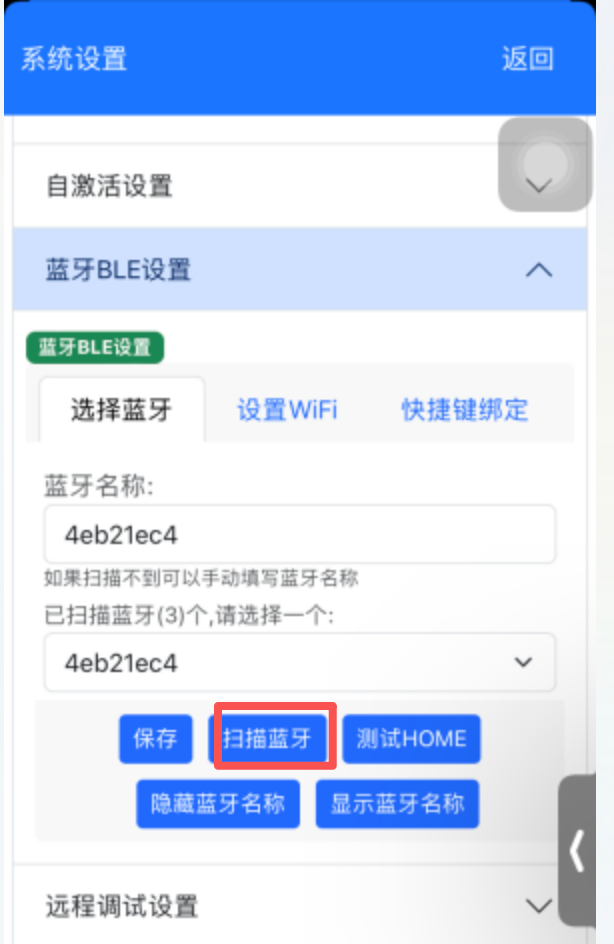
- If the first scan finds nothing, pause and scan again. Select a device, click Save, then Test HOME. Returning to home means success
- Hide Bluetooth name stops broadcasting the name so other phones cannot scan it
- Show Bluetooth name re-enables broadcasting so phones can scan
Test Features
- After Bluetooth connects, press Test HOME. Returning to home means success
- You can also test via script code
Coordinate Calibration
- EC 6.6.0+ adds Coordinate Calibration under App Settings → Bluetooth BLE Settings → Coordinate Calibration
- Configure all Bluetooth options and pass the test, then click Coordinate Calibration. A semi-transparent overlay appears; click Start Calibration and the mouse moves to auto-calibrate the ratio
- Click Close when done
- Calibration is saved automatically; scripts do not need
bleEvent.setScale - On iOS 17+, absolute coordinates are recommended — no calibration needed
Network Setup
- In app Settings → Bluetooth BLE Settings → WiFi Options, enter WiFi name and password, click Set WiFi. If successful, reboot the board
- In code, use
bleEvent.searchBleIpto check if IP is reachable — mainly for network communication with the board
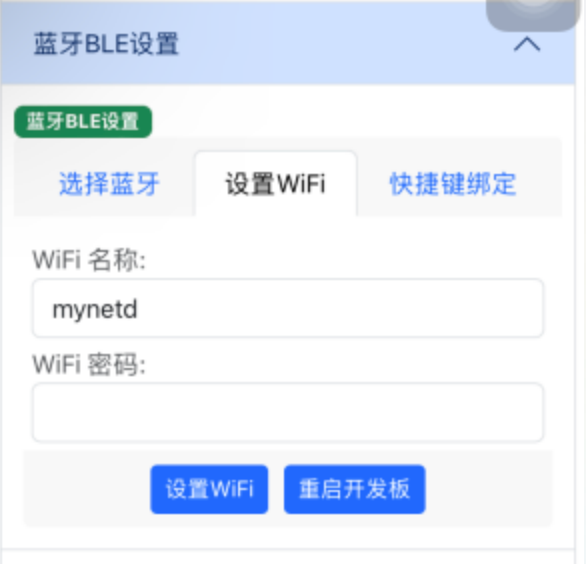
Shortcuts
- Shortcuts improve efficiency for actions like running Shortcuts
- Bind them under Bluetooth BLE Settings → Shortcut Binding in app Settings
Keyboard Shortcut Binding
- Open Settings → Accessibility → Keyboard → Full Keyboard Access → Commands, tap a Command, and enter a keyboard shortcut when prompted
-
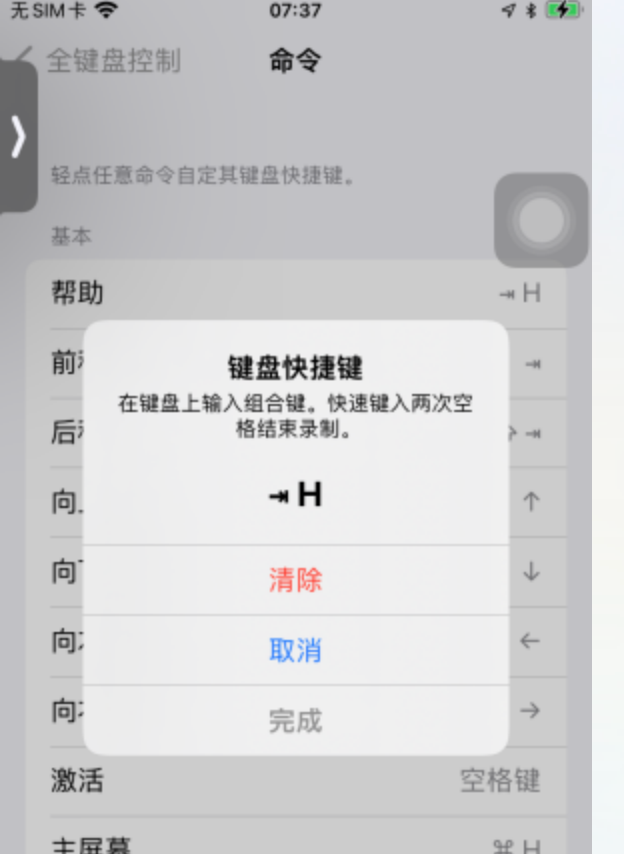
- Double-tap Home (or swipe up from bottom for app switcher), go to App Settings → Bluetooth BLE Settings → Shortcut Binding, choose Keyboard Shortcut, set modifier and key, then Send
-
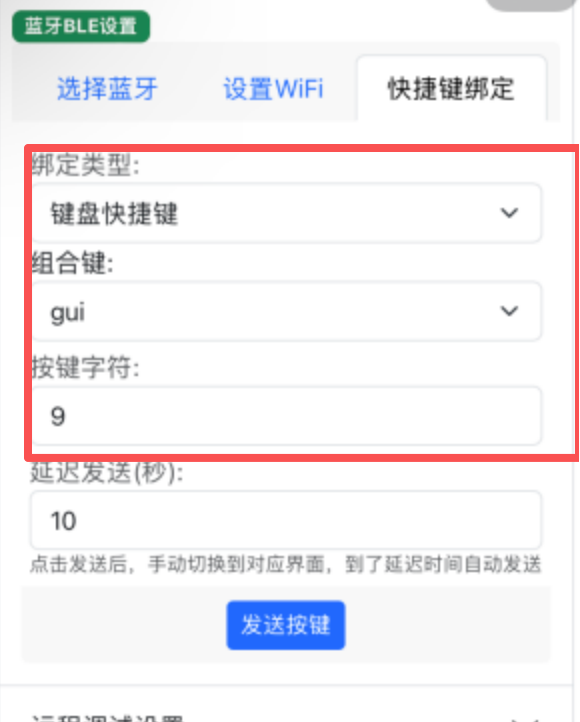
- A dialog appears; double-tap Home and return to Settings → Accessibility → Keyboard → Full Keyboard Access → Commands
-
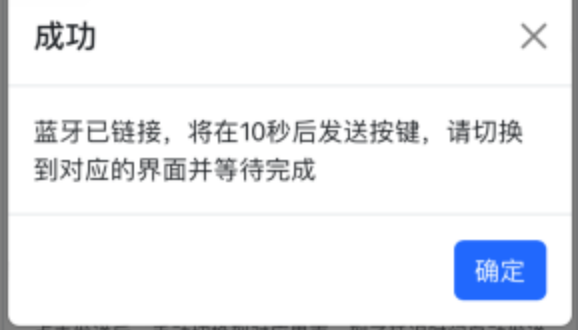
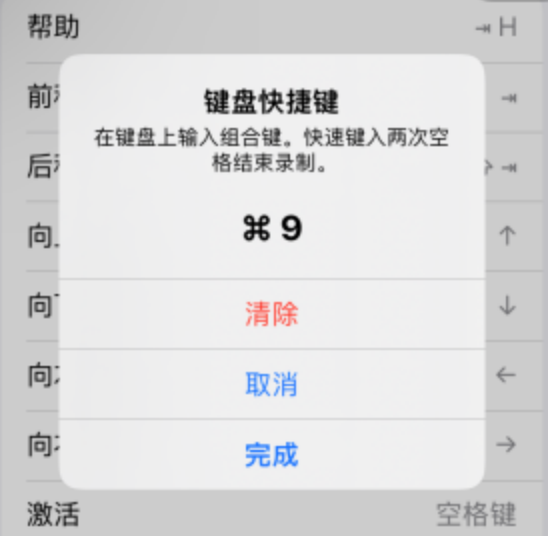
- After ~10 seconds keys are sent automatically and the command shortcut updates; tap Done
-
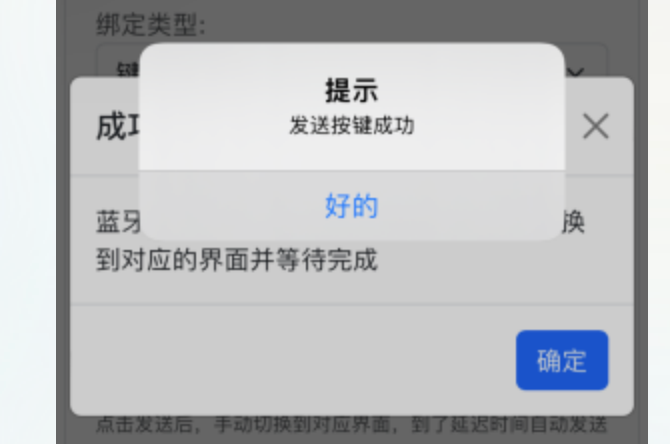
- Return to shortcut binding in the app for success message; retry on failure. Other shortcuts work similarly
-
Mouse Button Binding
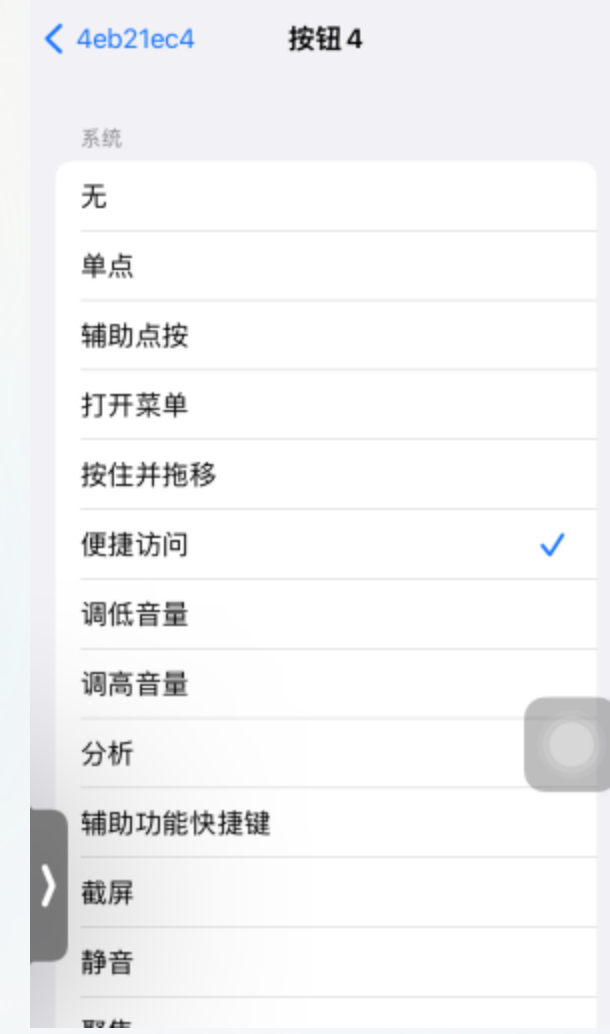
- Open Settings → Accessibility → Touch → AssistiveTouch → Devices → Connected Device, tap Customize Additional Buttons, press a mouse button when prompted
-
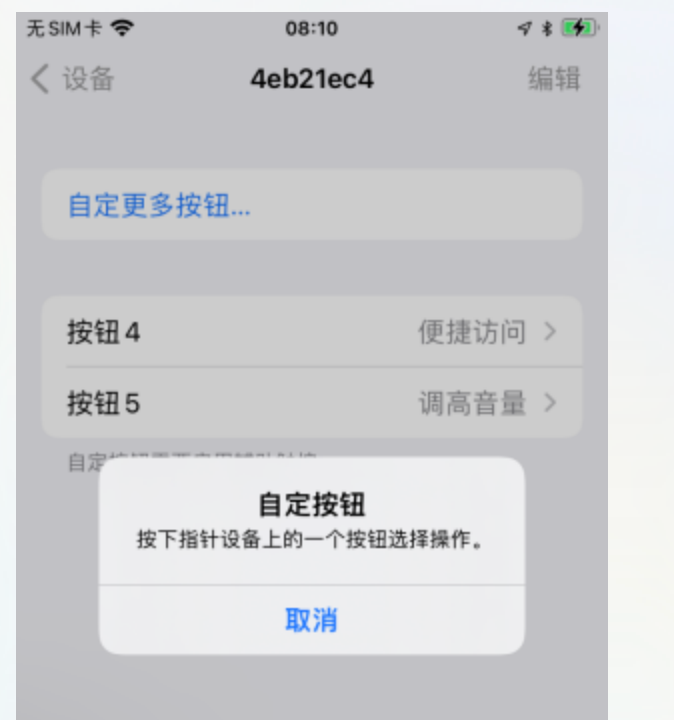
- Double-tap Home, go to App Settings → Bluetooth BLE Settings → Shortcut Binding, choose Mouse Button, pick a button (Button 4+ recommended to avoid conflicts)
-
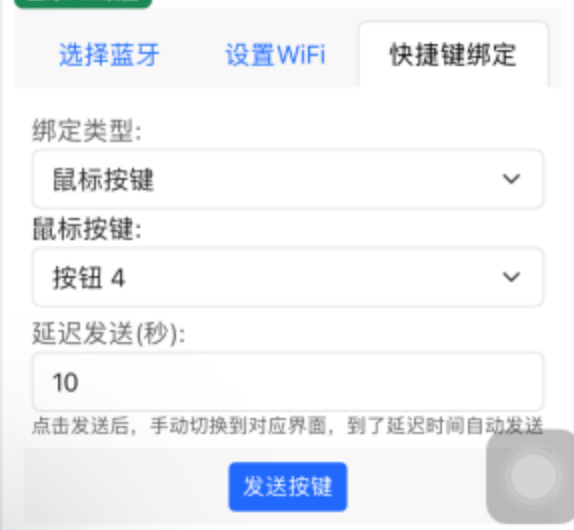
- Click Send, switch back to AssistiveTouch device settings, wait for key send, then pick a command in the custom command screen
-
Communication Mode
- Script–board communication supports Bluetooth and LAN. Set WiFi first and reboot the board
- In scripts use
bleEvent.sendCmdTypeto switch mode andbleEvent.searchBleIpto find board IP
FAQ
Bluetooth won't connect
- Hold RST on the board for 5 seconds and release, or on the phone tap ⓘ on the Bluetooth device → Forget Device and reconnect
- After flashing, reboot the board; toggle phone Bluetooth if device doesn't appear
- If first Scan Bluetooth finds nothing, pause and scan again
- If Bluetooth was hidden, press RST to show it again and rescan
Bluetooth BLE — required phone settings
- Settings → Accessibility → Touch → AssistiveTouch — enable AssistiveTouch
- Settings → Accessibility → Touch → AssistiveTouch → Tracking Sensitivity — drag all the way left (slowest)
- Settings → Accessibility → Touch → AssistiveTouch — enable Perform Touch Gestures, Show Onscreen Keyboard; enable Tap Sounds if you want click sounds
- Settings → Accessibility → Touch → AssistiveTouch → Mouse Keys — Initial Delay and Maximum Speed all the way left; optionally enable Mouse Keys, Option Key Toggle, Primary Keyboard
- General → Trackpad & Mouse → Tracking Acceleration — all the way left
- Settings → Accessibility → Keyboards — enable Full Keyboard Access
- Settings → Accessibility → Keyboards → Commands — customize keyboard shortcuts and Shortcuts shortcuts
Board LED patterns
- Bluetooth paired — solid 3 seconds, then off
- Bluetooth disconnected — slow blink 10 times, then off
- Bluetooth discoverable — fast blink 15 times, then off
Mouse drift or inaccuracy
- Phone settings not enabled — see [Bluetooth BLE — required phone settings]
- Coordinates not calibrated — use
bleEvent.resetZeroto return to 0,0 - Mouse scale not set or wrong — function is
bleEvent.getIPhoneScale; if your model isn't listed, capture screen and test scale with fixed coordinates - Screen width/height not set — especially after rotation
Using with scripts
- In IDEA color panel, use Capture Without Automation for screenshots; use Live Test (No Automation) for testing
- In scripts use activeSelf.screenshot (anti-detection) or Shortcuts screenshot (may be detected)
- Except node features, OCR, YOLO, color finding, template matching, etc. all work normally
Absolute coordinates
- Wrong start coordinates — usually 0,0; reboot phone if not
- Set all scale values to 1