FAQ
Script Stop Issues
- The JS engine on iOS differs from EC on Android. When a script is stopped externally,
isScriptExit()returnstrue. Your business logic must check for script stop. - Especially in loops (including
for,while, etc.), you must check whether the script has stopped and exit the loop accordingly. - If you do not check and exit the loop, the app CPU can spike to 100%. Normal code logic should also check for termination on its own.
- Example:
function main() {
    while (true) {
        // Exit the loop
        if (isScriptExit()) {
            break;
        }
        sleep(100)
        console.log("d " + new Date())
    }
}

main()
Automation Startup Issues
- The iOS standalone edition supports iOS 15+. After installing the agent IPA, tap the agent IPA icon. Automation Running in white text should appear automatically.
- If the white text does not appear, activate the agent via the control center or the activator provided later.
Landscape Coordinate Issues
- Tap coordinates on iOS are always in portrait orientation. In some cases, image or node lookup returns landscape coordinates, so you must transform the coordinate system — convert landscape coordinates to portrait before tapping.
- Coordinate transformation is required in the following cases:
- The captured node is actually in landscape; the program finds coordinates in landscape space and conversion is required.
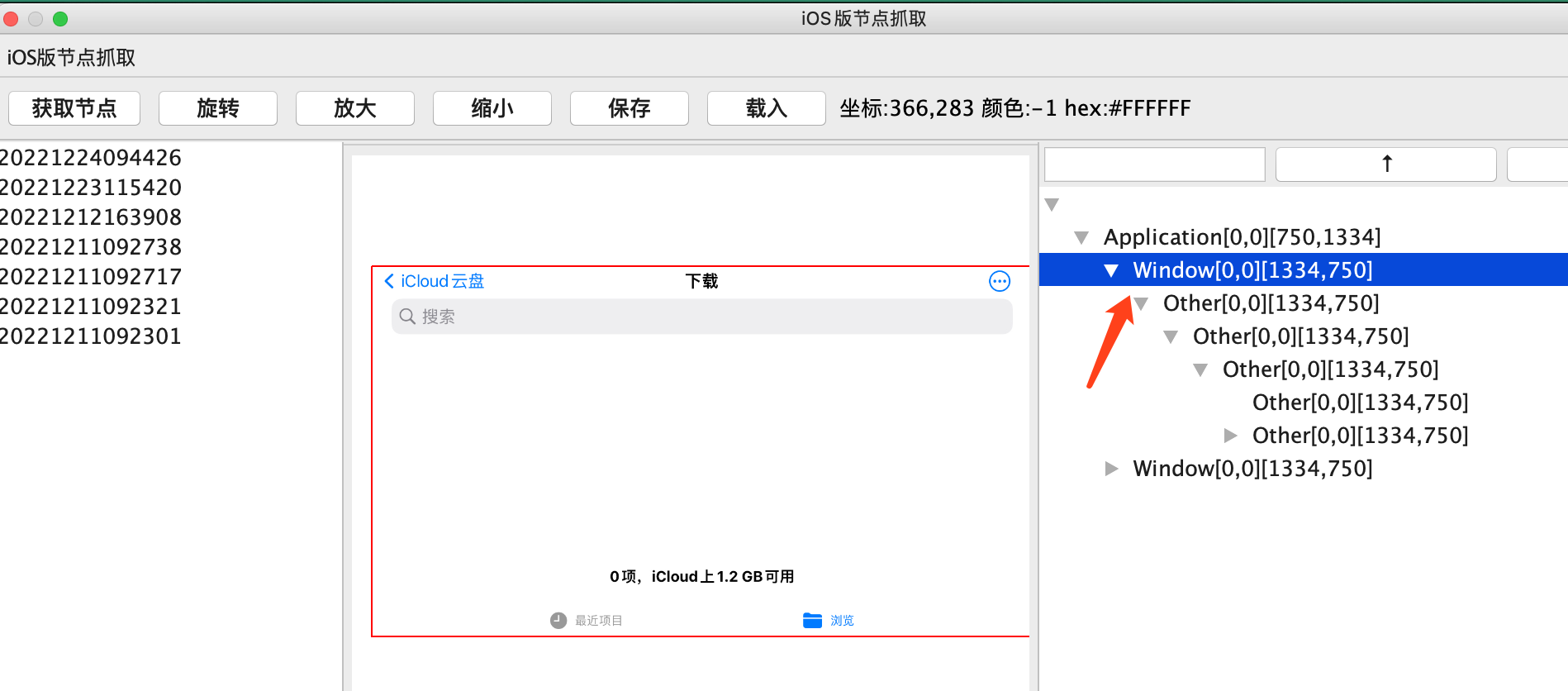
- The captured image is in landscape; the program finds coordinates in landscape space and conversion is required.
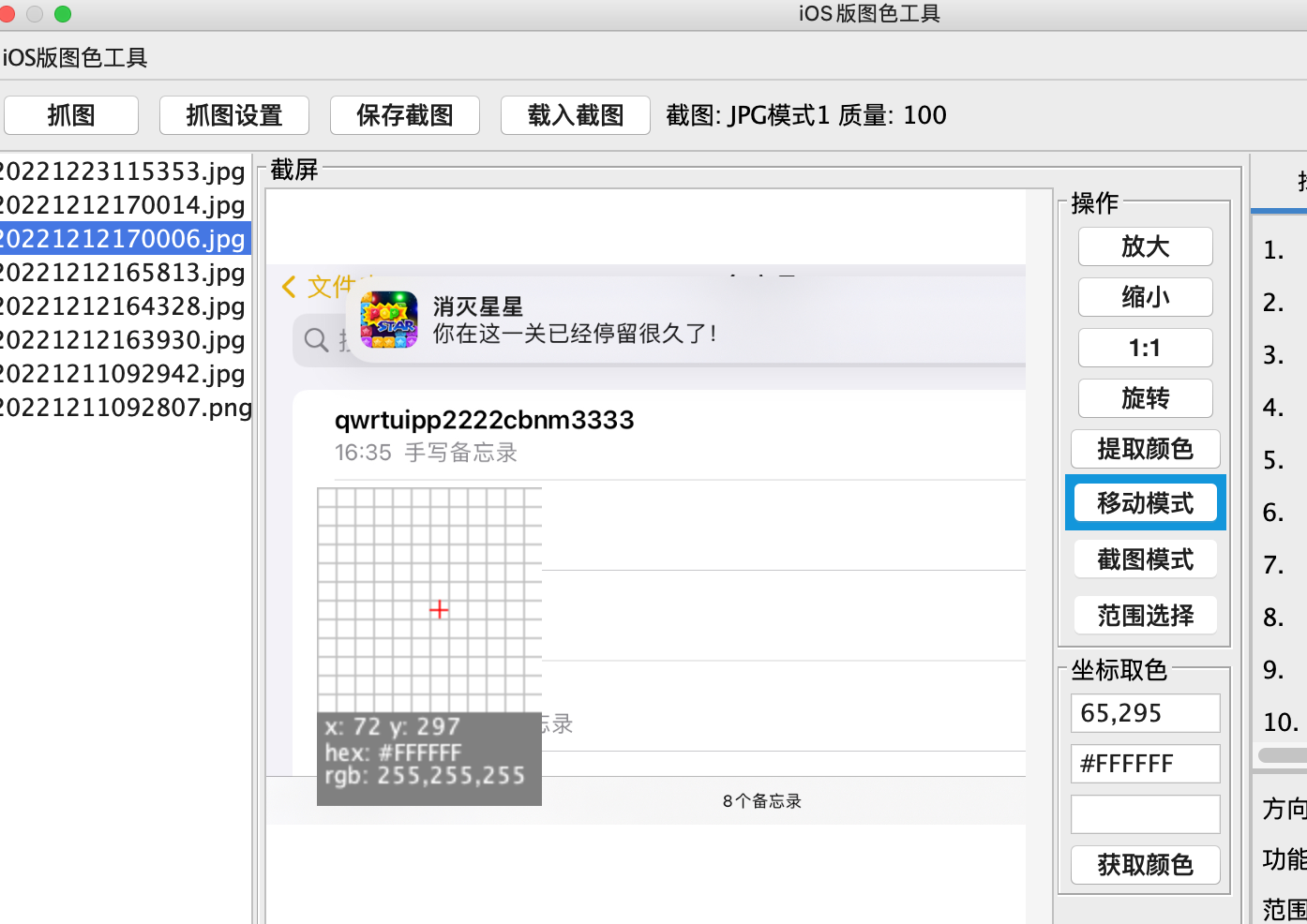
- In all other cases, the coordinate system is portrait.
- Use the convertPointToClickable function for landscape-to-portrait conversion.
Preventing the Script from Being Killed
- iOS generally does not allow background tasks, but EasyClick iOS standalone has done extensive work to avoid being killed by iOS.
- How to avoid process termination:
-
- On the phone, in EasyClick Cloud Test (易点云测) — Debug Edition, open Keep Alive 1 and Keep Alive 2 in Settings.
-
- In code, call
setComputeMode(1)to run compute-intensive work in the agent process. If you do not understand this function, do not use it — the default parameter2is fine.
- In code, call
-
- In infinite loops, use
isScriptExit()to detect script exit and avoid CPU spiking to 100%, which can get the app process killed. In loops (includingfor,while, etc.), always check whether the script has stopped and exit accordingly.
- In infinite loops, use
-
- Grant the app all required system permissions, including location and background refresh.
-
- Open the log floating window and drag it to the edge of the screen to dock it. Enable it at
EC main app → Settings → Floating window option, select and save.
- Open the log floating window and drag it to the edge of the screen to dock it. Enable it at
-
- Avoid script bugs such as undefined variables.
- Following the above points maximizes the chance that iOS will not kill the EasyClick iOS standalone process and your script will run reliably.
Multi-Worker Mode
- The iOS JS engine is inherently single-threaded — this cannot be avoided. See the worker module FAQ for details.
Exporting Crash Logs
- When the app crashes, you can find the crash log under iOS Settings → Privacy → Analytics & Improvements. Your crash log usually includes the bundle ID, timestamp, and a
.ipsor.betasuffix. Tap it, then use Share in the top-right corner to export it. - For the EasyClick main app, filter by the keyword
ecauto. - For the EasyClick agent app, filter by the keyword
test-Runner. - Tap the blue Export button in the top-right corner. When exporting, choose File — the EasyClick Cloud Test (易点云测) app will appear. Select it, then use the i4Tools desktop app to browse EasyClick Cloud Test (易点云测) Documents folder to find the exported
.ips.syncedfile.
Viewing Logs
- Connect IDEA to a standalone device.
- In IDEA, choose Standalone Log Viewer to view crash logs and normal runtime logs.
- Normal runtime logs are saved to a file only after you configure the
setSaveLogExfunction.
Agent Service Won't Start After Phone Reboot
- Solutions:
-
- Connect with i4Tools once — it will flash the developer disk image automatically. Tap mirroring, unplug the cable, and the agent service should start.
-
- Use the EasyClick iOS USB edition, configure the matching developer disk image, start automation in the control center, then unplug the cable — the agent service should start.
Reducing Agent IPA Package Size
- New agent IPA packages include OCR model files by default. If you do not need them, follow these steps:
- Open the IPA with an archive tool such as 360 Zip (an IPA is itself a zip archive).
- Navigate to PlugIns-EasyClick.xctest- folder.
- Delete files ending in
.bin,.param, and.onnx. - Delete
keys.txtandppocrv5_mobile_labels.txt. - Alternatively, extract the IPA, delete the files above, and recompress it as an IPA.