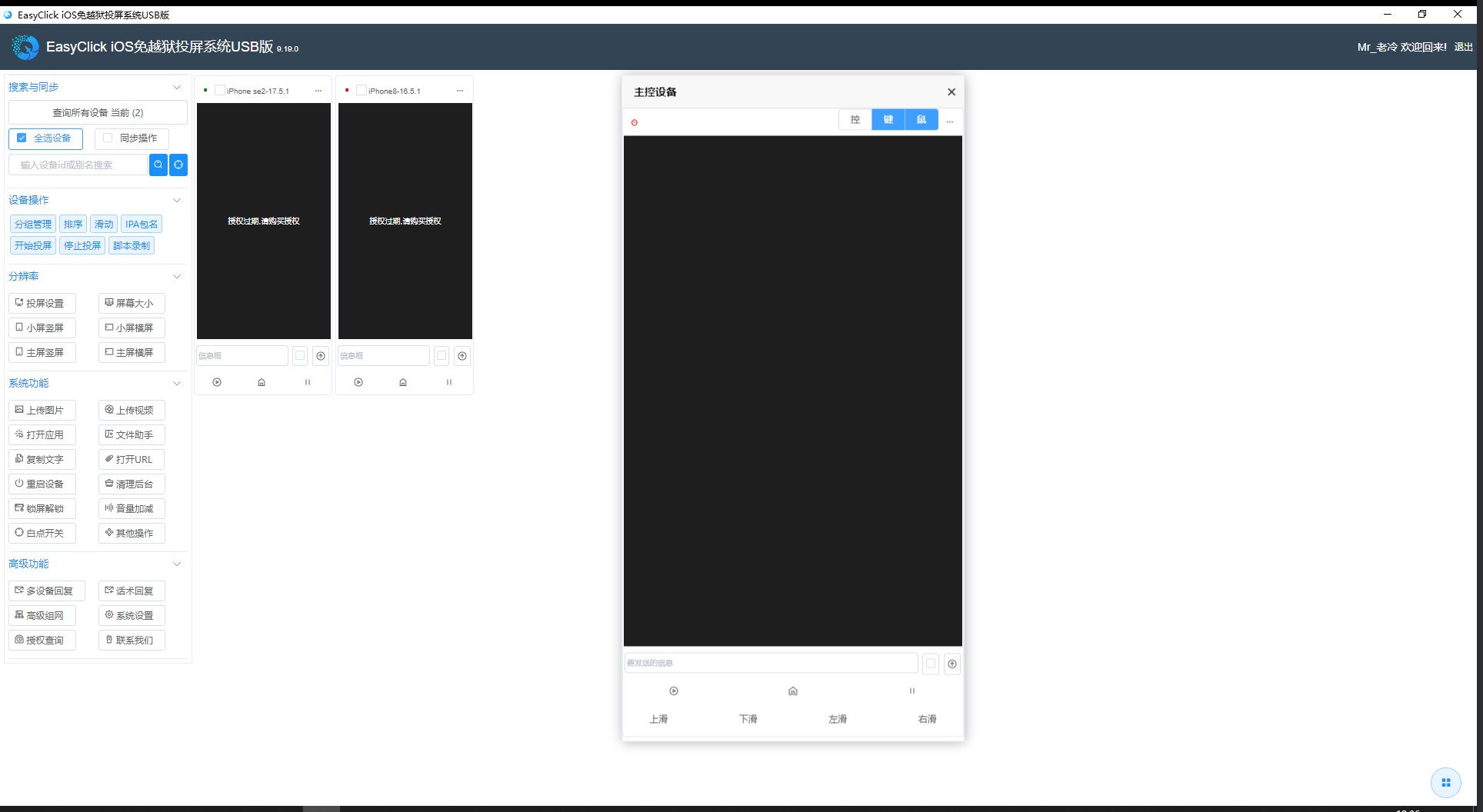
Install control center
Download
- From cloud downloads
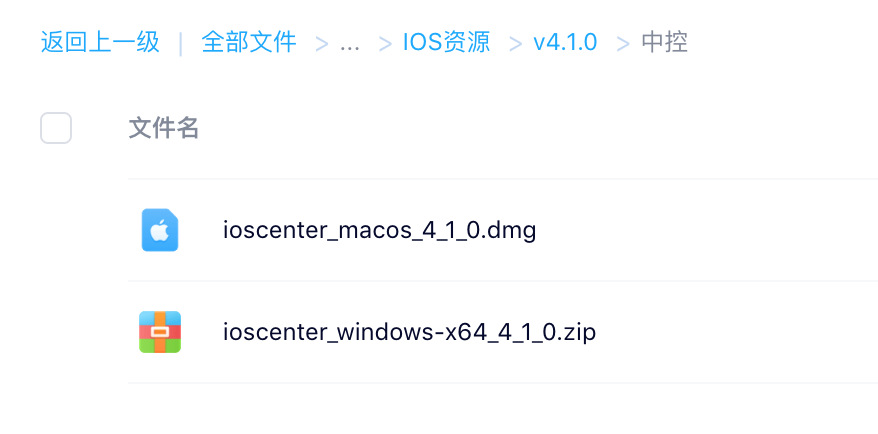
- Windows: EC package → iOS resources → USB edition → v9.19.0 → control center → ioscenter_windows-x64-9.19.0.zip
- Extract to a path without spaces / special characters / parentheses
- macOS: ioscenter_macos-amd64-9.19.0.dmg — open and follow the installer
Developer disk images (optional)
- Needed below iOS 17; skip on iOS 17+
- Download EC package → iOS resources → DeveloperImage12.4-26.0.zip
- Windows: extract into
bridgebin\config\DeveloperDiskImage - macOS: Finder → Applications → ioscenter → Show Package Contents → replace
Contents/java/app/bridgebin/config/DeveloperDiskImage
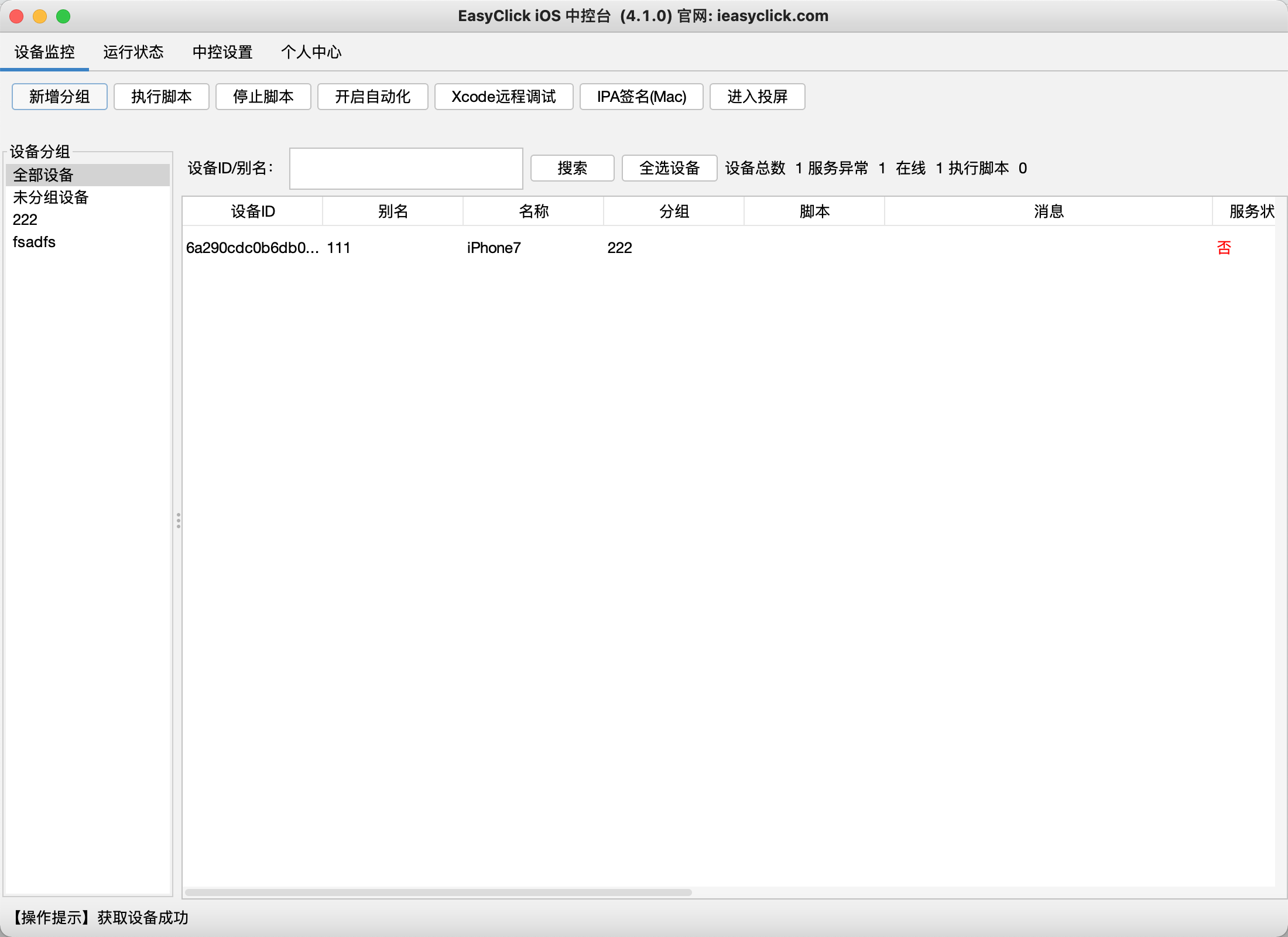
Start
- Windows: run ioscenter.exe
Sign in
- Main UI → License center
- After register, complete phone verification → verify
- Account type:
Android center image / iOS account (USB, standalone) / license-cloud account
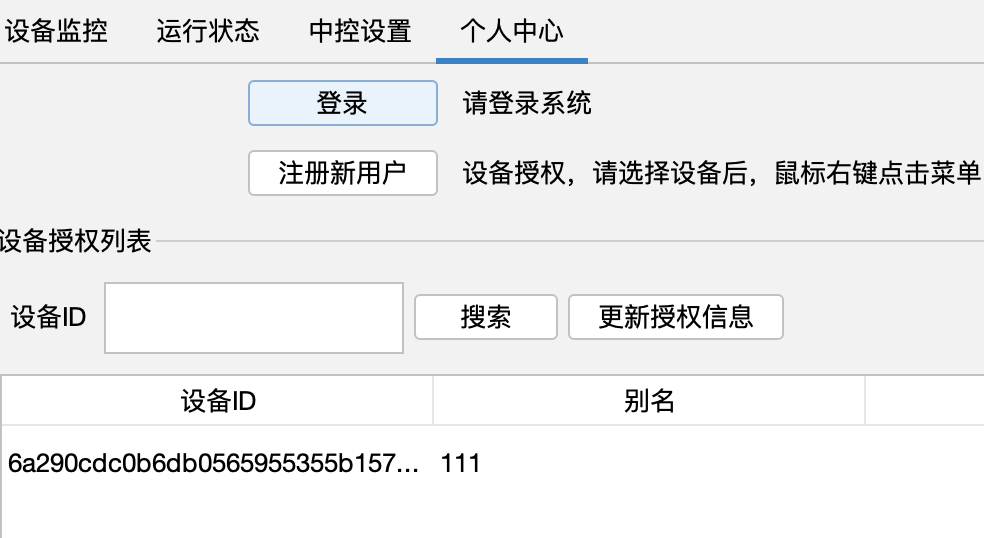
- If login fails, check Run status — bridge may be blocked by path characters or antivirus
Center config (optional)
- If you changed the agent source
bundleId, set thebundleIDprefix here; otherwise skip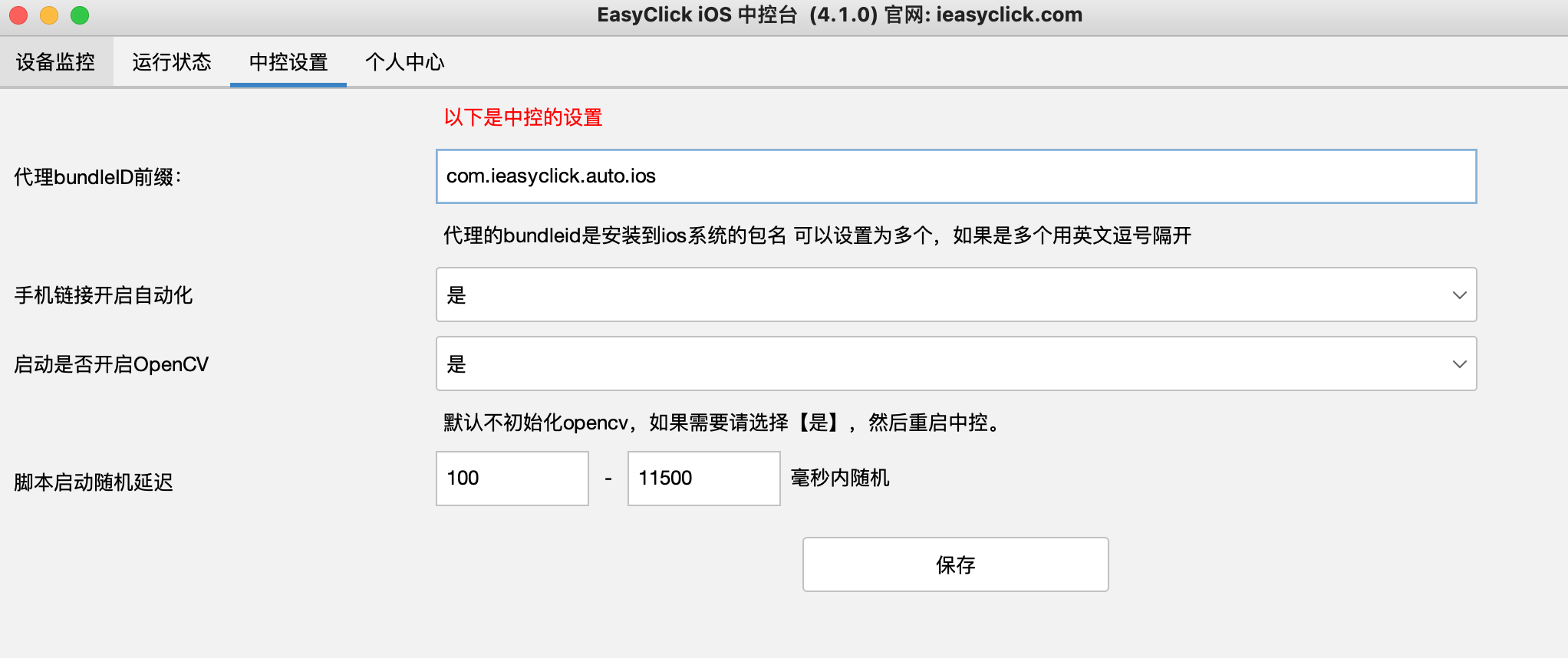
Start automation
- Required before scripts / group control
- Needs a signed agent IPA on the phone, e.g.
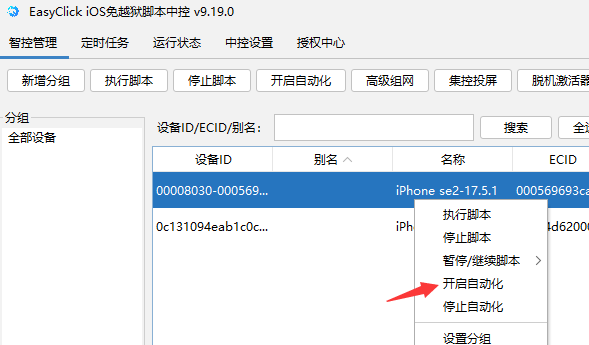
ios xx - easyclick-USB-agent-9.19.0.ipa - Device list → right-click → Start automation
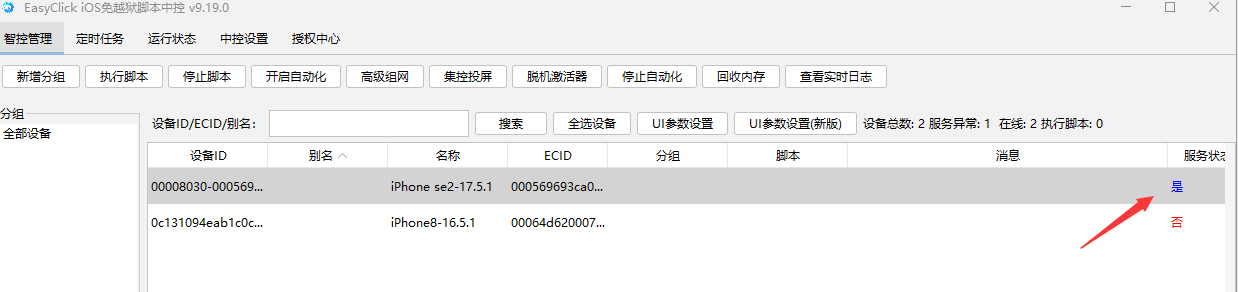
- Service status should change from red No to blue Yes
- If it fails after ~1 minute → Test automation
Test automation (optional)
- Device → right-click → Test automation
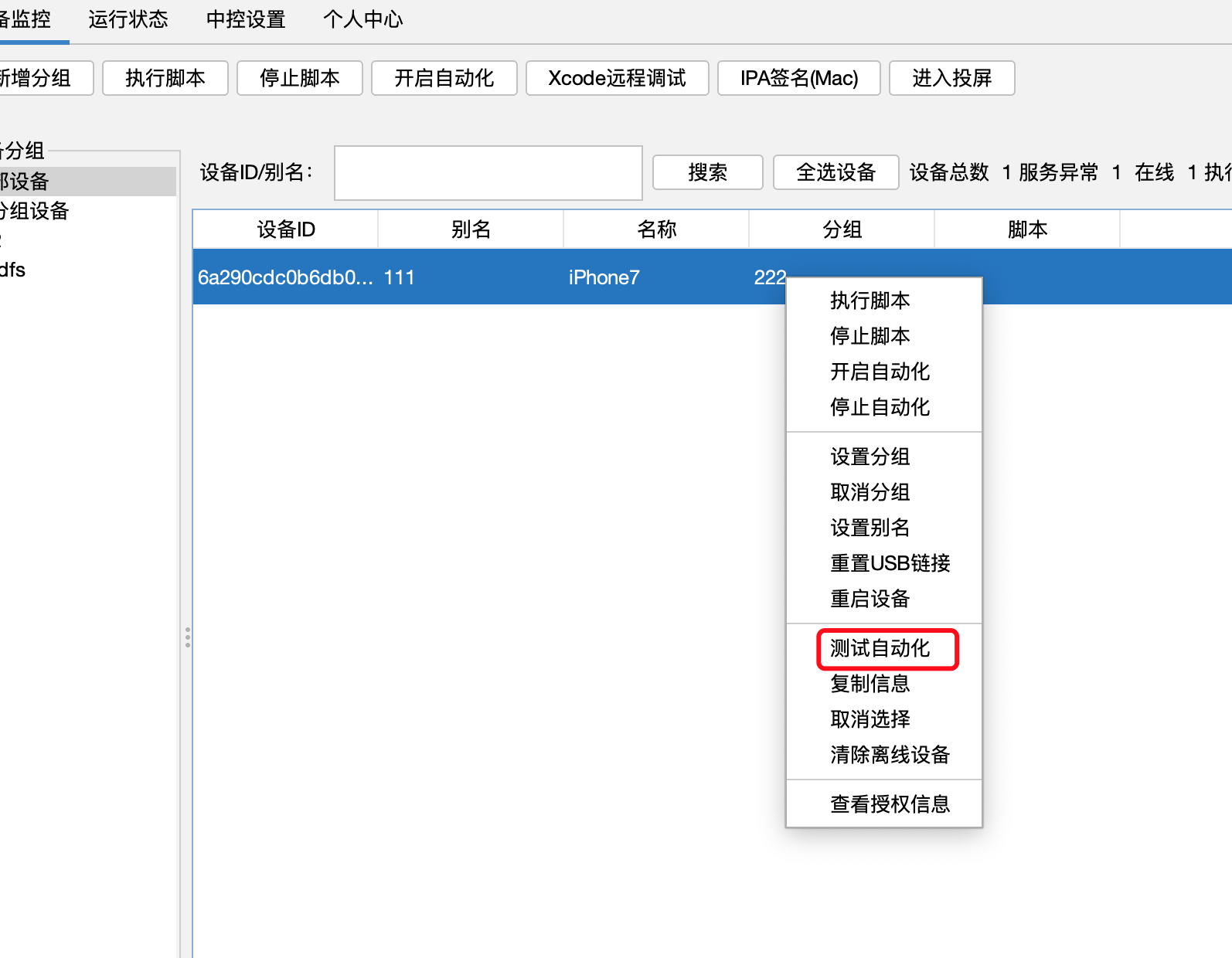
- Usually returns within 20s (up to ~1 min on iOS 17+)
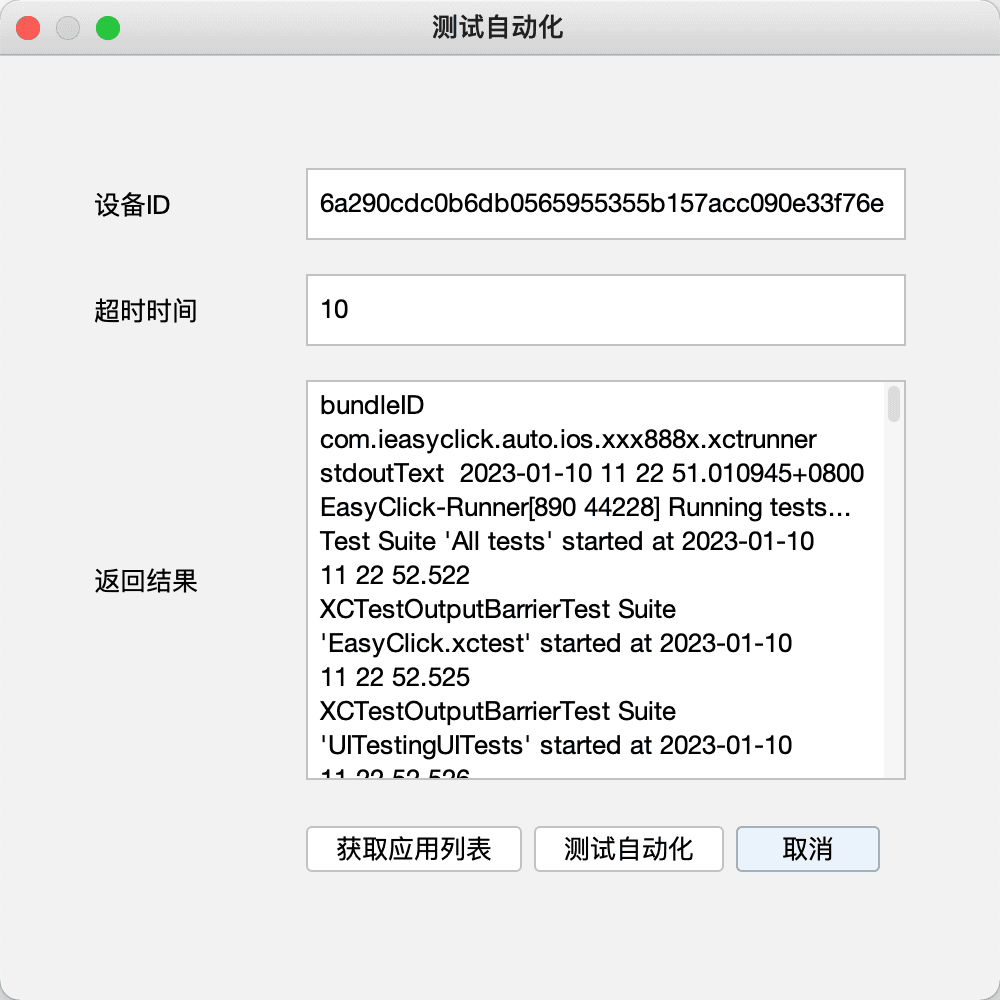
- Failures → Test automation fixes
Device licenses
- Billed per phone (authors do not add extra fees)
- Two separate licenses — buy before using the matching feature
- USB device license: debug / run scripts / record in group control
- USB screen license: group mirroring
- Bind / transfer → License guide
Run scripts
- Automation service Yes + USB device license
Single device
- Right-click device → Run script → pick
.iec(compile from IDEA)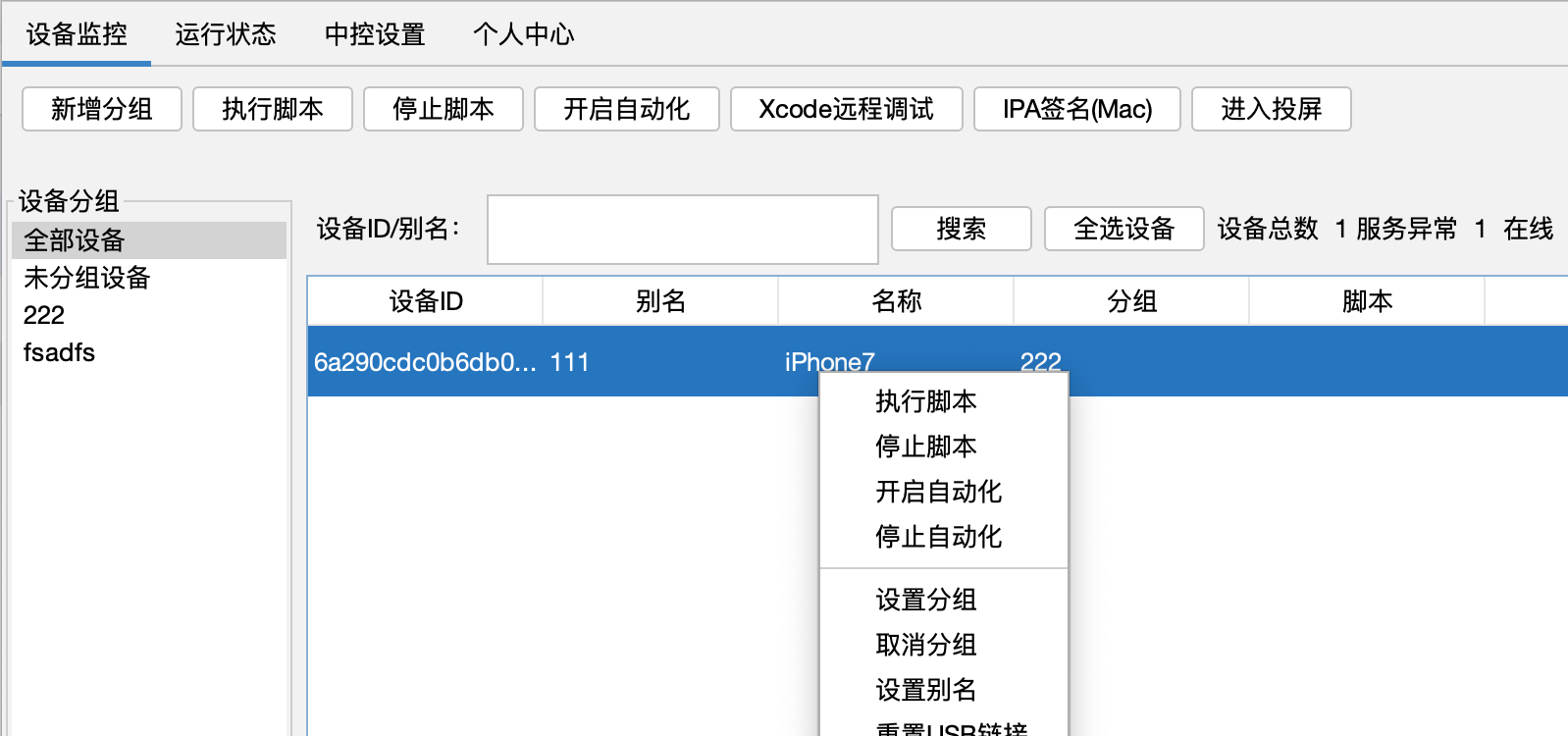
Batch
- Bottom-left Scripts → right-click → Open script folder → drop
.iec→ Refresh → Run (all devices)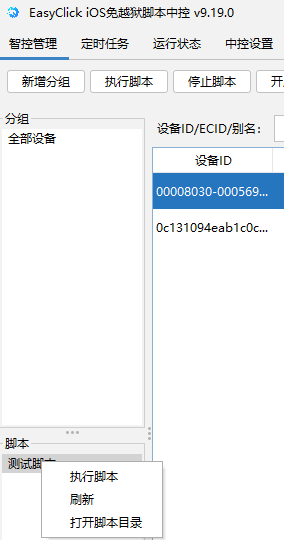
- Or group devices first, then run on the group
Group screen control
- Home → Group screen control
- Automation on + USB screen license
- Demo → Bilibili intro