Web Tools
Usage
Open the web page URL in the iOS browser to use the features normally.
!!! Extra features — read the docs and test yourself !!!
Deployment
LAN Deployment
- The bridge bundled with the control center starts automatically. Tool URL: [http://bridge-PC-IP:port/tools?deviceId=aaa]
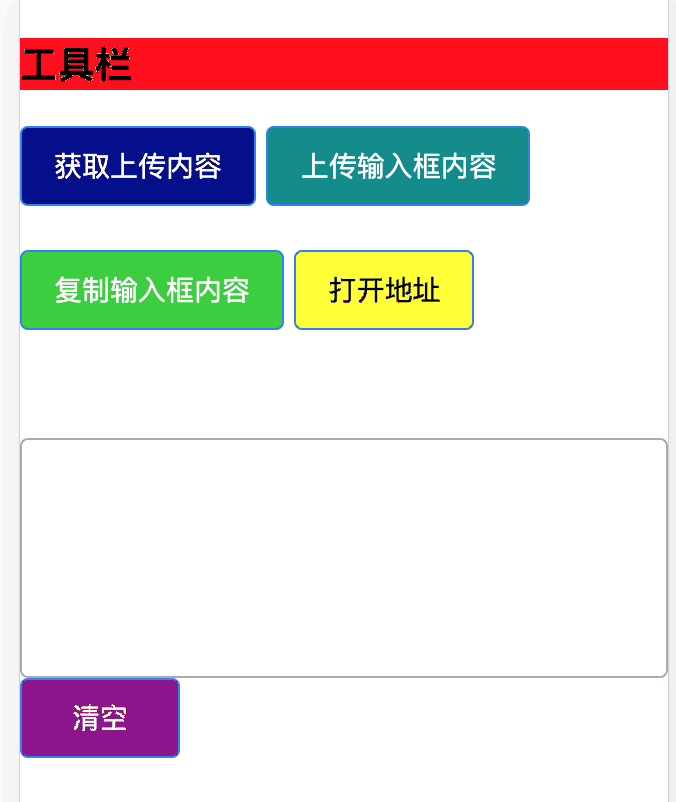
- Example: http://192.168.1.200:8020/tools?deviceId=aaa Preview (different button colors for easier color finding):
Server Deployment Mode
- Download
ios-bridge-linux-2.9.0.zipfrom the cloud drive, extract to the server, and run theios-bridgefile from the command line - Default port is 8020. Open the port in your security group
- Open http://server-IP:8020/tools?deviceId=aaa in a browser, replacing server IP with your actual server IP
Feature Description
Button Description
-
Get Uploaded Content — upload data to the bridge via API, then click Get Uploaded Content to retrieve it
-
Upload Input Box Content — upload the web page input box content to the bridge; the program retrieves it via API
-
Copy Input Box Content — enter content in the input box, click Copy Input Box Content to copy it to the clipboard
-
Open URL — opens the URL in the input box, or a URL scheme
URL parameters
-
The web page URL can usually carry parameters
-
deviceId: device ID (required). Each device has a different deviceId; each URL is different -
autoFetch: automatically fetch server data — 1 = yes, other = no -
autoFetchInterval: auto-fetch interval in milliseconds; default 1000 ms -
autoOpenUrl: whether to automatically open URL scheme after fetching data — 1 = yes, other = no -
Full URL example: http://192.168.1.200:8020/tools?deviceId=aaa&autoFetch=1&autoFetchInterval=1000&autoOpenUrl=1
API Description
API Upload Data
Description: Upload content to the web pageEndpoint: /postApiDataMethod: POSTFormat: JSONExample URL: http://192.168.1.200:8020/postApiDataExample data:{ "data": "你好xxx", "deviceId": "6a290cdc0b6db0565955355b157acc090e33f76e"}
Request parameters:- data: string data to submit- deviceId: device ID — must match the ID in the web page URL; see [URL parameters]
Response:{ "code": 0, "data": true, "msg": "success"}- code: return code; 0 = success, other = error- data: true = submit success, false = failure- msg: error messageAPI Get Data
Description: Get data from the web page [Upload Input Box Content] button clickEndpoint: /getPageDataMethod: POSTFormat: JSONExample URL: http://192.168.1.200:8020/getPageDataExample data:{ "deviceId": "6a290cdc0b6db0565955355b157acc090e33f76e"}
Request parameters:- deviceId: device ID — must match the ID in the web page URL; see [URL parameters]
Response:{ "code": 0, "data": "123", "msg": "success"}- code: return code; 0 = success, other = error- data: actual data uploaded from the web page- msg: error message