iOS USB screen mirroring tutorial
Overview
- This chapter is based on iOS USB edition 10.2.0
- It covers proxy-mode screen mirroring (requires a signed IPA on the phone) and Bluetooth HID screen mirroring (requires hardware; suited to iOS 18+)
- If you do not need proxy-mode mirroring, skip directly to the Bluetooth HID section below
Download software
- Cloud download link: Resources
- In the cloud drive iOS resources → USB edition, download the latest folder in full, e.g. v10.2.0
- In iOS resources, download DeveloperImage12.4-26.x.zip
Purchase license
- Buy a license from official channels or resellers
- With the phone connected, open License Center → Batch license (device ID on the left, card number on the right)
- USB device license is for running scripts; USB screen license is for mirroring and controlling the phone — do not mix them up
- You can also bind licenses at https://uc.ieasyclick.com under My iOS devices → Batch bind license, then License Center → Refresh license in the control center
- Licensing can be done last, after all other setup
Proxy mode screen mirroring (preparation)
Unpack and configure disk image
- Unpack the control center
- After download, files are under control center. ioscenter_windows-x64-10.2.0.zip is the Windows control center + mirroring app (other versions are similar). Right-click to extract.
-
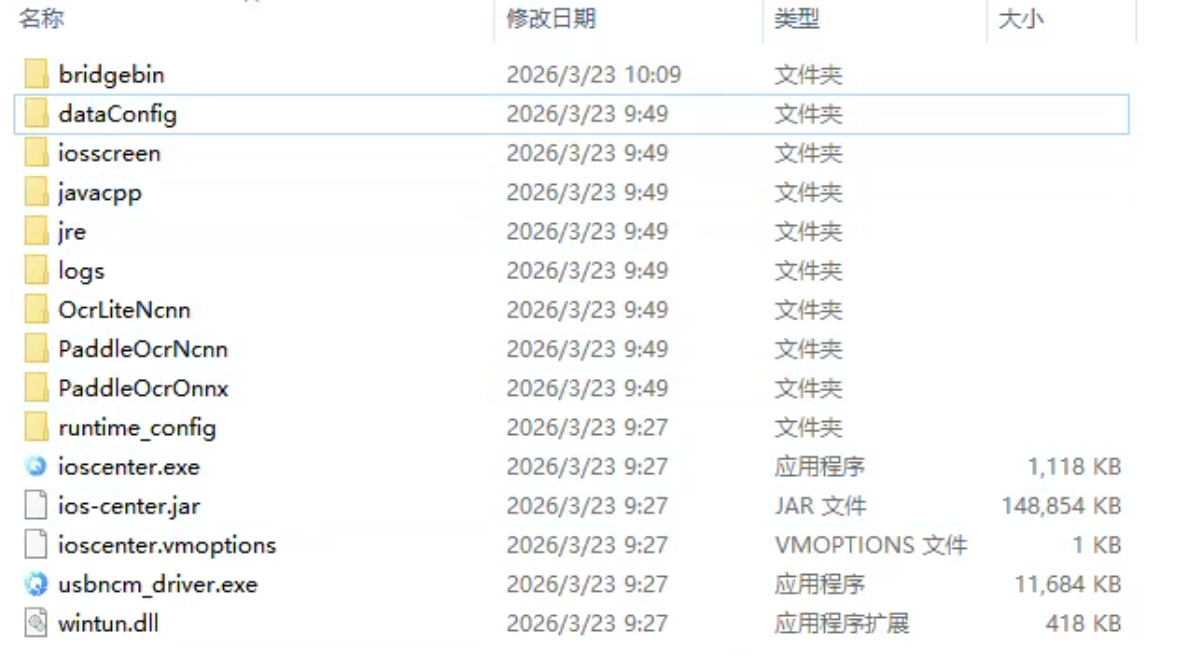
- After extraction, open ioscenter/bridgebin/config/DeveloperDiskImage — a few images are included
- Unpack the developer disk image
- Extract DeveloperImage12.4-26.x.zip into ioscenter/bridgebin/config/DeveloperDiskImage. Layout should look like:
-
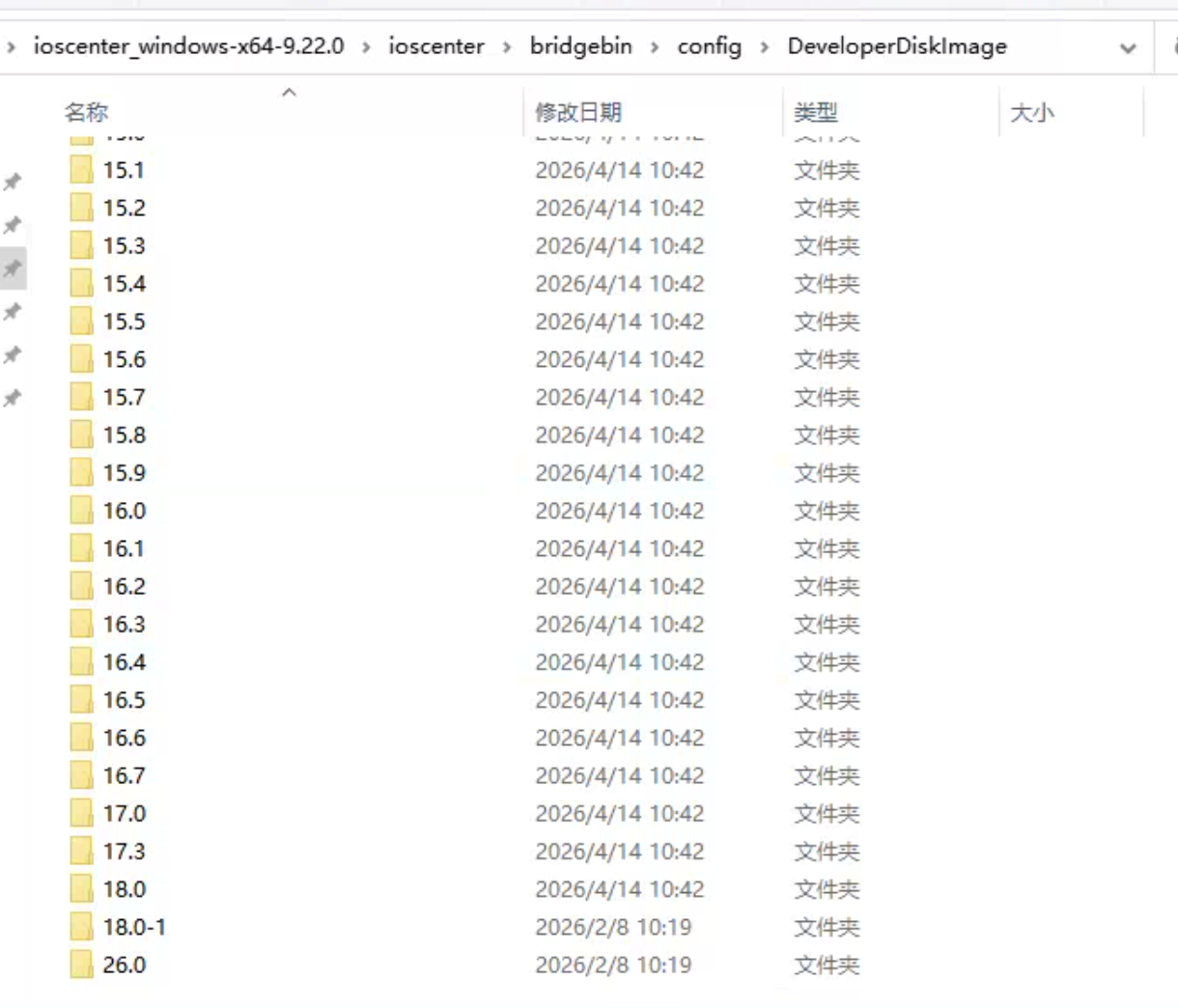
- If there is no disk image for your iOS version (for example no 27.0 image), copy an existing one such as 26.5, rename the folder to 27.0, then restart the control center — it will flash the image automatically
Sign IPA
- On iOS 15+, see the special note at the top of this chapter — use the standalone main app v7.2.0+ as the automation service IPA for more features
- The IPA must be installed on the phone and signed by you
- IPA files are in the folder you downloaded, e.g. easyclick-USB proxy app for iOS 15+ — xxx.ipa
- If missing, download again from the cloud drive
- You can use Taobao or other signing services; signing tools are on the cloud drive
- Free signing (e.g. 轻松签, TrollStore on certain iOS versions) — search tutorials at http://bbs.ieasyclick.com
- Below iOS 15 system version, if you need photo/video transfer, also sign and install File Transfer Helper.ipa
- After signing, install with iTools / 爱思助手
Enter the mirroring UI
Version 10.2.0 offers two mirroring UIs:
| UI | Entry | Notes | Link |
|---|---|---|---|
New UI recommended | Control center → Group screen control → New UI | Native client, clearer layout | New UI guide |
| Classic UI | Control center → Group screen control → Classic UI | Same habits as older builds | Classic UI guide |
Both UIs have the same features (typing, script recording, image/video upload, clipboard, open URL, etc.) — only layout and button placement differ. Pick one and follow its guide.
Bluetooth HID screen mirroring
Bluetooth firmware
- Supported dev boards and how to flash firmware
- See Bluetooth BLE tutorial
- Steps below assume firmware is flashed and Bluetooth is connected on the phone
Set Bluetooth mode
- Open System settings → Mirroring config and set as shown
-
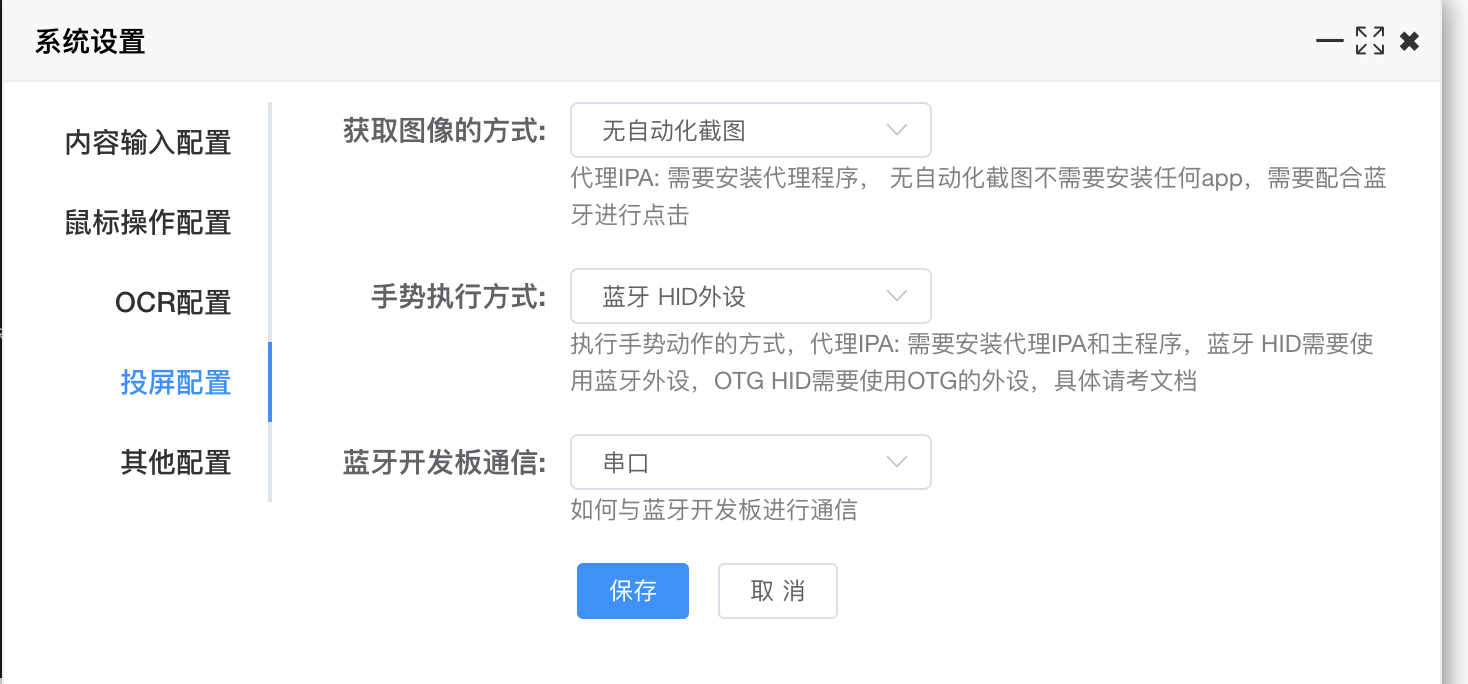
Bluetooth setup
- On a connected device thumbnail, right-click → HID → Bind/unbind HID Bluetooth
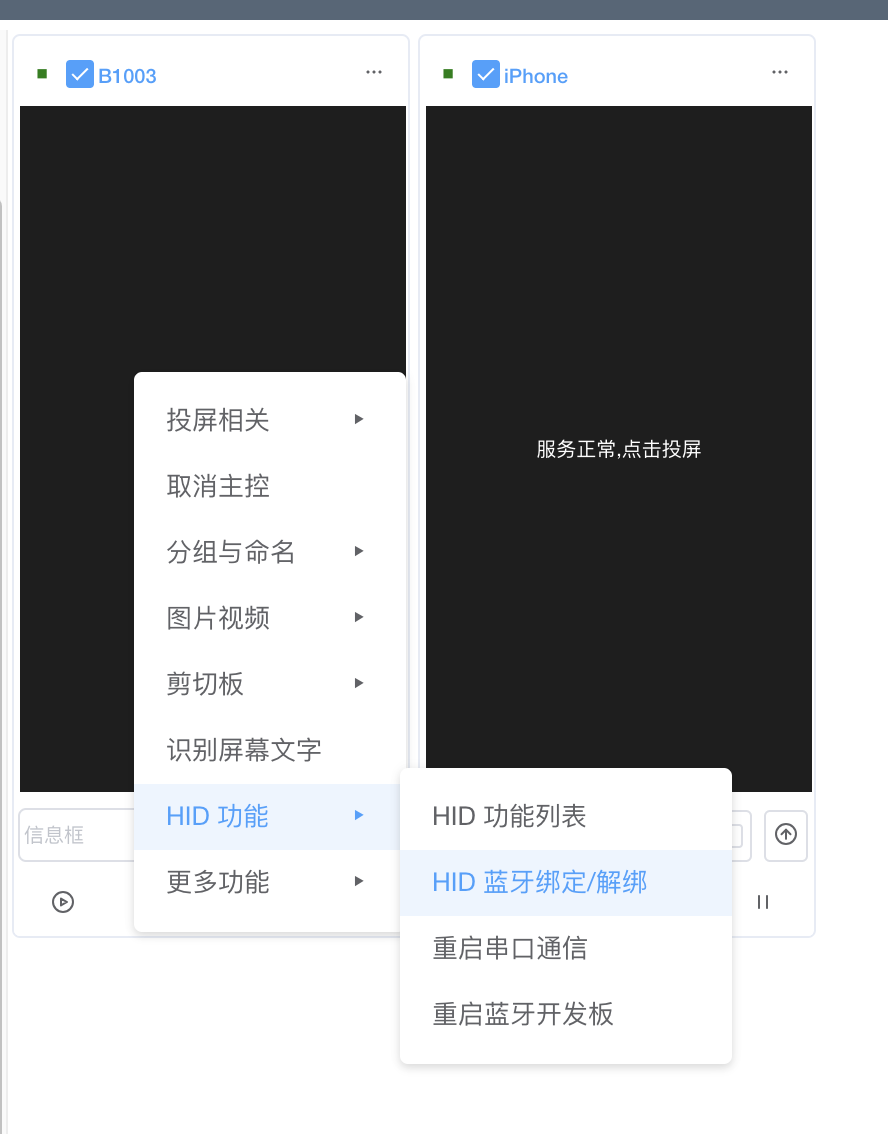
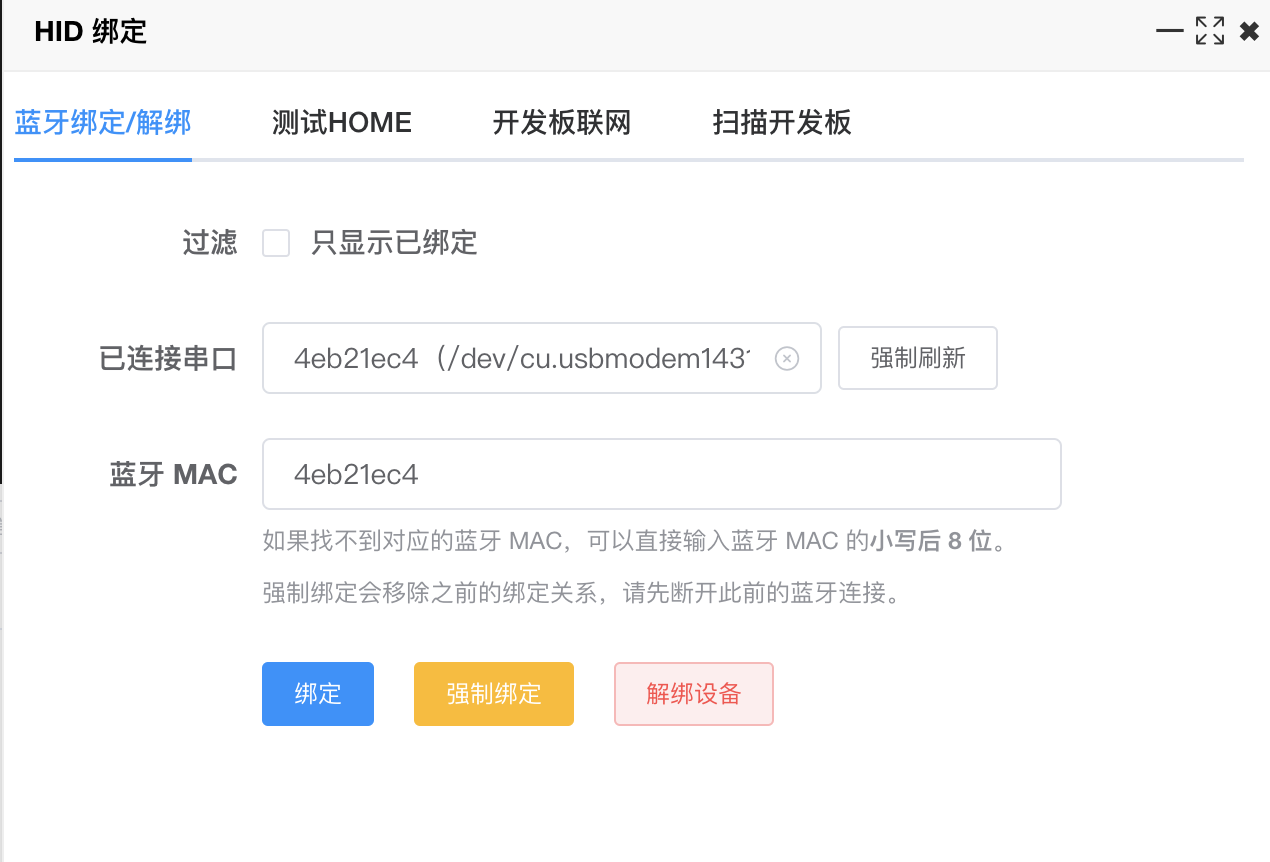
- Bind Bluetooth to this device for communication
- If serial port is missing, restart the control center and Bluetooth, or press RST on the board
- After binding, use Test HOME → Test HOME — if the phone reacts, communication works
- You can also use Board Wi‑Fi to set SSID/password, scan the board, get its IP, and use network communication
- After setup, hover the dot at the top-left of the thumbnail for details
-
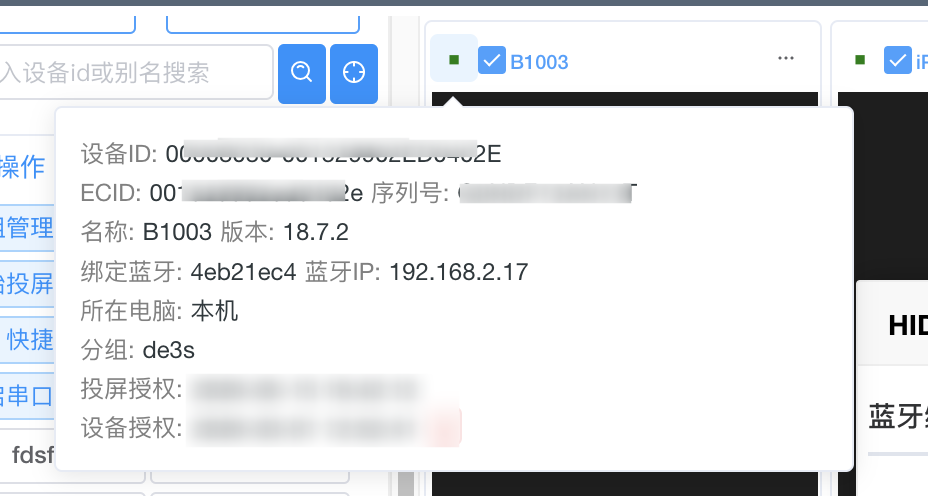
- Remember each Bluetooth MAC ↔ device mapping — Shortcuts will need it
Mirroring operations
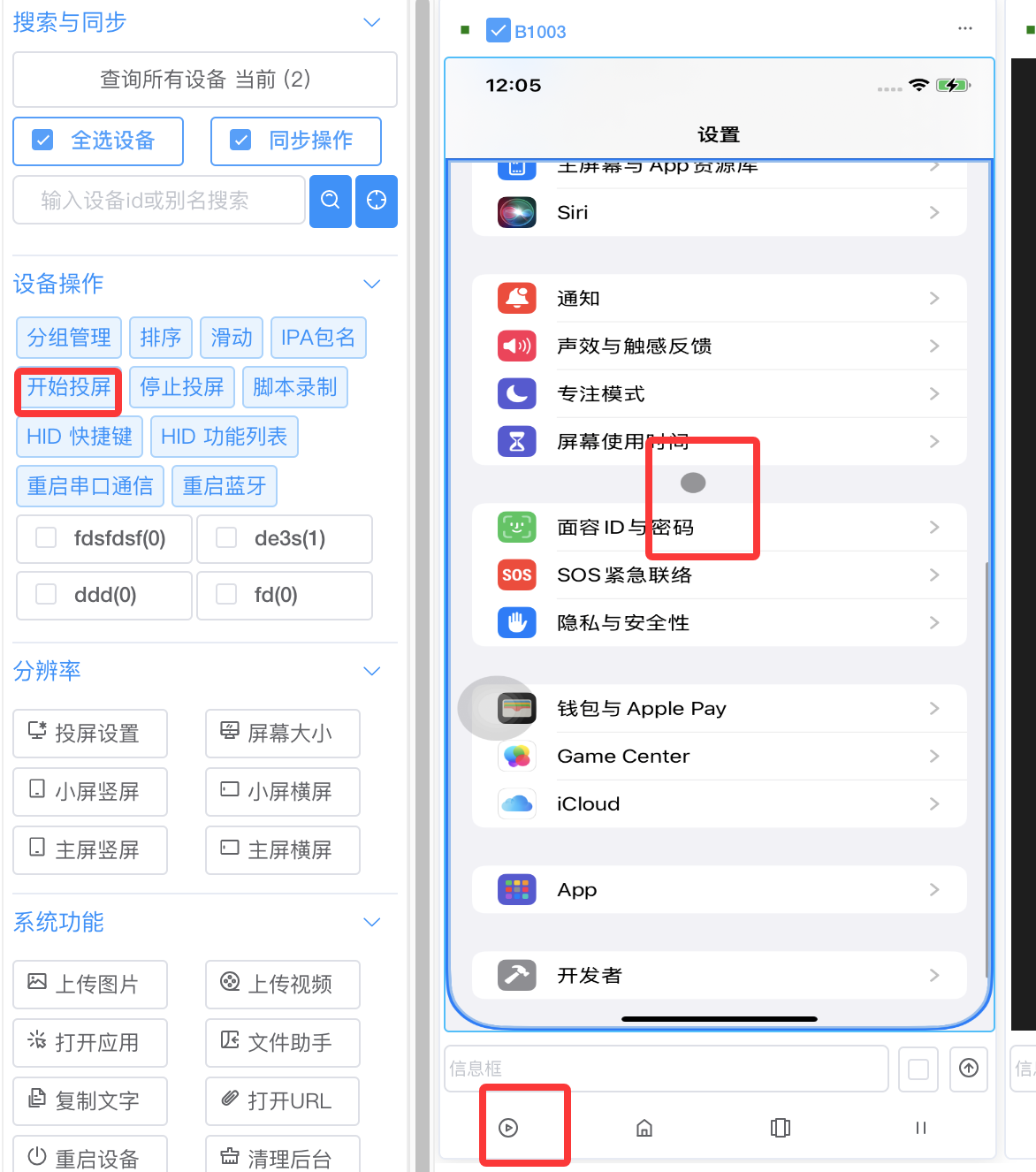
- Click Start mirroring on the toolbar or the mirroring button on the thumbnail
- First connection can be slow while iOS opens the tunnel — wait patiently
- When tapping or swiping, you should see the Bluetooth mouse dot
-
Bluetooth hotkeys
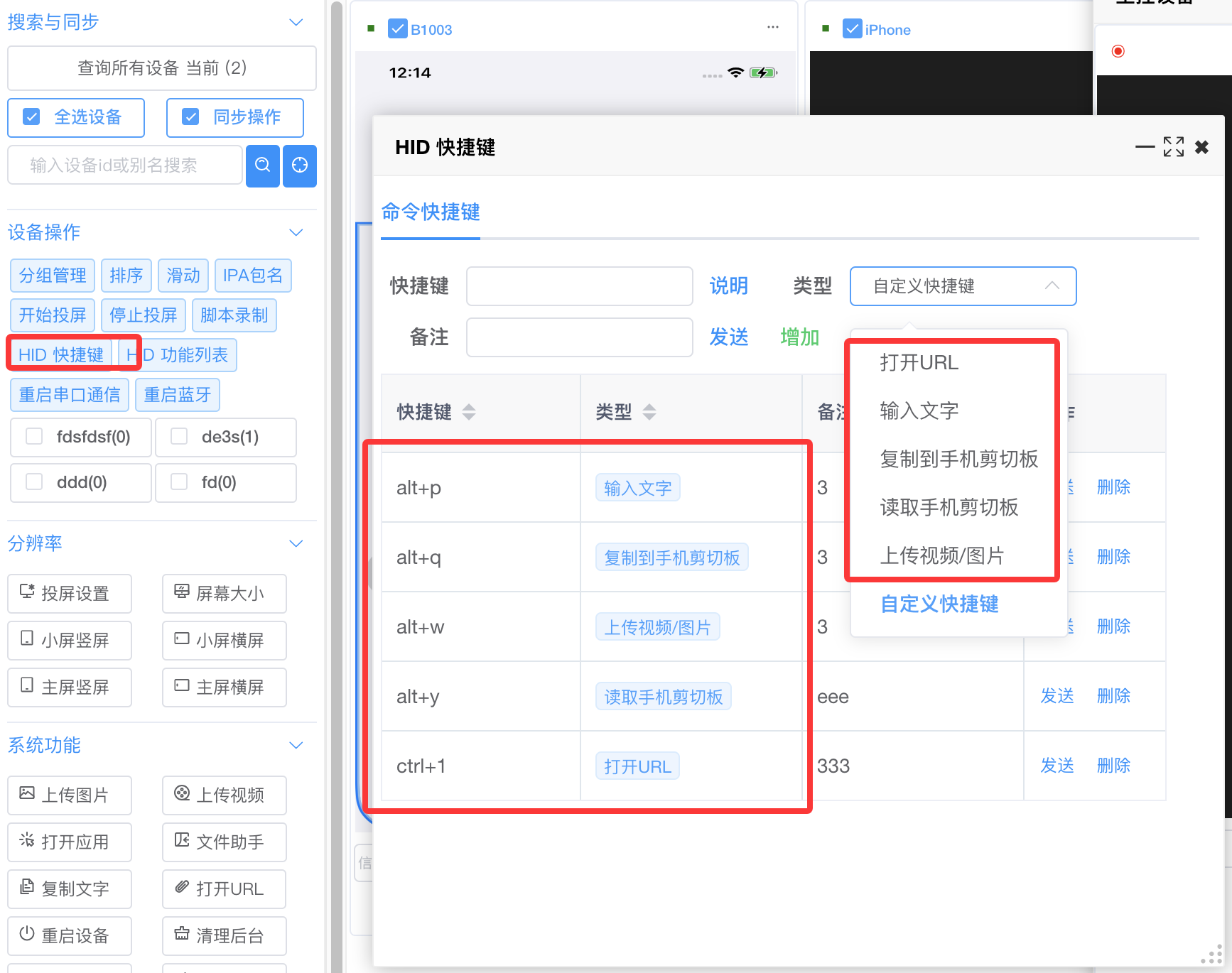
- In the mirroring UI: left toolbar → HID hotkeys
- Type a combo in the hotkey field (e.g. hold Alt+P), pick a type, save
- Set up Open URL, Type text, Read/copy clipboard, Upload video/image
- Then map hotkeys to actions (see below)
-
Text input
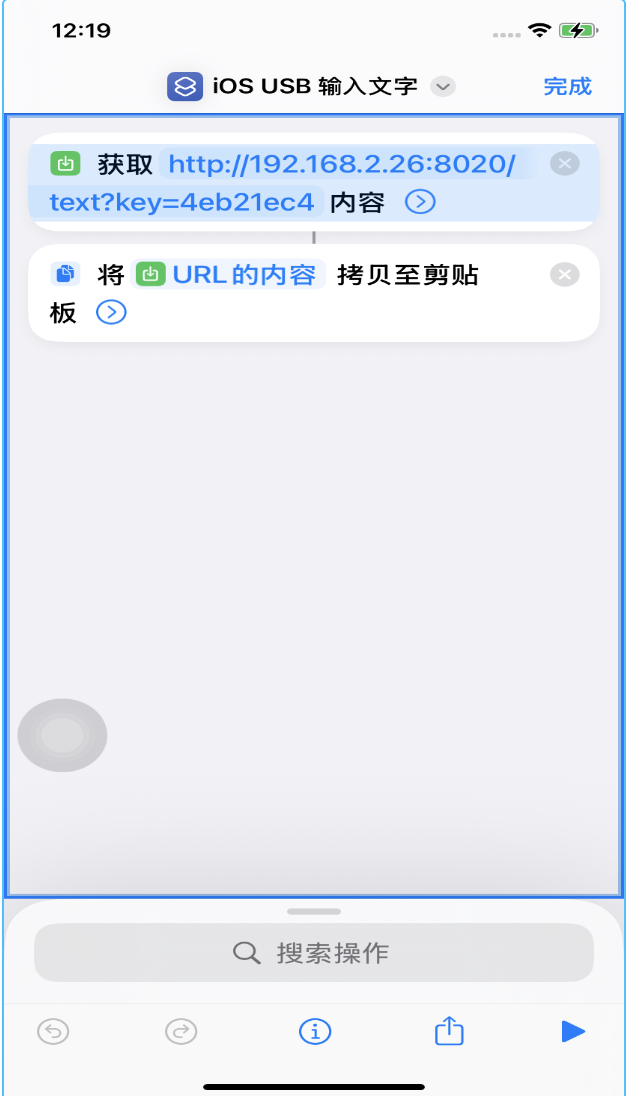
- Use Shortcuts: create one named e.g. iOS USB Type text
- First action: Get contents of URL; second: Copy to clipboard
- Example URL
http://192.168.2.26:8020?key=4eb21ec4: 192.168.2.26= control center PC IP (use yours)4eb21ec4= bound Bluetooth MAC for this device-
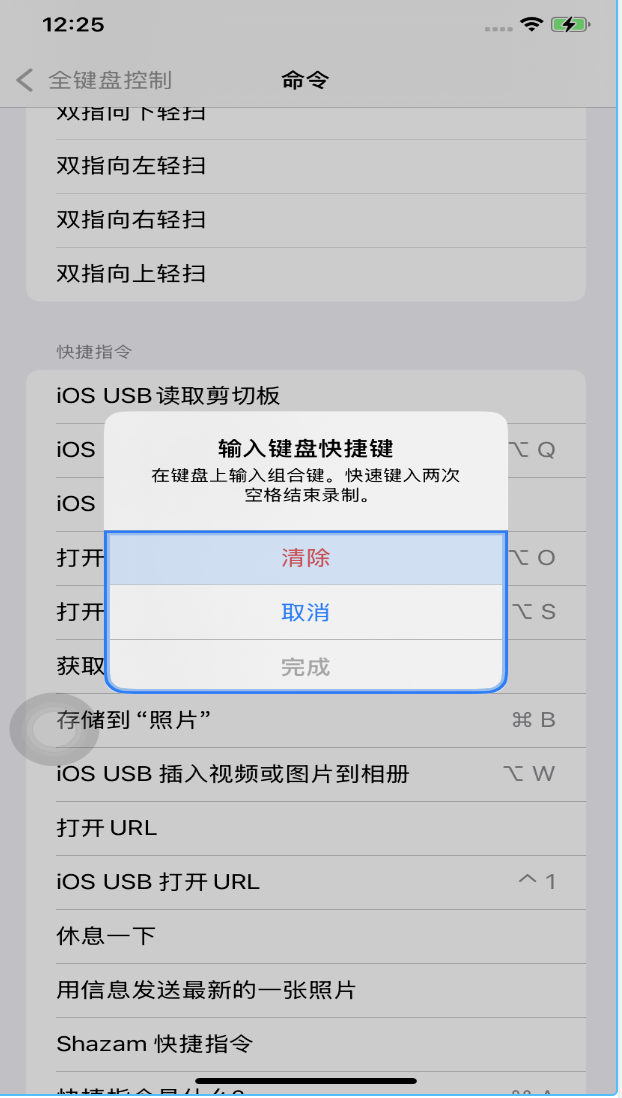
- On the phone: Settings → Accessibility → Keyboard → Full Keyboard Access → Commands → your shortcut (e.g. iOS USB Type text)
- Tap the shortcut, assign a hotkey; in HID hotkeys send the Type text hotkey; when the phone prompts, tap Done
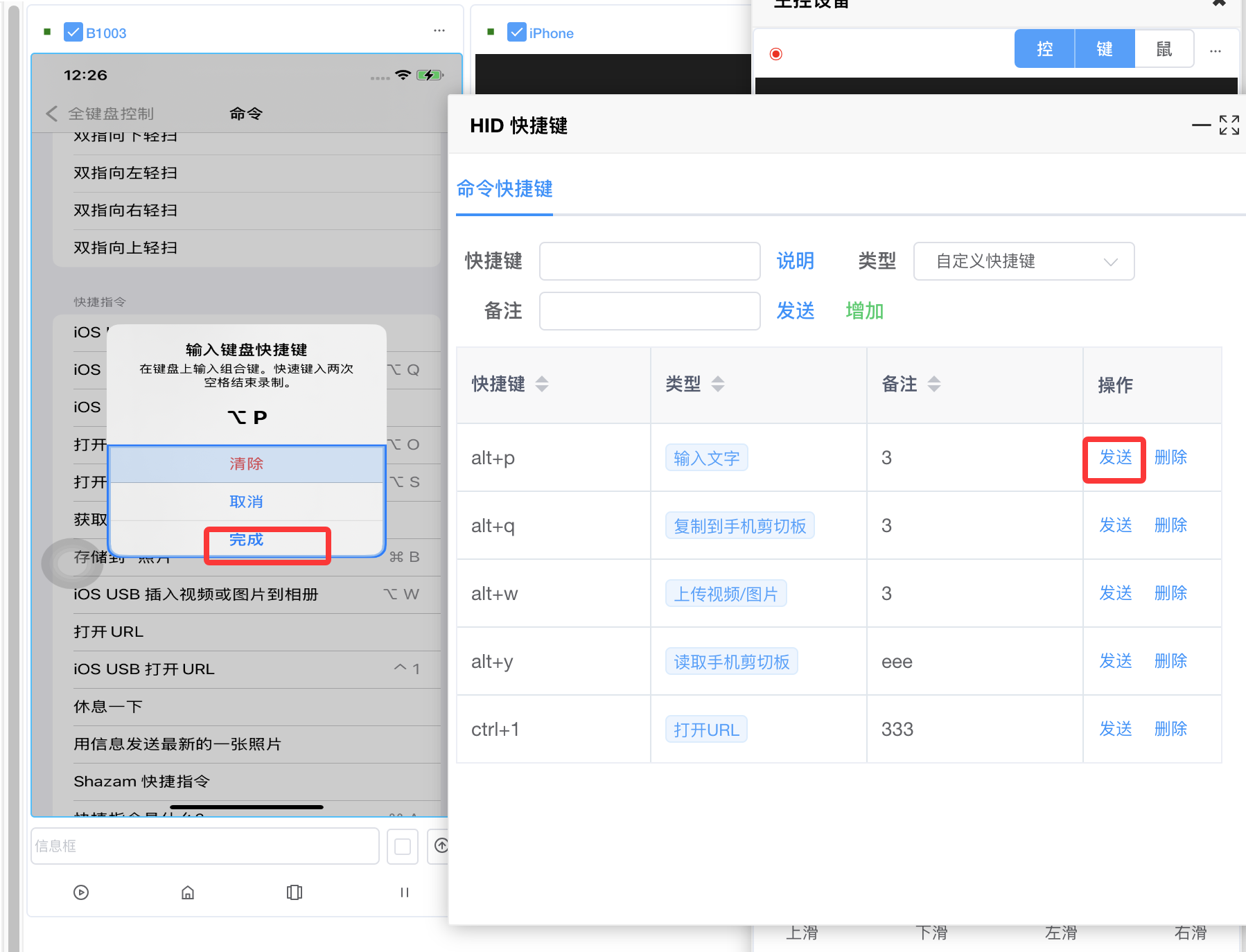
- Test: open Notes, type Chinese in the input below the thumbnail, send — text should appear
- English typed on the thumbnail uses Bluetooth keyboard; Chinese uses the Shortcut path
Upload image/video
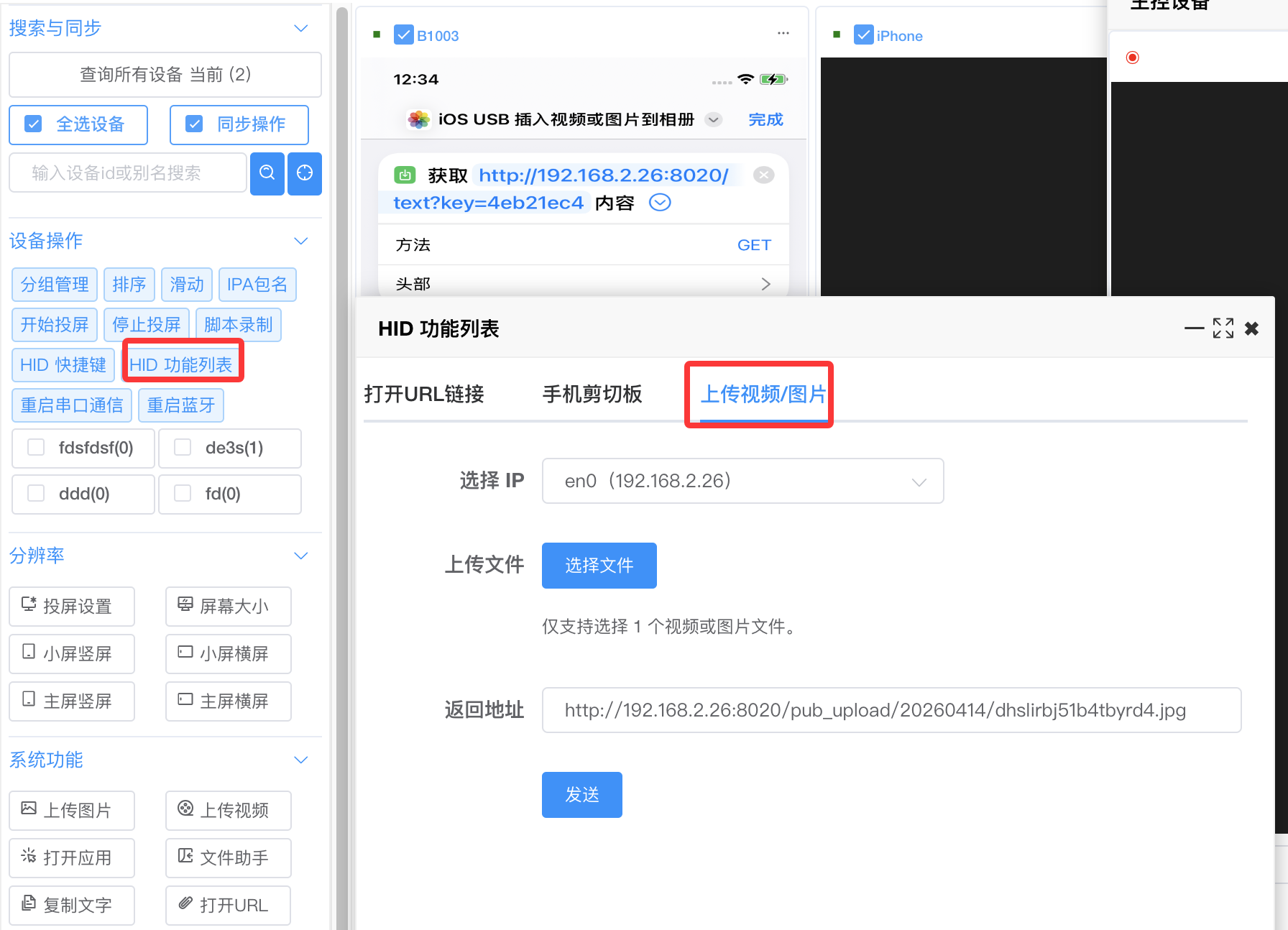
- Create shortcut iOS USB Insert video or image to Photos (see Text input for URL params)
-
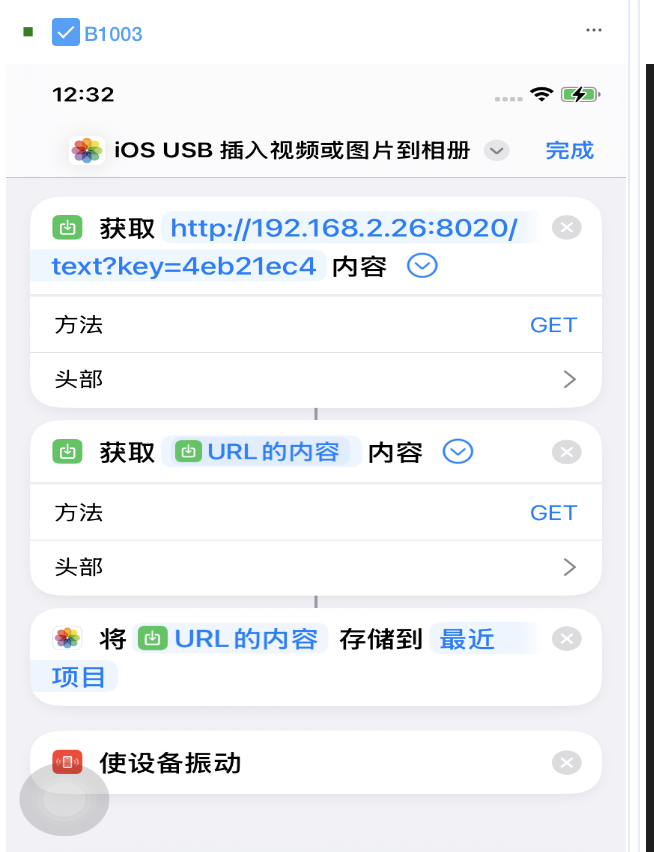
- Bind in Settings → Accessibility → Keyboard → Full Keyboard Access → Commands
- Send the Upload video/image HID hotkey
- Test via Toolbar → HID list or thumbnail right-click → HID list → Upload video/image
- Pick an IP if you have multiple NICs
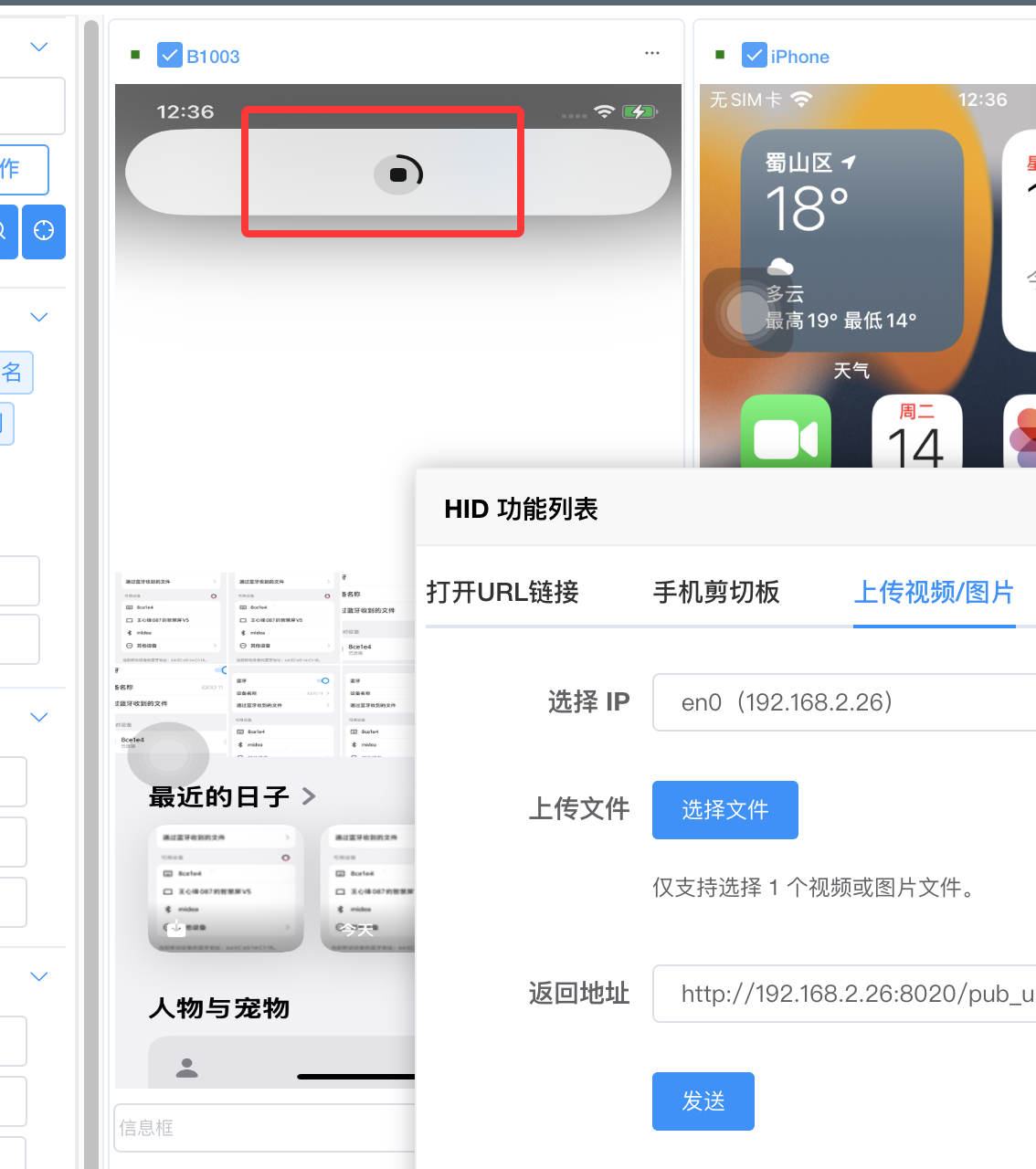
- Choose file, send — shortcut runs and media appears in Photos
-
-
Read phone clipboard
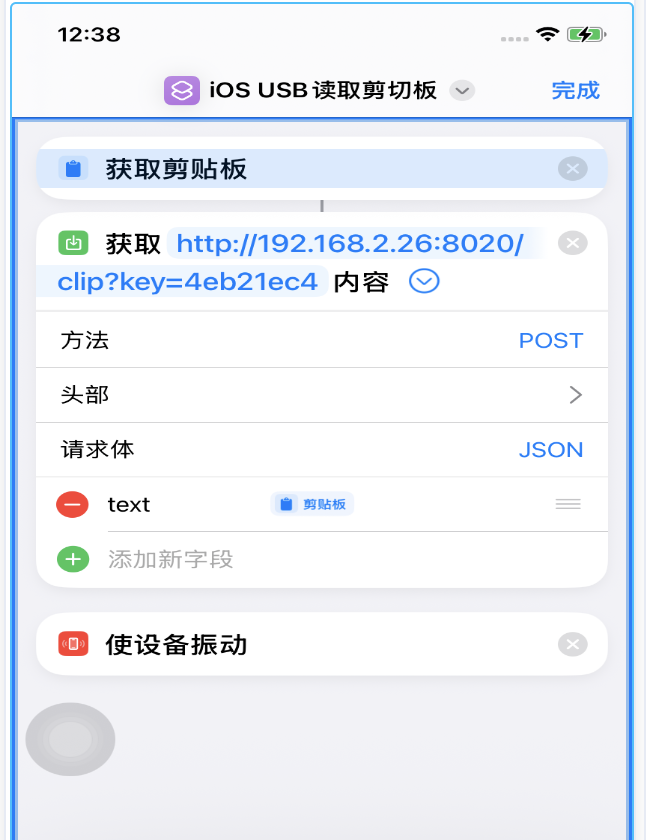
- Shortcut iOS USB Read clipboard (URL params as in Text input)
-
- Bind hotkey same as above
- Test: HID list → Clipboard → Read phone clipboard
Copy to phone clipboard
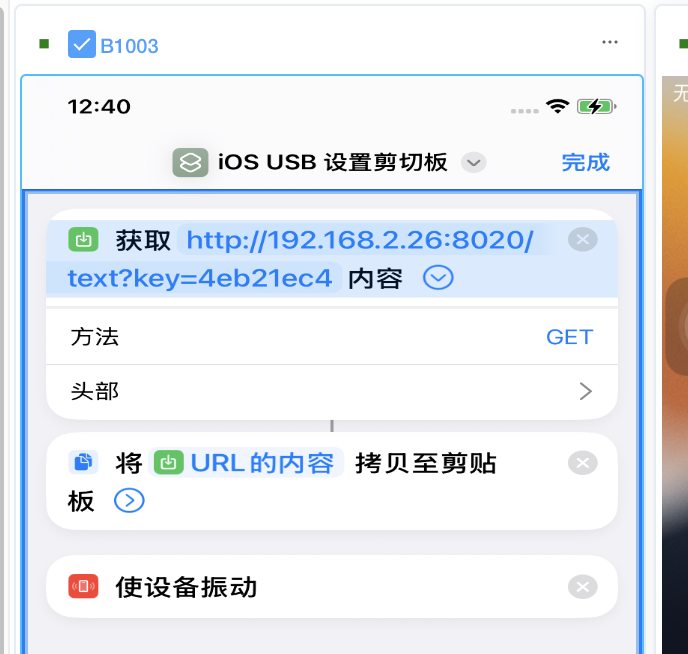
- Shortcut iOS USB Set clipboard (URL params as in Text input)
-
- Bind hotkey same as above
- Test: HID list → Clipboard → Copy to phone clipboard
Open URL
- Shortcut iOS USB Open URL (URL params as in Text input)
-
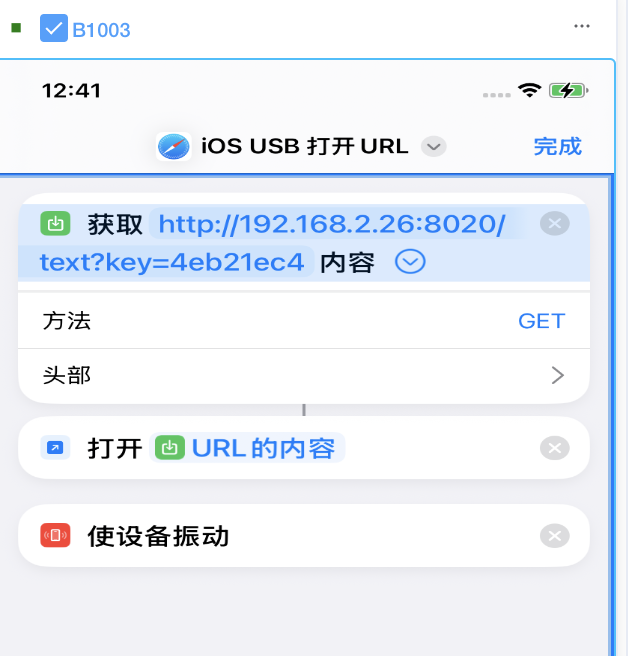
- Bind hotkey same as above
- Test: HID list → Open URL
OCR
- System settings → OCR config — pick an engine
- Right-click thumbnail or main window → Recognize screen text — result goes to the PC clipboard
Other operations
- Zoom: Ctrl + scroll wheel on thumbnail or main window
- Switch main control: thumbnail right-click → Set as main control
- Sync: toolbar Sync or main window 控 button to mirror actions on main + thumbnails
FAQ
Control center crashes
- Install VC runtimes from the cloud drive if system libraries are incomplete
Proxy IPA won’t start automation or crashes
-
- Developer disk image — place images correctly, or mirror once with iTools live screen
-
- Signing — iTools signing may not work; use cloud signing tools
-
- Below iOS 15 system version, proxy IPA may crash on launch — start automation from the control center instead
-
- On iOS 15, automating running after tapping the icon means success
-
- Still crashing on iOS 15 with images in place → signing issue
White screen
- Clear cache:
C:\Users\<user>\AppData\Roaming\iosqkcenter\
Paste permission dialog
- Copying text from phone to PC may prompt for permission
- On the phone: Settings (scroll down) → proxy IPA → Paste from other apps → Allow
Device count
- How to pick a PC, plus customer builds (about 94 mirroring / about 160 script + mirroring): iOS USB PC hardware and customer cases
- Forum post: 94 mirroring devices — https://bbs.ieasyclick.com/thread-619-1-1.html
- Search the forum or ask EasyClick official AI for other hardware
Bluetooth tap not working
- Pair in Settings → Bluetooth on the phone
- Right-click → HID → Restart serial, restart the board (RST), restart both
Bluetooth coordinate offset
- Restart phone and Bluetooth board
Bluetooth drag/tap stuck
- Symptom: mouse moves only occasionally
- Too many events — Bluetooth can’t keep up
- Tap Home/Recents on the thumbnail several times
- Or restart the board (RST)