Skip to content Overview
- Supported version: HarmonyOS Next USB control center 3.2.0+
- Same model as iOS USB Bluetooth BLE: the phone is HID Host only; the PC/control center talks to the ESP32 board over serial or WiFi, and the board sends Bluetooth HID to the phone
- Boards: ESP32-C3 / ESP32-S3, each with soldered-pin and non-soldered firmware — pick chip and board type when flashing
- Bluetooth HID works alongside HDC automation, mirroring, USB HID, etc.; you can combine them or use BLE alone for taps/keys
- Firmware is free; buy boards on Taobao, Pinduoduo, 1688, etc. Example:

- Script API: Bluetooth BLE events
Download firmware
- Cloud drive: HarmonyOS Next resources → USB edition → Bluetooth firmware — download for your board
- Do not flash iOS USB-only Bluetooth firmware
- Choose correctly:
- Chip: C3 / S3
- Board: soldered / non-soldered
- Feature set: use the keyboard build (Home, keys, shortcuts need keyboard HID)
Flash firmware
- Same flow as Android: Flash Android Bluetooth firmware
- Pick HarmonyOS/Android USB Bluetooth firmware, not the wrong platform
- For Bluetooth MAC (name is usually last 8 of MAC), see Android doc Read MAC address; the control center also reads the last 8 digits when binding serial
Device and Bluetooth binding
- Label boards with the last 8 MAC digits; optional phone-side labels for multi-device setups
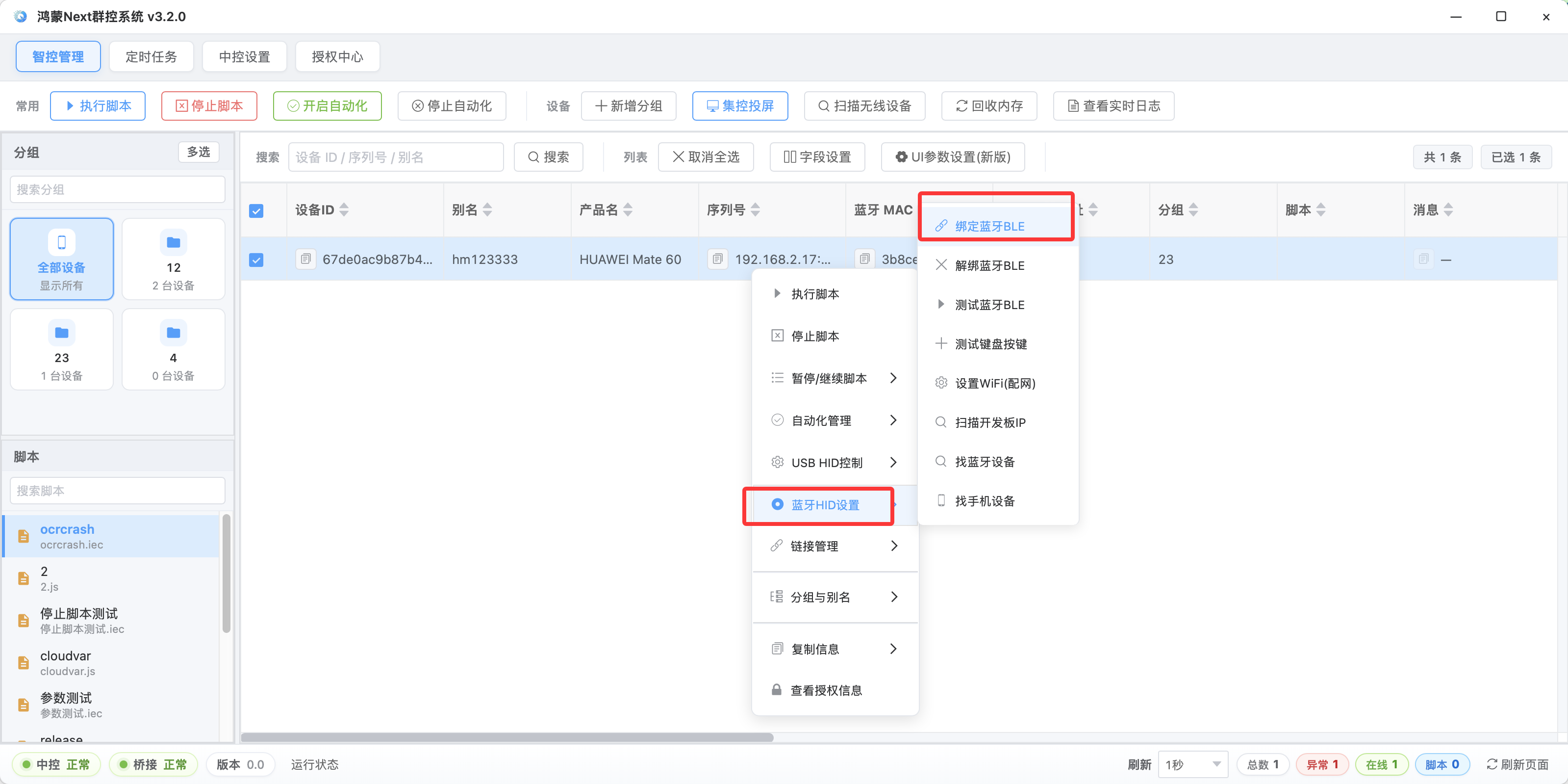
- Open HarmonyOS Next USB control center, select a connected device, right-click → Bluetooth HID settings → Bind Bluetooth BLE
- Pick a connected serial port; if empty, clear Show unbound only filters and Force refresh; or type the last 8 MAC digits manually and bind
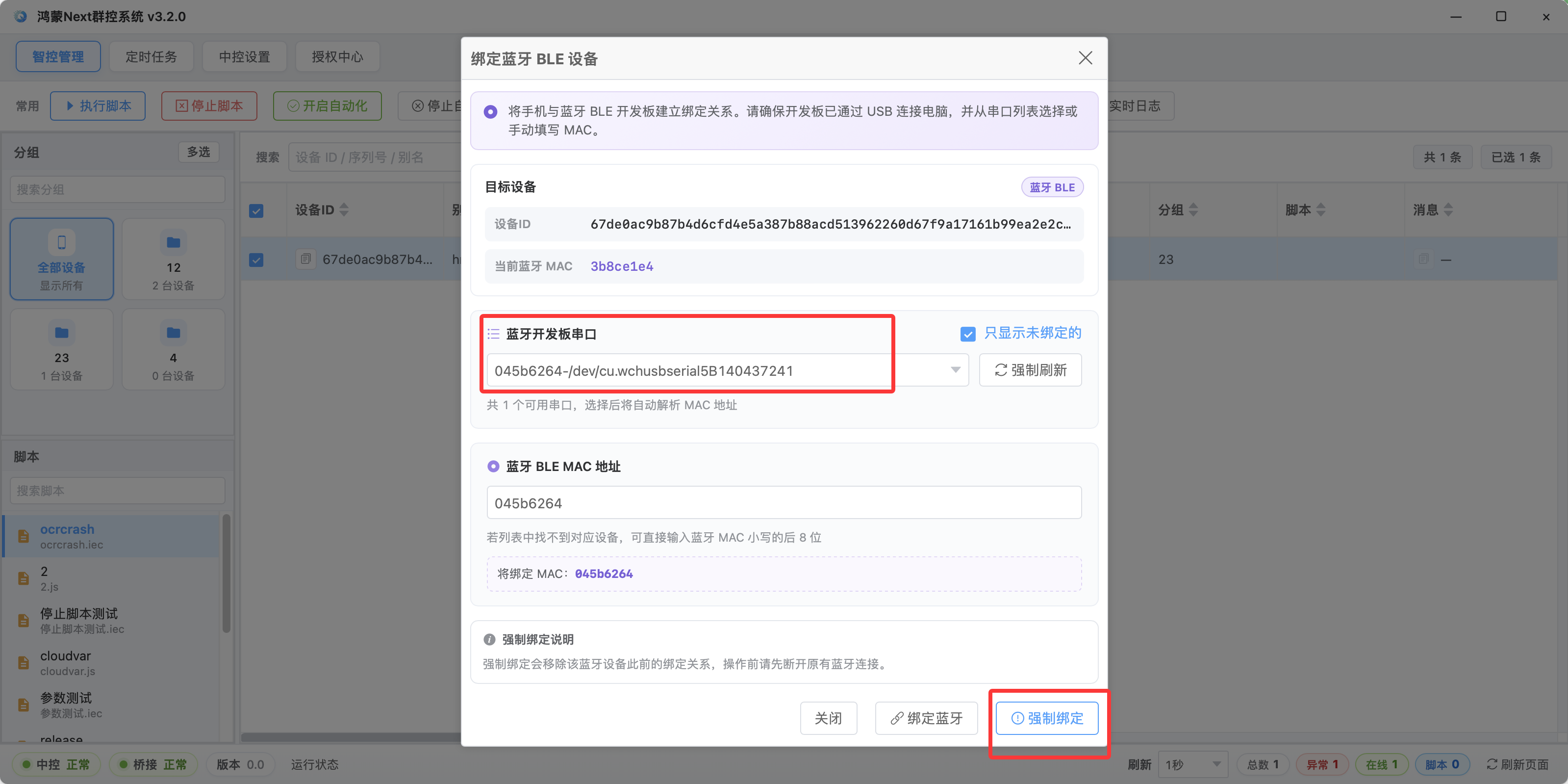
- After bind, Bluetooth MAC should show the hardware address in the device list
- Identity mapping: UDID ↔ bleMac
Test Bluetooth
- After binding, pair the board in phone Settings → Bluetooth (name usually last 8 of MAC; icon may show keyboard/mouse)
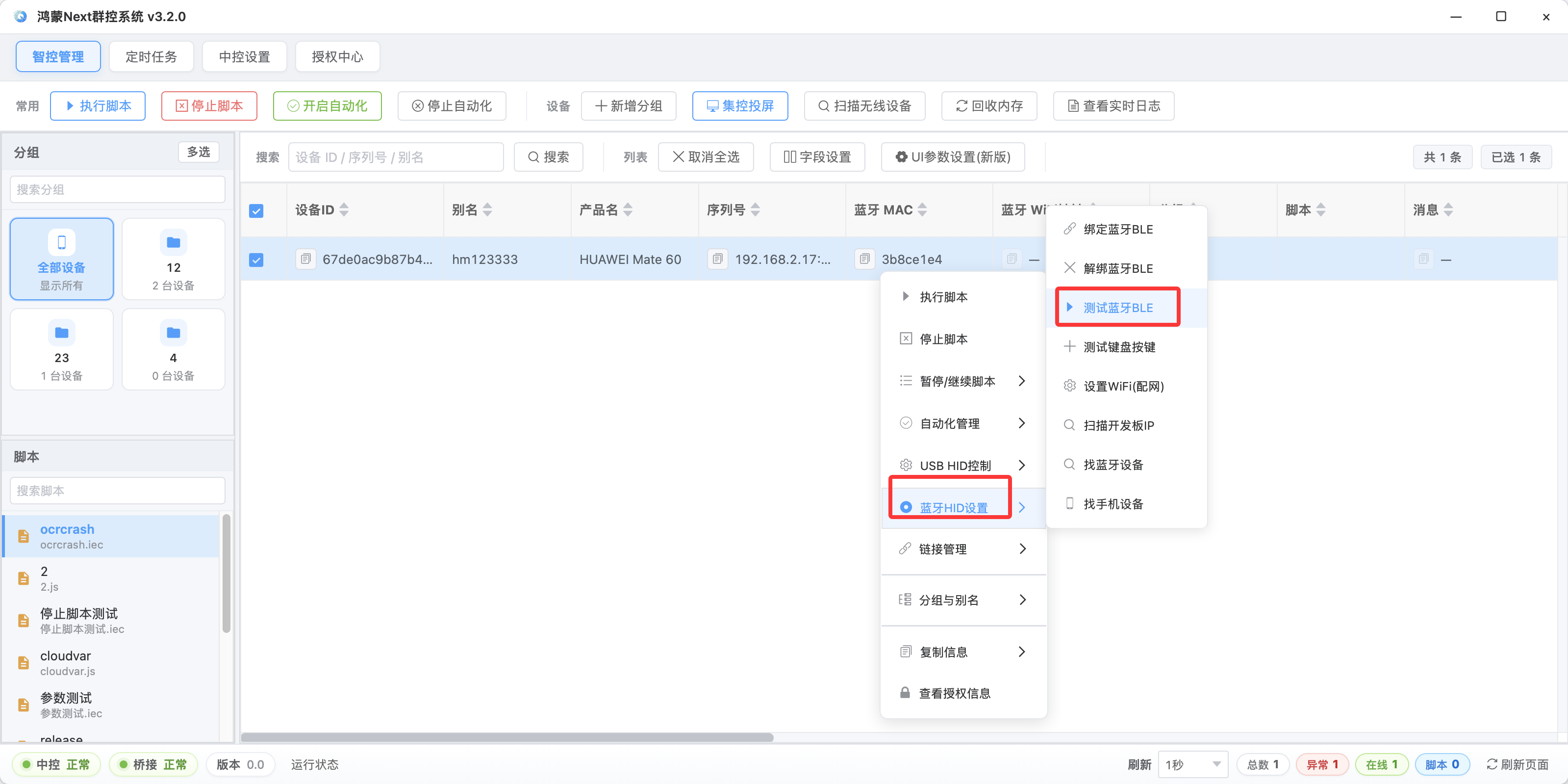
- Control center right-click → Bluetooth HID settings → Test Bluetooth BLE
- Pick communication mode (default serial), click Long press or HOME key — phone should respond
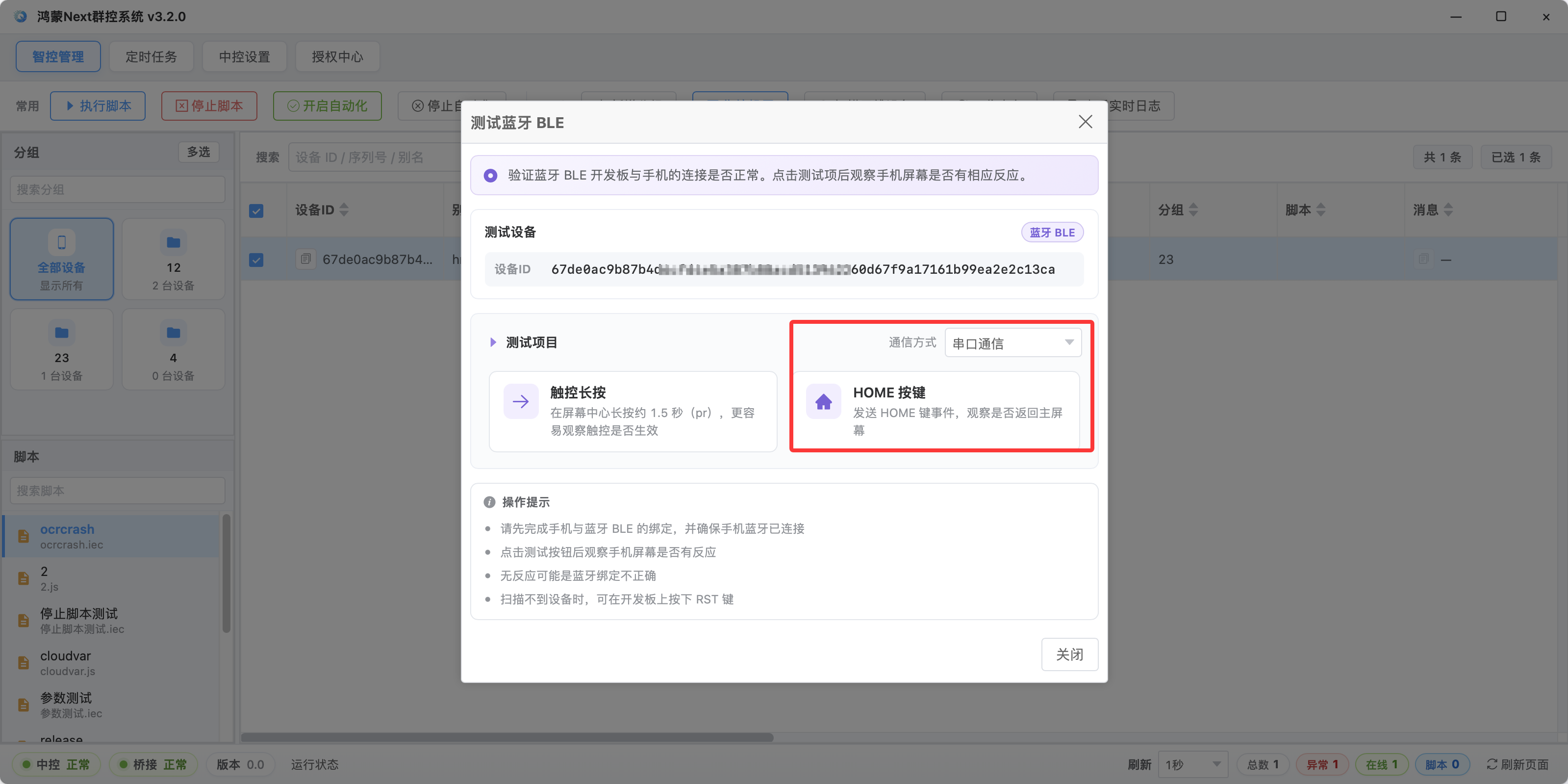
- No response: forget device on phone, press board RST, test again
Communication
- Board communication: serial or WiFi
- Serial: board USB/header serial to PC, no extra provisioning (
bleEvent.setSendCmdType(1))
- WiFi: set board WiFi SSID/password first, then network mode (
setSendCmdType(2))
- Control center right-click → Bluetooth HID settings → Set WiFi info
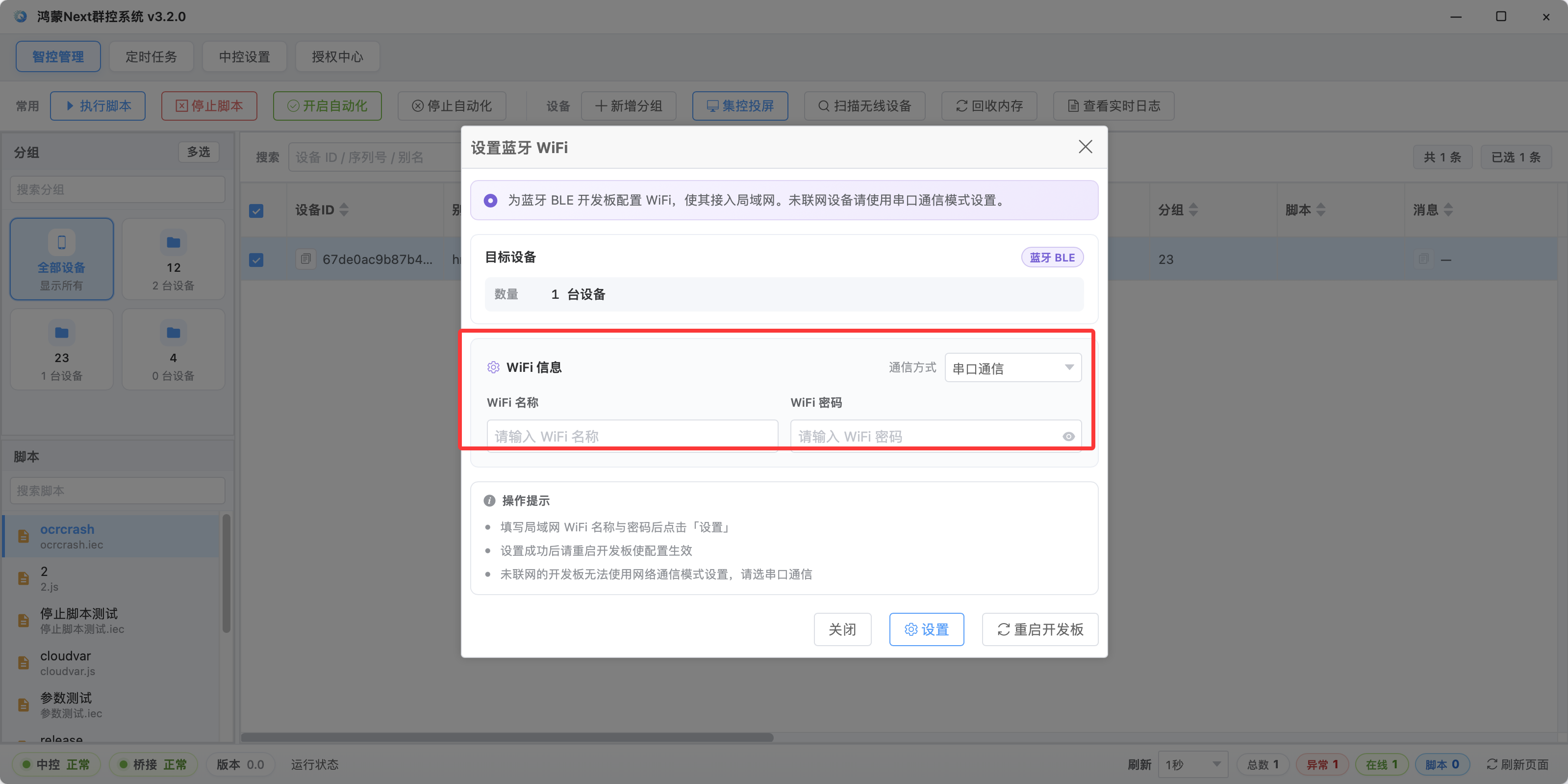
- Reboot board after WiFi setup; control center scans board IP — Hardware IP / Bluetooth WiFi IP column updates
- Auto-scan on control center start when binding is correct — usually no manual steps
Keyboard shortcuts
- Send combo keys (system keys, custom shortcuts); scripts use
bleEvent.keyPressChar
- Control center right-click → Bluetooth HID settings → Add keyboard shortcut
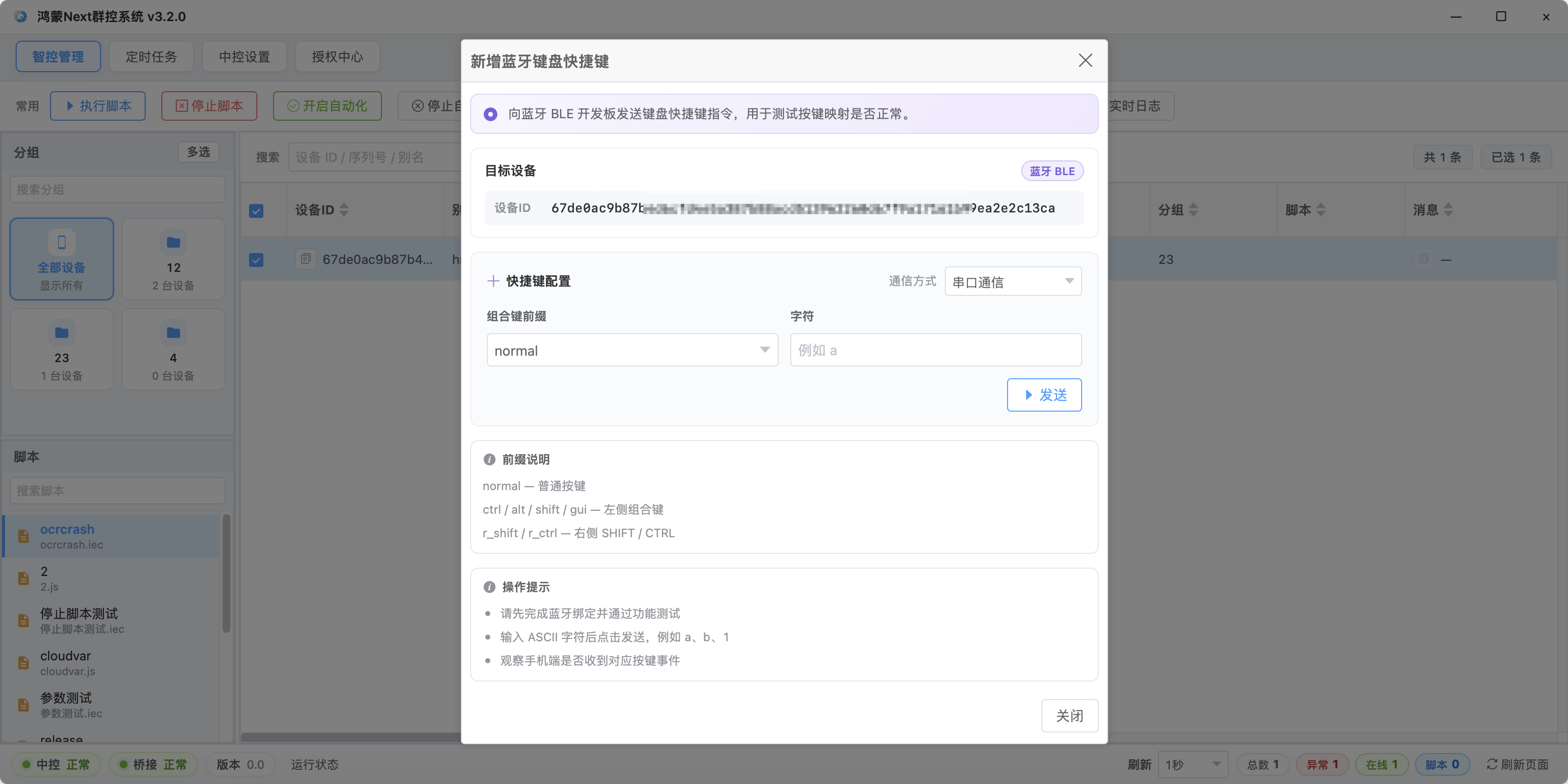
- Pick modifiers (e.g.
gui) and character, click Send on a paired phone
- System keys in test panel or scripts:
home / back / recents, etc. — see Bluetooth BLE events
Automation service running (recommended)
- Chinese and long text: keep using proxy input, e.g. global
inputText
BLE only, automation off
- English/digits/shortcuts via
bleEvent.keyPressChar
- Chinese: enable automation and use
inputText
Screenshots and image/color
- With automation:
image.captureFullScreen, OCR, YOLO, image/color as usual
- Combine with USB HID or BLE taps: capture/find image, then
bleEvent.clickPoint
- Touch uses absolute pixel coordinates — call
bleEvent.setScreenSize(width, height) first (use screenshot pixel size)
FAQ
Bluetooth will not connect
- Hold board RST ~5s, release; forget device on phone and scan again
- One board → one phone at a time; name may hide after connect; before rebind, disconnect and forget on phone, then RST
- Re-power board after flash; toggle phone Bluetooth and search again
Phone-side checklist
- Pair in Settings → Bluetooth; keep Bluetooth on
- Allow keyboard/mouse/input-device prompts after pairing
- Some models need USB debugging (for automation/screenshots) — separate from BLE pairing
Board LED patterns
- Paired: solid ~3s then off
- Disconnected: slow blink ~10 times then off
- Find Bluetooth: fast blink ~15 times then off
Tap offset or inaccuracy
- Missing or wrong
bleEvent.setScreenSize (reset after rotation)
- Wrong communication mode (serial busy, or network without provisioning)
- Bound MAC does not match the USB serial board
Bluetooth MAC not updating in control center list
- Control center ≥ 3.2.0 and running
- Reopen bind dialog in Bluetooth HID settings to verify; unbind and force rebind if needed
- Close flash tools or other serial users before starting the control center
Wireless serial / cannot read MAC
- Restart control center
- Close flash tool after flashing, then start control center to avoid serial conflict
Use with scripts
- Bind UDID to bleMac; phone paired with board
- Typical flow:
setSendCmdType → setScreenSize → openSerial (serial mode) → clickPoint / systemKey / keyPressChar
- Full API: Bluetooth BLE events
- Compare wired USB HID: USB HID events